|
How to get your iPhone or iPad ready for iOS 18 / iPad OS 18
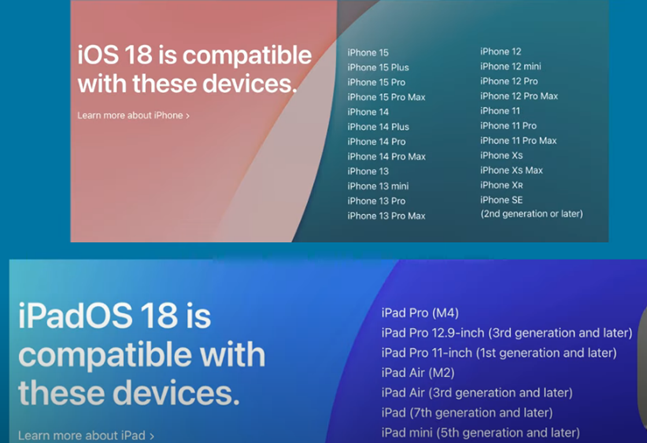
1. Check your iPhone or iPad Model for compatibility with the iOS 18 update:
a. Go to Settings > General > About > Model.
b. See the list above for Devices that will work with iOS 18.
2. Check your Devices' unused storage / free space. You need about 10 Gigabytes to install the update.
a. Go to Settings > General > Phone Storage
b. At the top of the page you'll see "x GB of y GB used". Subtract x from y to determine how much unused memory the phone has.
c. If your iPhone has less than 10 GB of unused memory then to install the iOS update you will need to free up space in its memory. To free up memory:
3. To Free Up space:
a. Apps: Offload unused apps – puts unused apps in your cloud and you can reinstall at any time via the App Store.
b. Photos / Videos – delete old photos or duplicates. Duplicates will be in a separate Duplicates Folder, if you have any.
c. Delete them from the Deleted Album too.
d. Clean up your Messages by deleting them.
4. Back Up your iPhone / iPad
a. Go to Settings > iCloud > iCloud Back Up.
b. Toggle On "Back Up this iPhone / iPad"
c. Toggle On "Back Up Over Cellular" if you have an unlimited data plan.
d. Tap "Back Up Now" (Be sure your device is charged to at least 50% and connected to Power and WiFi - look for the WiFi symbol in the upper right corner.)
5. Be sure to have your Passcode and Apple Password handy to get into your device after the update.
6. You will get a notification on your Settings App overlaid with a RED “1” to inform you that you are eligible for iOS 18 or any eligible iOS update.
a. Then go to Settings > General > Software Updates and follow the screen prompts.
b. You may have automatic updates toggled on (Settings > General > Software Update > Automatic Update*) – Turn on iOS Updates to Automatically Download and Automatically Install. When an update is available, the Device downloads and installs the update overnight while charging and connected to Wi-Fi. You’re notified before an update is installed.
The update will be released on Sept 16.
You will need your Passcode to use your Device after the update.
For those unwilling to take the plunge into iOS 18 immediately (with all its new features and a hefty list of security updates) Apple is releasing iOS 17.7 alongside iOS 18.
- iOS 17.7 contains security patches and bug fixes.
-
If you do not have Automatic Update Enabled - *and now may be a good time to disable it - When you go to Settings > General > Software Updates you will have two choices so you can select iOS 17.7 until you are confident in upgrading to iOS 18.
- Waiting a few weeks for Apple to get the bugs out of iOS 18 is a conservative approach.
*Re-enable Automatic Updates after you finish installing iOS 18, so the future interim updates install automatically and you don't have to be bothered.
SeniorNet is teaching iOS 18 in all our Fall iPhone and iPad classes.
Let us know if you need help.
|