|
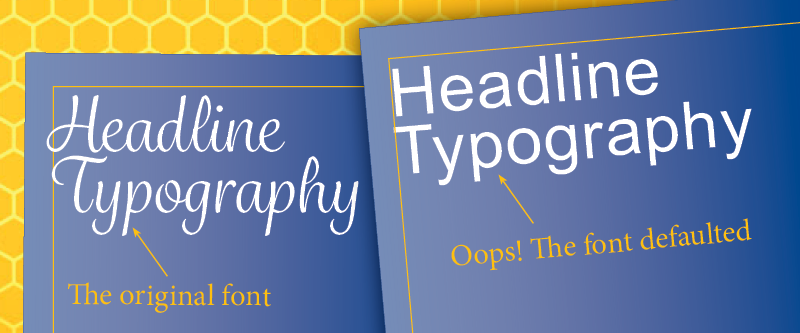
We often request that your designer outline the fonts in a PDF before sending it to us. If this has them heading back to InDesign or Illustrator to outline all the text, then try this quick Adobe Acrobat Pro trick.
Pro tip: Sometimes this process can make small text look more bold than normal, so it's a good idea to work on a copy of your final PDF just in case you don't like the flattened result.
Open the copy of your PDF in the full version of Acrobat Pro (not just Acrobat Reader). Go to File -> Properties and click on the tab Fonts. You'll see the list of fonts that are used in your PDF. Close that window.
Now, go to View -> Tools -> Print Production** -> Open. From the sidebar list of tools, select Flattener Preview. In its dialog box, check Convert All Text to Outlines and All Pages in Document. Click the button Apply. Look closely at the preview. Look good?
Now, go back to File -> Properties and click on the tab Fonts. The list should be blank!
** If Print Production is missing in Acrobat's list of tools, you can add it at Edit -> Manage Tools.
|