|
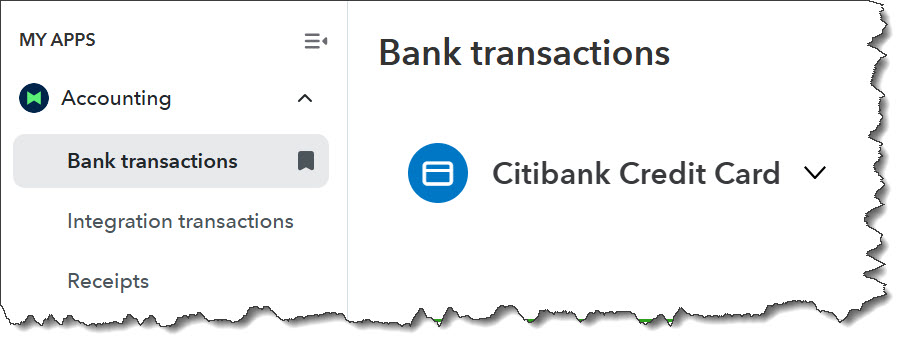
You’ll now find Bank transactions in My Apps. You’ll start here when you’re connecting to a new financial account.
With the Dashboard open (left toolbar), click the Accounting “App” in the upper left. Click Bank transactions in the list that opens. Click Link account on the right side of the page. If your bank appears in the list that comes up, click it. Otherwise, you can enter its name or sign-in URL in the search box at the top. Follow the instructions for your specific bank and account to make the connection and start importing transactions.
Update your QuickBooks Online data as thoroughly as you can
QuickBooks Online updates your imported account transactions on its own sometimes. But before you reconcile, do a manual refresh. Go to the Accounting App again, to the Bank transactions page. Click Update in the upper right.
Add any missing data to QuickBooks Online. Have you forgotten to document payments, for example? Wrote a paper check and didn’t enter it on the site? Made a bank deposit and neglected to put it in QuickBooks Online?
If you import transactions, make sure you’ve gone through all the ones that have cleared and marked them so. This is something you should be doing every time you open QuickBooks Online, but check again before reconciling. Again, you’ll be working on the Bank transactions page. You may notice that the “new” version of the site does a better job of guessing at transaction categories, but check them for accuracy and change them if they’re not the best option.
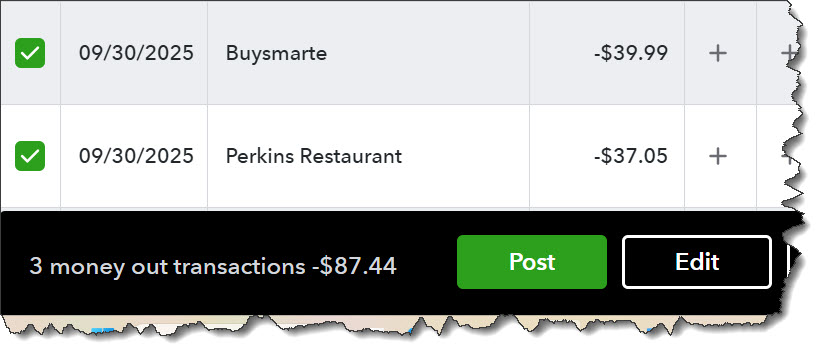
Click the Match button at the end of a row if you think QuickBooks Online has found an invoice that matches a payment, for example. Click the transaction itself to see all of your options there. When you’re satisfied that all the transaction’s details are correct, click the box in front of it. You’ll see a panel like the one pictured below. Click Post.to move it into the Posted list.
|