|
Create a New Bill Pay Account
1. Visit HMAA’s new bill pay system with Paymentus at hmaa.com/billpay.
2. Select Register Now.
3. Fill in the required account information and select Enroll.
4. Input Policy Number and Division Number separated by a hyphen (ex: 12345-1), and the
division PIN from your current HMAA bill.
- Each division must be added to your bill pay account separately.
- The PIN is required for initial setup and remains valid until the next billing cycle, around the 12th of the month, then changes to a new PIN.
5. Enter an Account Alias of up to 50 characters such as the Policy/Division Name to help you identify it (optional).
6. Select your preferences for E-Bill and Bill Summary Notifications.
7. Select Add Account. Once created, you can edit your preferences at any time or add another policy/division to your account.
Make a Payment
- AUTOPAY (Recurring Payment)
-
Log in to your bill pay account.
-
Select AutoPay and Add Schedule.
-
Select an Account or Add New, input your desired payment method*, then Continue.
-
Select Frequency (e.g., bill amount on a specified day of the month), then Create AutoPay.
- Once created, your Autopay Schedule will appear in your account.
-
Visit hmaa.com/billpay.
-
Select Pay Now or Login to your bill pay account.
- Input the required account and payment information.*
-
ONE-TIME PAYMENT BY PHONE
-
Call 866-793-0242.
- To make selections, use your keypad or voice.*
Note: If your company has security measures in place that may block payments to new vendors, please contact your financial institution in advance to ensure HMAA’s bill pay vendor, Paymentus, is approved as a payee (Company Name: Paymentus Corporation; Originator ID: 0000000160).
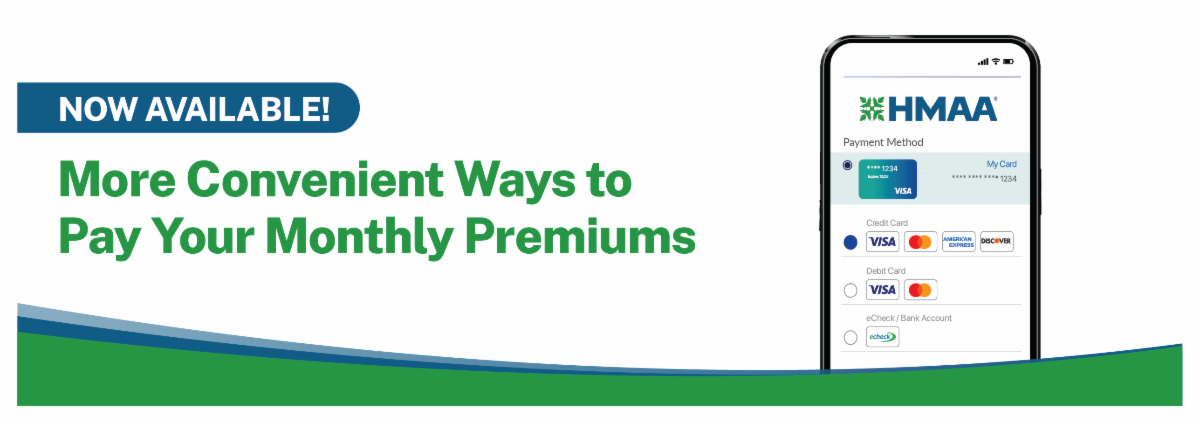
* HMAA accepts ACH, e-check, and debit card payments with no fees, or you can pay by credit card with a 3% surcharge to Paymentus that is not applied toward your HMAA premium. HMAA does not accept credit card payments from Connecticut, Maine, or Massachusetts.
|