Please click Trust Sender if prompted by your email application. This will help ensure you receive important HMIS updates and see all available materials provided in our messages.


HMIS TX-500 Newsletter

June 2026

HMIS User Directory Enhancement

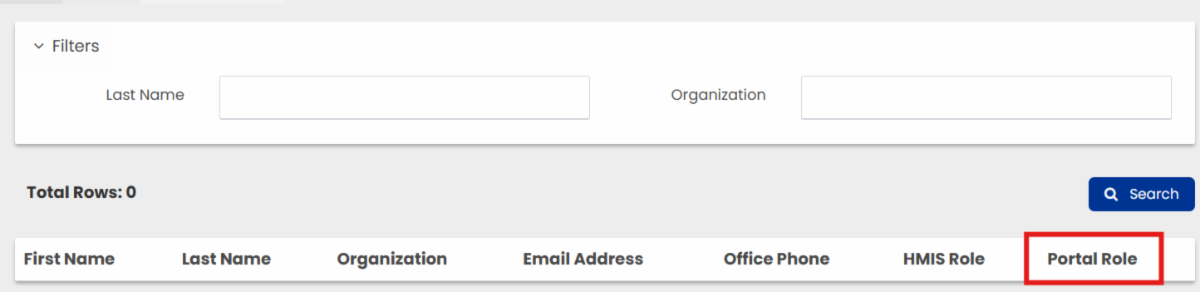
The HMIS User Directory has been updated to include a new column indicating whether an end user has Mobile Portal access. This enhancement provides improved visibility into user access settings.


Navigation:

Case Management > HMIS Custom Solutions > HMIS User Directory

API Policies

API policies have been added to the HMIS Policies and Procedures with information on establishing API connections, importing data into HMIS and retrieving data from HMIS.


You can view the HMIS Policies and Procedures by visiting our Resources page.

Re-Enrollment of a Previously Exited Household Member Procedure

A new procedure for the Re-Enrollment of a Previously Exited Household Member has been developed and will be added to the HMIS local policies documents. Review the procedure below to familiarize yourself with the guidelines.


"Situations may arise in which a household member returns to an enrollment after previously exiting the project. This occurs when an entire household is enrolled together and one household member exits the project prior to the remaining members. In these instances, the household enrollment record will reflect one member as exited while the remaining members, the household enrollment, continue to reflect as enrolled.


Example case: A family resides together in a PSH enrollment, and one parent is exited from the program due to incarceration. Upon release, the parent returns to the household and resumes participation in the program.


If a previously exited household member returns while the family's enrollment is still open, the member's enrollment re-opened to the existing household enrollment. The client record must be updated by removing the exit date and deleting any associated exit assessments for that project. The enrollment will then reflect entry and exit dates for the client as though they had not left the enrollment. This procedure aligns with the HUD and ESG standards for length of assistance for household members because it considers the returned member a part of the family unit throughout the duration of the enrollment. The situation is only considered a change in family composition if the member leaves permanently.


End users must submit a ticket through the HMIS ticketing system, including the Client ID, Enrollment ID, and any other relevant details to request that the enrollment be reopened for the client."

Client Merges

The HMIS System performs automatic client profile merges each night when two profiles contain matching information for all of the following fields:


  • First Name
  • Last Name
  • Date of Birth
  • Social Security Number


The full Date of Birth and full Social Security Numbers must be entered. Partial or approximate answers cannot be automatically merged. If client has no Social Security number, the profile cannot be merged.


Please note that if multiple family compositions are involved, additional assistance from the HMIS team may be required.


Client Merge Log Report


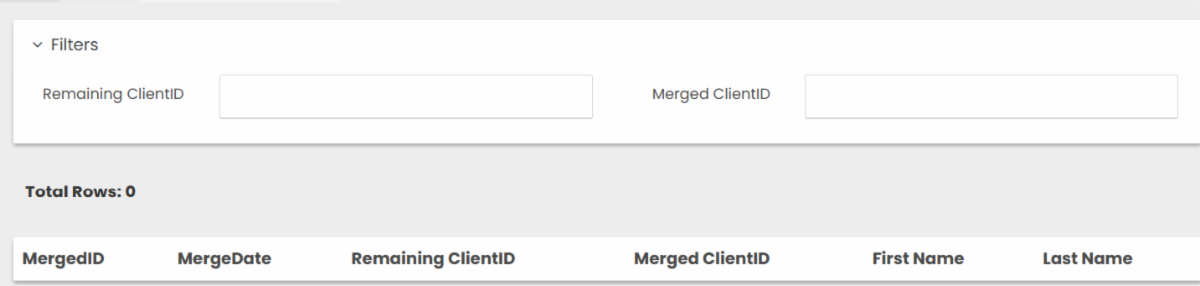
The Client Merge Log provides a record of all automatic merges completed by the system. Users can search using either the client’s old ID or new ID to review merge activity, including the date the merge occurred. Please note this report began recording on 3/25/25. Merges that occurred before that date will not appear on the log.


Navigation:

Reports > Operational > Client Merge Log

Family Enrollment Training

The HMIS Team held a virtual Family Enrollment & Exit Training session last month that covered the following topics:


  • When a family enters together
  • When a family exits together
  • When one family member leaves early
  • When one member enters late
  • When a member leaves and returns


If you missed it, the recorded session is available here!

HMIS Mobile Portal

Updates & News


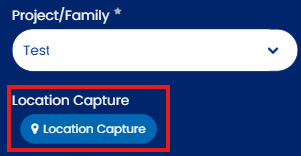
  • Featured Highlight - Location Capture: When entering services, the mobile portal is able to use the device's location to capture the physical location the service was provided in. The user will select the 'Location Capture' button after selecting the project in order to record the location. 

Known & Resolved Issues


  • HUD Program Assessment: There is a issue that occurs intermittently in which the HUD Program Assessment questions do not populate correctly which prevents end users from moving forward in a workflow. 


Status- Vendor pushed fix to production. HMIS team is currently verifying it is working as expected.


  • Selecting Project when adding a Case Note: When an end user fills out a Case Note the 'Program Enrollment' data element allows the user the option to select a project. The dropdown does not display any projects even when the client has an active enrollment.


Status- Reported to Vendor. Vendor is currently investigating and working on a resolution.

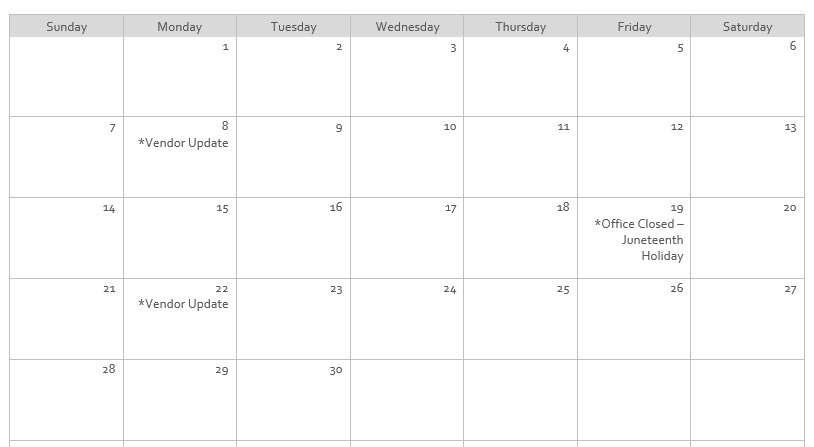
June 2026 Calendar

Hints, Memos, Inklings, & Shortcuts!

HMIS Project Naming Convention

HMIS Project names in our system use a naming convention that provides project information at a glance:


[Agency Acronym] [Name/Descriptor] [Funding Source(s)] [Project Type]


Example project: HMIS Testing ESG RRH


  • Agency: HMIS
  • Name/Descriptor: Testing
  • Funding Source: Emergency Solutions Grant
  • Project Type: Rapid Re-Housing

HUD Exit Destinations

HUD reports often categorizes exit destinations into homeless situations, temporary housing situations, permanent housing situations, and other. Knowing what each destination is considered can be helpful when understanding reports.

Homeless Situations

  • Place not meant for habitation (e.g., a vehicle, an abandoned building, bus/train/subway station/airport or anywhere outside)
  • Emergency shelter, including hotel or motel paid for with emergency shelter voucher, Host Home shelter
  • Safe Haven

Institutional Situations

  • Foster care home or foster care group home
  • Hospital or other residential non-psychiatric medical facility
  • Jail, prison, or juvenile detention facility
  • Long-term care facility or nursing home
  • Psychiatric hospital or other psychiatric facility
  • Substance abuse treatment facility or detox center

Temporary Housing Situations

  • Transitional housing for homeless persons (including homeless youth)
  • Residential project or halfway house with no homeless criteria
  • Hotel or motel paid for without emergency shelter voucher
  • Host Home (non-crisis)
  • Staying or living with family, temporary tenure (e.g., room, apartment, or house)
  • Staying or living with friends, temporary tenure (e.g., room, apartment, or house)
  • Moved from one HOPWA funded project to HOPWA TH


Permanent Housing Situations

  • Staying or living with family, permanent tenure
  • Staying or living with friends, permanent tenure
  • Moved from one HOPWA funded project to HOPWA PH
  • Rental by client, no ongoing housing subsidy
  • Rental by client, with ongoing housing subsidy
  • Owned by client, with ongoing housing subsidy
  • Owned by client, no ongoing housing subsidy

Other

  • No exit interview completed
  • Other
  • Deceased
  • Client doesn’t know
  • Client prefers not to answer
  • Data not collected


FY 2026 HMIS Data Standards Manual, Page 162

Reminders & Resources

  • Google Chrome is the recommended browser for using HMIS.
  • Make sure your pop-up blocker is set to allow pop-ups from HMIS.
  • Contact the HMIS Team within 24 hours of employee termination/departure for account deactivations.
  • Project Managers: Please inform the HMIS Team if projects are no longer being used so we can deactivate them.
  • Vendor updates occur every two weeks. Notifications are sent day of.

Why am I receiving this email?

If you are receiving this email, it is because you either have an active San Antonio/Bexar County HMIS account, or you are designated as an important point-of-contact for HMIS-related updates. As an HMIS User, it is important for you to stay up-to-date on all major updates regarding the database.


We ask that you do not Unsubscribe from these alerts as long as you use HMIS.


If you believe this description no longer applies to you, please submit a ticket to HMIS.Support@Havenforhope.org to request your account be deactivated.


(Our Contact lists are uploaded on a monthly basis, so please allow time to account for this.)