***For RWJBH and Rutgers Providers Live on Epic*** | |
|
To all who celebrate, Happy Diwali!
- Wishing you, your family, and your friends knowledge, happiness, peace, wisdom, truth, and prosperity.
- Enjoy the Festival of Lights!
| |
|
Provider Top Stories
Attn: Physician Leaders and Practice Managers! Share these key items in your meetings:
Ambulatory and Inpatient Providers:
- Information Blocking / Open Notes Reminder
Inpatient Providers:
- L&D Providers: "Prepare" for L&D OR Procedures to order blood
- Refresh: Provider Care Teams & Finding Patients in Epic
Ambulatory Providers
- Use Epic's Express Lane
- Reminder: Close Encounters & Three-Day Encounter Closure Timelines explained
| |
Information Blocking / Open Notes Reminder: | |
|
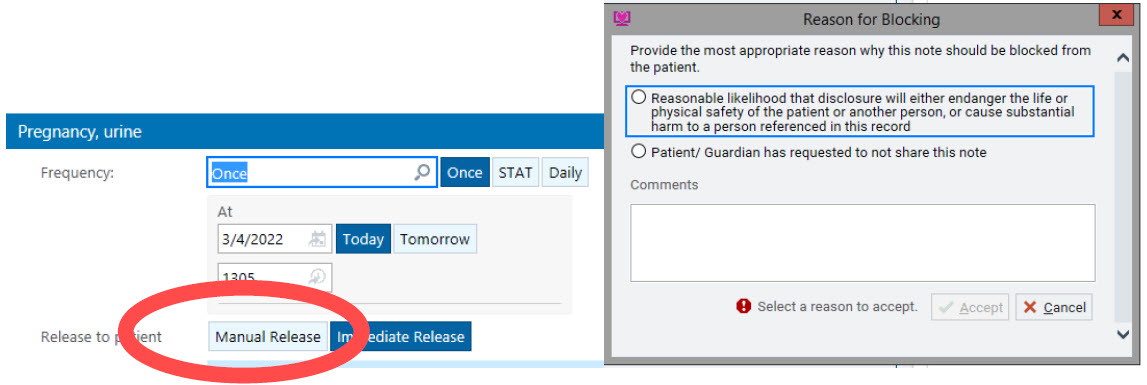
Patients may view results and clinical notes in real-time via RWJBH MyChart Patient Portal
Open Notes Impact on Lab Results:
This means that patients may view lab results before their provider has had opportunity to review them.
- Labs that meet the requirements for delaying to the portal will have the option to manually release the result at the time of order entry.
- The provider will then be responsible for sending the result to the portal at their discretion.
|  | |
Open Notes Impact on Clinical Notes:
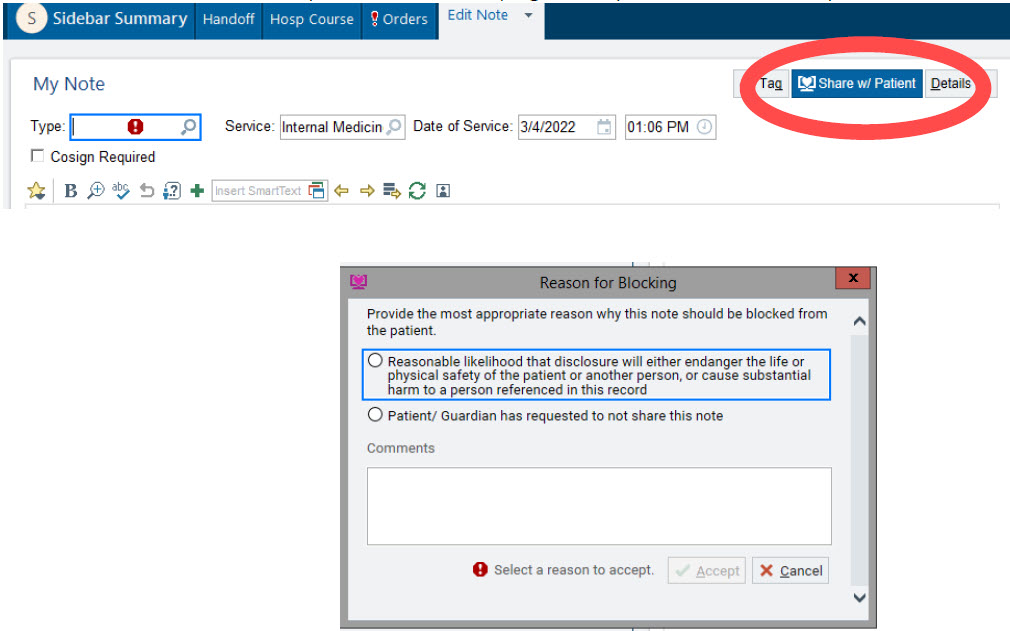
- Documents that are permitted to be withheld from the portal (e.g., behavioral health notes) will have the option to unselect “share w/ patient" at the time of Document Signature.
- A Reason for Blocking will be required to withhold the note.
| |
L&D Providers: Ordering OR Blood | |
|
Prepare for L&D OR Procedures - Ordering Blood
- When ordering blood for L&D OR patients, a “Prepare” order must be entered in advance or placed intra-procedure by the anesthesiologist or surgeon.
- Reason: The Blood Bank receives notification of potential blood needs based on that "Prepare" order.
- The order can be signed or signed/held (whichever is appropriate for your patient).
- Please click here for the "Placing a Blood Order in the OR" tip sheet.
-
Key Takeaway: Blood on hold for the OR has been replaced with ordering the Prepare order for the products in Epic
| |
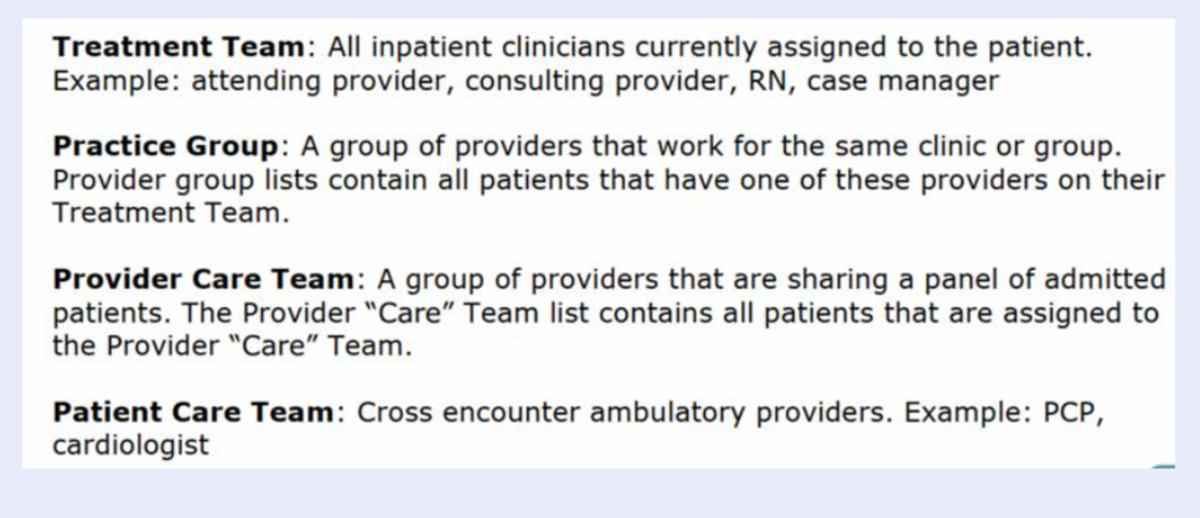
Provider Care Teams Refresh - Finding Your Patients in Epic
- In Epic, there are multiple ways to locate your patients.
If you are part of a Provider Care Team, it's easy to sign yourself into a Team during Sign-in:
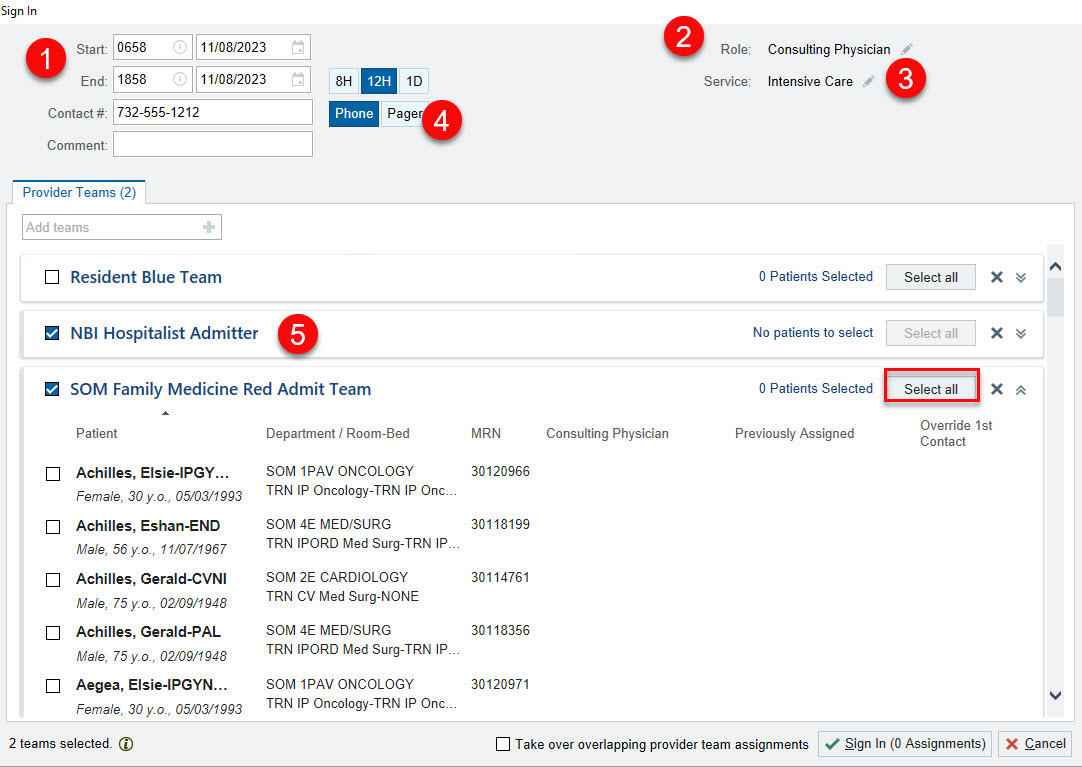
- When you log into Epic with your unique Username and password, you will be prompted with a Sign In pop-up to assign yourself to the Provider Team.
- Verify the following information when you complete Sign-In:
- Your start and end time
- Your role
- Your Service
- Your Contact info
-
Select your Provider Team(s)
- This allows you to select Your Patients.
-
You can also click Select All.
| |
|
Adding a Patient to the Provider Care Team:
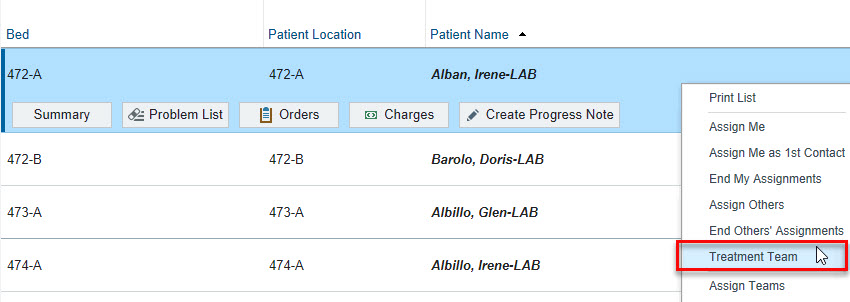
- Go to Patient Lists.
- Search for and highlight the patient on the Patient List.
-
Right-click on the patient and select Treatment Team from the menu.
|
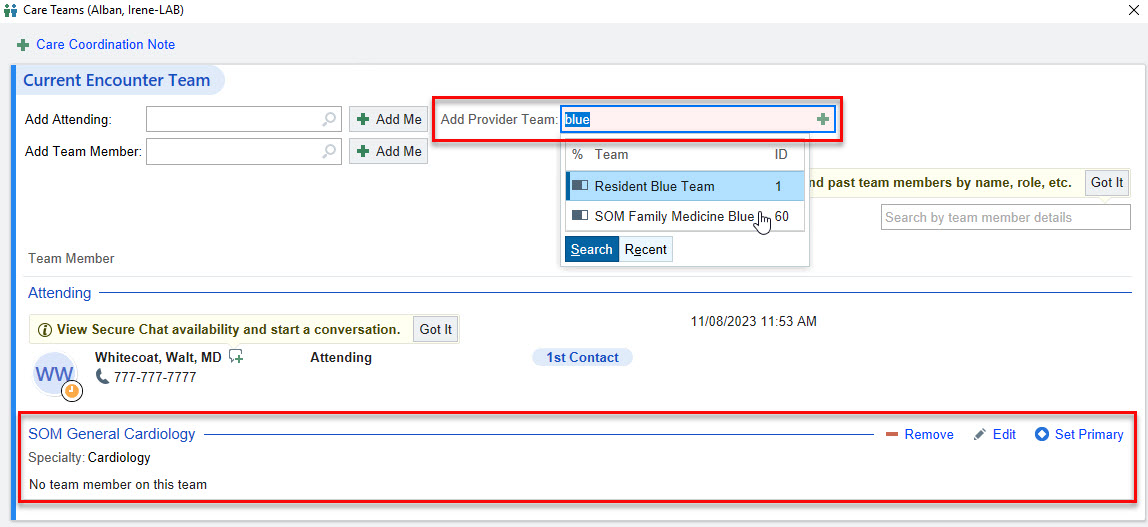
- Search for and select the Provider Care Team or select Add Team and select the Provider Care Team from the list.
-
Click Accept.
| |
|
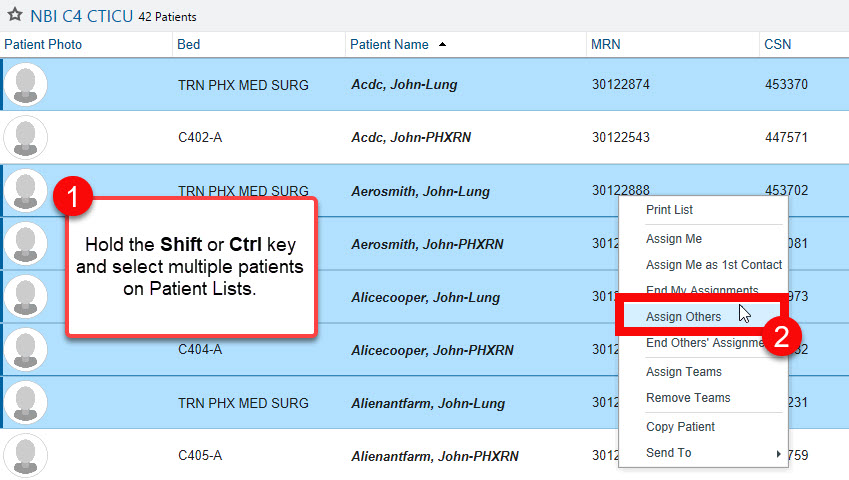
Updating Attending Provider for Multiple Patients:
- Go to Patient Lists.
-
Hold the Shift or Ctrl key on your keyboard and highlight multiple patients on the Patient List.
-
Right-click and select Assign Others from the menu.
|
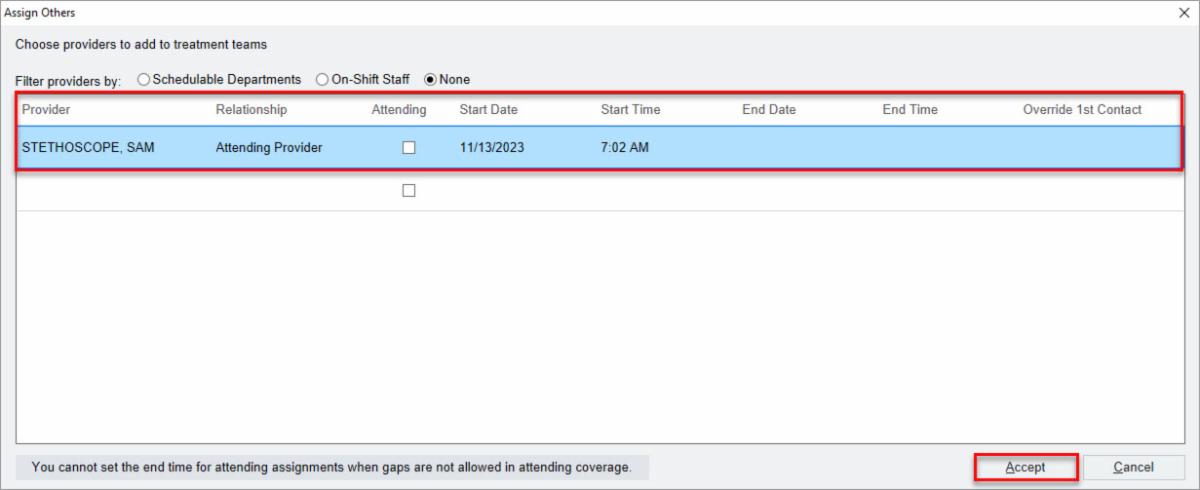
- Select the Provider, Relationship, Start Date and Start Time.
- You may also update the End Date, End Time, and Override 1st Contact, if necessary!
-
Click Accept.
| |
|
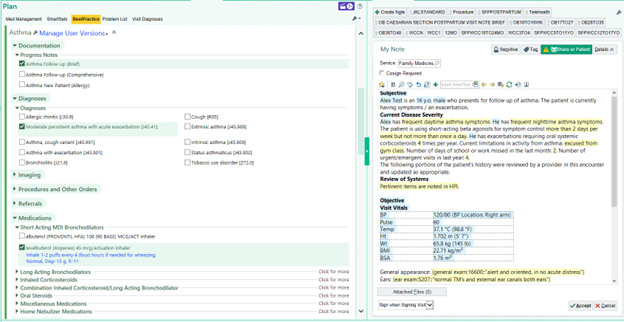
Use Epic's Express Lane Functionality!
Epic’s Express Lane is an efficiency tool that allows a provider to document a repetitive/straightforward visit on a single screen with just a few clicks.
There are currently approximately 120 Express Lanes available for use for various types of visits.
Some Express Lane examples include Asthma, Medicare Wellness Visit, Well Child visits, Chronic Cough, Cerumen Impaction, and Urinary Tract Infection.
Documentation elements available for use in Express Lanes vary by topic but can include:
- Note templates
- Reasons for Visit
- Diagnoses
- Orders
- Levels of Service
- Patient Instructions
- Follow-up instructions
- A Communication Management section
- Charge Capture section
| |
Epic's Express Lane Q&A:
Express Lane Frequently Asked Questions (FAQs)
Q: Where can an Express Lane be found in Epic?
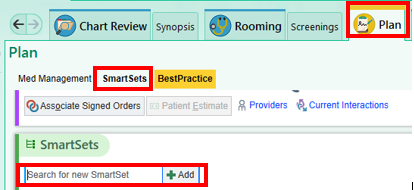
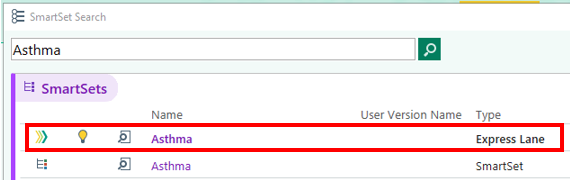
A: Navigate to the Plan tab, SmartSets section. An Express Lane can be found by searching for the topic to be documented.
| |
Express Lanes are denoted by the right-facing, multi-colored chevron. | |
|
Q: Sometimes an Express Lane will automatically launch. Why does this happen? Is it required for use?
A: If a visit meets specific criteria, an Express Lane can be setup to either be suggested or to launch automatically. A few criteria examples that can be set for a visit to match to include visit type, department, and reason for visit.
If the Express Lane automatically launches, click Exit to remove the Express Lane, if it does not meet the needs of the visit.
| |
|
Q: Can I save and customize an Express Lane?
A: Some, but not all, Express Lanes allow a copy to be saved. The Express Lane can then be customized to personalize the note template with a created SmartPhrase or SmartText. In addition, Diagnoses, Orders, Level of Service, and Follow-up instructions can be saved as preselected defaults along with saving preferred order details.
If the Express Lane can be customized, a Manage User Versions hyperlink will be present next to the name of the Express Lane.
| -
When the drop-down arrow is clicked, a Create My Version option is available, allowing for personalization.
| |
Reminder: Complete Your Encounters in a Timely Fashion
-
RWJBH's Chart Completion Standards Policy reflects Joint Commission, CMS, and NJDOH patient safety best practices:
-
Ambulatory - A best practice is to close your encounters within 24- hours.
-
Encounter closure within 3-Days is mandatory.
To avoid escalation, please close encounters within 3-days!
Click here to review RWJBH's Chart Completion Standards Policy.
| |
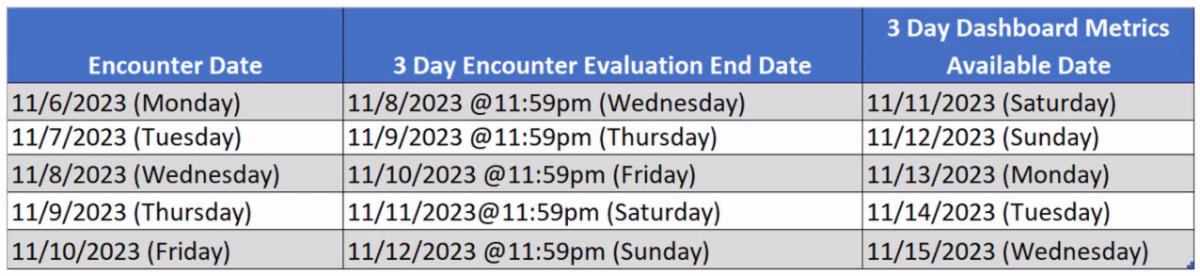
Three-Day Encounter Closure Timeline Explained
- Whether your patient Encounter is at 9:30 AM or 4:30 PM today, the 3-Day Encounter Closure time frame will end at midnight two days later.
- Please see the grid below for additional information about ensuring you are following RWJBH's 3-Day Encounter Closure Policy!
| |
Recent Newsletter Content Reminders | |
|
Refresh on Recent Newsletter Stories:
If you missed an important communication in last week's newsletters, click the links below for an efficient review:
| |
Dedicated Provider Support | |
|
Wave 5 Providers, please Save these Important Numbers:
-
Dedicated Provider Help Desk: 855-453-1948
-
Epic Training Provider Hotline: 732-658-4820
-
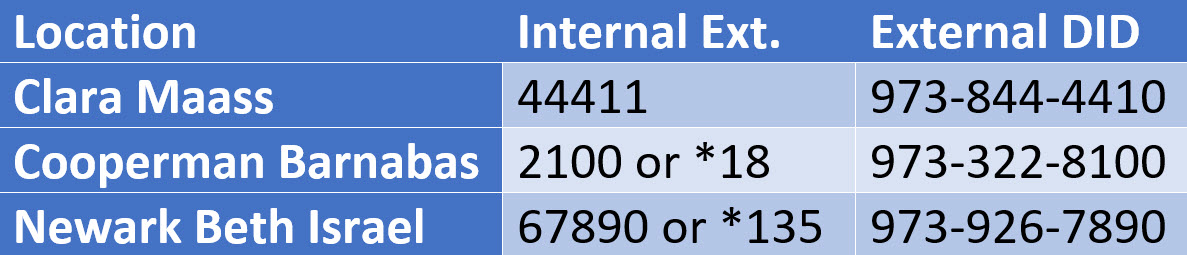
Inpatient Providers and Clinicians, 24/7 support is available! Dial the numbers below from an inside Hospital line!
| |
Wave 5 Providers, here are your Go-Live Support Resources:
To be viewed on your mobile device:
To be printed and posted:
To view the unit crosswalk documents, click the links below:
| |
Heartfelt thanks to Ronica Velardi, Epic Communications Team Lead, for this week's Good Humor submission. | |
|
Review the Epic How to Get Help Flyer!
| |
Live Site Epic Provider Print Edition! | |
|
Phone a friend:
Our cell numbers are available below.
Please call with any questions or concerns.
| |
RWJBH-Rutgers Medical Leadership Team | |
|
Dr. Joshua Bershad
EVP, Physician Services;
Clinical Assistant Professor of Medicine Rutgers Robert Wood Johnson Medical School
Joshua.Bershad@rwjbh.org
Cell: 973-202-0900
Dr. Frank Sonnenberg
Chief Medical Informatics Officer, RWJBarnabas-Rutgers Medical Group; Professor of Medicine, Rutgers Robert Wood Johnson Medical School
Frank.Sonnenberg@RWJBH.org
Cell: 908-313-6563
Dr. Carol Ash, DO, MHCDS, MBA, FACHE, CPHQ, CHCQM-PHYADV
Chief Medical Officer
Robert Wood Johnson University Hospital Rahway
Carol.Ash@rwjbh.org
Phone: 732-499-6134
Cell: 732-857-6535
Dr. Seth D. Rosenbaum, MD, MMM
SVP, Chief Medical Officer Robert Wood Johnson University Hospital Hamilton;
Clinical Assistant Professor, Department of Medicine, Rutgers-Robert Wood Johnson Medical School
Seth.Rosenbaum@rwjbh.org
Phone: 609-584-2865
Cell: 609-508-7951
Dr. Charles Markowitz, MD, JD
Chief Medical Officer Monmouth Medical Center Southern Campus
CharlesRaymond.Markowitz@rwjbh.org
Phone: 732-942-9400
Dr. Meika Neblett, MD
Chief Medical Officer
Community Medical Center
Meika.Neblett@rwjbh.org
Phone: 732-691-1915
Cell: 732-557-8264
Dr. Charles Cathcart, MD
Chief Medical Officer
Newark Beth Israel Medical Center
Charles.Cathcart@rwjbh.org
Phone: 973-926-7320
| |  |
|
Dr. Sal Moffa
Chief Medical Officer, RWJUH Somerset
Salvatore.Moffa@rwjbh.org
Phone: 908-685-2816
Cell: 609-238-5248
Dr. Stephen O’Mahony
SVP & Chief Health Information Officer, RWJBarnabas Health;
Clinical Associate Professor of Medicine, Rutgers New Jersey Medical School
Stephen.OMahony@rwjbh.org
Phone: 973-322-4231
Cell: 203-820-6519
Dr. Deborah L. Toppmeyer
Professor of Medicine, Robert Wood Johnson Medical School; Chief Medical Officer, Chief, Division of Medical Oncology, Director,
The Stacy Goldstein Breast Center
Rutgers Cancer Institute of New Jersey, Rutgers
The State University of New Jersey
deb.toppmeyer@rutgers.edu
Phone: 732-235-9692
Dr. Kenneth Granet, MD, FACP
Chief Medical Officer
Monmouth Medical Center
kenneth.granet@rwjbh.org
Phone: 732-923-7518
Dr. Ije Akunyili, MD,
MBA, MPA, FACEP
Chief Medical Officer
Jersey City Medical Center
Ijeoma.Akunyili@rwjbh.org
Dr. Frank Dos Santos, MD,
Chief Medical Officer
Clara Maass Medical Center
Frank.DosSantos@rwjbh.org
Phone: 973-450-2007
Dr. Michael Loftus, MD
Chief Medical Officer
Cooperman Barnabas Medical Center
Michael.Loftus@rwjbh.org
Phone: 973-322-5733
| | | | |