Epic Adviser Masthead2 _6-6-22_.jpg

January 17, 2024

Epic Advisor Top Stories

Attn: Managers and Leaders! These key items must be addressed in your Daily Huddles:

Ambulatory and Inpatient Huddle Topics:

Inpatient Huddle Topics:

Ambulatory Huddle Topics

  • Close Erroneous Encounters Quickly with Visit Information!

Epic News

Make it easy on yourself and the Help Desk! Use "Get Help" in Epic!

When you open a Get Help Ticket directly in Epic, your name, contact information, Epic workflow context, and patient/MRN information are all automatically recorded for optimal problem resolution.

  • Opening Help Desk incidents using Get Help directly in Epic offers three distinct benefits:
  1. The automatic recording of your information will save you time!
  2. Fewer calls to the Help Desk will free them up to work on other incidents (And prevents you from waiting on hold to open a ticket via the same phone call!).
  3. Key information about your issue will ensure prompt resolution of your incident!

Here's how it works:

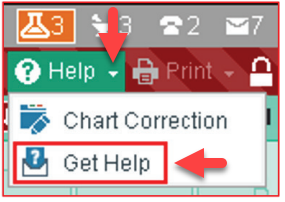
  • Click Help Get Help in Epic!
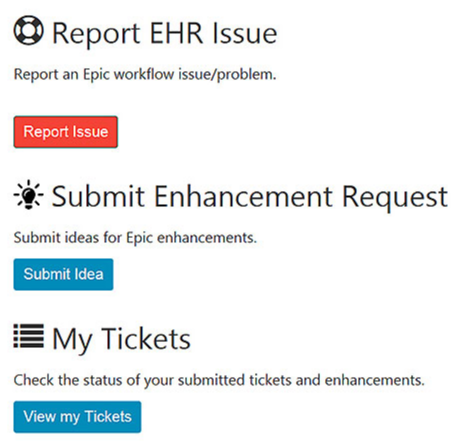
  • Once the Report EHR Issue page launches, you have three options:
  1. Click Report Issue to open a Help Desk Incident, addressing an issue within Epic.
  2. Click Submit Idea to suggest an Epic Enhancement, an opportunity to improve Epic functionality.
  3. Click View My Tickets to check status of your currently open Help Desk items.

Click here to learn more about using Get Help in Epic!

Coming Soon: Exciting Epic Enhancements

Preview Next Week's Epic Enhancements!


  • Thank you to the Epic Together Project Team for these amazing enhancements!

Inpatient Nursing and Allied Health Focus

Document Patient Expiration Information in Epic

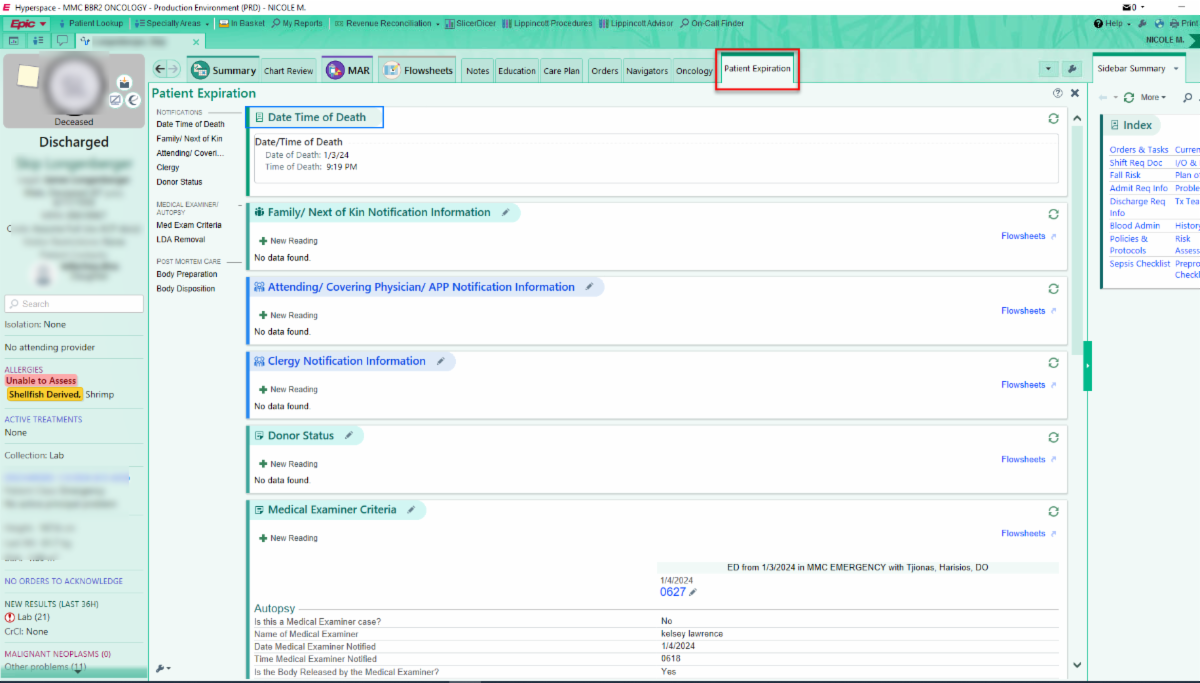
Epic has a Patient Expiration Navigator to document specifics of a patient's death.

  • When a patient expires during admission, access the Patient Expiration Navigator to document the details.

Infection and Isolation Status in Epic

In Epic, there are Infection Status and Isolation Status:

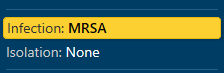
Infection Status - the "Reason for isolation" or "why:"

  • Is not an order and may display automatically by abnormal lab results.
  • Infection Status can be manually added by the Infection Preventionist (IPs) and Providers
  • Infection Status can be removed manually by Infection Preventionists (IPs), Nurse Managers, Nursing Supervisors, and Bed Control RNs.
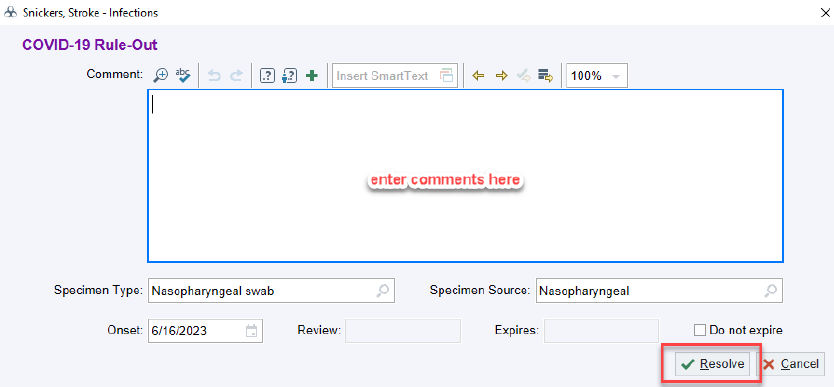
  • Click Infection Status from the Storyboard and click Resolve.
  • Enter a comment and click Resolve.

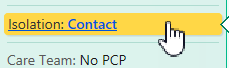
Isolation Status comes from the Order and is the "What:"

  • Licensed Providers place the isolation status order, which drives the type of isolation room the patient requires and is based on the type of infection identified.
  • Placing the correct isolation order in the Orders Activity ensures that the patient has the correct Isolation Status, which displays on Storyboard.
  • Discontinuing the Isolation order will also update status in the Storyboard.  
  • Nurse Manager, Nursing Supervisor, Bed Control RNs, IPs, and Providers can add and remove Isolation Status.
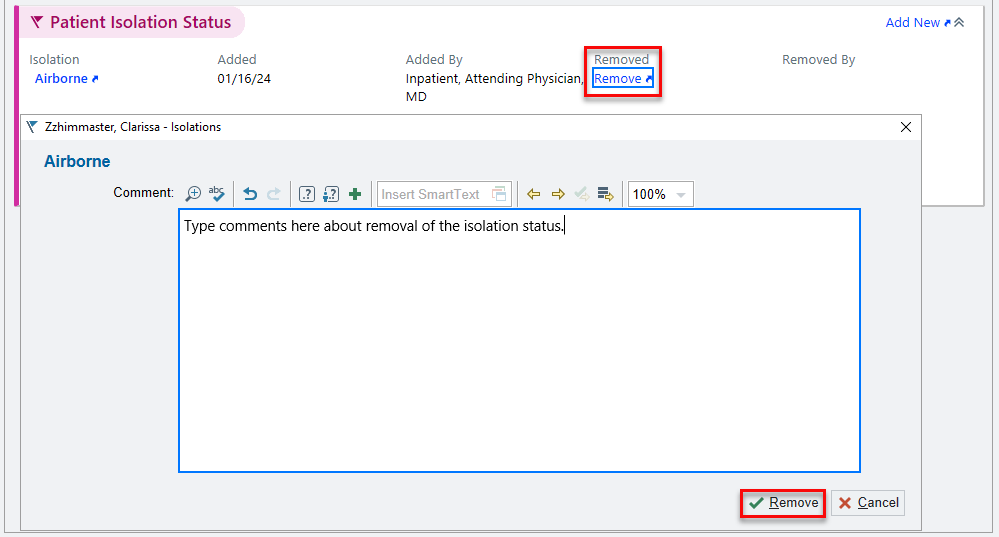
  • Click Isolation Status from the Storyboard and click Remove.
  • Enter a comment and click Remove.


Please click here to review the Infection Status and Isolation Status tip sheet.

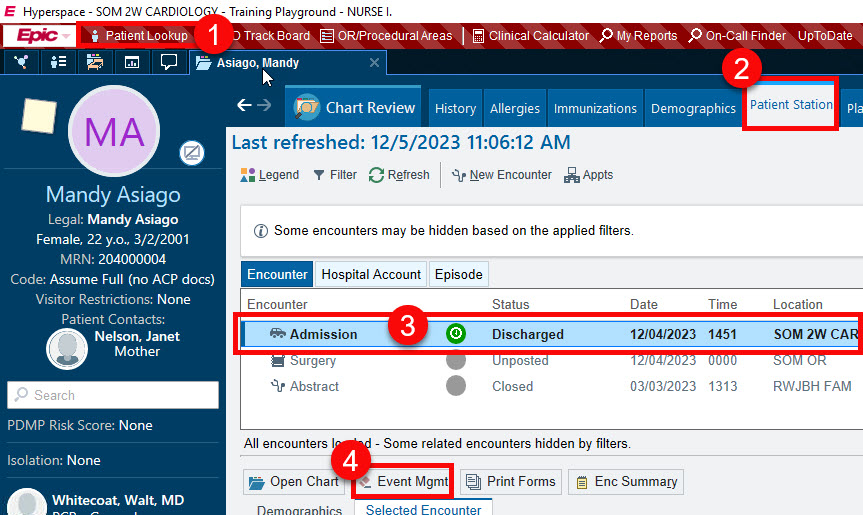
Undo a Discharge or Transfer Completed in Error

Let's face it - Mistakes happen! If you ever discharge or transfer a patient accidentally, you can easily undo that action in Epic.

  • Click Patient Lookup and access the Patient's Chart.
  • Navigate to the Patient Station tab.
  • Select the Encounter you need to update.
  • Click Event Management.
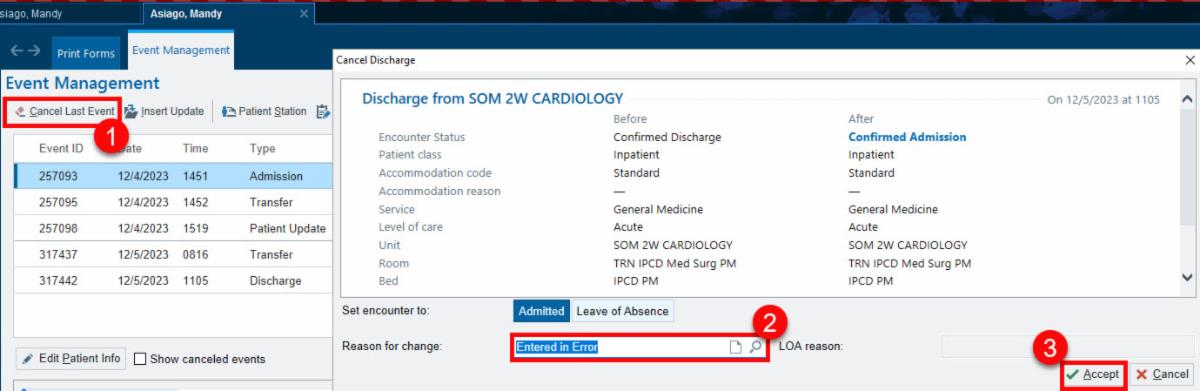
  • Click Cancel Last Event.
  • Click the magnifying glass and select a Reason for change.
  • Helpful Hint: You can also press F5 on your keyboard to access the pre-populated menu instead of clicking the magnifying glass with your mouse!
  • Click Accept.
  • The Discharge or Transfer is undone. The patient will be admitted back in the previous unit and bed.


Click here to review the corresponding Undo a Discharge Tip Sheet!

You are not alone: Clinical Informatics is available for support 24 hours a day, 7 days a week!

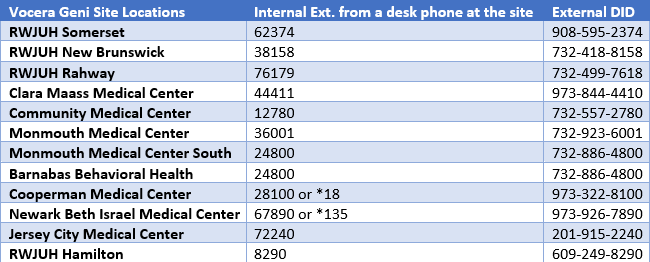
For 24/7 inpatient assistance, please call informatics extensions from within the hospital on a hospital phone - Ask for "Clinical Informatics" to be transferred to 24/7 help.


Click here to access the Nursing Pocket Guide for additional help.

Ambulatory Nursing and Allied Health Focus

Close Erroneous Encounters Quickly with Visit Information!

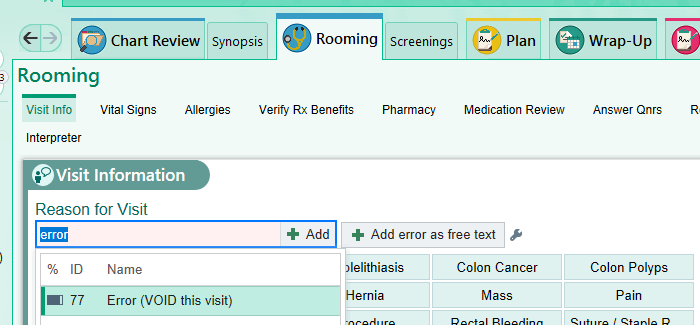
When an encounter is documented or opened in error, there is a quick and convenient way to change it to an Erroneous Encounter.

  • Go to the Visit Information in the Rooming Tab and enter error.
  • Chose Error (VOID this visit).
  • Helpful Hint: Add a Speed Button to add Error (VOID this visit).
  • Entering Error (VOID this visit) will not require the following information for office visits:
  • Note
  • Diagnosis
  • Level of Service
  • Click Sign Visit to complete the encounter.


Click here to review the new tip sheet documenting the workflow above.

Access and Revenue Cycle Readiness (ARCR) Corner

How To Discharge/Readmit a Patient If a Surgery/Procedure Is Canceled

  • When patients are scheduled at an Ambulatory Surgery Center (ASC), it is important to ensure there are no previous open, active encounters for the patient before rescheduling and admitting a surgery case.
  • To see if a patient has an open encounter, access Patient Station and look for this green icon.
  • If you see this green icon, and the patient has a current, active encounter, open a High Priority Help Desk ticket in Epic!
  • The patient must be discharged before you reschedule and admit a new surgery case.


All Work and No Play Makes for a Dull Day!

Installment Two - Start 2024 off in a Healthy Way!

The New Year is the perfect time to make some small, healthy changes in your life. Below, please find question TWO to ask at the onset of 2024:

  • What relationships do I want to strengthen in the new year?

Nurturing and maintaining healthy relationships with friends, family, and colleagues is important. Identifying which relationships you want to focus on can help you prioritize your time and effort. For example, consider reaching out to old friends, spending more quality time with loved ones, or building new professional connections.


Life is much richer when we surround ourselves with friends, family, and community! Life's journey is better when we do not go it alone.


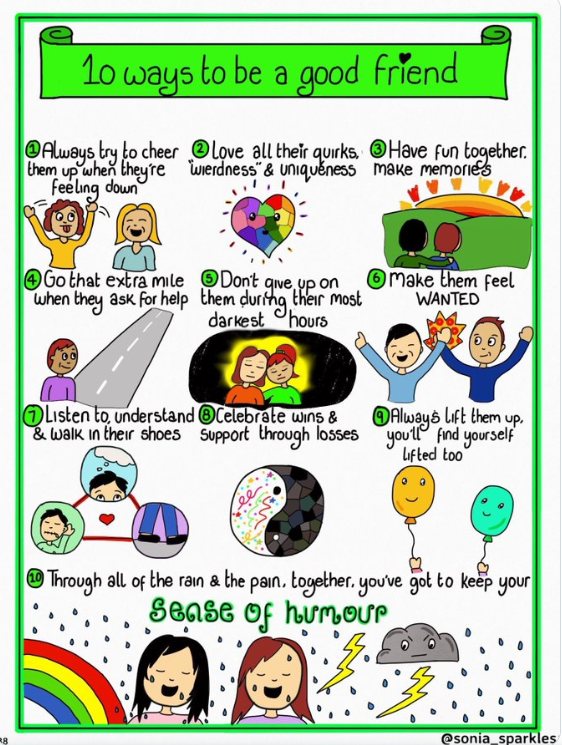
Below please find some tips to be a good and supportive friend:

  • Be a good listener - Do not interrupt!
  • Make plans and put in the effort - Reciprocity is important in relationships.
  • Be reliable - If you have a plan to connect, follow through. If you make a promise, keep it!
  • Be loyal - Do not share information that is confidential. If someone speaks negatively about your friend, defend them and do not engage in gossip.
  • Express gratitude - A simple text of "Seriously grateful for your friendship" turns a day around! Let your friends and family know that you love and appreciate them.


Sources:

  • https://www.forbes.com/sites/rhettpower/2022/12/31/6-essential-questions-to-ask-yourself-in-the-new-year/?sh=4da1e3d85914
  • https://www.webmd.com/balance/features/how-be-good-friend

How to "Get Help" With Epic

For 24/7 inpatient assistance, please call informatics extensions from within the hospital on a hospital phone - Ask for "Clinical Informatics."

For immediate help with Epic issues/build-fix requests, call the Enterprise Service Desk at 855-453-1950.


We have developed this handy "Epic: How to Get Help" flyer that will provide instructions on opening Help Desk Tickets and enhancement requests in Epic.

Good Humor

Print-Edition of Today's Epic Advisor!


For more information please

visit our website at 

www.EpicTogetherNJ.org