***For RWJBH and Rutgers Providers Live on Epic*** | |
|
IMPORTANT: Monday January 15 is Martin Luther King, Jr. Day, an RWJBH and Rutgers corporate holiday. Some practices and offices may be closed in observance of the holiday.
If you will be off on Monday, please set your Outlook out-of-office assistant before signing off on Friday, January 12!
| |
|
Provider Top Stories
Attn: Physician Leaders and Practice Managers! Share these key items in your meetings:
Ambulatory and Inpatient Providers:
Inpatient Providers:
Ambulatory Providers:
- Auto-Refresh of Notes allows SmartLinks to auto-refresh whenever you sign a note!
-
Reminder: Use Pre-Charting to save time and prepare for future encounters.
| |
Coming Soon: Exciting Epic Enhancements | |
|
Preview Next Week's Epic Enhancements!
| |
- Thank you to the Epic Together Project Team for these amazing enhancements!
| |
|
Provider Wellness: Become an Epic Top Performer with Epic's Physician SmartUser Program
- Spend less time in the chart.
- Earn free CME credits (attending virtual, live webinars)!
- Gain a highly valuable Epic Certification supported by RWJBH.
Epic's Physician SmartUser Program is a series of 1-hour classes covering over 150 tips and tricks that show you how you can get the most out of Hyperspace in less time.
-
These free, live, virtual 1-hour webinars are worth the time and effort invested!
- SmartUser Courses are customized for provider specialties, such as Ambulatory, Emergency, Inpatient, OB, and Surgeon.
- Each 1-hour course will include 45-50 minutes of lecture, with the remaining time dedicated to Q&A and independent exercises.
- Each 1-hour course qualifies for 1-hour of AMA PRA Category 1 CME Credit™.
-
Complete eight SmartUser courses to earn an Epic Physician SmartUser Badge.
- This is a highly valued certification!
| |
|
Below please find a listing of the Epic Physician SmartUser Course Offerings:
-
MD201v: Introduction: For physicians who want to get started with the SmartUser program, learn about Signal, gain access to a special training system, a sample of 7 tips, manage your learning using EpicU.
-
AMBMD202v: Ambulatory Quick Wins: Set up your workspace, optimize the schedule, hide buttons you rarely use, optimize diagnosis entry, and learn quick and easy note tips.
-
EDMD202v: Emergency Department Quick Wins: Set up your workspace, optimize Track Board, hide buttons you rarely use, and learn efficiency tips for the Dispo activity.
-
IPMD202v: Inpatient Quick Wins: Set up your workspace, optimize and build Patient Lists, optimize Notes, and learn In Basket efficiency tips.
-
OBMD202v: OB Quick Wins: Set up your workspace, optimize the schedule and the Grease Board, learn quick tips for speeding up your notes, and efficiently use orders and Order Sets.
-
SURMD202v: Surgeon Quick Wins: Schedule management and cost receipts, manage your Order Sets, manage Phases of Care, use mobile tools, create reports using SlicerDicer, and track performance using the OR Surgeon Scorecard.
-
MD203v: Reviewing the Chart: Personalize Chart Review, Snapshot, and Result Review, use Synopsis effectively, and maximize time by charting before the patient arrives.
-
MD220v: Introduction to SmartTools: Learn SmartTools terminology, find and use SmartTexts, SmartLists, and SmartLinks. Create, edit, and share your SmartPhrases.
-
MD224v: SmartTools Part 1: Use basic and advanced SmartLinks to populate patient information like recent labs, and see how to embed SmartLinks in your SmartPhrases.
-
MD225v: SmartTools Part 2: Create basic and advanced SmartLists, and see how to set your own default selections in a list.
-
MD206v: Orders: Use keyboard shortcuts, create basic and advanced preference lists, edit multiple orders at once, create a user order panel, and create and edit user SmartSets and Order Sets.
-
IPMD206v: Inpatient Orders: Use shortcuts to quickly enter orders, manage personal inpatient preference lists, manage user Order Sets, and create order panels.
-
MD207v: In Basket: Sort and filter In Basket, update the In Basket layout based on your preferences, create and use QuickActions, use In Basket to support team-based care, and search In Basket.
-
MD208v: Reporting: Monitor your patient population by understanding how to effectively use the Reporting Workbench.
-
MD209v: Mobile iOS: See how mobile devices fit in with your workflows. Understand what mobile tools are available on Canto, Haiku, Unified Communications, and Limerick for iOS.
-
MD210v: Mobile Android: See how mobile devices fit in with your workflows. Understand what mobile tools are available on Haiku and Unified Communications for Android.
-
MD211v: NoteWriter: Use NoteWriter SmartLinks, create and manage macros, leverage patient-entered data, and report on SmartData elements.
-
MD212v: SlicerDicer: Monitor your patient population by understanding how to effectively use SlicerDicer.
-
MD230v: Efficiency Metrics: Find Epic usage metrics, explain how changes in user settings can impact the metrics, and identify areas where additional training may have an impact.
IMPORTANT NOTE ABOUT THESE COURSES:
- The Introduction course is for everyone.
- Choose the appropriate, additional courses that are right for you.
| |
|
Provider Photos in Hyperspace
If you need a photo in Epic, or to update your current picture, The Epic Together Digital Team will be happy to assist you!
Please note, Provider photos must meet the following criteria:
- Formal headshot in a white coat or professional attire and a neutral background.
- Image files must be in .jpg, .gif, or .tiff format (at a resolution of at least 300 dpi).
- The image must be at least 500 pixels wide and less than 3mb in file size.
- If you need a professional photo taken, please contact your affiliated hospital's Marketing Department and they can arrange for your photo.
Once you have ensured your photo meets the above criteria, share it with the Digital Team using one of these methods:
-
Attach your photo file to an email to info@rwjbh.org.
-
Upload your photo file to rwjbh.org/docupdates.
-
Please see image below for guidance on how to complete Image Upload.
Click here for a job aid on sharing your new provider photo with the Digital Team.
| |
|
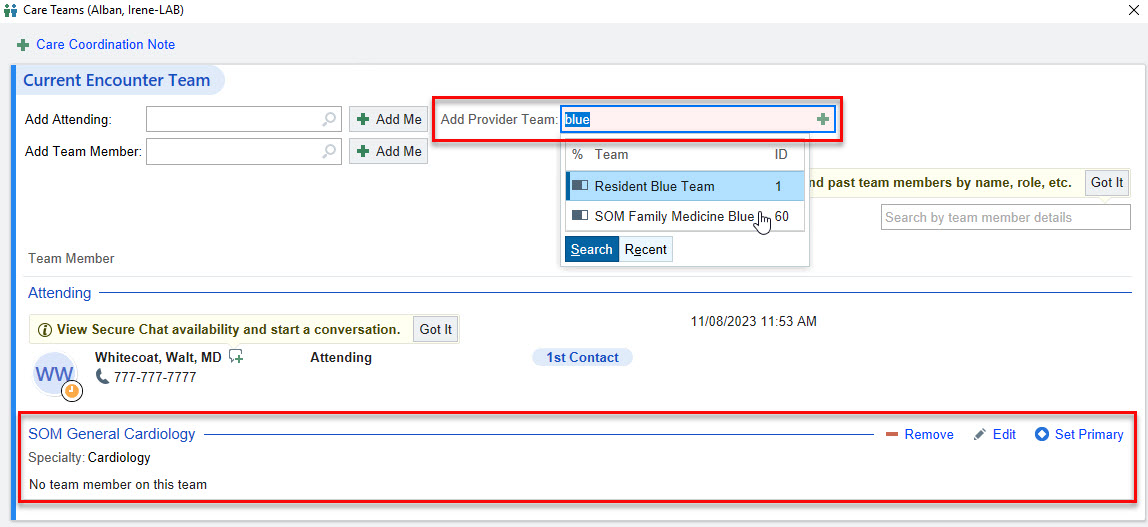
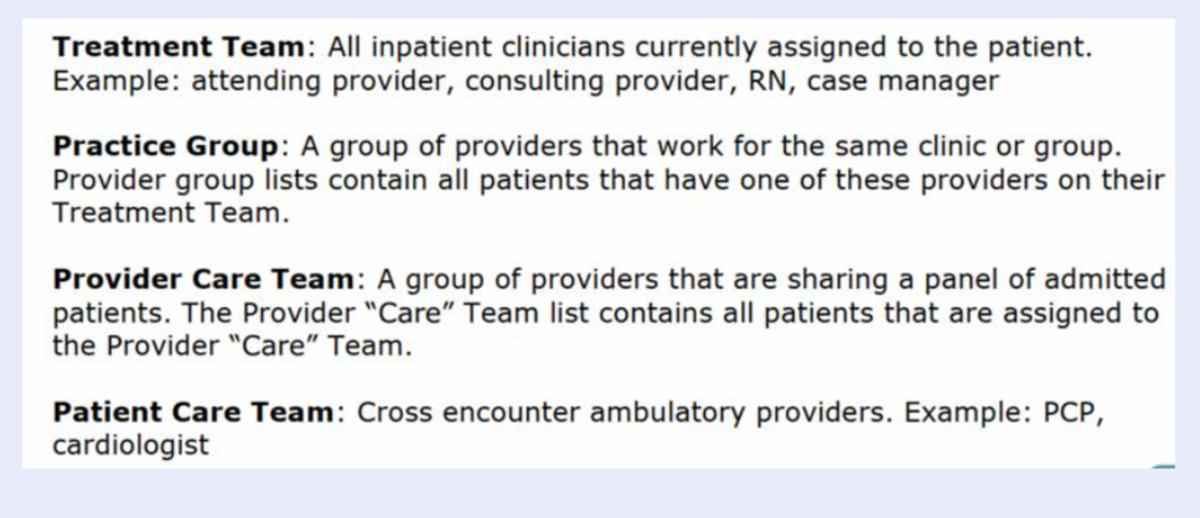
Reminder: Accurate Provider Care Team Information Is critical!
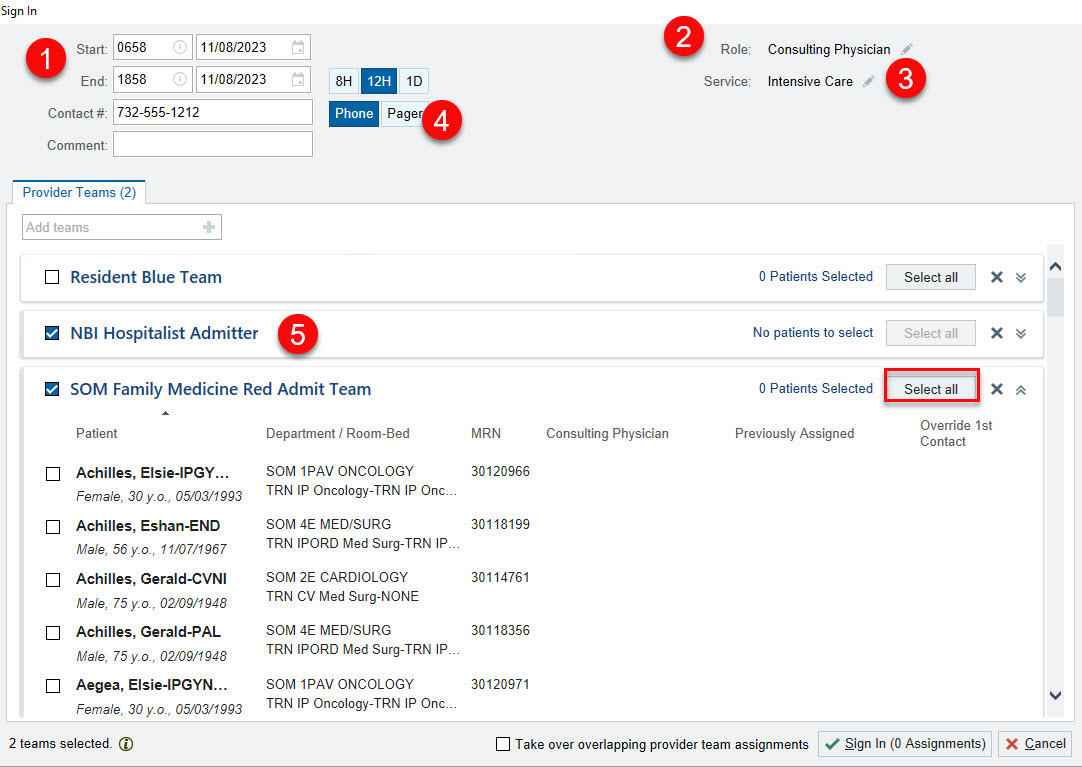
If you are part of a Provider Care Team, it's easy to sign yourself into a Team during Sign-In:
- When you log into Epic with your unique Username and Password, you will be prompted with a Sign-In pop-up to assign yourself to the Provider Team.
- Verify the following information when you complete Sign-In:
- Your Start and End time
- Your Role
- Your service
- Your Contact Info
-
Select your Provider Team(s)
- This allows you to select Your Patients.
-
You can also click Select All.
| |
|
Adding a Patient to the Provider Care Team:
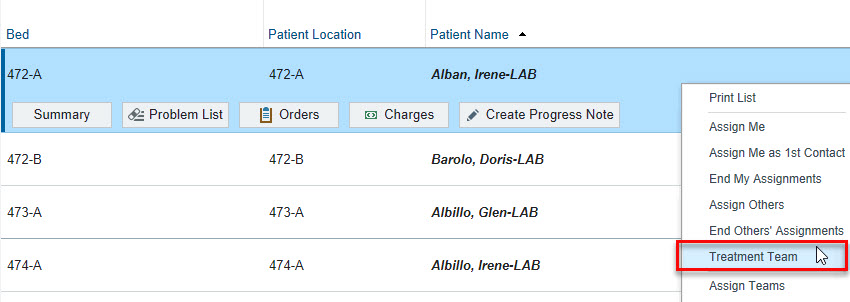
- Go to Patient Lists.
- Search for and highlight the patient on the Patient List.
-
Right-click on the patient and select Treatment Team from the menu.
| |
- Search for and select the Provider Care Team or select Add Team and select the Provider Care Team from the list.
-
Click Accept.
| |
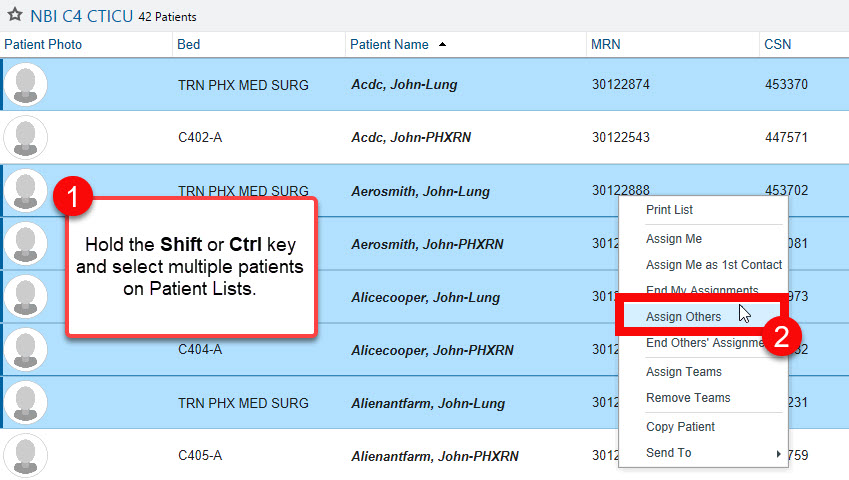
Updating Attending Provider for Multiple Patients:
- Go to Patient Lists.
-
Hold the Shift or Ctrl key on your keyboard and highlight multiple patients on the Patient List.
-
Right-click and select Assign Others from the menu.
| |
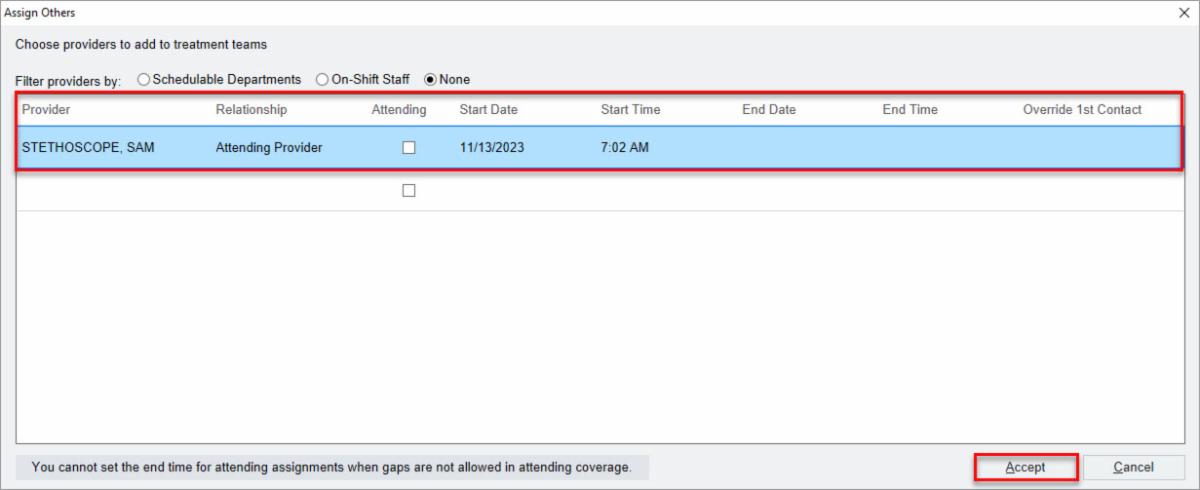
- Search for and select the Provider Care Team or select Add Team and select the Provider Care Team from the list.
-
Click Accept.
| |
|
Auto Refresh of SmartLinks in Notes
A recent Epic Enhancement makes note writing more efficient!
- Epic allows outpatient providers to set their progress notes to auto-refresh any SmartLinks when a note is signed.
- The auto-refresh functionality, activated in October of 2023, will save you clicks!
-
The checkbox defaults to "Off." However, you can click AutoRefresh in My Note to take advantage of this efficiency trick!
- When you turn AutoRefresh on, it remains on for future encounters.
| |
|
Pre-Charting Can Save You Time!
Pre-Charting on a patient visit is possible without starting the Visit.
-
Recently, there has been an increased focus on Open Encounters in Epic.
- Many times, the open encounters exist because a staff member starts the visit, converting the visit to an encounter before the patient arrives, causing issues closing the encounter if the patient does not show.
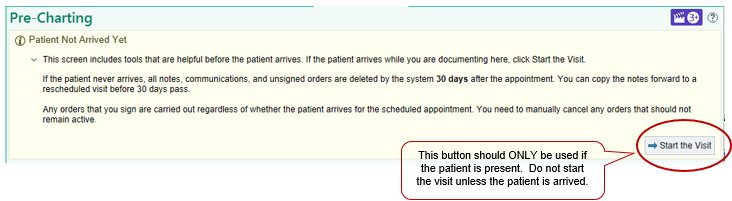
- IMPORTANT: PLEASE DO NOT START THE VISIT (converting the visit to an encounter) UNTIL THE PATIENT IS PHYSICALLY PRESENT/ARRIVED.
|  | |
What is Pre-Charting?
Pre-Charting is a way for a clinician to review a patient’s chart and take the following steps to save time and prepare for a patient visit:
- Enter visit diagnoses
- Write notes
- Write patient instructions
-
Place orders (It is recommended you do not Sign the orders.
- Epic will delete any unsigned order in 30 days if the patient does not arrive for the visit.
- Any orders that are signed prior to the patient arriving at the office are valid, active, actionable orders.
-
If the patient does not show for the visit, orders signed in pre-charting will need to be manually canceled, if not appropriate.
If the patient never arrives, all notes, communications, and unsigned orders are deleted by Epic 30 days after the appointment date. Notes can be copied forward to a rescheduled visit before 30 days pass.
If the patient arrives while a clinician is Pre-Charting, the clinician can select the option to “Start the Visit.” THIS IS THE ONLY TIME the START THE VISIT button SHOULD BE USED.
Managing Erroneous Encounters
| |
|
Review the Epic How to Get Help Flyer!
| |
Live Site Epic Provider Print Edition! | |
|
Phone a friend:
Our cell numbers are available below.
Please call with any questions or concerns.
| |
RWJBH-Rutgers Medical Leadership Team | |
|
Dr. Joshua Bershad, MD
EVP, Physician Services;
Clinical Assistant Professor of Medicine Rutgers Robert Wood Johnson Medical School
Joshua.Bershad@rwjbh.org
Cell: 973-202-0900
Dr. Frank Sonnenberg, MD, FACP, FACMI
Chief Medical Informatics Officer, RWJBarnabas-Rutgers Medical Group; Professor of Medicine, Rutgers Robert Wood Johnson Medical School
Frank.Sonnenberg@RWJBH.org
Cell: 908-313-6563
Dr. Carol Ash, DO, MHCDS, MBA, FACHE, CPHQ, CHCQM-PHYADV
Chief Medical Officer
Robert Wood Johnson University Hospital Rahway
Carol.Ash@rwjbh.org
Phone: 732-499-6134
Cell: 732-857-6535
Dr. Seth D. Rosenbaum, MD, MMM
SVP, Chief Medical Officer Robert Wood Johnson University Hospital Hamilton;
Clinical Assistant Professor, Department of Medicine, Rutgers-Robert Wood Johnson Medical School
Seth.Rosenbaum@rwjbh.org
Phone: 609-584-2865
Cell: 609-508-7951
Dr. Charles Markowitz, MD, JD
Chief Medical Officer Monmouth Medical Center Southern Campus
CharlesRaymond.Markowitz@rwjbh.org
Phone: 732-942-9400
Dr. Meika Neblett, MD
Chief Medical Officer
Community Medical Center
Meika.Neblett@rwjbh.org
Phone: 732-691-1915
Cell: 732-557-8264
Dr. Charles Cathcart, MD
Chief Medical Officer
Newark Beth Israel Medical Center
Charles.Cathcart@rwjbh.org
Phone: 973-926-7320
| |  |
|
Dr. Sal Moffa, MD
Chief Medical Officer, RWJUH Somerset
Salvatore.Moffa@rwjbh.org
Phone: 908-685-2816
Cell: 609-238-5248
Dr. Stephen O’Mahony, MD, FACP
SVP & Chief Health Information Officer, RWJBarnabas Health;
Clinical Associate Professor of Medicine, Rutgers New Jersey Medical School
Stephen.OMahony@rwjbh.org
Phone: 973-322-4231
Cell: 203-820-6519
Dr. Deborah L. Toppmeyer
Professor of Medicine, Robert Wood Johnson Medical School; Chief Medical Officer, Chief, Division of Medical Oncology, Director,
The Stacy Goldstein Breast Center
Rutgers Cancer Institute of New Jersey, Rutgers
The State University of New Jersey
deb.toppmeyer@rutgers.edu
Phone: 732-235-9692
Dr. Kenneth Granet, MD, FACP
Chief Medical Officer
Monmouth Medical Center
kenneth.granet@rwjbh.org
Phone: 732-923-7518
Dr. Ije Akunyili, MD
MBA, MPA, FACEP
Chief Medical Officer
Jersey City Medical Center
Ijeoma.Akunyili@rwjbh.org
Dr. Frank Dos Santos, MD
Chief Medical Officer
Clara Maass Medical Center
Frank.DosSantos@rwjbh.org
Phone: 973-450-2007
Dr. Michael Loftus, MD
Chief Medical Officer
Cooperman Barnabas Medical Center
Michael.Loftus@rwjbh.org
Phone: 973-322-5733
| | | | |