Thursday, November 29, 2023 | |
|
Epic Advisor Top Stories
Attn: Managers and Leaders! These key items must be addressed in your Daily Huddles:
Ambulatory and Inpatient Huddle Topics:
-
Refresh: Scanning Guidance for all who Scan Documents in Epic.
Inpatient Huddle Topics:
-
Reminder: Documentation for Discharging a Patient as Deceased.
Ambulatory Huddle Topics
- Looking up the correct Ordering Provider help in Transcribe Orders workflows.
-
Reminder: Abstraction support from Intellis ends Wednesday, 12/6.
| |
Coming Soon: Exciting Epic Enhancements | |
|
Preview Next Week's Epic Enhancements!
| |
- Thank you to the Epic Together Project Team for these amazing enhancements!
| |
Inpatient Nursing and Allied Health Focus | |
|
Documentation for Discharging a Deceased Patient
- When a patient expires during admission, it is appropriate to complete the postmortem documentation in the Patient Expiration Activity.
- The provider will enter date and time of death in their Discharge Navigator.
- Click here to review the Discharge Navigator Tip Sheet.
-
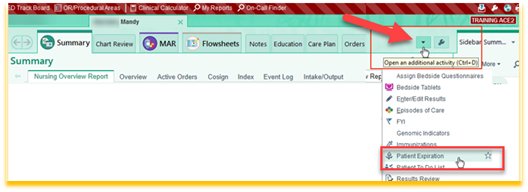
RN will open the patient's chart and complete postmortem documentation in the Patient Expiration Activity.
-
To add the Patient Expiration activity, click the More button at the upper right corner of the activity tabs (next to the wrench icon) and select Patient Expiration.
| |
- Follow the table of contents at the left side to complete the required information for a deceased patient.
NOTE: Donor Status sections for the NJ Sharing Network notification and Body Disposition section for the Communicable Disease are included in this navigator. Communicable Disease form that goes with patient to morgue will remain on paper.
-
When the patient is ready for pick up to the morgue, the RN or Unit Clerk will access the Unit Manager activity.
-
Select the patient and right-click to select Discharge.
-
IMPORTANT NOTE: Do NOT discharge the expired patient until the body is leaving the room.
-
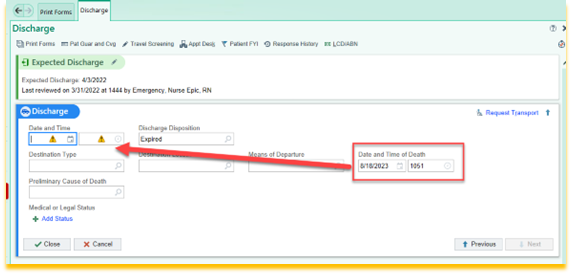
Click the Discharge section header
- Note the discharge disposition automatically populates as Expired from physician’s documentation as well as the Date and Time of Death.
- Enter the same date and time in the date and time field as noted by the provider.
Please click here to review the Documentation Tip Sheet for Discharging Deceased Patient.
| |
IMPORTANT NOTE: The provider must document the time of death so the nurse can discharge the patient using that time as well. The date and time of discharge must match the actual date and time of death from the physician’s documentation. | |
Ambulatory Nursing and Allied Health Focus | |
|
Selecting the Correct Provider
Correctly Select an Ordering Provider During the Transcribe Order Workflow
When placing orders in Epic, it is very important to select the correct authorizing provider, the provider who has requested that the procedure be performed. This provider will receive results for review and make treatment decisions for the patients. Selecting the wrong ordering provider can have significant patient safety implications.
The following tips can be used to ensure selection of the correct person.
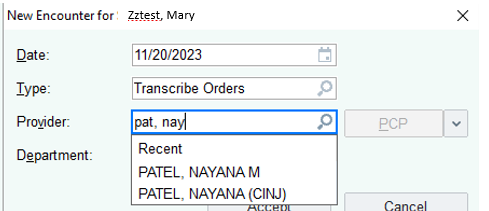
- When creating the transcribed orders encounter, enter part of the provider's last and first names.
- A box will pop up with options that match your search criteria. Please note details.
- In the example below, the first provider has the middle initial M while the second is noted as practicing at CINJ.
| |
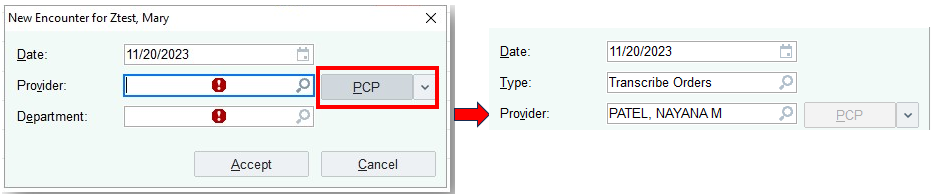
If the ordering/authorizing provider is also the patient’s Primary Care Provider (PCP), click PCP instead of searching to ensure correct selection. | |
-
Click the magnifying glass in the Provider field to see additional details about providers with the same name to find differentiating details such as middle initial, specialty, and clinic address/phone number.
| |
- If none of the methods above provide a confident match, then go to Chart Review for the patient to evaluate care providers responsible for documentation in the patient’s chart.
- Review documentation to establish which providers have provided care for the patient previously.
- You can also review the patient's Care Team in Epic to see if the provider in question is listed there.
| |
|
Wave 5 Chart Abstraction Reminder
-
Abstraction assistance from Intellis, our third-party vendor, will end on Wednesday, December 6 for any departments who previously charted in one of the following EHRs:
- Cerner PowerChart, Cerner PowerWorks, Wound Docs, and paper charts (Hospital outpatient departments).
-
For all date of service after December 6 the chart health and abstraction will continue, but is the responsibility of each practice.
| |
Access and Revenue Cycle Readiness (ARCR) Corner | |
|
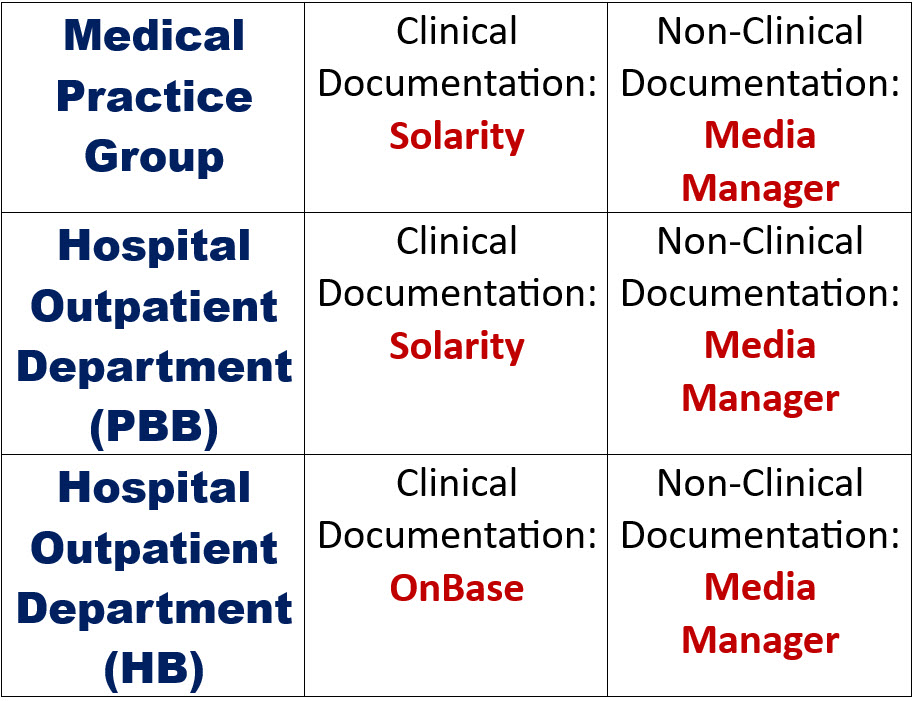
Reminder: Scanning Guidance
What Scanning Application Should I Use?
-
Medical Practice Group staff will scan clinical documentation using Solarity.
-
Hospital Outpatient Department staff with Professional-Based Billing (PBB) will scan clinical documentation using Solarity.
-
Hospital Outpatient Department staff with Hospital-Based Billing (HB) will scan clinical documentation using OnBase.
-
Clinical documentation may include previous provider notes, external lab results, and faxed orders.
-
All staff will scan non-clinical documentation using Media Manager.
-
Non-Clinical documentation includes insurance cards and photo IDs.
-
IMPORTANT NOTE: DO NOT SCAN clinical documentation using Media Manager - The scanned document will not populate the correct places in the chart if Media Manager is used.
HOD Staff: For clarification on your HB or PBB status, please contact your Site Finance Officer.
- The grid below provides guidance on what Scanning Application to utilize based upon your department and document type:
| |
|
If you encounter hardware problems with scanning, please contact the Help Desk at 855-453-1950 for 24/7 technical support.
| |
All Work and No Play Makes for a Dull Day! | |
|
It's the Most Wonderful Time of the Year!
Now that Thanksgiving is behind us, it's officially the Holiday Season! We rounded up some holiday fun for you, your friends, and your family to enjoy in the weeks ahead!
| It's Also the Most STRESSFUL Time of the Year! | |
|
There is much to love about this time of year, but let's face it: It's busy and stressful!
- There are added expenses, and we can't press pause on our normal obligations like rent, mortgage, groceries, utilities, etc.
- Holidays mean additional items on your "To-Do" list, but nothing gets removed.
- The responsibility to create a memorable, incredible holiday for our friends and family may be overwhelming.
| |
Below please find six tips to ease holiday stress.
-
Set an intention to care for yourself (Self care isn't selfish, and it does not need to cost money)!
- You don't need a new book, expensive moisturizer, or a gym membership to take care of yourself! Go for a walk with a friend, take a nap, or journal! You matter, and investing in yourself is important.
- Manage holiday stress with mindfulness and relaxation techniques.
-
Learn some beginner yoga poses, practice some breathing exercises, or try some beginner mobility stretches in the comfort of your own home. Check out Calm's "Overcome Stress and Anxiety" link for some tools on mindfulness and relaxation techniques.
- Prioritize Sleep.
- Now is not the time to stay up late! Avoid screen time one hour before you go to bed. Retire in a quiet, dark room that is conducive to REST.
-
For additional tips on establishing a healthy sleep routine, click here.
- Resist comparing your holiday to others.
-
Comparison is a joy-killer. what you see on Facebook and Instagram is carefully curated -- It is not real life! Your holiday is unique to you and your life... and it is PERFECT!
- Focus on the positive.
- Gratitude! Focusing on what you're grateful for during busy, challenging times is very helpful!
- Ask for help when you need it.
- This may mean inviting a friend over to help with household chores or baking cookies.
- It may also mean calling a therapist to book an appointment to help with strategies to get through the holidays with a sense of calm.
More than anything during this memorable, busy season, take good, good care of YOU. If you would like to read more about strategies to manage stress during the holidays, click here.
| |
How to "Get Help" With Epic | |
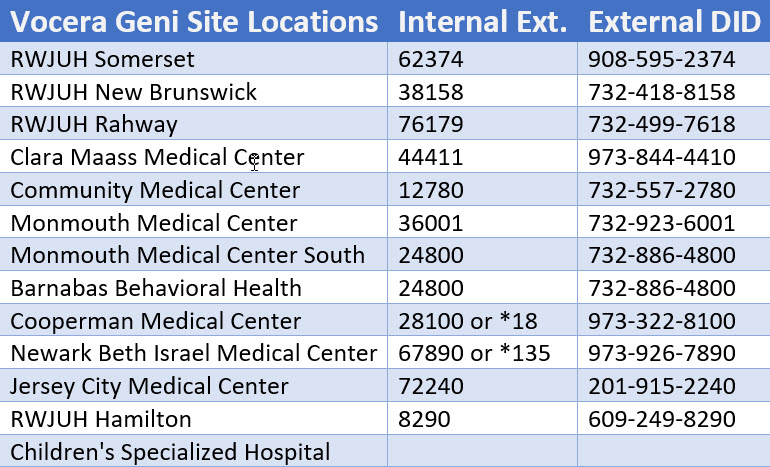
For 24/7 inpatient assistance, please call informatics extensions from within the hospital on a hospital phone - Ask for "Clinical Informatics." | |
|
For immediate help with Epic issues/build-fix requests, call the Enterprise Service Desk at 855-453-1950.
We have developed this handy "Epic: How to Get Help" flyer that will provide instructions on opening Help Desk Tickets and enhancement requests in Epic.
| |
|
Q: How do you tell the difference between an alligator and a crocodile?
A: Whether he sees you later or in a while.
| |
Heartfelt thanks to Dr. Frank Sonnenberg for this week's Good Humor submission. If you have a joke to include in a future Epic Advisor newsletter, please email Epic Communications. | |
Print-Edition of Today's Epic Advisor! | | | | |