If you’re still doing your accounting manually, depositing checks and cash that come in from customers takes a lot of work. You probably wait until you have several payments to deposit to minimize your trips to the bank. When you’re ready, you have to fill out a deposit slip and calculate a total, though you’ve probably already recorded the transactions elsewhere in your bookkeeping system. You must store the transaction receipt from the bank in a safe place, probably in a folder with your documentation from the deposit.
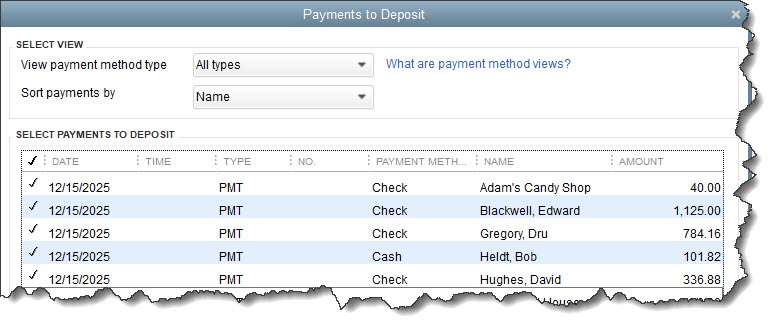
QuickBooks simplifies the process of recording deposits. If you’re using QuickBooks Payments, deposits get processed automatically. If you’re not, you can use QuickBooks tools that help you prepare deposits by selecting payments you’ve already recorded and getting them ready to present to the bank. This is another example of how the software helps you avoid doing unnecessary, tedious bookkeeping chores.
Here's how it works.
How Do You Record a Payment In QuickBooks?
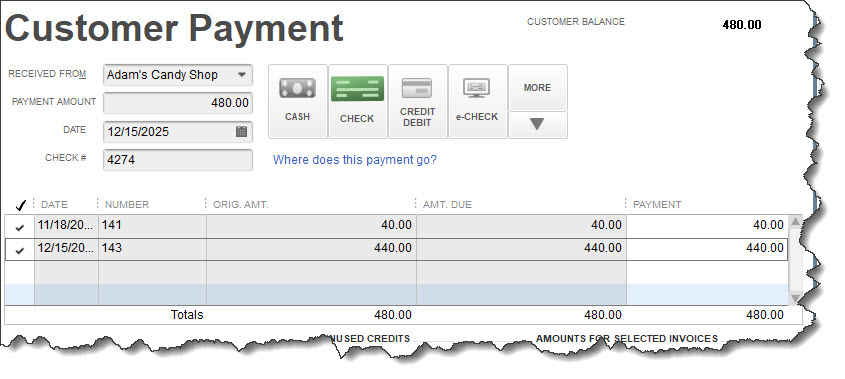
When you receive cash or a check from a customer, QuickBooks allows you to record it in the Receive Payments window. You can select the customer and enter the amount in the fields provided. You can also select the type of payment (cash, check, credit/debit card, or e-check). If the customer has outstanding invoices, you’ll see them listed at the bottom of the window. Double-check your work and save the transaction.
TIP: You can add or delete payment methods so you’ll only see the ones you offer. Open the Lists menu and click Customer & Vendor Profile Lists | Payment Method List. Open the Payment Method menu in the lower right to add a new one or edit or delete existing ones.