|
You know how it goes. You log into QuickBooks Online to record a customer payment. While you’re there, you realize there are some invoices you need to create and send. You must not have categorized and posted transactions for a while since there are a couple dozen in the Pending list. A customer has accepted an estimate, so you need to get that project moving.
Next time you look at the clock, you realize you’ve been working with your QuickBooks Online file for almost two hours. You don’t have that kind of time to spend on bookkeeping since you’re a small business, but what choice do you have?
QuickBooks Online gives you a choice. It has so much automation built in that you could probably cut your bookkeeping time by half if you used all the tools available. You’ll have to spend a bit of time learning how everything works, but you’ll more than make up for that time by the hours you’ll save. Let’s look at what the site can do to save you hours every month. Long-time QuickBooks Online users may know about all of this, but we’ll take a step back for new users.
Import Your Financial Transactions
This is the smartest step you can take to save an enormous amount of time. If you're still entering bank and credit card transactions manually, you're spending far more time than is necessary. And you’re defeating the purpose of using software, which is supposed to automate your work and avoid duplicate data entry.
QuickBooks Online allows you to connect most bank accounts, credit cards, and payment processors directly to the site. Transactions are automatically downloaded and ready for your review. Instead of typing dozens or hundreds of transactions each month, you'll simply review and approve them. This single step can save numerous hours each month for many businesses. And it helps avoid transposition errors.
You may have hesitated to do this because you’re worried about online security. Intuit uses bank-grade safety protocols. You should do your part, too, by creating strong passwords, not accessing the site on public Wi-fi, etc.
Create Bank Rules
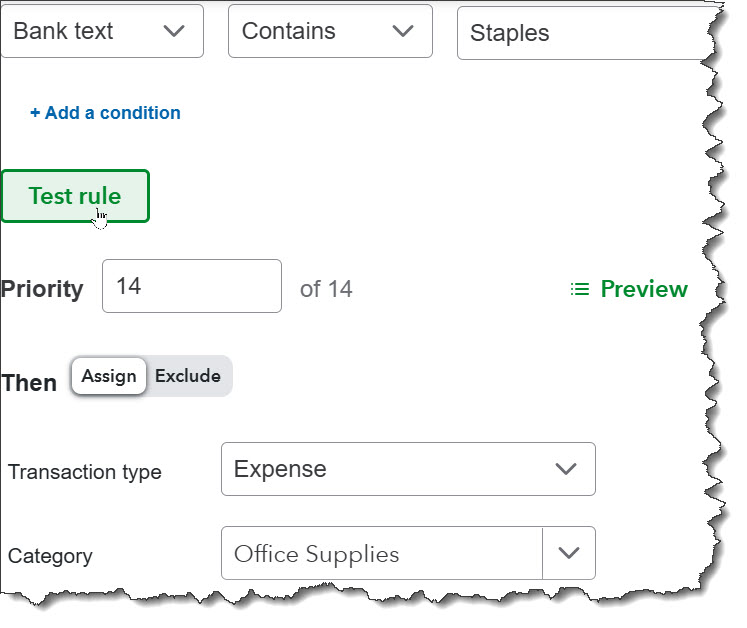
Repetitive data entry is a serious time waster. If you create transactions on a regular basis that need to be treated similarly, QuickBooks Online allows you to create Bank Rules for them. From the home page, click the Accounting App, then Rules, then New rule in the upper right corner. In the panel that opens, define your rule. If you want every expense whose Bank text contains Staples to be automatically categorized as Office supplies, for example, you’d fill it out as shown in the image below.
|