Read Below for using Microsoft OneDrive to quickly and securely have your files available when you need them!

All,


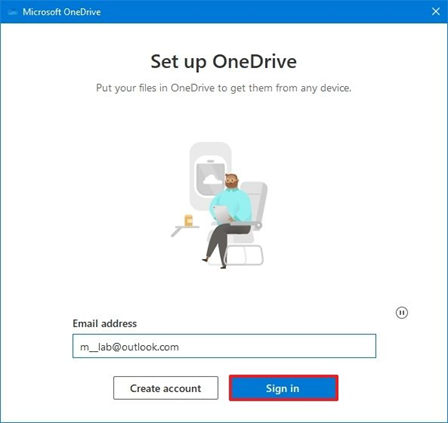
We hope this email finds you well. As part of our ongoing commitment to ensuring that your files and documents are secure and accessible for you when you need them, here is a quick how-to sign in and setup Microsoft OneDrive.

Your copy should address 3 key questions: Who am I writing for? (Audience) Why should they care? (Benefit) What do I want them to do here? (Call-to-Action)


Create a great offer by adding words like "free" "personalized" "complimentary" or "customized." A sense of urgency often helps readers take an action, so think about inserting phrases like "for a limited time only" or "only 7 remaining"!

You can also choose which folder will be accessible locally from File Explorer.

To choose the OneDrive folders available through File Explorer on Windows 10, use these steps:


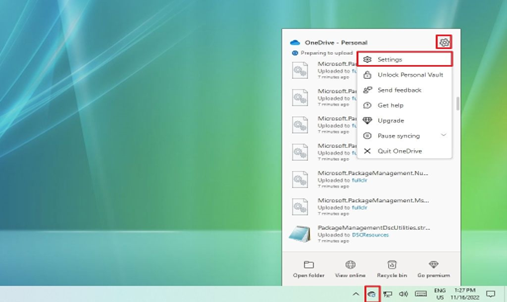
  1. Click the OneDrive (cloud) button from the notification area.
  2. Click the gear menu and select the Settings option.

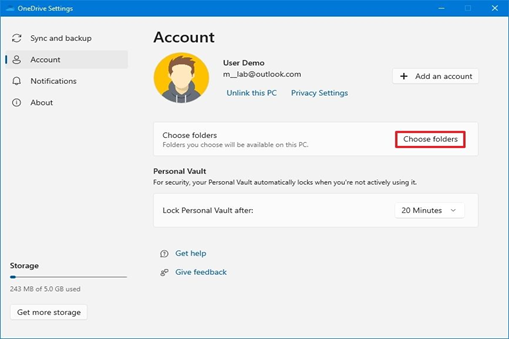
3.    Click on Account.

4.    Click the Choose folders button.

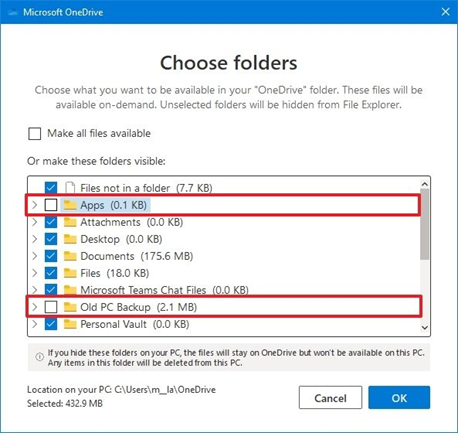
6.   Clear the folders you do not want to make available inside File Explorer.

7.   Click the OK button.

Once you complete the steps, only the selected folders will be available as files on-demand and once you login to a new or different PC, your profile will carry over your selected folders once you login to OneDrive on the new PC.


TICKETING SYSTEM


Your best way to receive help is always first logging your issue with as much detail as possible. A proper subject line & screenshots are always appreciated!


Please submit your issue via email to support@crs-group.com. This is the only valid email for ticket creation. You will receive updates from your ticket from a separate email.


You will receive an email back containing a ticket #.


Please use the email chain with your ticket # in the subject line when communicating on your ticket.


Include a best call back number if you wish to be contacted via phone.


NEED HELP FASTER? CALL US


Have your ticket # ready when you give the IT Dept. a call. This will help them effectively assist you.


Feel free to call our in-house IT Technicians or the Proactive Help Desk:


In-House Technicians

Call 516-341-6080 for Support

Your call will be directed to Proactive or Cole DeMarco if a technician is not available.

Have your ticket # to provide.


Proactive Help Desk

516-876-8200 Option 1 for Support

Have your ticket # to provide to Technician Coordinator or Technician.


Proactive After Hours (Roughly 5pm - 8am)

516-876-8200 Option 5 for the After-Hours Call Operator.

Leave your ticket # with Operator & a technician will call you shortly.

Please use for urgent issues only.


A continued thank you to all.


Sincerely,

Your CRSG IT Department Team

CONSTRUCTION & REALTY SERVICES GROUP

248 W 35th St FL 8, New York, NY 10001


support@crs-group.com || Proactive Support: 516-876-8200 Option 1


Proactive After Hours Team: 516-876-8200 Option 5. Leave a message with the call operator and someone will get back to you within 5-30 minutes to assist.