Welcome to ITS Powertivity eNews | January 2025

Florida Gulf Coast University log on Powertivity Tips banner
 

We're here to help you SOAR!

Today's newsletter is 713 words... a 2.5-minute read.

Important Note: In this issue, we cover the top-rated topics YOU deemed necessary when starting a new term and year (based on your view and click rates).

What to do when it's time for a password reset?


When conducting a password reset at any time, you MUST sign out and sign back into ALL your devices running the MS Teams app:


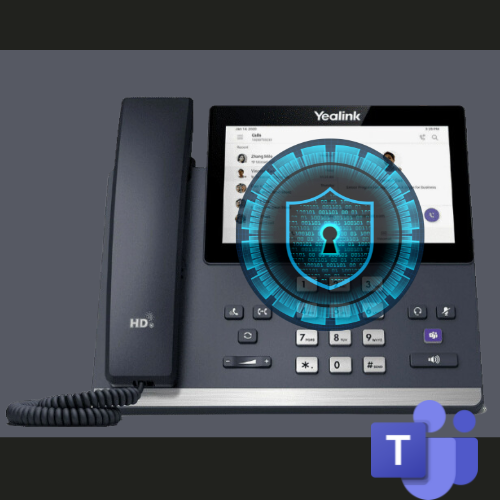
1) Physical Desktop Phone - Log out of the phone BEFORE performing the password reset. Once the password reset is finished, complete the login/registration steps 1-7 on the first page of the FGCU Desktop Phone Quick Start Guide. 


2) Computer/Laptop - Within MS Teams, click on your profile picture > select Sign out. Then sign back in.


3) Mobile Device - Following the password reset, the MS Outlook app will require you to sign back into the app. When this step is completed, MS Outlook is integrated with the MS Teams app, which will automatically update (reboot) for you. 


Note: This question is also covered in the MS Teams Calling FAQ section of the Knowledge Base.

Yearlink MP56 phone with a security lock on top of it and the MS Teams logo.

Handy resources at your fingertips...

Microsoft Outlook logo

Download the Outlook app for mobile!


The official Microsoft Outlook app provides the best email/calendaring experience for iOS/Android devices. Download the Outlook app to your mobile device from your device's app store for a more consistent and smoother experience.

Microsoft Office 365 logo

Office 365 Quick Guide


We've got you covered. The Microsoft Office 365 Quick Reference Guide overviews elements of Microsoft 365 that are applicable across the most common Office apps.


Access O365 Overview Knowledge Base site for all Quick Guides.

Using FGCU's OneDrive to store and share files securely!

 
OneDrive logo

Why use OneDrive:

At FGCU, OneDrive is a secure place to store files and share files (seamless collaboration) with peace of mind knowing it's backed up nightly. Never lose your files again (they can be restored)!

Use OneDrive to sync files between your computer and the Cloud, to get to your files from anywhere - your desktop computer via the desktop client, your mobile device via the OneDrive app, or even by logging into Webmail - enabling you to store and share needed files.


How is OneDrive set up:

Click ITS KB > Share Folders and Network Storage at FGCU to learn more.


How to use OneDrive:

Click ITS KB > Sync Files with OneDrive on Windows or Mac to learn more.


Click ITS KB > Upload and Save Files and Folders to OneDrive Web to learn more.


How to access:

Access the OneDrive Sign-in using your "work or school account".


*Note: Do not store Restricted Data on OneDrive. 

Microsoft Outlook integration with MS Teams Calling!

 
Application integration wheels showing Outlook and Teams logos.

The problem: You're about to leave the office for a couple of weeks. Where do you need to turn ON out-of-office notifications?


The solution: Keep it simple and focus on the Outlook Automatic Replies (Out of Office) feature which can also be tied to MS Teams Calling.


Note: Turn this feature ON just before you leave the office.


The Integration Tip: When the Outlook Automatic Replies alert is turned ON, this feature can also be connected to your MS Teams Calling out-of-office voicemail. This way you only need to worry about turning on the Outlook out-of-office feature before leaving (click the above link to learn how).


Note: This feature can be turned ON anytime and remains turned on as a permanent setting.

"Phew!" ~ Just in Time Tips!

Are you a recent new hire or have an MS Teams Calling question?


We've got your back! Visit the MS Teams Overview site to review FAQs, troubleshooting tips, support documentation, and quick reference guides for all things MS Teams and MS Teams Calling.

FGCU Virtual Backgrounds click to access

Click for instructions


Like to see a specific powertivity topic covered?

Send your suggestion to: itschange@fgcu.edu

Powertivity eNews archive

Need to Report an Issue or Have a Question?

Contact the University Help Desk:


helpdesk@fgcu.edu or 239.590.1188


Be your own help desk, click to visit the Knowledge Base

 
FGCU ITS Logo image
 

Empowering the University Community to achieve new digital possibilities