Good Afternoon,
We appreciate your patience during the transition to from Paychex HRO to Paychex Flex. Below are detailed instructions that will direct you while registering your new Paychex Flex account. Please read and follow the instructions that apply to you for registration.
Key Points:
- You must use a computer or laptop (no phones or tablets).
- You cannot use the web browser Internet Explorer. Please use Google Chrome, Firefox, etc.
- You cannot re-use the same username from Paychex "HRO" / Human Resource Online (previous) for Paychex Flex (new).
- Make sure to use your cell phone number and personal email.
- Pay close attention to see if you are prompted to link a Paychex Flex Account from a previous employer that is not Cell Staff.
- If you were previously registered through Paychex Flex with another employer, you will need your previous username, email, and password to link the two Paychex Flex accounts together.
- If you successfully register and log into Flex but do not see your paystubs, please log out and then log back in. This usually solves the issue.
-
If you can already access your old Flex account, you can request to merge your Cell Staff Flex account by clicking the chain-link icon in the upper-left-hand corner and entering our employer number 0483 3474.
Brand New Employees (First Time Registering)
-
New employees must FIRST register with Paychex "HRO" Human Resources Online, please follow the attached HRO registration instructions.
-
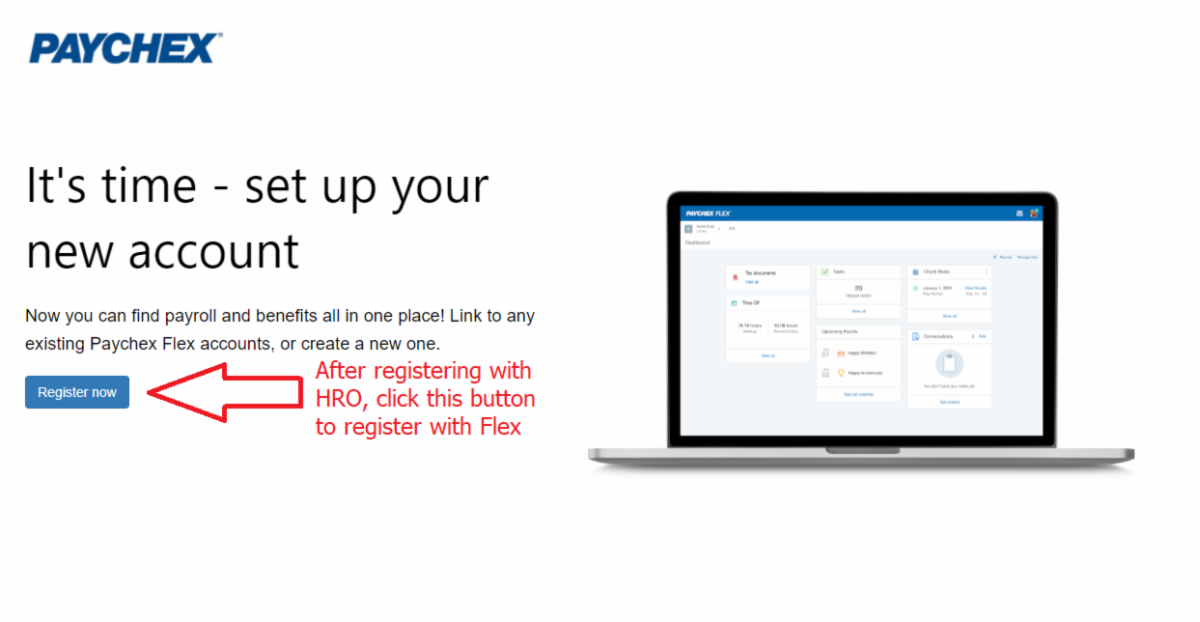
Once HRO registration is complete, you will be prompted to register for Paychex Flex with a new link/button.
- Remember you cannot re-use your username from HRO for Flex, you will have to create a new unique username for Flex.
- Please pay close attention to see if you are prompted with an option to "link previous account" when completing the first page called "About You." This is how you link your previous employer's Paychex Flex account with your new Cell Staff Paychex Flex account.
- If you were previously registered through Paychex Flex with another employer, you will need your previous username, email, and password to sign in and link the two Paychex Flex accounts together.
- If you do not see a prompt to link your Flex account, proceed as normal with the registration.
- Once you successfully register and log into Flex but do not see your paystubs, please log out and log back in.
Current Employees Registering with Flex
-
Please log in to your existing Paychex HRO account.
-
You will be prompted to register for Paychex Flex with a new link/button. An image below is provided for your reference.
- Remember you cannot re-use your username from HRO for Flex, you will have to create a new unique username for Flex.
- Please pay close attention to see if you are prompted with an option to "link previous account" when completing the first page called "About You." This is how you link your previous employer's Paychex Flex account with your new Cell Staff Paychex Flex account. This is triggered by a matching social security number or email.
- If you were previously registered through Paychex Flex with another employer, you will need your previous username, email, and password to sign in and link the two Paychex Flex accounts together.
- If you do not see a prompt to link your Flex account, proceed as normal with the registration.
- Once you successfully register and log into Flex but do not see your paystubs, please log out and log back in.
Still Having Issues?
If you receive an error during registration or are missing information after, please take a screenshot of the error and email it to
UserMigrationSupport@paychex.com and cc payroll@cellstaff.com. A Paychex representatives will set up a time to work with you to resolve the error. Please include your name, the best number to contact you at and Cell Staff’s Paychex Identification number 0483 3474.