A series of monthly guides for new GRAR members about the tools and services provided by the association. We are here to support your success in real estate.
|
|
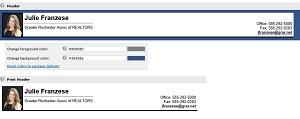
Add your photo
and
customize your Matrix setting
s
so that your touch points with clients have your personal information and look. Do this (and more) by going to
"
My Matrix
"
on the main menu.
|
|
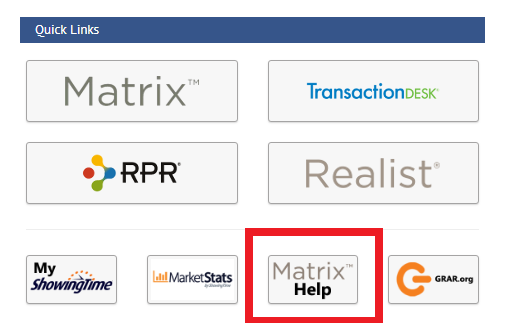
The
Matrix Help
button on your GRAR Portal allows you to access tips and videos any time to become more familiar with the features and functions in Matrix.
|
|
Featured Tool:
ShowingTime Scheduling
|
|
ShowingTime enables you to schedule showings 24/7 through Matrix.
|
|
|
Your profile has been pre-configured with your contact information from your member profile in Matrix, making it ready to use without any set up necessary.
To ensure you don’t miss out on any showing requests or to set up where you should receive such requests, we recommend a one-time review your profile to confirm your contact information.
For example, if you don't want phone calls and you do like text messages, push notifications on your mobile device, email, or a combination of the above, it is your choice for your work style.
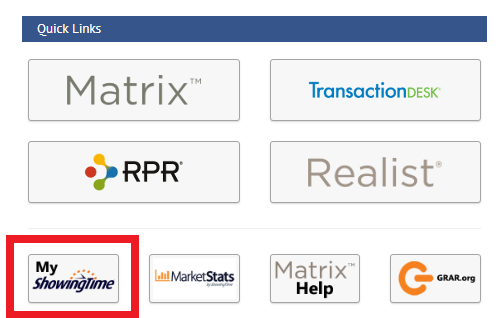
Click the My ShowingTime button on the GRAR Portal to access your profile.
|
|
Your listings are opted in to use ShowingTime.
|
|
You may change your settings if you do not want to be contacted via ShowingTime or to indicate if a listing does not require an appointment. You can also set defaults for new listings and change individual listings to something different. For example, if you normally list residential properties and require an appointment, that can be your default setting. If you then list a piece of land that requires no appointment, you can change the requirements for that listing.
|
|
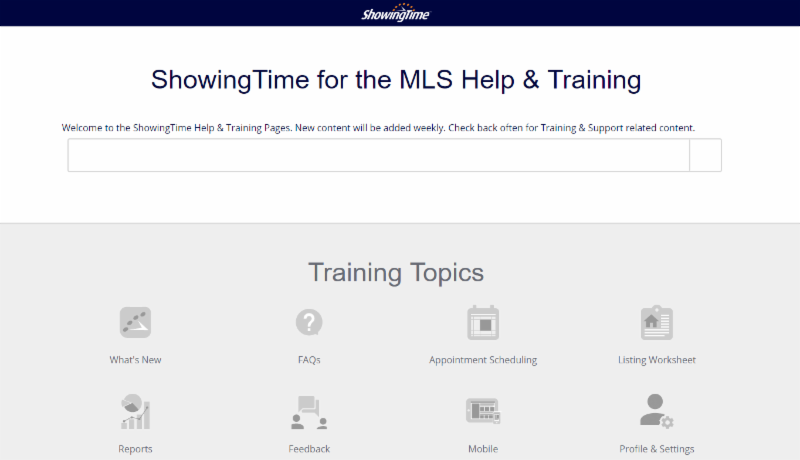
ShowingTime Help & Training
|
|
In ShowingTime, there are many help and training materials including videos. Here is a sample of what you will find.
|
|
|
|
Listing Status Changes
Follow these guidelines for when to change a listing status and which status to use.
|
|
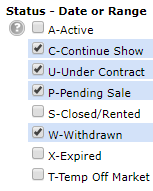
If seller has accepted an offer with contingencies, but would like to continue showings, the listing should be changed to ‘C-Contract Exists, Continue to Show’ status except if the contingency is that of a property to sell. In this case, the listings may stay in active status and must be identified in the Showing Instructions as “Contingent upon sale of a property”.
C status
listings are an “On Market” status. They will show on most public websites such as Realtor.com, Zillow.com, Homesteadnet.com, etc. This status represents that the property is available to be shown, a contract exists, both parties have signed, and contingencies are yet to be fulfilled.
|
|
U - Under Contract; P - Pending Sale
|
If seller has accepted an offer with contingencies, but will not continue showings, use listing status U or P. Listings in these statuses are considered “Off Market” and not to be shown.
- U status means that Property is NOT to be shown, contract exists - both parties have signed, waiting for contingencies to be fulfilled
- P status means that Contract exists, all contingencies met except financing, waiting for closing.
|
|
The property is no longer on the market and cannot be listed by another broker until expiration date. This means there is still a contract on property.
A Withdrawn status listing cannot be relisted by another broker.
Duplicate listings are being entered in the MLS as Active even when there is a Withdrawn listing in the MLS for the same property. By listing the property, the seller may now be liable for two commissions. There are reasons that properties are Withdrawn rather than Expired, and the contract needs to be terminated (Expired) before it can be relisted with another broker. Educate your seller and always search the database prior to entering a new listing. This will ensure that a listing is not a duplicate.
|
|
As part of your membership with the National Association of REALTORS® (NAR), your profile on REALTOR.com is available for you to set up and maintain without charge.
|
|
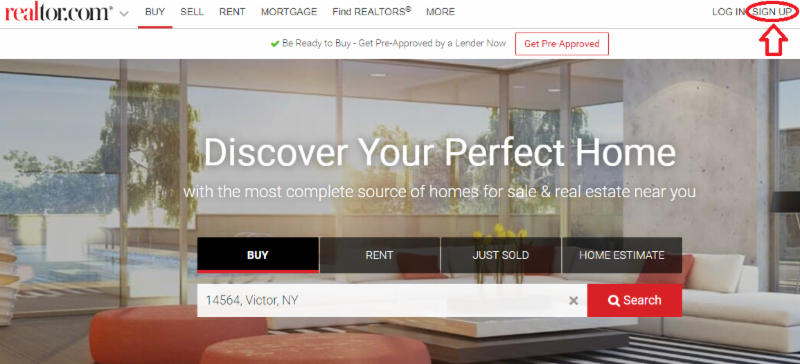
From the REALTOR.com Home Screen
Click "
Sign Up
" at the top right of the Home Page
|
|
|
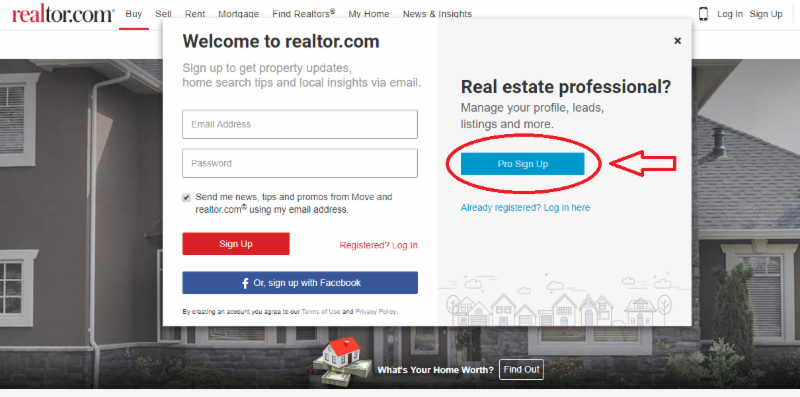
Then, add your Email Address, Password, and Phone Number
|
|
From there ...
It will take you through the process of filling out your profile. You can add a photo, a biography, and more.
|
|
THE REST OF THE GRAR TEAM
|
|
|
|
Jim Yockel
CEO
jyockel@grar.net
585.341.2128
|
|
|
|
Marlon Blanco
CFO
mblanco@grar.net
585.341.2129
|
|
|
|
Julie Franzese
Director of Communications & Marketing
jfranzese@grar.net
585.341.2199
|
|
|
|
Karen Herbst
Communications Specialist
kherbst@grar.net
585.341.2123
|
|
|
|
Diane Russi
Director of Community Engagement & Events
drussi@grar.net
585.341.2122
|
|
EDUCATION & PROFESSIONAL STANDARDS
|
|
|
|
Ruth Rosenberg-Manne
Director of Education & Professional Standards
rrosenber@grar.net
585.341.2125
|
|
|
|
Joann Lucchese
Education Representative
jlucchese@grar.net
585.341.2121
|
|
New Member Guide Issue #1
|
|
|
|
|
|
|