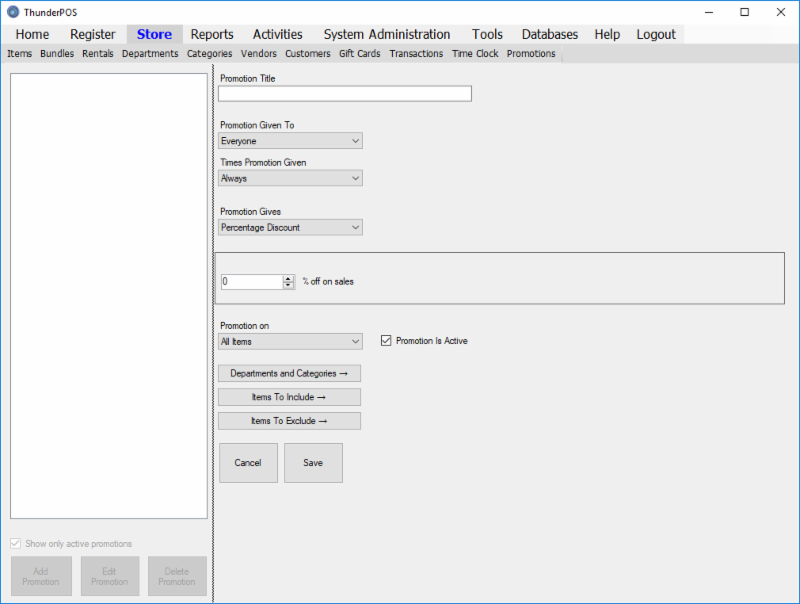
With 5.0, we have significantly expanded on the promotions feature, adding new types of promotions, more flexibility in assigning products to promotions, etc. Specifically, we've added buy one get one type promotions, dollar off promotions, and the ability to exclude specific items. Because of the new promotions features, you will need to regenerate promotions that you had under the previous version if you were using them. The promotions user interface is simple to use. Just follow the steps below...
Access the new promotions feature through Store -> Promotions. Select "Add Promotion" on the lower left. When adding a promotion, you'll set it up from top to bottom on the right.
The promotion title should be a name that you can recognize to identify the promotion. It will show up on the invoice grid to indicate items getting this promotion. It'll also show up on the receipt if you have the option to print discounts enabled!
You can select either to give the promotion to everyone, or to limit it to specific customers and discount cards. Make sure if you're intending to give it to discount cards that after creating the promotion, you add it to the discount card item through item maintenance.
Now select the days and times the promotion will be active. You can choose always, on specific days (such as Mondays or Tuesdays) all day or specific times of day, or from a specific date range (such as July 4th 2018 - July 11th 2018).
These can give one of five things: A specific price, a percentage off, a dollar amount off, a bonus to trade ins, or a buy x get y % off deal. There will be specific settings based on the type of promotion you're setting up.
Finally, you'll want to set the items the promotion applies to. Either you can select departments and categories or you can add individual item skus to apply to. You can also now exclude specific items within a dept or category.