|
Special Orders and Preorders
These features, which are very closely related, both allow you to take down deposits from a customer for a particular item that they intend to pick up later. In both cases, you'll need to be using the customers feature to create the customer in advance - a default customer cannot be used for this. The main difference is that preorders are generally for items that have not yet been released, while special orders are for items that have been released and may even have been previously sold, but are either not currently in stock or the customer does not want the item right away.
To sell an item as a preorder, when setting it up in item management, check the box for 'Preorder Item'. You may set a minimum deposit they must put down in order to preorder. When setting up an item for preorder, the Preorder Date field is the first day you will accept deposits towards this item, where the Street Date field is the first day that these preorders may be picked up. The system will enforce these dates, not allowing transactions that would violate them to happen. Once the item has been set up, simply try to sell it as you normally would sell any item, and it will prompt you to create a preorder.
To sell an item as a special order, there are two methods. First, if you have the 'Stock Prompt' option turned on and attempt to sell an item that you are out of stock of, it will offer the option to create a special order. Second, you may go through the actions menu to 'Add Special Order', and a search window will appear. Items you select through this will have special orders created for them.
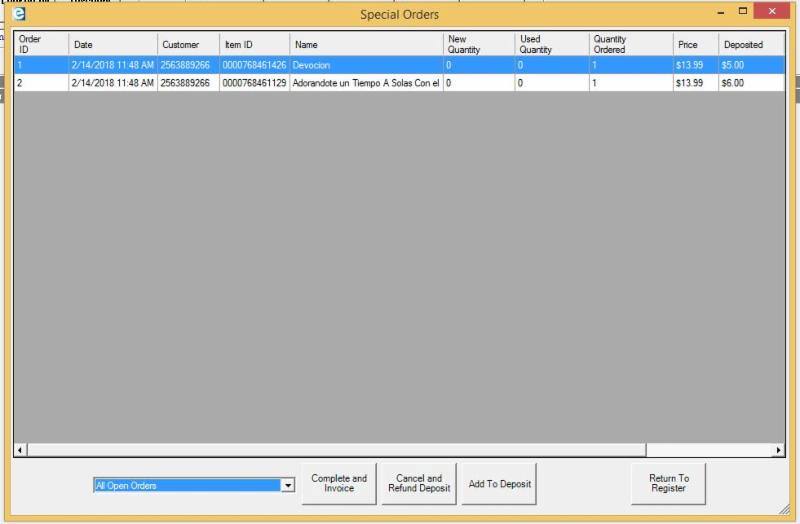
In either case, after you've sold the special order or preorder, you can manage them by hitting the special orders window on the left. This will cause the following screen to appear:
From here, you can complete and invoice to have the customer pay the remaining amount on the ordered item, cancel and refund deposit to get rid of that special order, or add to deposit to have the customer put additional money towards the item without actually picking it up.
|