Training Sessions (all in NCRC, Building 300, Room 371)
Protocol Administration: 9:00 - 10:00am
Protocol Maintenance: 10:30 - Noon
Subject Management: 1:00 - 4:00pm
Subject Management: 9:00 - 11:00am
Protocol Maintenance: 1:00 - 2:30pm
Protocol Administration: 3:00 - 4:00pm
OnCore Tips & Tricks becomes OnCore TUTOR
OnCore TUTOR (Tips, Updates & Techniques for OnCore Researchers) replaces OnCore Tips & Tricks. This rebranding reflects the publication's purpose: to cover all relevant updates, including configurations and process edits, for the OnCore Community as we continue to mature into our CTMS. The publication will continue to be your source of truth for quick training notes, support ticket summaries, and ways to make your work more efficient.
Please help us spread the word and share this publication with your colleagues using OnCore!
From the Support Desk: Entering a Consent Form in OnCore
Once a protocol receives IRB approval, details of the IRB approved consent form associated with the protocol must be listed in OnCore. As subject consent information is recorded in OnCore, this must occur prior to enrolling subjects in OnCore.
To add consent form information:
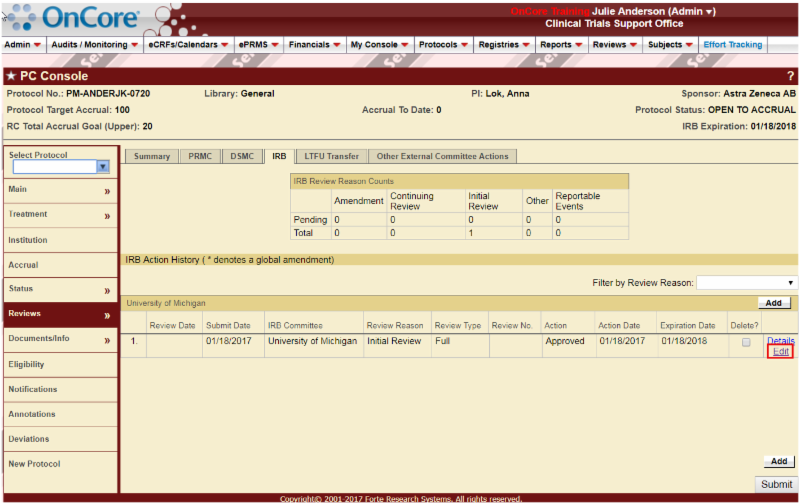
Navigate to the PC Console > Reviews tab
Click on the IRB tab
Confirm the status of the protocol in OnCore is IRB Initial Approval [A]
Click Edit on the IRB Initial Approval
Click to enlarge
Within the Details section:
Click Add [B]
From Type dropdown, select 'Consent' [C]
Enter 'Version Date' [D]
Received Date and Description are optional fields
Click 'Save' [E]
Using the 'Add URL' feature which appears after saving, add the URL of the Documents tab from the eResearch Regulatory Management (eRRM) system, which includes the most recent version of the IRB-approved consent [F]
Click 'Submit'
Click to enlarge
Remember: When enrolling a subject to the protocol, the entered consent form must appear on the Subject Console > Consent tab on the Available Consent pop-up window. The consent form information on this table should match what was entered on the Reviews > IRB tab (such as Version Date, Description, etc.)
Need Support? We're Here to Help!
The OnCore Team offers at-the-elbow support! Reach out via the clinical-support-service-desk@med.umich.edu email address and request a time on your schedule, at your location!
HITS will forward the ticket to the OnCore Team who will help you resolve OnCore task-related questions or requests for system configuration changes (add sponsor name, drop-down updates, new privileges, etc.) and custom reporting.
Our mission in the Clinical Trials Support Office is to support faculty and staff at the University of Michigan Medical School as they work to create the new knowledge needed to improve clinical care, value, and health outcomes by successfully executing a diverse portfolio of high-quality clinical trials.