Online@JSU This Week | 4.15.26

🍂 Fall Course Shells Are Now Available!


Fall course shells have been created and are ready in Canvas. Instructors can begin preparing their courses by reviewing content, updating materials, and completing any necessary setup. Be sure to check your course assignments and reach out if anything looks incorrect.

Course Copy Requests, Merge Requests, and Other Key Information


Course Copy: Course copies can be completed by instructors, or by Online@JSU by request.

  • If you complete your own course copy, do not select "All Content." Instead, choose "Select specific content."
  • If you select "All Content," important information contained within your course's details and other course settings can be overwritten - you do not want to overwrite your course settings!
  • If your previous course has Late Policy settings in the gradebook and you select "All Content" during a course copy, the Late Policy settings will be copied into your new course and zeros may appear in your gradebook for assignments. Read more about this issue and how to prevent it.
  • Review this information about course copying before you complete a course copy or request a course copy.
  • Completing a Course Copy (Video - March 2025)
  • Request a Course Copy from Online@JSU


Course Enrollment Merge Requests:

  • Requests must be submitted at least three business days before the first day of class per JSU's Academic Calendar.
  • Enrollment merges transfer to a parent course only course enrollments (faculty and students) but do not transfer content, assignments, student submissions, or student grades.
  • Warning: Merging after student submissions have been submitted and graded will erase all submissions and grades in the child course(s).
  • Request a Course Merge from Online@JSU.


Important Reminders:

  • Remember to Publish Your Course
  • Courses should be published by the first day of the semester according to JSU's Academic Calendar.
  • Optional - Prior to the term, view-only mode may be configured for early student view-only access.
  • Verify JaxBooks Configuration - If you or your students experience any issues accessing your eTextbook in the JaxBooks course navigation menu or through a courseware link in Modules, please contact the JaxState Campus Bookstore for assistance. Information about the JaxBooks course navigation link and publisher courseware is also available within the Textbooks accordion on the Faculty Tutorials and Guides page.
  • Course Navigation Menu Links - Academic Policies, Academic Support, and Tutor.com should not be removed from your course navigation menu in Canvas. These links support university initiatives.


Reminder!


BEFORE You Copy a Course OR

Request a Course Copy


As you begin preparing your summer courses, please take a moment to complete one important step before copying content into your course shell.


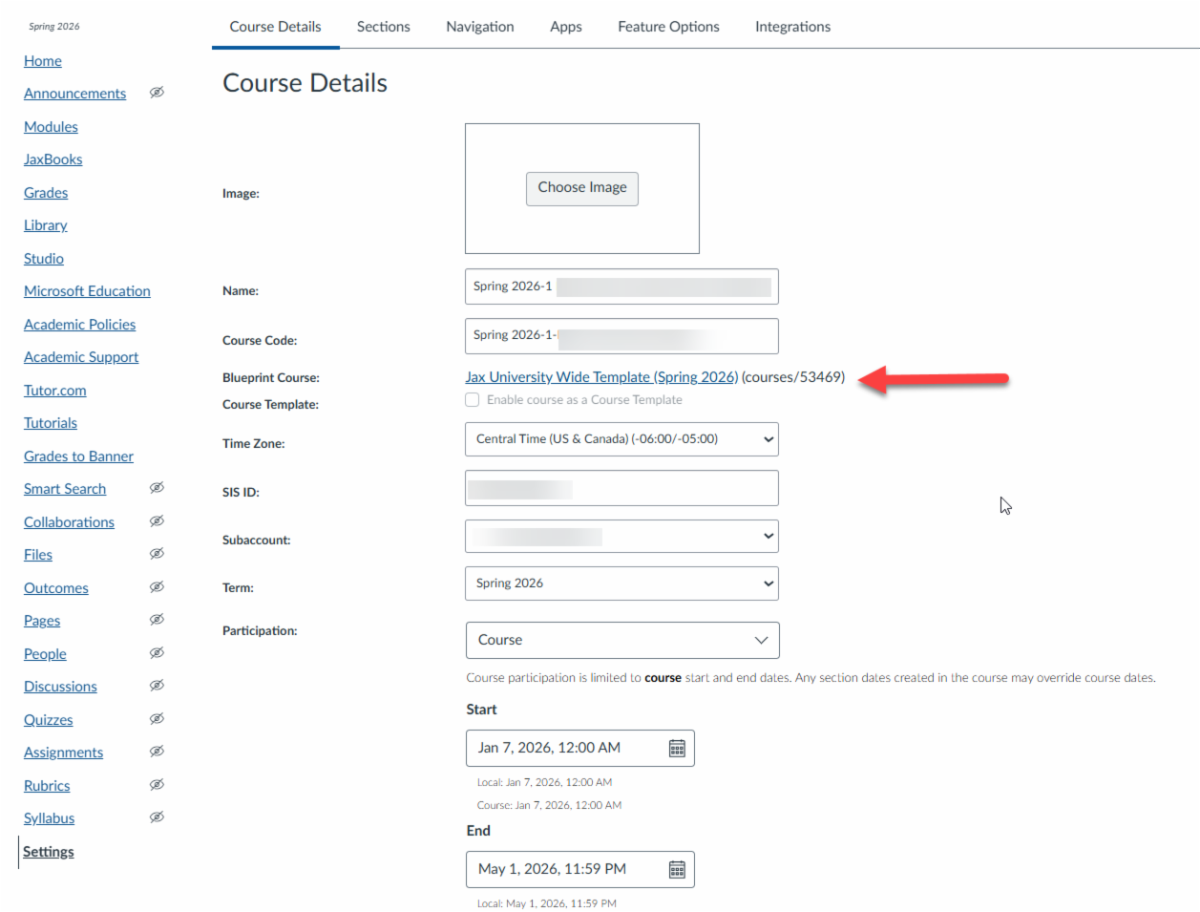
🔍 Check Your Blueprint Association First

All Canvas courses are connected to a Blueprint, which controls:

  • Course content
  • Settings
  • Navigation menu

Confirming your Blueprint association before copying a course helps prevent content conflicts or overwritten materials.


âś… How to Check Your Blueprint

  1. Open your course in Canvas
  2. Click Settings in the course navigation menu
  3. On the Course Details page, locate “Blueprint Course”
  4. Ensure a Blueprint is listed (the name may vary by term or course)


Once you’ve confirmed that your course is associated with a Blueprint, you’re ready to move forward with your course copy or submit a copy request.


📝 End-of-Semester Timeline: Evaluations + Finals


As we approach the end of the term, please take a moment to encourage your students to complete course evaluations during their designated window. Your reminders make a big difference in response rates!


Full Spring 2026 Courses

  • April 8 – Evaluation notifications sent to faculty & students
  • April 13 (12:00 AM) – Evaluation period opened
  • April 21 (11:59 PM) – Evaluation period closes
  • April 22–28 – Final Exams
  • May 1 – Grades Due
  • May 2 – Evaluation results released to faculty & administrators


Spring B & Spring Block 2 Courses

  • April 13 – Evaluation notifications sent
  • April 15 (12:00 AM) – Evaluation period opened
  • April 26 (11:59 PM) – Evaluation period closes
  • April 27 – Final Exams
  • May 1 – Grades Due
  • May 2 – Evaluation results released

Encourage Your Students to Complete the End-of-Semester Course Survey


Please remind your students to complete the End-of-Semester Course Survey and reassure them that their feedback is 100% anonymous.


Students should know:

  • Survey responses are completely anonymous.
  • No names, email addresses, student IDs, or identifying information are shared.
  • Results are reported only in aggregate (grouped) form.
  • Individual responses cannot be traced back to any student.
  • Faculty and administrators do not have access to results until after final grades are submitted.
  • Participation and responses cannot influence grades in any way.


Honest feedback—both positive and constructive—is encouraged and greatly appreciated. Student input plays an important role in improving courses for future learners.


Thank you for helping promote student participation.

âť“ Canvas FAQ Corner


Quick answers to common Canvas questions from faculty like you!


📌 Q1: Why are some students seeing “missing” for work they already submitted?

A: This usually happens when a submission type was changed after students submitted or if the assignment was duplicated. Double-check submission settings and SpeedGrader entries before adjusting grades.


📌 Q2: Can I bulk extend due dates for specific students without affecting everyone else?

A: Yes! Use the “Assign To” feature within the assignment to add individual students and set custom due dates.


📌 Q3: How can I double-check that my final grade calculations are accurate?

A: Review your assignment group weights and run a “Test Student” scenario to verify calculations before posting final grades.


📌 Q4: Can students still access course materials after the course ends?

A: Students lose access to courses three days after final exams end, at 11:59 PM.

Students should review the Course Access Expiration & Saving Your Coursework section of the Guide for Online Students and Others Using Online Technology page.


📌 Q5: Is there a way to message only students who scored below a certain grade?

A: Yes! In the Gradebook, use “Message Students Who…” to target students based on submission status or score ranges.

⚙️ Canvas SCORM Maintenance Scheduled (UPDATED)


Due to technical challenges encountered in other regional windows, IAD windows have been adjusted to allow for additional required work. Canvas will be performing scheduled maintenance on the SCORM tool on April 24 from 9:00 PM to 7:00 AM CDT.


During the maintenance window, SCORM content will be temporarily unavailable. However, all other Canvas features will remain fully operational, and courses can continue as normal outside of SCORM activities.


What this means for you:

  • SCORM-based assignments or content will not be accessible during the maintenance periods.
  • You may want to avoid scheduling SCORM-dependent activities during these times.


Additional Details:

  • This update will upgrade SCORM to the latest version, bringing improved functionality and performance.
  • Because this is a regional update, the timing may not align exactly with standard Canvas maintenance windows.


If you rely on SCORM in your course, a little advance planning will help ensure a smooth experience for you and your students.

Helpful

Resources and Links from Online@JSU


Questions or Comments?


Visit our website, email us at online@jsu.edu, or call us at 256-782-8172.


We look forward to hearing from you!

Online@JSU office logo
Facebook