Online@JSU This Week | 1.20.26

Helping Students Preserve Their Coursework


To support student success beyond the term, we encourage faculty to periodically remind students to save copies of their coursework outside of Canvas. Course access ends after the term, and students may need their work later for transfer credit, portfolios, or personal reference.


Faculty may wish to share a brief reminder early in the term encouraging students to save their work regularly: Students are encouraged to save copies of important coursework throughout the term. Course access is time-limited after the term ends.


Additional guidance for students is available on the Online@JSU website under Course Access Expiration & Saving Your Coursework.

Register Now: Spring 2026 Faculty Workshops


Registration is open for Spring 2026 Professional Development Workshops offered through Online@JSU. Sessions focus on Canvas, course design, and effective online teaching strategies.


👉 Register now and view the full schedule: Spring PD Opportunities

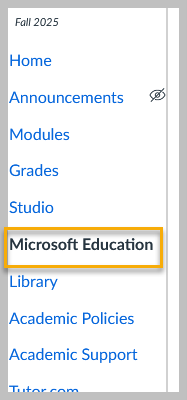
In Case You Missed It: Microsoft Education LTI in Canvas


Please remember to use only the new Microsoft Education LTI in Canvas to create Microsoft Teams, Class Notebooks, and related tools.


You may still see a sync option from the old Microsoft Teams LTI under Settings → Integrations. This option applies only to the old LTI and should not be enabled for Spring 2026 or future courses. Enabling both LTIs can result in duplicate Teams or Notebooks.

🔗 Microsoft Education LTI Tutorial: https://jsu.instructure.com/courses/29424


If you have questions or need assistance, please contact online@jsu.edu.

📚 Quick Pedagogy Insights


Even small tweaks in teaching strategies can make a big difference for student engagement and learning outcomes. Here are a few research-backed ideas to try this semester:


1. Micro-Feedback Matters

Short, frequent feedback (even a sentence or two) helps students adjust their work faster and feel supported throughout the course.


2. Chunk Content for Better Retention

Break lessons into smaller, digestible segments especially for online or hybrid courses. Students retain information better and are less likely to feel overwhelmed.


3. Use “Reflection Moments”

Encourage students to pause periodically and reflect on what they’ve learned. A quick journal prompt or discussion post can deepen understanding and improve critical thinking.


4. Leverage Peer Learning

Pairing or grouping students for brief collaborative activities promotes engagement and helps students learn from each other’s perspectives.


5. Start Small with Active Learning

You don’t need a full flipped classroom to get results. Even adding one interactive element, like a poll, quiz, or discussion per week, increases participation and retention.


Faculty Tip: Experiment with one new strategy at a time, then reflect on what works. Continuous improvement builds both student success and your own confidence as an instructor.

💡 Did You Know?


Did you know Canvas allows you to assign different due dates to individual students or groups?


Canvas supports differentiated due dates within a single assignment, making it easier to manage accommodations, extensions, or group-specific timelines without creating multiple versions of the same assignment.


How to set differentiated due dates:

  1. Open the assignment you want to edit.
  2. Scroll to the Assign section at the bottom of the page.
  3. By default, the assignment is set to Assign to: Everyone.
  4. Click + Add to create an additional assignment date.
  5. In the new Assign to field, select a specific student or a course group.
  6. Enter the appropriate Due, Available From, and Until dates.
  7. Adjust or remove the original “Everyone” date if needed.
  8. Click Save (or Save & Publish).


Students will only see the due dates that apply to them, reducing confusion while allowing instructors to maintain a single assignment.

❓ Canvas FAQ Corner


Quick answers to common Canvas questions from faculty like you!


📌 Q1: How can I make sure students receive important messages during the first week?

A: Encourage students to review their Canvas notification settings. While announcements post in the course, notification preferences control how and when students receive alerts.


📌 Q2: What happens if I change an assignment due date after students have already submitted?

A: Updating the due date does not affect existing submissions. Canvas will keep the original submission timestamps while applying the new due date moving forward.


📌 Q3: Can I limit which file types students submit for assignments?

A: Yes. In the assignment settings, you can specify accepted file types (such as PDF or DOCX) to prevent incorrect submissions and streamline grading.


📌 Q4: How can I reduce academic integrity issues before the first major assessment?

A: Providing clear expectations, sample questions, and a low-stakes practice quiz (especially when using Honorlock or online quizzes) helps students understand requirements and reduces issues later.


📌 Q5: Is there a way to check for broken links before students access the course?

A: Canvas includes a Link Validator tool that scans your course for broken or inaccessible links, helping you catch issues before the semester gets underway.

Helpful

Resources and Links from Online@JSU


Questions or Comments?


Visit our website, email us at online@jsu.edu, or call us at 256-782-8172.


We look forward to hearing from you!

Online@JSU office logo
Facebook