Online@JSU This Week | 7.8.26

⚠️ Security Alert: Be Aware of Canvas Phishing Emails


Our office has recently received an increase in reports of phishing emails claiming that "Your account's email address was updated." If you receive an email like this, do not assume your Canvas account has been compromised.


After investigating these reports, we have confirmed that no unauthorized logins or email address changes have occurred on the affected JSU Canvas accounts. These messages are examples of spoofed emails, where scammers disguise their messages to appear as though they were sent from notifications@instructure.com, Canvas's automated notification address.


Because this sender address is commonly used for legitimate Canvas notifications, cybercriminals often spoof it in an attempt to bypass spam filters and trick recipients into revealing login credentials or other sensitive information.


Warning Signs of a Phishing Email

Be cautious if an email includes any of the following:

  • Unexpected account change notifications, such as "Your account's email address was updated," when you have not made any changes.
  • Generic greetings, poor grammar, spelling errors, or references to courses or instructors that are unfamiliar.
  • Urgent language or threats claiming your account has been compromised or demanding immediate action.
  • Suspicious links that do not lead to your official JSU Canvas login page. Before clicking any link, hover over it to view the destination URL.


How to Protect Your Account

If you receive a suspicious Canvas email:

  • Do not click any links or download attachments.
  • Access Canvas directly by navigating to the official JSU Canvas login page through your web browser rather than using links in the email.
  • Do not respond to extortion or payment requests. These messages are designed to create panic and pressure recipients into acting quickly.
  • Report suspicious emails to phishing@jsu.edu so they can investigate and help protect the campus community.

🚀 DesignPLUS Quick Start Wizard Now Available in Canvas


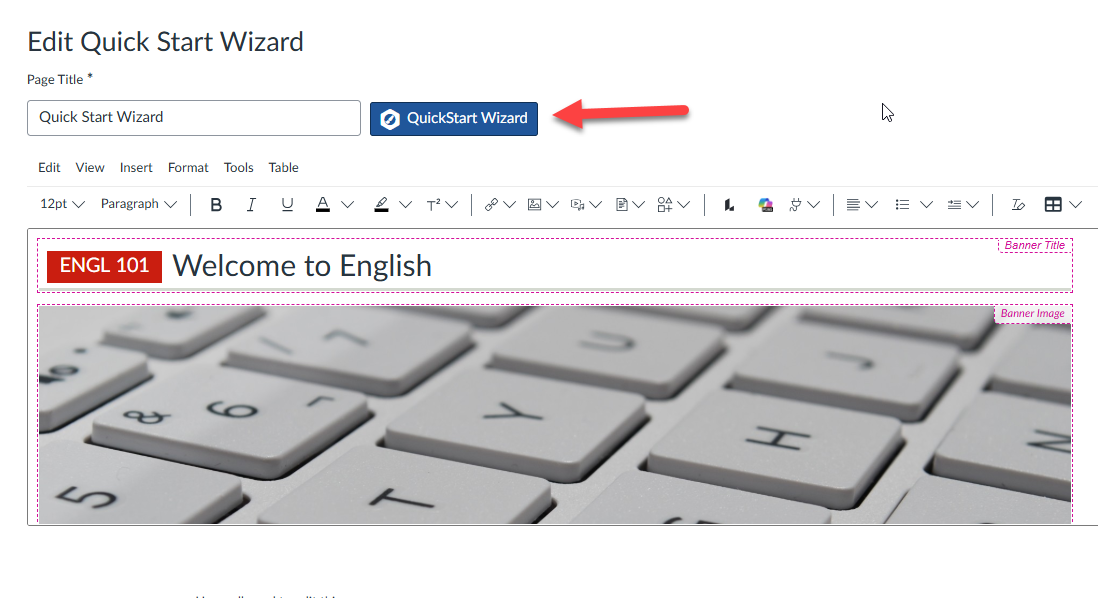
Getting started with DesignPLUS just became even easier! The DesignPLUS Quick Start Wizard has been enabled in Canvas to help faculty quickly build professionally designed course pages without starting from scratch.


What You Can Do with the Quick Start Wizard

  • Create a professional-looking course homepage in minutes.
  • Build consistent, accessible content pages using pre-designed templates.
  • Quickly add banners, buttons, icons, accordions, callout boxes, and other DesignPLUS components.
  • Maintain a consistent look across your course.

How to Access It

  1. Open a Canvas page and click Edit.
  2. Launch DesignPLUS from the Canvas toolbar.
  3. Select Quick Start Wizard.
  4. Follow the guided prompts to choose your layout and customize your content.
  5. Save your page when you're finished.


For more information on getting started with Quick Start Wizard, check out the Quick Start Wizard Guide.

 Faculty Workflow Hack


Create a "Need This Week?" Card Layout with DesignPLUS


A card layout is especially helpful in online and accelerated courses where students are managing multiple assignments and deadlines. By grouping similar tasks together, you can create a consistent experience that students will recognize from week to week.


How to Create a Weekly Card Layout

  1. Open your weekly overview page in Canvas and click Edit.
  2. Launch the DesignPLUS Sidebar.
  3. Select Add Content Block.
  4. Choose the Cards component.
  5. Create a card for each type of activity students will complete during the week.
  6. Add a brief description beneath each card so students know what to expect before selecting it.
  7. Link each card directly to the appropriate Canvas page, assignment, discussion, quiz, or module item.
  8. Save your page.


Example Weekly Layout

Instead of displaying a lengthy list of links, your module overview might look like this:

Read

  • Chapter 6: Instructional Strategies
  • Review the supplemental article on active learning


Watch

  • Weekly Lecture (20 minutes)
  • Module Demonstration Video


Discuss

  • Participate in the Week 6 Discussion
  • Reply to two classmates by Sunday


Submit

  • Reflection Assignment
  • Module Quiz

Canvas MythBusters


Myth #1: "Every assignment should open in a new tab."

Busted: Keeping students inside Canvas often creates a smoother experience.


Myth #2: "DesignPLUS slows down Canvas."

Busted: Properly designed DesignPLUS pages load efficiently while improving usability.


Myth #3: "More announcements improve communication."

Busted: Too many announcements can cause students to ignore them.


Myth #4: "Students never watch welcome videos."

Busted: Short, engaging welcome videos often have high engagement.

❓ Canvas FAQ Corner


Quick answers to common Canvas questions from faculty like you!


📌 Q1: Can instructors undo page edits?

A: Canvas includes Page History so previous versions can often be restored.


📌 Q2: Can I upload PowerPoint files directly?

A: Yes. Canvas supports PowerPoint uploads, although converting key slides into Canvas pages often improves accessibility.


📌 Q3: Why does Canvas say "No Submission"?

A: The assignment submission type may not require file uploads or students may not have submitted.


📌 Q4: Why can't I edit a submitted discussion post?

A: Once replies exist, editing options may be limited depending on discussion settings.


📌 Q5: Can I create hyperlinks to another module?

A: Yes. Module URLs can be copied and linked from pages.

Helpful

Resources and Links from Online@JSU


Online@JSU office logo

Questions or Comments?


Visit our website, email us at online@jsu.edu, or call us at 256-782-8172.


We look forward to hearing from you!

Facebook