Online@JSU This Week | 11.5.26

Spring 2027 Canvas course shells have been created and are now available!


Faculty can begin preparing courses, importing content, and updating materials for the upcoming term.


Here’s how to get started:

  1. Log in to Canvas and look under the Courses → All Courses menu.
  2. Locate your Spring 2027 course shell(s).
  3. Update your syllabus, due dates, announcements, and verify JaxBooks configurations before publishing.


If your course shell is missing or you need assistance, please contact online@jsu.edu for support.

Reminder!


BEFORE You Copy a Course OR

Request a Course Copy


As you begin preparing your summer courses, please take a moment to complete one important step before copying content into your course shell.


🔍 Check Your Blueprint Association First

All Canvas courses are connected to a Blueprint, which controls:

  • Course content
  • Settings
  • Navigation menu

Confirming your Blueprint association before copying a course helps prevent content conflicts or overwritten materials.


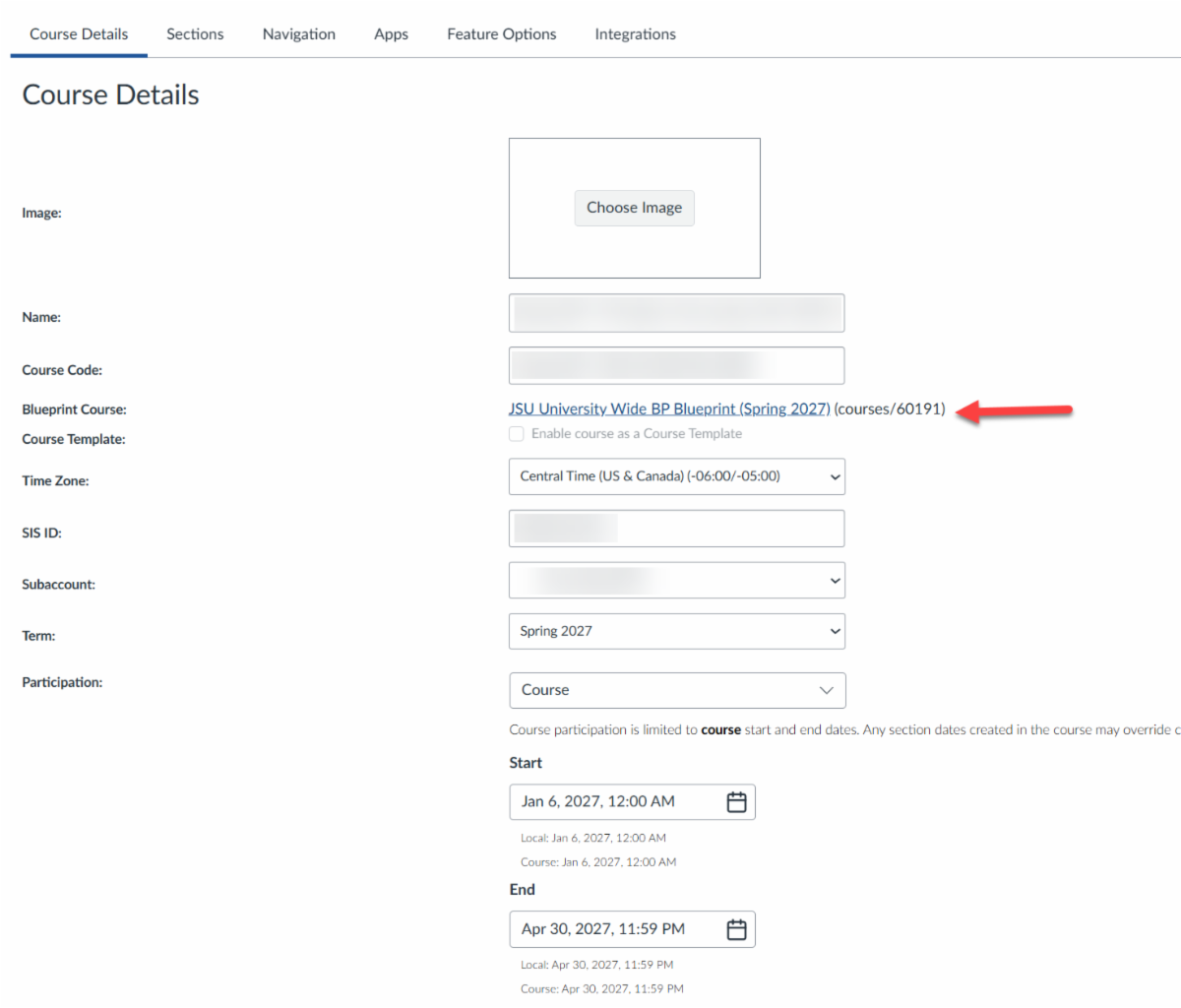
✅ How to Check Your Blueprint

  1. Open your course in Canvas
  2. Click Settings in the course navigation menu
  3. On the Course Details page, locate “Blueprint Course”
  4. Ensure a Blueprint is listed (the name may vary by term or course)


Once you’ve confirmed that your course is associated with a Blueprint, you’re ready to move forward with your course copy or submit a copy request.

Classic Quizzes to New Quizzes: Your Conversion Guide Is Here!


With Classic Quizzes being retired after Fall 2026, now is a great time to start preparing for the transition to New Quizzes. Online@JSU has created a new resource page to help faculty understand the conversion process and determine the best way to move their existing quizzes and Question Banks.


The Classic to New Quizzes: Converting Your Quizzes page includes:


  • Step-by-step instructions for migrating Classic Quizzes to New Quizzes.
  • Guidance on how Question Banks are converted to Item Banks.
  • Different options for copying quizzes and importing course content.
  • A decision matrix to help you choose the best conversion method.


Not sure where to start? Online@JSU can help! Faculty can also submit a Course Copy Request and let our team assist with the conversion process.


Take a look at the new resource before the end of the Fall 2026 term so you are prepared for the transition!


View the Classic to New Quizzes Conversion Guide

Course Copy Requests, Merge Requests, and Other Key Information


Course Copy: Course copies can be completed by instructors, or by Online@JSU by request.

  • Request a Course Copy from Online@JSU
  • Faculty Tutorial for Completing a Course Copy. Please review all instructions, which include modified procedures in consideration of the current functionality and impact. These instructions may be modified again for future terms as technology changes and new evaluations are conducted. Faculty will be notified of new recommendations as those become relevant.
  • Before you copy a course, please review the "Converting Classic Quizzes to New Quizzes" guide, especially the following sections which are relevant to conducting complete course copies:
  • Import Course Content - All content
  • Import Course Content - Select specific content
  • Note: If you don't use Classic or New Quizzes, it is still important to review these sections for changes and important information when performing a Course Copy to avoid issues.


Course Enrollment Merge Requests:

  • Requests must be submitted at least three business days before the first day of class per JSU's Academic Calendar.
  • Enrollment merges transfer to a parent course only course enrollments (faculty and students) but do not transfer content, assignments, student submissions, or student grades.
  • Warning: Merging after student submissions have been submitted and graded will erase all submissions and grades in the child course(s).
  • Request a Course Merge from Online@JSU.


Important Reminders:

  • Remember to Publish Your Course
  • Courses should be published by the first day of the semester according to JSU's Academic Calendar.
  • Optional - Prior to the term, view-only mode may be configured for early student view-only access.
  • Verify JaxBooks Configuration - If you or your students experience any issues accessing your eTextbook in the JaxBooks course navigation menu or through a courseware link in Modules, please contact the JaxState Campus Bookstore for assistance. Information about the JaxBooks course navigation link and publisher courseware is also available within the Textbooks accordion on the Faculty Tutorials and Guides page.
  • Course Navigation Menu Links - Academic Policies, Academic Support, and Tutor.com should not be removed from your course navigation menu in Canvas. These links support university initiatives. Depending on your approach to importing content from one course to another, you may need to remove duplicates of these links as well as duplicated template content in the course, as described in the Faculty Course Copy tutorial referenced above.

Before Spring 2027: Have You Converted Your Classic Quizzes? 


Spring 2027 may seem a long way away, but now is the time to make sure your Canvas assessments are ready. 


Classic Quizzes will be turned off at the end of Fall 2026. 


If your Spring courses rely on quizzes, exams, or question banks created using Classic Quizzes, begin reviewing and migrating those assessments now. 


Final Classic-to-New Quizzes Workshops 


Monday, November 9 | 1:00 - 2:00 p.m. 

Tuesday, November 10 | 3:00 - 4:00 p.m. 


In this hands-on workshop, we'll walk through converting Classic Quizzes into New Quizzes and discuss what faculty should expect during migration. 


Register for a conversion workshop 


Recommended Action for this Week:

Open one of your upcoming Spring 2027 courses or a course containing assessments you plan to reuse. Identify which assessments were created with Classic Quizzes and begin planning their migration. 


The goal isn't simply to convert your quizzes. It is to make sure they work as expected before students need them. 

In Case You Missed It: Troubleshooting Blank Quizzes


Are students opening a Canvas quiz and finding no questions? This can happen when quizzes containing linked Question Banks are copied incorrectly between courses.


The fix: Avoid using the Copy To feature for quizzes that use linked Question Banks. Instead, use the Import Course Content tool to copy the quiz and its associated Question Banks together.


Before your next course copy:


  • Import both the quiz and its associated Question Banks using Import Course Content.
  • Verify that the Question Banks are linked correctly after the import.
  • Use View as Student to confirm that quiz questions appear as expected before publishing.


Quick Reminder: Question Banks linked to randomly selected question groups may not transfer when quizzes are exported as QTI files.


Need a refresher?


Visit the Online@JSU New Quizzes Tutorial for course copy guidance.


Make the Most of Canvas Course Analytics


Your Canvas course holds more than grades! Course Analytics can help you spot students who may need support, identify patterns in course activity, and make informed decisions about your teaching.


4 Ways to Put Course Analytics to Work


1. Identify Students Who May Need a Check-In

Review weekly online activity and participation to identify students who may have become less active. A quick, supportive message can help you find out if a student is struggling or needs guidance.


2. Spot Challenging Assignments

Use course grade data to compare assignment performance with the overall course average. If students consistently struggle with a particular assignment, consider reviewing the instructions, adding examples, or providing additional practice.


3. Follow Up on Missing Work

Use the Reports tab to identify missing or late assignments. You can also use Course Analytics to message students based on submission status, helping you follow up without contacting students one at a time.


4. Check Engagement Throughout the Semester

Review weekly page views and participation to see how students interact with course materials over time. If activity drops around a particular unit, consider whether students need a reminder, clarification, or additional resources.


Where Can You Find It?

Open your Canvas course and select Course Analytics from Course Navigation or the Course Analytics button on the Course Home Page. Explore the Course Grade, Weekly Online Activity, Students, and Reports tabs to find the information most useful to you.


Keep in Mind: Analytics are best used as a starting point for conversation, not as a complete picture of student learning. Page views are estimates of activity, so consider them alongside grades, submissions, and communication with students.


Learn More: What is Course Analytics? from Instructure.

❓ Canvas FAQ Corner


Quick answers to common Canvas questions from faculty like you!


📌 Q1: Can I give students feedback on a specific part of their submitted document?

A: Yes! Canvas DocViewer allows instructors to annotate supported assignment submissions with comments, highlights, and other markup tools. Open a student's submission through SpeedGrader to review the available annotation options.


📌 Q2: Can students access Canvas courses after the semester ends?

A: Student access follows the university's course access and archiving procedures. At Jax State, students lose access three days after final exams end at 11:59 p.m. Remind students to download any work or files they want to keep before access expires.


📌 Q3: Can I excuse a student's assignment without affecting their grade?

A: Yes! In the Canvas Gradebook, instructors can mark an assignment as Excused for an individual student. Canvas excludes excused assignments from that student's grade calculation.


📌 Q4: Can I assign an assignment to only certain students?

A: Yes! In the assignment's Assign To section, you can select specific students or course sections instead of assigning it to everyone. This can be useful for make-up work, individual extensions, or differentiated assignments.


📌 Q5: Why aren't students receiving notifications about course announcements?

A: Students control many of their own Canvas notification preferences. They may have announcement notifications turned off or delayed. Encourage students to review their Account → Notifications settings and confirm their preferred notification methods.

Online@JSU office logo

Helpful

Resources and Links from Online@JSU


Questions or Comments?


Visit our website, email us at online@jsu.edu, or call us at 256-782-8172.


We look forward to hearing from you!