Summer 2026

As 2026 continues to fly by, the PastPerfect Online team is preparing for some back-end maintenance and server updates this summer to improve overall site performance. We are still working out the exact dates to minimize disruption to you and your visitors. We will announce the time frames by email to all PPO Admins once they have been officially scheduled.


You can find the contact information we have on file for your PPO Admin in your Welcome Letter. We also include their name and email address on Annual Hosting Renewal notices. If you can't find your Welcome Letter or need to change the name or email address of your PPO Admin, please contact our office at 1-800-562-6080 or send an email to pposupport@museumsoftware.com with the updated information.

Featuring Specific Records On Your Site

Featured KB article: FAQ: PastPerfect Online "Quick Links"


What are Quick Links?

Quick Links are shortcuts added to your PastPerfect Online site to help guide web visitors towards specific pages on your site. These could be individual records (e.g., highlighting staff favorites) or search results (e.g., a pre-done search for a collection name to list all records within that collection).


Quick Links are formatted using HTML (HyperText Markup Language) and CSS (Cascading StyleSheets), so the PPO team is happy to set these up for you.


What does the PPO team need to set up my Quick Links?

The basic information we need is:

1. The text and images to be displayed

  • If the images are attached to catalog records and shared online, you can simply send links to the respective records on your site. If there are multiple images for the record, indicate which specific image should be used.
  • If the images are not online, please email them to us as individual image files, preferably in JPG or PNG format. If images need to be cropped, please do so prior to emailing the files. There is no specific size requirement, but between 200 and 400 pixels is generally a good size for most layouts. Be sure the images have the correct height to width ratio for how you want them to be displayed.

2. What URL goes with each link

  • This can be a link to Keyword Search results, Advanced Search results, a catalog record, a Search Term or Creator record, etc.
  • Navigate to the record or perform the search, then copy and paste the URL from your browser’s address bar. By visiting the record and performing the search yourself, you can confirm that the record and results are appearing as expected

3. Indication of layout/order, especially in relation to current content

  • If you can create and send a mockup, even a very basic one, that is incredibly helpful to help us "see" what you are envisioning.
  • Don’t feel like you need to only choose from what you have seen in examples! Please send us information if you have a different idea in mind. If it is not possible for some reason, we can suggest an alternate idea.


How do I get started?

If you haven't already thought about the way you would like your Quick Links to look, begin by browsing through some examples in the PPO User Guide: Quick Link Examples.


Email the information listed in the "What does the PPO team need to set up my Quick Links?" question to pposupport@museumsoftware.com. We also have a "Quick Links Template" Word document available in the Knowledge Base article's Resources that you can download and fill out. The "Quick Links Template EXAMPLES" document demonstrates how this template can be filled out using our demo sites.


After our team has received the information about your links, they will let you know if they have any questions and provide a timeline for when your links will be ready to review. Your links will be initially set up on a test site so you can look it over and request any changes. Once you have approved the design, we will move it to your live site.


How do I update my Quick Links later?

If your links go to search results, any new records you upload to your site will be automatically included as long as they match the search criteria for your link – there's nothing else that needs to be done! When you would like to add new links or swap out old ones, reach out to pposupport@museumsoftware.com with the new text, images, and links.


Tip: Customizing Your Search Tips

When a PastPerfect Online site is initially set up, default search tips are included on the Landing Page. This text provides an overview of the available research options and can be modified, completely rewritten, or even removed. Each search page also has default Help Text which can be replaced with your own custom text.


You can edit your Landing Page content and Help Text in the Interface Management Site (IMS). Use HTML markup to add formatting like paragraphs, bolded text, or bulleted lists. Before making any changes to these settings, we strongly suggest you copy the existing text into a Notepad document or other plain text file; if done incorrectly, changes in these sections can have a significant impact on the appearance or functionality of your site. More information on how to make these changes can be found in the PPO User Guide with a few key topics linked below. If you aren't familiar or comfortable with HTML to make the changes on your own, please reach out to us and we'll be happy to help.


Whether you make the changes yourself or ask our team for assistance, it's important that you consider your own collections data as well as the needs of your patrons when choosing what tips to display on your site. For example, you may want to remove references to the Library catalog if you don't have any Library records shared on your site. Is there specific formatting in your data entry that visitors should be aware of to ensure they receive the most accurate search results? Maybe there are no Archive records online yet because your team is currently digitizing those documents. If so, mention when to check back for the new content – and remember to update your search tips and help text after they've been published!

Staff Pick

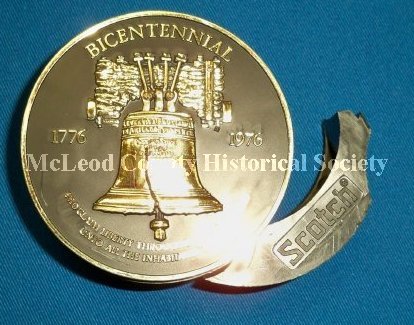
We are asking each of our staff to choose a favorite item from one of the many online collections. Jennessa's pick is a novelty tape dispenser from the online collection of the McLeod County Museum of History:

Promotional novelty 3M U.S. Bicentennial (1776-1976) tape dispenser

"Some of my favorite things in museum collections are the novelty items created to celebrate different events. This Bicentennial tape dispenser is a perfect example and includes an image of one of my favorite Philadelphia treasures, the Liberty Bell. Since America's 250th celebration is in full swing, I am excited to see what items are created for this year's events!"

Featured Sites

Owls Head Transportation Museum

National Nordic Museum

Albertland Heritage Centre

View more PastPerfect Online sites on our List of Collections page.


If your site is not listed and you would like to be, please let us know by sending an email with your organization name to pposupport@museumsoftware.com.

Need help with your PastPerfect Online site?
Contact us! Please email pposupport@museumsoftware.com or call 1-800-562-6080 if you have any questions about your PastPerfect Online site. Our team is happy to help!
This newsletter is for clients who use PastPerfect Online. We intend to use it as a way to discuss features and training opportunities as well as planned maintenance. Feel free to forward to anyone in your organization who would benefit from its content.

Facebook  Email