April 2, 2025 | Spring Newsletter | | | |
PastPerfect 5.0
Latest Update: 5.0G2
Research by Search Term
Pledges & Receipts Donation Reports
| |
PastPerfect Web Edition
New Features in Latest Update
New Training Classes
Search Functions: Search by Lexicon
Catalog Lists: Actions
On-Demand or Live Webinars
| |
Online Collections
Collections Spotlight
Staff Pick
| |  |
|
This Day in History - 1805
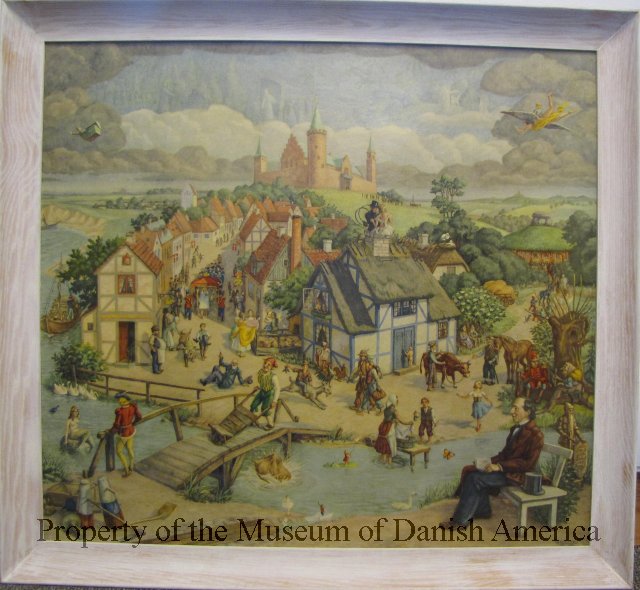
Hans Christian Andersen is born
| | | |
This Spring we want to highlight a few resources for museums and archives including grant opportunities and upcoming events for the field.
The American Institute for Conservation provides a list of state grants that fund collections care projects. Visit https://www.culturalheritage.org/resources/collections-care/cap/resource-list/state-grants for more information.
The Northeast Document Conservation Center provides free resources to support collections preservation efforts at cultural heritage institutions at https://www.nedcc.org/free-resources/overview.
The Mellon Foundation has four grant-making areas: Arts and Culture, Higher Learning, Humanities in Place, and Public Knowledge. Visit https://www.mellon.org/resources for more information and subscribe to their newsletter to learn about open calls for proposals.
And if you missed celebrating World Backup Day on March 31st, it's never a bad time to make a backup - make one today!
If you have questions about making backups or any other questions about our desktop and web-based software programs, you can reach us by calling 1-800-562-6080 or emailing support@museumsoftware.com. Our business hours are Monday through Friday, 9:00am to 5:30pm Eastern.
Please note, our support and sales office will be closed for the following U.S. holidays:
Monday, May 26th: U.S. Memorial Day
Friday, July 4th: U.S. Independence Day
| | | |
A new service update is available for PastPerfect 5.0. Updates are cumulative and available as free downloads from our website. If you have not updated in several months, please schedule time to run the latest update. If your organization has a networked version of PastPerfect, you will need to have all of the other users exit PastPerfect before starting the update process.
Before the update is installed, make a data backup to hard drive, and then perform a Reindex. Once the Reindex is complete, make a second data backup, and then exit the program. Once all PastPerfect programs are closed, you can begin installing the update.
This update fixes an issue printing reports using the Microsoft Word output option. Since the 5.0G2 update affects local program files, this update will need to be run at each PastPerfect computer.
The update is available to download from our website at https://museumsoftware.com/softwareupdates.html. Detailed instructions can also be found there.
| | | |
The Search Terms field enables you to record names or words that will be key to finding items in your collection. They could be family names, organizations, places, or topics related to your organization's collection items. Search Terms is one of many catalog record fields with an authority file. However, its authority file is automatically populated during a reindex, by the entries added to the field.
As terms are added to catalog records, it is important they are consistent and that each term is separated by a carriage return. If you already have a populated Search Terms authority file, you should check the authority file and select an existing term first before adding a new term. This will allow for consistent data entry across all catalog records related to that term, which will make searching and finding items easier.
To search your collection by search terms, select By Search Term from the Research section on the main menu. On the Search by Search Term screen, you will see an alphabetical list of your Search Terms on the left. On the right is a catalog record count for each term.
Double click on a search term to see a list of records containing this term. You can click the View Records button in the left side bar to begin navigating through records, or double click on a specific record in the grid to see the item's full catalog record and then navigate between records. Click Exit to return to your Query Results.
From the left side bar, you can also:
- Save the search results to a pre-existing Catalog List.
- View the records' primary images in a lightbox format.
- Print the search results in multiple report formats (such as lists, catalog records, catalog cards, and exhibit labels).
- Export the search results to Excel.
For more information about using the Search Terms field, please visit our Knowledge Base article "How do I use the People, Subjects, Classification, and Search Terms fields?"
To learn more about using Research by Search Term, watch our Video Tech Tip, Research by Search Term with PastPerfect 5.0.
| | | Report Highlight: Donation Reports from Pledges & Receipts | |
The Pledges & Receipts screen in PastPerfect's Development section allows you to view, post, and report on monetary donations, dues payments, and pledges. You can also print reports for each of these items. This article will cover the reports available for Donations.
Print Receipts
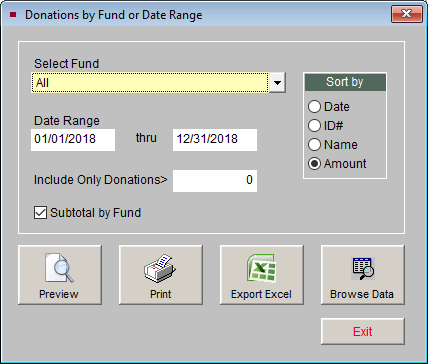
Click the Print Receipts button under Donations in the left side bar to print the Donations by Fund or Date Range report. This report allows you to include donations from all funds, or select donations from one fund. You can expand or narrow your results by entering a Date Range. You can include all donations of any amount or narrow your results to donations greater than the amount you enter. When you include donations from all funds, you can check the Subtotal by Fund box to include the subtotal of donations for each fund.
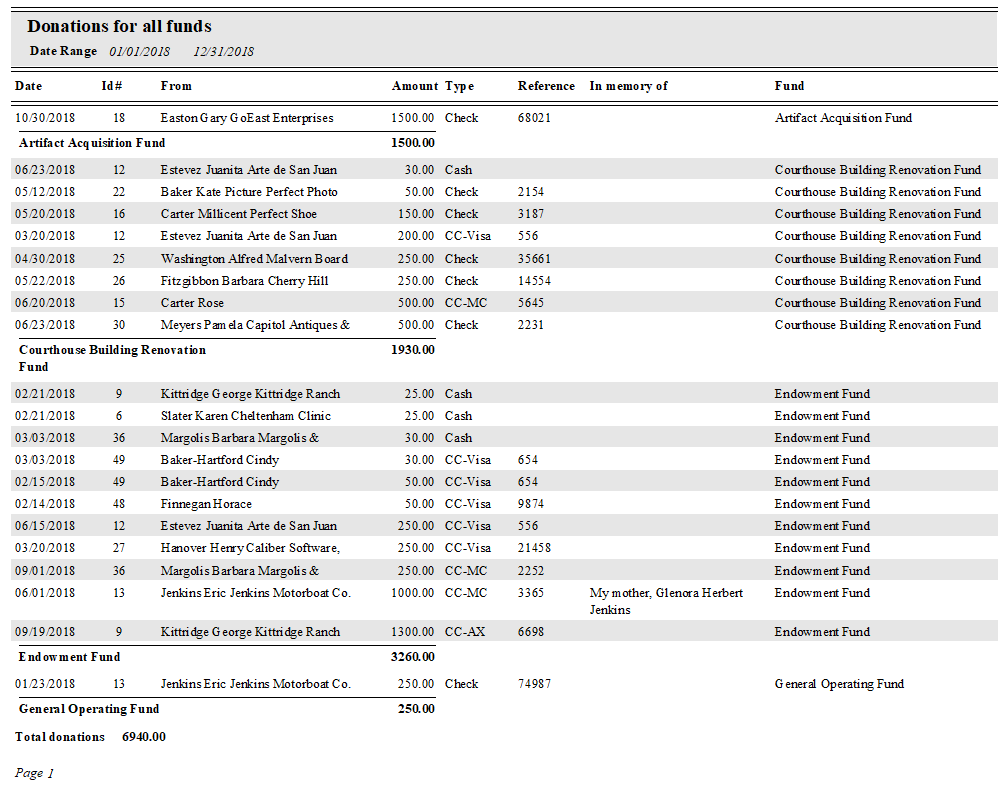
This report allows you to sort records by the Date of the donation, ID# of the Contact, Last Name of the Contact, or Amount of the donation. You can preview the report or print the report to a number of output options. You also have the option to Export to Excel. By default this report includes the following fields: Donation Date, Contact ID#, Contact Last Name, First Name, Company, Donation Amount, Payment Type, Reference # (Check #), In Memory of/In Honor of, and Fund.
In this example, we have selected to include all donations from the calendar year 2018, subtotaled by Fund, with records sorted by Amount.
| |
Print List
Print List is a quick way to report on donations received during a specific month or year. Before clicking the Print List button, you'll need to select the year and/or month for the donations you want included on the report. Use the Change Year field at the bottom of the left side bar to set the year. Then select the month tab or Entire year tab at the top of the Pledges & Receipts screen.
Once you select the month or year, click Print List. You can sort the donation records by Date, Contact ID#, Contact Last Name, Amount, or Fund. The report can be previewed or printed to a number of output options. The data can also be exported to Excel. This report's default fields are Date, Contact ID#, Last Name, First Name, Company, Amount, Reference # (Check #) and Fund.
| | | New Features in Recent Update | |
The latest update, published on March 24, 2025, includes the following changes:
- Improvements to increase the performance of Contacts and Contacts reports
- Changes to modals throughout software to improve user experience
- Added ability to navigate between records in search results for Quick Search & Search by Lexicon
- New placeholder fields "Date Joined (Formal)", "Date of Payment (Formal)", "Last Paid Date (Formal)", "Receipt Sent (Formal)" for Membership Dues Receipt
- Container List reports or the containers included on an Archives catalog record report can be narrowed by performing a search in Container List first
- New "Number of Images" Filter & Option field added to People
- Catalog Lists and Contact Lists will sort most recently created lists first
- Option to include Description, if available, on Authority File reports
- "Exhibit Label" field available to share for Objects, Photos, Archives, and Library records on Public Access
- "Show More" link added when there are more than 15 People or Search Terms listed on a catalog record on Public Access
To see a full list of features and fixes from each update, click "Version History" in the footer while you are logged into the Web Edition software.
| | | New Web Edition Training Classes | More Web Edition training classes are available! We recently released classes on the Objects and Archives Catalogs. Each class reviews the fields available in that catalog, how to add new records, and explores common cataloging scenarios. These classes are free and available to watch on-demand. Training classes are can be found on our GoToStage channel https://www.gotostage.com/channel/pastperfectwebedition. | | | Search Functions: Search by Lexicon | |
This article is the last in a series on Web Edition's search functions that are accessed by clicking the magnifying glass icon at the top of every page in Web Edition. This article provides more in-depth information about Search by Lexicon. See our Fall 2024 newsletter for information about the Full Catalog Search and our Winter 2025 newsletter for information about Quick Search.
In Web Edition, Object Name is a required field when adding a catalog record, and the field is populated by choosing a term from the Lexicon. Web Edition uses Nomenclature for Museum Cataloging as its Lexicon for object names. Nomenclature is a structured and controlled vocabulary for naming human-made objects and classifying them according to use. Each object name is classified within a Category, Classification, and Sub-Classification, which groups similar objects together by their function. For more information about Nomenclature, visit https://page.nomenclature.info/.
Search by Lexicon enables users to find items by their Category, Classification and Sub-Classification. To access this search function, click the magnifying glass icon at the top of the Web Edition page. Then click the Search by Lexicon tab.
The first step in a search is to decide which catalog(s) to include. Then choose a Category to start narrowing the results. You can search for all object names within a Category or continue to narrow your search by selecting a Classification within the Category. Some Classifications have Sub-Classifications, and you can narrow your search even further.
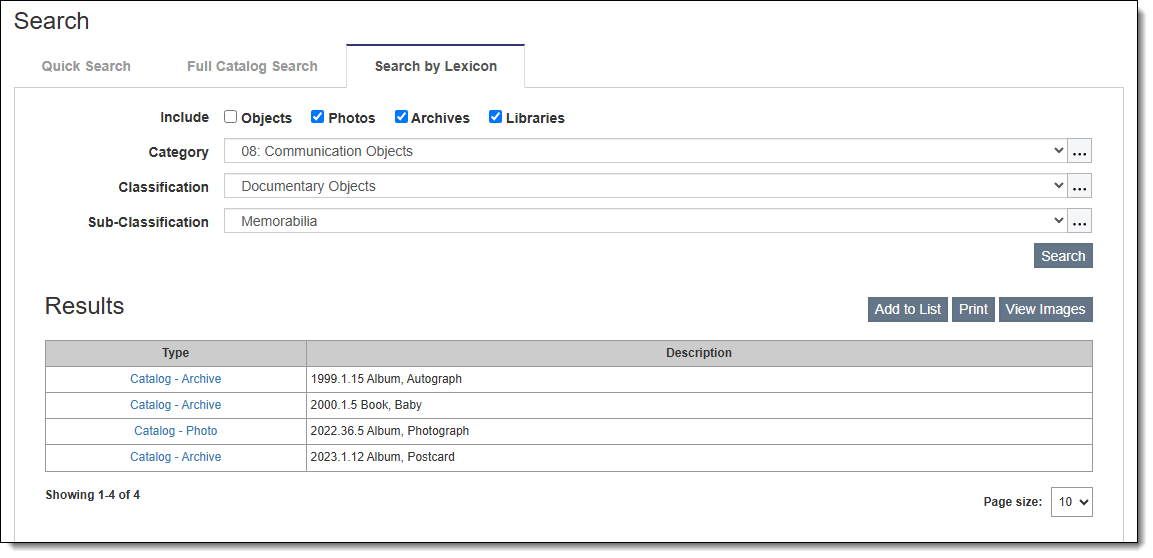
As an example, we want to find memorabilia from our archives. We want to exclude the commemorative three dimensional objects we have from the Centennial Exhibition and other events. We'll start the search by unchecking Objects. Then we'll select the Category "08: Communication Objects," and further narrow the search by selecting the Classification "Documentary Objects" and the Sub-Classification "Memorabilia."
Once the Category, Classification and/or Sub-Classification has been chosen, click Search to see the results. The catalog records are listed in a browse grid with two columns. The left column lists the record type. The Description column displays the Object ID and Object Name.
| |
To view a catalog record, click the hyperlink in the Type column on the left. To return to your search results, click the Query button on the record page.
If you want to view the primary image thumbnails for your records, click the View Images action button on the right. Other actions include printing reports and adding your results to a Catalog List. The report formats include Grid, Grid with Images, List, List with Images, Labels, Labels with Images, Barcode Labels and Barcode Labels with Images. These are the same reports you can print from your Query screens. For explanations of the report layout options, please see our Knowledge Base article "Report Layout Options Available from a Query Screen".
| | | |
Catalog Lists are helpful when you want to work with groups of collection records. This article's focus is on the actions you can take once you have created a list. It is the third in our series on using Catalog Lists. Please see our Fall 2024 newsletter for information about Creating Catalog Lists and our Winter 2025 newsletter for how to use the Inventory Functions.
When viewing a Catalog List, you can perform the following actions:
View Images
View the records' primary image thumbnails. You can also print or save to PDF after previewing the thumbnails.
Export Mapping Data
Export latitude and longitude fields, plus Object ID, Object Name, and Description, to a KML file. This file can then be imported into mapping programs. If you have the Public Access add-on, a link to the record will also be included.
Export to CSV
Export the list of records to CSV. You have the option to include standard fields, which are pre-set, or extended fields, which are user-selected.
Print
Print the list of records to a variety of report layouts, including labels and inventory sheets. Some reports also include images.
When editing a Catalog List, you can perform additional actions that modify the list itself or the records on the list:
Add Records
Use filter statements to add records to the list.
Append Records
Add records to the list by appending records from other lists.
Subtract Records
Remove records by subtracting the records that appear on another list.
Mark as Inventoried
Update the catalog records' Inventoried By and Inventoried Date fields in bulk.
Change Location
Globally update the Home Location or Temporary Location for all records on a list. You can also mark records as inventoried or return items on Temporary Location to Home Location.
Put on Exhibit
Add the records on the list to an existing Exhibit record.
Put on Loan
Add the records on the list to an existing Outgoing Loan record.
Remove All Records
Clear the records from the list.
Allow Public Access
Select all records on the list to share publicly with the Pubic Access add-on.
Deny Public Access
Deselect the list's records from being publicly shared with the Public Access add-on.
For more information on creating and working with Catalog Lists, visit the Catalog Lists & Inventory section in our User Guide at https://museumsoftware.com/we/#t=researchreporting_cataloglists.htm.
| | | Demonstration Webinar Available Live or On-Demand | |
Curious about upgrading to PastPerfect Web Edition? We invite you to register for our hour-long, on-demand or live webinars that walk through the collections and contacts capabilities of our cloud-based software. Register for either webinar here: https://museumsoftware.com/demo.html.
After the webinar, if you think Web Edition is the right choice for your organization, contact the team at webedition@museumsoftware.com to get started on the next steps.
| | |
Staff Pick
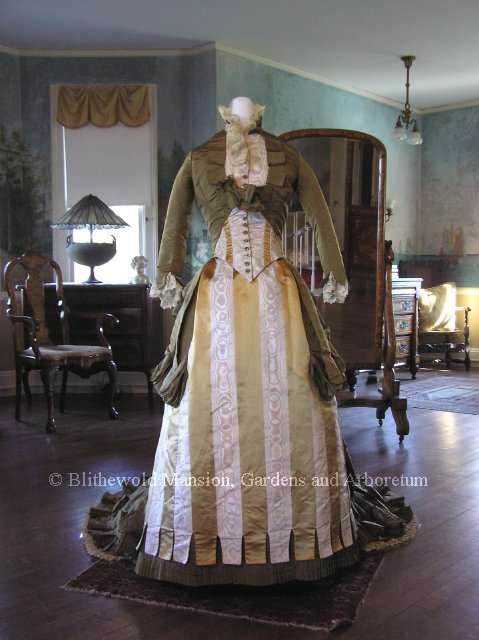
We've asked each of our staff to choose a favorite item from one of the many online collections. This artifact was selected from the online collection of the Blithewold by Caroline because:
"Before she was married, my great-great grandmother worked as a dressmaker in 1880s, around the same time this dress was made. I doubt that the women she made dresses for were in the same social class as the ones who lived at Blithewold, but it's still interesting to see the style of dress that she would have tried to create for her clients and to think of how disappointed she'd be if she could see my poor sewing skills!"
| | | | | | |