April 1, 2026 | Spring Newsletter | | | |
Welcome
Upcoming Events & Conferences
What is Deaccessioning?
Updated Client List
| |
PastPerfect 5.0
How to Deaccession an Item
Report Highlight: Giving Summary
| |
PastPerfect Web Edition
How to Deaccession an Item
Entering Complimentary Memberships
On-Demand and Live Webinars
| |
Online Collections
Collections Spotlight
Staff Pick
| |  |
|
This Week in History - 1917
Jeannette Rankin, first woman elected to U.S. Congress, assumes office
| | | |
We know so many organizations balance staff and volunteer time to offer public programs, exhibits, tours, etc., while continuing to steward their collections. This balance is especially challenging for smaller museums, historical societies, and archives. PastPerfect is designed to help clients keep up with recording new acquisitions, cataloging items, conducting regular inventory projects, and managing collections.
An essential for managing collections is a collections policy that outlines both acquisition and removal procedures. Recently we received clients' questions about the general deaccession process and how to deaccession items in PastPerfect. Below are articles with resources to learn more about deaccessioning as well as how-to information for PastPerfect 5.0 and PastPerfect Web Edition users.
If you have any questions on the topics in this newsletter or anything PastPerfect, please reach out to us. Our normal business hours are Monday through Friday, 9:00am to 5:30pm Eastern. You can reach us by calling 1-800-562-6080 or emailing support@museumsoftware.com.
| | | |
Deaccessioning is the formal process of removing an accessioned item from the collection.
This may be done for a variety of reasons including:
- the item no longer fits the organization's mission and collecting plan
- the item's condition has deteriorated to an extent that the item cannot be cared for
- the item has been accidentally damaged or destroyed
- the item is missing with no hopes of recovery
- the item is not authentic.
A museum's collections management policy should include a section on deaccessioning items that spells out acceptable criteria for removal, who can propose and authorize the removal, and acceptable methods for disposal. It is important that the museum's policy meets state or provincial legal requirements.
Before beginning the deaccession process, it is important to find proof of ownership. Ideally the organization has a signed Deed of Gift, or if the item was purchased, a detailed receipt. If these are not available, there should be some way to prove the organization owns the item.
Next, begin with written documentation naming the specific reason(s) for removal. If the item has deteriorated, been damaged or found inauthentic, photo documentation is useful for making the case for deaccession and for the organization's records. The next step is to present the proposal and documentation to the organization's governing body according to the collections management policy to get written approval.
Once the decision has been made, keep the documentation for each deaccessioned item including the date the decision was made, the date of deaccession, who removed the item from the collection, who disposed of it, why the item(s) were deaccessioned, and the disposal method. If the item was sold, keep the record of sale and where the funds went within the organization.
Documentation and record keeping are key in this process. Both PastPerfect 5.0 and PastPerfect Web Edition have a process for removing deaccessioned items and documenting the information from the deaccession decision process.
For information on this topic, please see these resources.
Association of Registrars and Collections Specialists - From the 2013 Conference Session on "Deaccessioning: Is there One Right Way?"
https://www.arcsinfo.org/content/documents/deaccession_session_best_practices_handout.pdf
AASLH Recorded Webinar "AASLH Conversations: Deaccessioning in a Recession? Why and Why Not"
https://learn.aaslh.org/products/recorded-webinar-aaslh-conversations-deaccessioning-in-a-recession-why-and-why-not
AASLH Recorded Webinar "Deaccessioning History Collections"
https://learn.aaslh.org/products/deaccessioning-history-collections-recorded-webinar
Canadian Museums Association - Deaccessioning Guidelines
https://museums.ca/site/deaccessioning_guidelines
Collections Trust - "Deaccessioning and disposal - the Spectrum standard"
https://collectionstrust.org.uk/resource/deaccessioning-and-disposal-the-spectrum-standard/
| | | |
We've updated our Client List to make it easier to browse. You can still browse by US state or Canadian province, but you can now select a US Region to see all states within that Region. We also have listings for Australia, New Zealand, United Kingdom, and other countries.
Check out the Client List at https://museumsoftware.com/clientlist.html.
Don't see your organization listed? If you'd like to add your organization, please fill out the form on our website.
| | | How to Deaccession an Item in PastPerfect 5.0 | |
To deaccession an individual catalog record, navigate to that catalog record in PastPerfect. While records can be retrieved after being deaccessioned, some data, such as screen view specific fields, will be lost. To preserve this data, you should print the complete record before deaccessioning it.
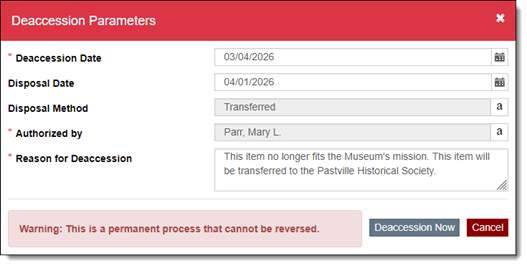
Once you have printed the record, click "Edit" in the toolbar at the top of your record and then click "Deaccession". Fill out the Deaccession fields such as Deaccession Date, Disposal Date, Disposal Method, Authorized by, and Reason for Deaccession. Click the "Deaccession Now" button. You will be asked if you want to Deaccession this item, click "Yes". You will receive another message saying the item has been Deaccessioned, click "OK". The catalog record will then be moved to Deaccessions.
You also have the option to change the Status of a record to Deaccessioned. This allows you to mark the record as deaccessioned but does not transfer the catalog record to Deaccessions, so you will not lose information associated with the catalog record.
To change the Status, navigate to the catalog record you want to deaccession and click "Edit" in the toolbar. Click in the Status field and then press the F7 key or right click to open the Authority File. Double click on "Deaccessioned" to select it and then click "Save". The Status field will now say Deaccessioned and be highlighted in red.
In PastPerfect 5.0, you can perform a global deaccession for all items with a Status of Deaccessioned. All of the records must have the same Deaccession Date, Disposal Date, Disposal Method, Authorized by, and Reason for Deaccession. To globally deaccession records, open the Deaccessions program area. Click the "Global Deaccession" button on the left-hand side of the screen.
Enter the Deaccession Date, Disposal Date, Disposal Method, Authorized By, and Reason for Deaccession. Once again, this must be the same for all of the items being deaccessioned. You have the option to include or exclude records from certain catalogs by checking or unchecking the box next to the catalog. The screen will display the records that have been selected to be deaccessioned. Once you've confirmed you have the records you want to deaccession and you have the entered the deaccession information, you can click the "Deaccession All Records NOW" button. Once the records have been deaccessioned, make a hard drive backup and perform a Reindex with everything checked.
You can find more information about deaccessioning records in PastPerfect 5.0 in our User Guide and Knowledge Base.
| | | Report Highlight: Giving Summary | |
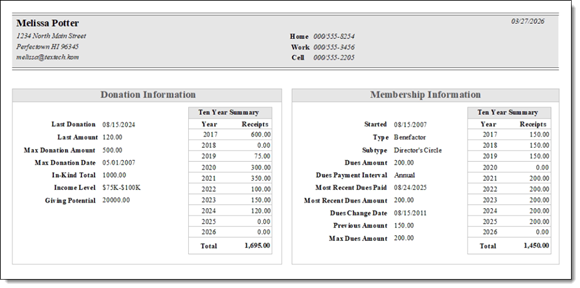
As your organization prepares for donation and membership campaigns throughout the year, it may be helpful to evaluate how people have contributed to your organization in the past. The Giving Summary Report provides an overview of a Contact's financial contributions to your organization.
To access the Giving Summary Report, navigate to the Contact record of someone whose giving history you want to learn more about. Click "Giving Summary" in the left sidebar. The Giving Summary Screen View contains Donation Information, such as the Last Donation, Max Donation Amount, In-Kind Total, and a Ten Year Summary. This screen view also contains information about the Contact's Membership history with the organization. In the left sidebar under Actions, you have the option to either Preview or Print the Giving Summary Report.
The Giving Summary Report contains the Contact's Address, Email, Home, Work, and Cell phone numbers, and the Donation and Membership Information as seen on the Giving Summary screen view.
| | | How to Deaccession an Item in Web Edition | |
Items can be deaccessioned in two ways in Web Edition. You can either deaccession a single item from a catalog record or deaccession multiple items at once if they are associated with the same Accession record.
To deaccession an item from its catalog record, click "Edit" and then click "Deaccession" in the action buttons at the top right. Fill in the Deaccession Date, Disposal Date, Disposal Method, Authorized by, and Reason for Deaccession. The fields with red asterisks are required.
| |
Since this is a permanent process, confirm the information is correct, and then click "Deaccession Now". The item's record will be removed from the original catalog it was in and will now appear in the Deaccessioned catalog. The Deaccessioned record will appear similar to the original catalog record and will contain all the data from the original record, including location history, conditions reports, and images and attachments. A new section for Deaccession Information will appear on the record above the accordions.
To deaccession an item or multiple items from an Accession record, click "Edit" at the top of the Accession record and open the Catalog Records accordion. Select the item(s) to deaccession by checking the boxes in the left column. Click "Deaccession Catalog Records" and fill in the fields on the Deaccession Parameters screen. If you selected multiple items, the same parameters will be applied to all records. Click "Deaccession Now".
For step-by-step instructions, please review our Knowledge Base article, How do I deaccession an item?.
| | | Entering Complimentary Memberships | |
Complimentary Memberships are often given as a way to extend membership benefits to a Contact without charging membership fees. They could be given to long-term volunteers, special patrons, or as a courtesy to major donors.
To make a membership complimentary, the Contact must first be a member. Click "Edit" on the Contact record then open the Membership accordion. Fill in the following membership fields: Membership Name, Membership Type, Payment Interval, and Date Joined. The Membership Number will automatically populate with the next sequential number available and may not be the same number as the Contact ID. Click "Save" on the record.
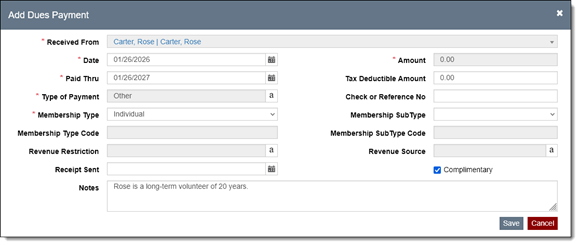
Once the Contact is a member, the next step is to post a complimentary dues payment. Click "Edit" on the record, then open the Membership accordion. Above the Dues Payments grid, click "Add Dues Payment". Fill in the required fields, including the Date the membership starts, the Paid Thru date for when the membership will expire, and select "Other" from the authority file for Type of Payment. Membership Type and Amount will be pre-populated based on the Membership Type you selected previously and the amount that is typically charged for this membership.
Next, check the Complimentary box. This will set the Amount to 0.00. In the Notes field, enter any information about why the Contact was given the complimentary membership and click "Save".
| |
For step-by-step instructions on creating memberships and entering complimentary memberships, please review our Knowledge Base articles:
| | | Informational Webinar Available Live or On-Demand | |
Curious about upgrading to PastPerfect Web Edition? We invite you to register for our one hour informational webinar that walks through the collections and contacts capabilities of our cloud-based software. You can attend a scheduled live session or watch our on-demand recording at your convenience. Register for either webinar here: https://museumsoftware.com/demo.html.
After the webinar, if you think Web Edition is the right choice for your organization, contact the team at webedition@museumsoftware.com to get started on the next steps.
| | |
Staff Pick
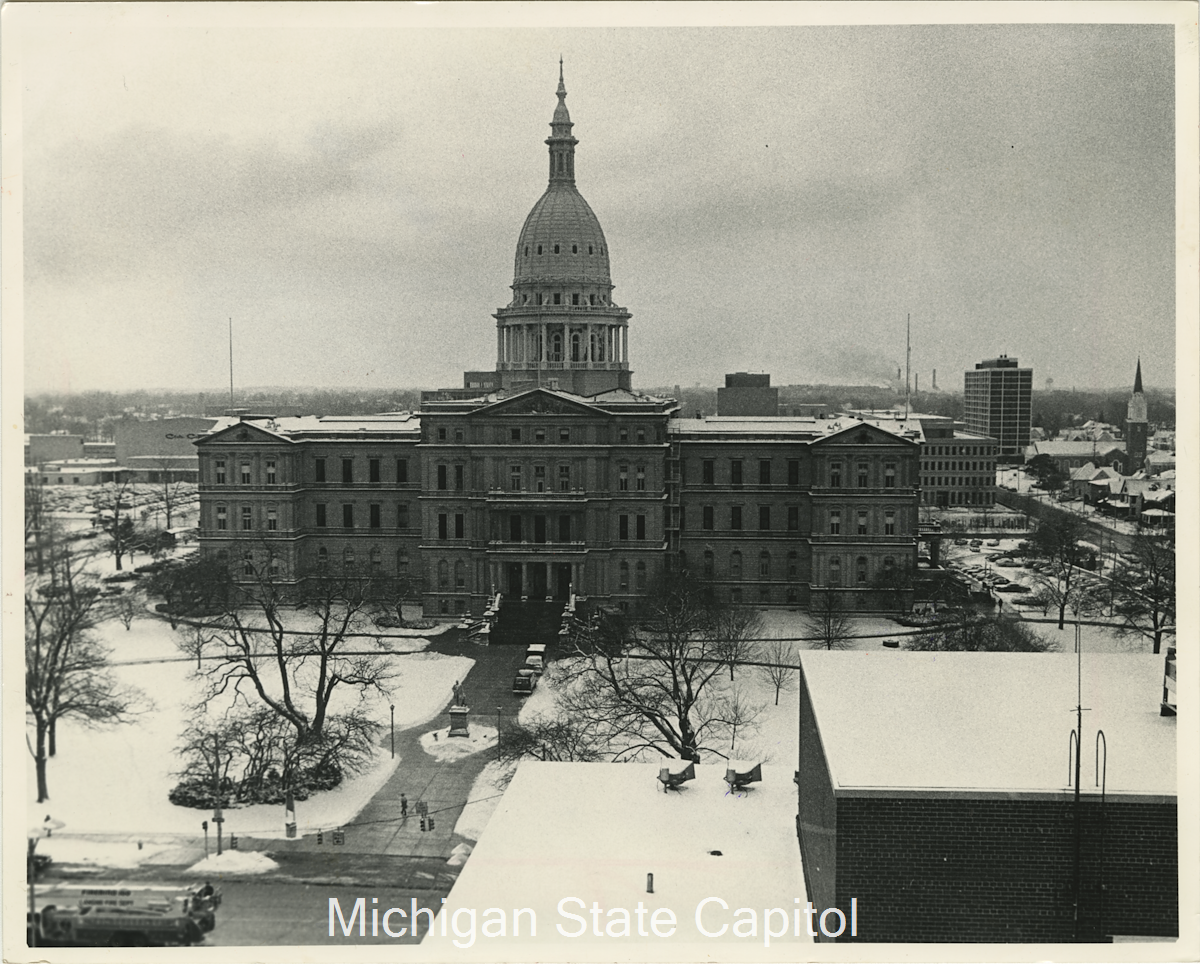
We've asked each of our staff to choose a favorite item from one of the many online collections. This artifact was selected from the online collection of the Michigan State Capitol by Jessica because:
"Growing up in Michigan, I visited the State Capitol Building in Lansing on a fourth-grade field trip. I remember I was in awe of the building's architecture and spaces, much more than the functions of the building and people who worked there, which was probably the goal of the trip. After the visit, we had to write thank you notes to the staff who provided the tour, and I remember drawing a detailed picture of the capitol building on mine. I spent so much time on that drawing as the more you look, the more architectural details appear."
| |
| | | | |