July 8, 2026 | Summer Newsletter | | | |
Welcome
Upcoming Conferences
Incoming Loans
| |
PastPerfect 5.0
Using Incoming Loans
Incoming Loan Forms and Reports
Known Issue: Blank Letters
| |
PastPerfect Web Edition
Using Incoming Loans
Setting up Incoming Loan Documents
New Features in Latest Update
New Donations & Membership Classes
On-Demand Informational Webinar
| |
Online Collections
Collections Spotlight
Staff Pick
| |  |
|
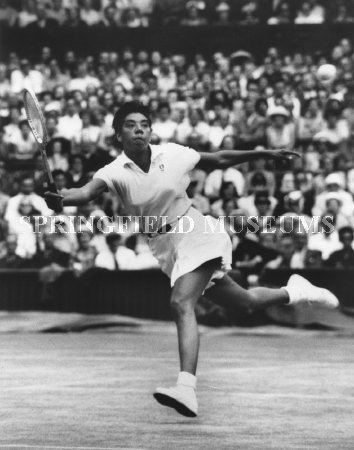
This Week in History - 1957
Althea Gibson is first African American
to win Wimbledon
| | | |
In this issue, we are continuing with our collections management essentials series with information about incoming loans. For many museums, historical societies, archives, and libraries, incoming loans enable them to augment their resources for research, public programs, and exhibitions. While borrowing items is a common practice, it is important that incoming loans meet professional standards and have a clearly defined purpose, duration, and conditions. The procedures and expectations for the borrowed items' care must be outlined in the agreement between lender and borrower.
PastPerfect's Incoming Loan records have fields to help you track this information and manage borrowed items. Both PastPerfect 5.0 and PastPerfect Web Edition allow you to produce an Incoming Loan Agreement and Incoming Loan Return Receipt.
These books are helpful for learning more about incoming loans and loan agreements:
If you have any questions on the topics in this newsletter or anything PastPerfect, please reach out to us. Our normal business hours are Monday through Friday, 9:00am to 5:30pm Eastern. You can reach us by calling 1-800-562-6080 or emailing support@museumsoftware.com.
| | | |
Your organization may borrow items from other organizations or individuals. These items may be accepted for short-term purposes, like an exhibit, or for long-term purposes, such as a precursor to a gift to the permanent collection. Regardless of the length of the loan you can record this transaction in the Incoming Loans section of PastPerfect and produce Incoming Loan documents.
Incoming Loan records are used to record information such as the name of the lender and terms of the loan. These records may be created new, or you may transfer a record from Temporary Custody to Incoming Loans. Once you've created your Incoming Loan record, you can create catalog records for the items on the Incoming Loan and add them to your Incoming Loan record. At the end of the loan you have the option to either return the loan to the lender or accession the items. You can also do a partial return or accession where some of the items are returned or accessioned, and the rest remain on Incoming Loan.
Quite often it is the lender's loan agreement that defines the loan's terms. However, in cases where the lender is an individual or an organization that does not have a loan agreement, your organization's incoming loan agreement should be used. The loan agreement needs to include:
- Lender's name and contact information
- Purpose for the loan
- Duration of the loan
- Description of the borrowed items
- Conditions required to care for the items and who monitors their condition
- Who is responsible for insuring the items
- Who is responsible for packing and unpacking the items
- Who is responsible for transporting / shipping the items
- Restrictions on the use of the items
Both PastPerfect 5.0 and PastPerfect Web Edition include a built-in Loan Agreement that can be easily customized to meet your organization's needs. There is also an Incoming Loan Return Receipt that can be printed after an incoming loan or portion of a loan has been returned to the lender.
You can find more information on creating and working with Incoming Loan records and documents in our PastPerfect 5.0 User Guide and PastPerfect Web Edition User Guide.
| | | Using Incoming Loans in PastPerfect 5.0 | |
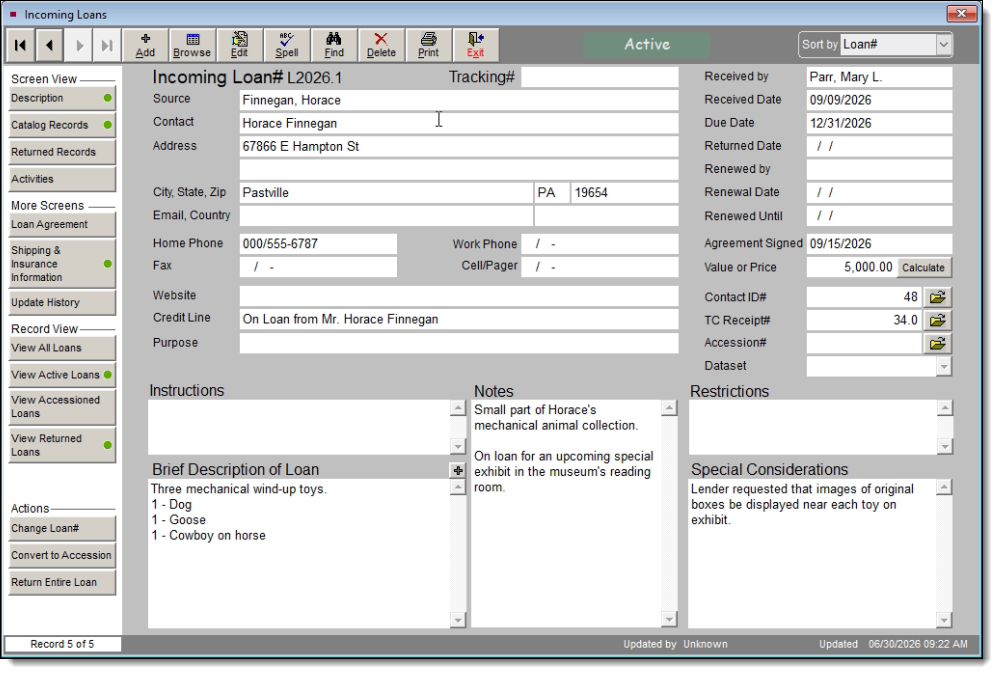
Incoming Loan records are accessed from the Activities section in the lower left of the PastPerfect 5.0 main menu. An Incoming Loan record contains fields for the lender's name, address, and contact information. The lender may be another museum or a company rather than an individual. In these cases, enter the organization's name in Source and the person who is your contact within the organization in the Contact field. When adding a new Incoming Loan, you can select the lender from Contacts. If you want to view the lender's Contact record from the Loan record, click the yellow file folder icon to the right of the Contact ID# field.
Additional Incoming Loan fields include Credit Line, Purpose, and important dates such as Received Date, Due Date, Returned Date, etc. The Description screen view contains paragraph fields for Instructions, Restrictions & Special Considerations from the lender, Notes, and a Brief Description of all the items within the loan.
By adding catalog records to the Incoming Loan, they will be added to the Objects, Photos, Archives and/or Library catalogs for the length of the loan. Individual items may be accessioned or returned. In the Catalog Records screen view, double click on the item's row in the grid. From the abbreviated catalog record, you can take actions like "Accession this Item" and "Return this Item". To accession or return the entire loan, use the Action buttons in the left sidebar on the Incoming Loan record. You can view accessioned loans or returned loans by clicking on one of the buttons in the "Record View" section in the left sidebar.
The "More Screens" section in the left sidebar has additional views with fields where you can enter custom terms for the loan agreement as well as shipping and insurance information.
| Unless you select to use custom terms on the Loan Agreement screen, the Loan Conditions form will contain the default terms from Setup | Collections. To set up the default terms for Incoming Loans, use the main menu's Setup drop-down menu and select Collections. Click Incoming Loans in the left sidebar. Use the paragraph field "Default Terms of Incoming Loan" to outline how staff will care for the borrowed items according to your organization's collections policy and professional guidelines. | | | Incoming Loan Forms and Reports | |
PastPerfect 5.0 has a number of built-in forms and reports you can use for managing your Incoming Loans. From an Incoming Loan record, you can print the Loan Form and Loan Conditions/Loan Agreement for that loan. If the loan has been returned or selected items have been returned, you can also print a Returned Items Form. These forms can be printed from the Print button in the top navigation bar and will be automatically populated with information from the Incoming Loan record. You also have an option to print a blank Incoming Loan Form.
Incoming Loan forms can also accessed from the Reports section. From the main menu, click "Reports" and In the left sidebar, click "Loans Incoming" under Report Types. Select the form type you wish to print by double clicking on the name. Then you can select the individual Incoming Loan to print the form for. You can also print reports of your Incoming Loans. This includes a list of all Incoming Loans, as well as a list of Overdue Incoming Loans.
If you wish to modify the layout of your forms or reports, you can select the form or report name, and then select Custom Layout 1 or 2 on the right, and then click "Modify Selected Layout". For information on modifying forms and reports, please view the PastPerfect 5.0 User Guide topic on Advanced Reports Modifications: https://museumsoftware.com/WebHelp/#t=Chapters%2FPP5-19a.htm.
| | | Known Issue: Letters appear totally blank | |
After the Microsoft Windows updates released on or after June 9th, 2026, some PastPerfect 5.0 users have experienced an issue where their accession, temporary custody, and contact letters appear blank. PastPerfect uses OLE automation to open and modify Microsoft Word documents for its letters, and this interface was impacted by the update. Microsoft has acknowledged the issue and is working on resolving it.
For more information and to review the impacted Windows versions, please review our Knowledge Base article: https://pastperfect.zendesk.com/hc/en-us/articles/41426604046359-Letters-appear-totally-blank.
| | | Using Incoming Loan Records in Web Edition | |
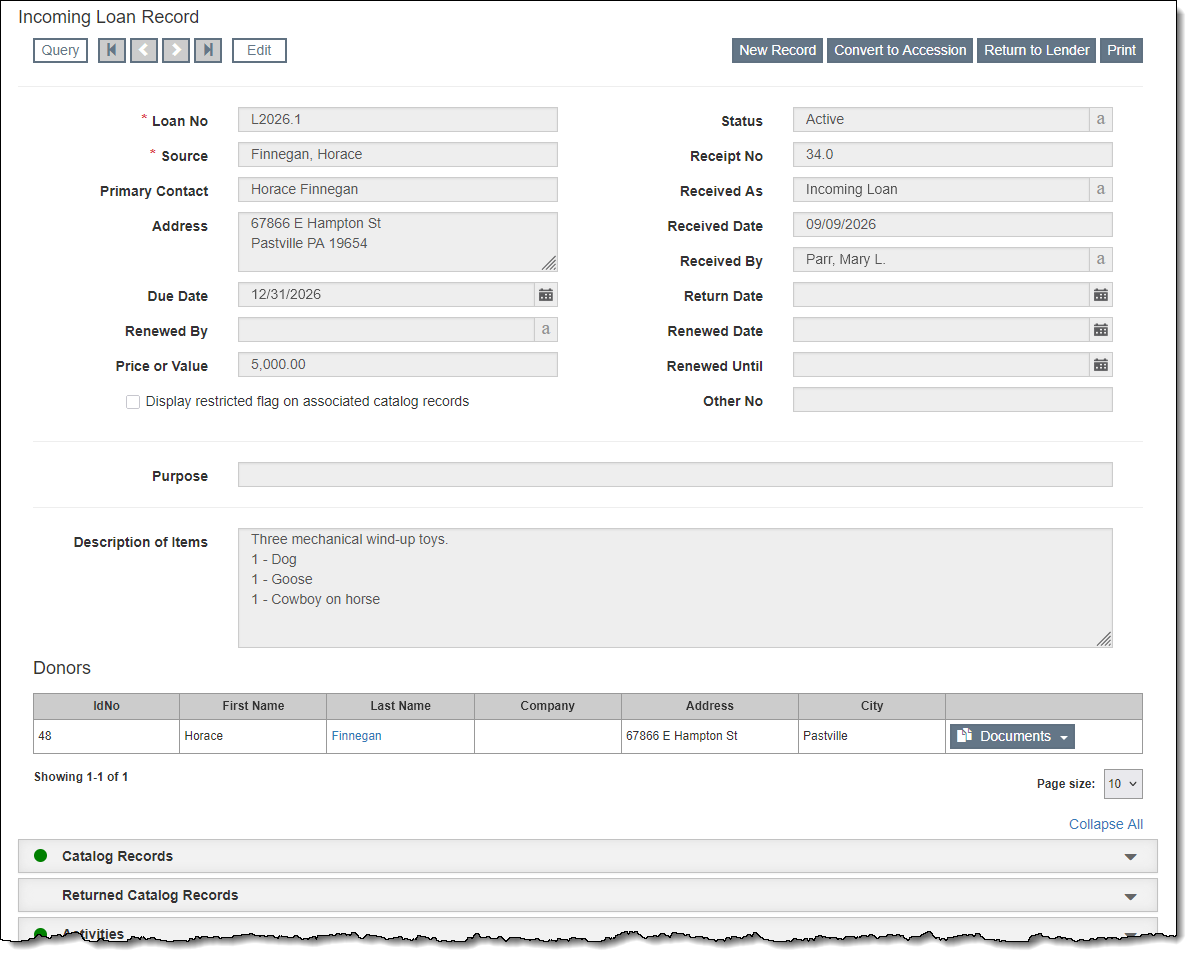
Incoming Loan records can be found under the Accessions drop-down menu from the main navigation bar. On the Incoming Loans - Query screen, you can access both active and returned loans. Like other Web Edition Query screens, you can filter for records and choose fields to view in the grid, include on reports, and export to CSV. Filter and Options field settings can be saved as custom views and there is also a Standard View that filters for active loans that are overdue.
Incoming Loan records have a similar structure to Accession and Temporary Custody records. At the top of the record are fields for the Loan Number, Source (lender), Due Date, Status, Received Date, Received By, Return Date, Purpose, and more. You can use the Description of Items field to briefly describe all items in this loan.
When you link the lender's Contact record to the Incoming Loan record, the Contact will be listed in the Donors grid. We recommend entering the lender in Contacts first and then selecting the Contact when adding a new Incoming Loan. However, you can edit an existing Incoming Loan record at any time and add a lender using the "Add Additional Donor" button. Once you have Contacts linked to an Incoming Loan record, you can then produce the Incoming Loan Agreement and Incoming Loan Return Receipt documents.
By adding catalog records to the Incoming Loan, they will be added to the Objects, Photos, Archives and/or Library catalogs for the length of the loan. Individual and groups of records may be returned at any time while the Incoming Loan is active. You can also return the entire loan using "Return to Lender". If the lender decides to donate the items to your organizations, the Incoming Loan can be converted to an Accession.
The additional accordions on the Incoming Loan record allow you to track loan related activities, the lender's instructions and restrictions, insurance information, and shipping information.
More information about Incoming Loans can be found in the Web Edition User Guide: https://museumsoftware.com/we/IncomingLoans.html.
| | | Setting up Incoming Loan Document Templates | |
For each Incoming Loan record in Web Edition, you can produce an Incoming Loan Agreement and Incoming Loan Return Receipt. The templates for these documents are set up under Settings | Accessions & Loans Documents. These templates allow you to create the layout and basic text for a document, and you can insert field place holders that will populate automatically from the Incoming Loan record. The rich text interface tools allow you to insert images and links as well as style text. We suggest setting up your loan documents before you begin entering Incoming Loan records. If you edit your template after you enter an Incoming Loan record, you will need to rebuild the document for that loan.
Incoming Loan Agreement
This document usually contains the lender's organization name, contact person, address, phone number, and email address as well as a brief description of the loaned items and items' insurance information (as required by the lender). This agreement's template can be set up so the information is pulled from fields on the Incoming Loan record and the lender's Contact record. The agreement should outline the conditions set out by your organization for incoming loans.
Incoming Loan Return Receipt
This document is used when your organization returns borrowed items to the lender. It usually includes the lender's contact information, a brief description of what is being returned and an area for signatures from representatives of both your organization and the lender. When you set up this document's template, you can select place holder fields for much of this information.
More information about the Incoming Loan document templates can be found in the User Guide: https://museumsoftware.com/we/AccessionsLoansDocuments.html. Information about using the rich text interface can be found in this User Guide topic: https://museumsoftware.com/we/LetterEmailTemplateModifications.html.
| | | New Features in Latest Update | | | |
The latest update, published on April 12, 2026, includes the following changes:
General
- Data backups can be downloaded by users with the Administrator role
Collections
- Ability to change the fields displayed in the grid on Catalog Lists
- Combined "List with Images" and "List with Large Image" to allow users to select between Small or Large sizes and First Image or All Images for both reports
- Images can be watermarked with text in Image Management
- New "Overdue Incoming Loans" Standard View on Incoming Loans - Query
- Added "View Images" to People | Query
- "Exhibit Label" field added to Catalog Filter & Option fields
Development
- Contacts can be added to a Contact List from the Query screen using "Add to List"
- Ability to perform actions for selected contacts using checkboxes on Contacts - Query screen
- "Complimentary Membership" flag displays in Membership accordion if most recent Dues Payment is marked Complimentary
- "Complimentary" Filter & Option field added to Pledges & Receipts | Membership Dues Received
Public Access
- New "Alt Text" field added to Image Management for use in Public Access
- "Records Found" column added to Public Access Analytics to provide count of records matching search parameters
To see a full list of features and fixes from each update, click "Version History" in the footer while you are logged into the Web Edition software.
| | | New Training Classes: Donations and Membership | |
We now have free, on-demand training classes available on Donations Management and Membership Management. The Donations Management class reviews setting up funds and their thank you letters, using campaigns for tracking donations, entering donations, printing thank you letters individually and in bulk, entering in-kind gifts, and reporting on donations.
The Membership Management class reviews setting up membership types and subtypes, modifying the dues receipt letter, creating new memberships, updating existing memberships, entering dues payments, printing renewal letters, and reporting on memberships. This class also discusses working with active vs. inactive memberships, complimentary and life memberships, and joint memberships shared by multiple contacts.
Training classes can be found on our GoToStage channel.
| | | Informational Webinar Available On-Demand | |
Curious about upgrading to PastPerfect Web Edition? We invite you to register for our one hour informational webinar that walks through the collections and contacts capabilities of our cloud-based software. You can watch our on-demand recording at your convenience by registering here: https://museumsoftware.com/demo.html. Live webinars will be scheduled again in the fall.
After the webinar, if you think Web Edition is the right choice for your organization, contact the team at webedition@museumsoftware.com to get started on the next steps.
| | |
Staff Pick
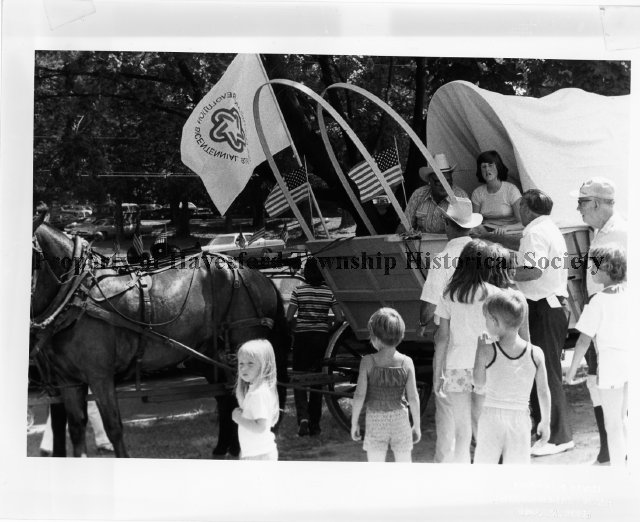
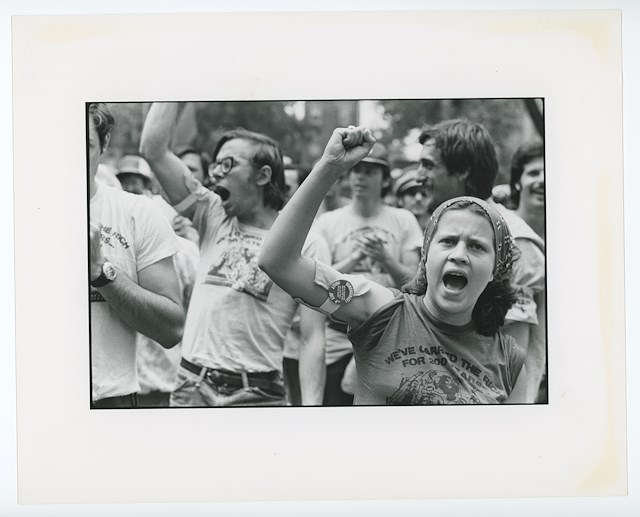
We've asked our staff to choose an item from one of the many online collections of our clients: something that reminds them of a favorite memory or experience, sparks their interest, or simply makes them smile. This time, Jennifer selected two photographs from the collections of the Haverford Township Historical Society and Atwater Kent Collection because:
"This year with all the news and events of our nation's 250th anniversary, I've been thinking back to the U.S. Bicentennial. As a six-year-old, I remember visiting Philadelphia's historic sites and museums and attending patriotic events with family. At the time, I was only aware of the joy and excitement. However, looking back at the 1970s, it was a decade that saw war, political and economic problems, and protests against inequality. I picked these two images, because both represent what was happening in July 1976."
| |
| | | | |