|
Dear Valued Customer,
Bay Tek has issued a service bulletin regarding potential data limitations in some Prize Hub units, which may cause the hard drive to reboot and crash. If you encounter these issues, please follow the steps below:
- Initial Troubleshooting: Perform a simple reboot and reset the settings. This may resolve the issue.
- Persistent Issues: If the problem persists after rebooting, Bay Tek offers two solutions:
- Option 1: Follow the steps below to clear the hard drive data. This option is recommended for advanced technical service personnel.
- Option 2: Replace the hard drive and set up the game from the default settings. Betson is working with Baytek to stock these programmed hard drives to expedite this process for customers who prefer Option 2.
Please note that for both options, you will need to set up the machine from the default settings.
For further assistance or to request a replacement hard drive, please contact our support team.
|
|
|
Prize Hub Advanced File Delete
July 2024 |
|
|
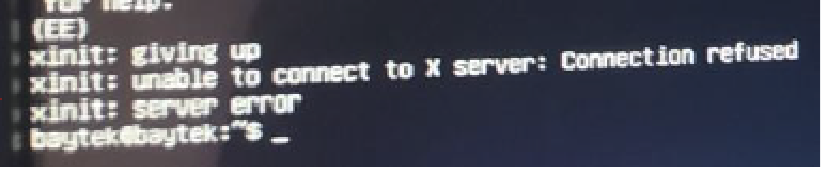
We have recently seen issues with junk files accumulating on the hard drive and causing
the Prize Hub to not boot up. The screen will boot, but stop at this screen: |
|
|
Note: This error the screen may NOT be oriented vertically. This is due to the system not
being available. |
|
|
Tools Needed: USB Keyboard |
|
|
Instructions: The following information is for advanced technical service people. If you
feel comfortable performing these tasks, then this instruction list will help you get your
Prize Hub back to a default setup state: |
|
|
Please read completely through these steps FIRST, then type in the 4 lines of code. |
|
|
A. Plug the USB keyboard into an available USB port on the Prize Hub’s mother
board. If no port available, disconnect the touch monitor (remember to plug back in) |
|
|
B. Enter each command verbatim
- Case Sensitive
- Follow the proper spacing
- Space after sudo
- Space after rm
- Space after -rf
- Space after journalctl
|
|
|
C. Use the correct symbols
– [Dash]
/ [Forward Slash]
* [Asterisk]
= [Equal Sign]
|
|
|
D. After the first command
- A password will be requested
- Enter the following: b4yt3k
- This is case sensitive
- This will NOT be visible in the command line
- Once the password is entered press the [Enter] key on the keyboard
- If the password was entered incorrectly, it will show “Sorry, try again.”
- After 3rd attempt it will state 3 bad attempts
|
|
|
E. If any text shows up after any line entered, such as “No such file or directory”,
there must have been amistake in entering the line of code. Retry that same line of
code.
|
|
|
F. Once all four commands have been entered
- The system will reboot
- The software should run as normal
- ALL menu settings should be checked and re-entered
- Reset the payment information
- Verify all prize settings, especially prize position A1
|
|
|
Now, enter the 4 lines of code, pressing the [Enter] key on the keyboard after each line of
code.
sudo rm -rf /var/lib/snapd/cache/*
sudo rm -rf /var/lib/apport/coredump/*
sudo journalctl --vacuum-size=100M
sudo reboot
|
|
|
Please do not reply to this email, which was sent from an unmonitored mailbox.
|
|
|