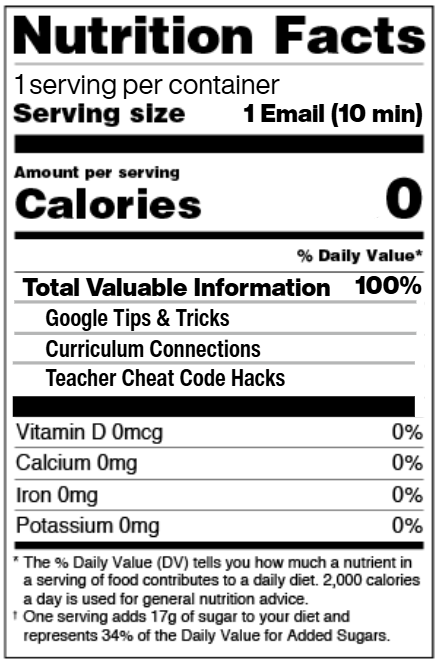
Welcome to the April issue of Tiger Bytes. This is your monthly dose of technology tips and tricks created by your Secondary BTIL team members and delivered to your inbox for you to use.


Curriculum Connections: Teacher Ideas for NotebookLM


Curriculum Alignment: Upload your entire 6-week unit plan and ask: "Identify any gaps where I haven't addressed [State Standard X]."

IEP/504 Synthesis: (Reminder: Use de-identified data!) Upload progress notes and evaluations to quickly summarize a student’s strengths and needed accommodations for a meeting.

Differentiated Reading: Upload a complex scientific article. Ask NotebookLM: "Rewrite a summary of this for a 5th-grade reading level while keeping the key vocabulary."

The "Instant Quiz": Use the Study Guide feature to instantly generate a 10-question quiz with an answer key based only on the chapter you are teaching next week.

Audio or Video Overview: Upload unit materials as sources and use the Audio Overview and Video Overview buttons to create audio or video based off of the unit materials to provide a variety of accessibility to your content.


Take a look at Google NotebookLM for teachers: 10 things to know for educators for even more ideas and how to get started!


Teacher Hack: Canva Features You Didn't Know You Need

by Shantel Grothoff


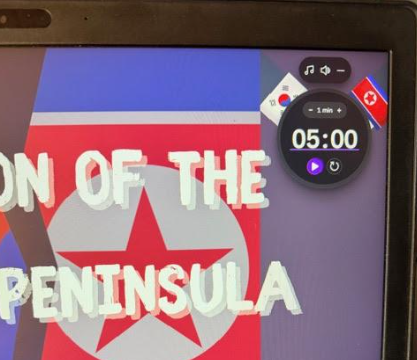
Need to adjust the time students are given to work on an activity? Tired of having to find different YouTube timer videos? Canva can help you with that! While presenting in Canva, press a number key and a timer will pop-up in the upper right hand corner. You can even add music to fit the vibe! 


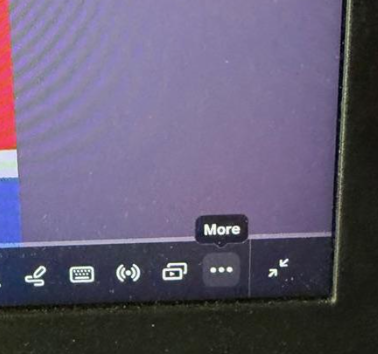
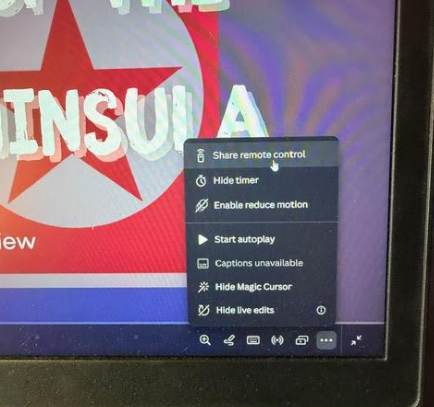
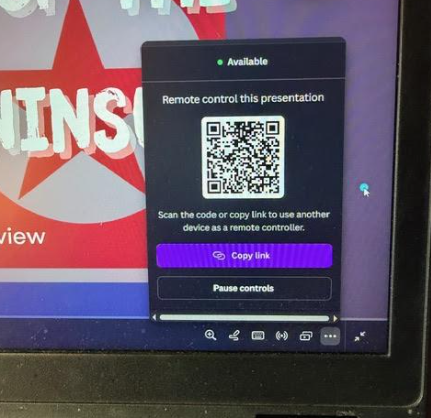
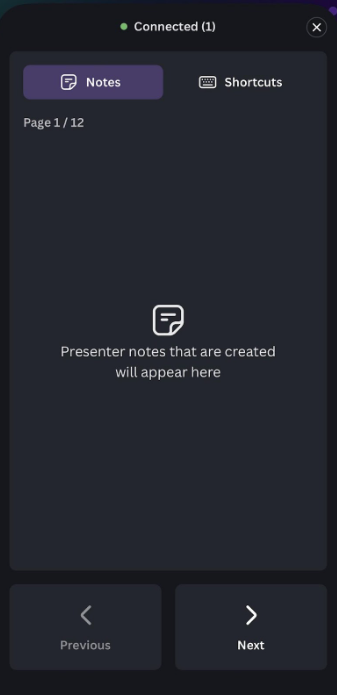
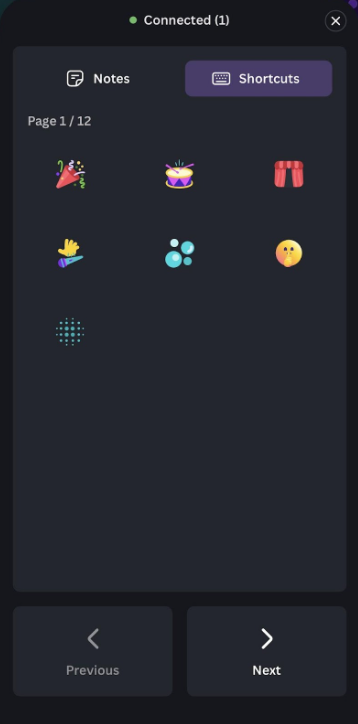
Do you feel stuck by your laptop when you present but don’t want to buy a presentation clicker? Canva can help with that, too! While in present mode, click the three dots at the bottom right hand corner. Then, click “share remote control” and scan the QR code with your phone’s camera. Tada! Now, you can click through your slides from your phone and do all the other fun Canva hacks like drop a mic, drumroll, or pop confetti. 😀


Google Tips & Tricks: Make Communication More Efficient

By Briana Goodenbour & Kaitlynn DeLong


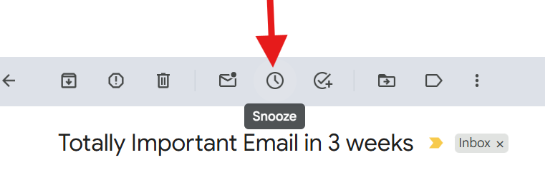
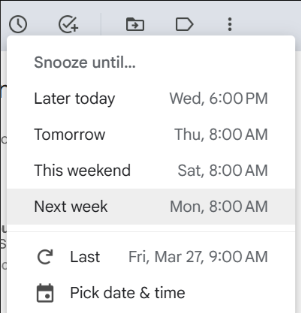
Do you ever have an email that comes in and you think - “Oh, I can’t forget about that!” but it’s not important to you right then? We have a tip for you! You can “snooze” an email.

Open the email, then along the top, click the clock icon.  


Decide how long you want to snooze it. When the time has passed, it will show up back in your inbox.


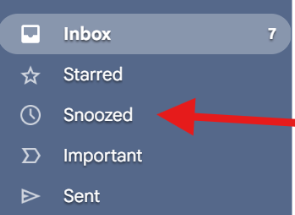
Need to access it sooner? Check the Snoozed folder.