Welcome to the March issue of Tiger Bytes. This is your monthly dose of technology tips and tricks created by your Secondary BTIL team members and delivered to your inbox for you to use.


Teacher Hack: Are You Using the Snipping Tool?

By Jackie Bakker and Bridget Adam


Are you still finding yourself taking a screenshot and then having to crop the image? The snipping tool is a really quick way to capture an item on your screen. You can access it through the search bar or by Window+Shift+S. Once you have the snipping tool open you can pin it to your task bar by right clicking on the icon that looks like a scissors and choosing pin to task bar.


The snipping tool allows you to save the image or copy the image. Once you have the image copied to your clipboard, Control V will paste it into your document. You can also save the image or print the image.


Google Tips & Tricks: Google Drive Organization Trick


If you want a folder in your Google Drive to be at the top of the list, use an emoji at the beginning of the name. Access your emoji options by using the keyboard shortcut of the “Windows Key” and the “.”. Putting an emoji at the beginning of the folder/file name will move it above anything that starts with a letter or number. This is an easy way you can move the most used folders to the top of your Drive and have some fun. 


Another Teacher Hack: Make Communication More Efficient

By Baily Klammer & Maria Hoekstra


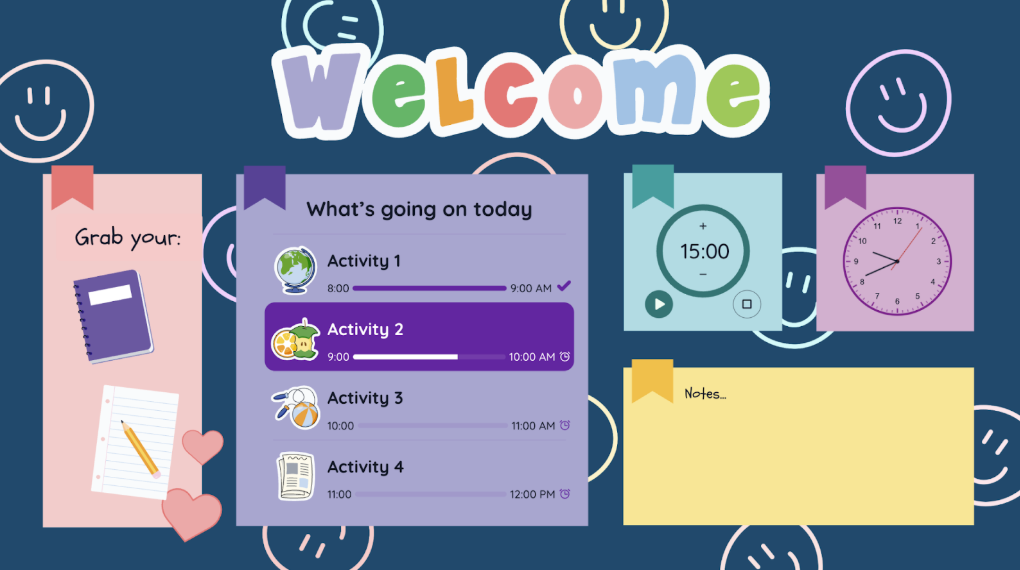
Your next best one stop shop for classroom management is Classroomscreen! Classroomscreen is a versatile, web-based digital whiteboard designed to help teachers manage their classrooms and keep students focused through multiple customizable widgets. It functions as a "digital whiteboard" that sits on top of your existing lesson content, providing visual cues and management tools without requiring any software installation. Some of the widgets they offer include, but are not limited to: timers, noise level monitor, random name picker, polling, and more!


The customization features keep it unique and fun for you, while the consistency will provide a predictable routine for your students. Check out some premade templates here! Or test it out for yourself for free here. (*Note: the free version doesn’t allow you to save your screens, however you can screenshot your setup for easy recreation, keep the tab open, or bookmark it to keep your favorite layout in one spot.)


Curriculum Connections: Canva Might Do More Than You Think

By Stephanie Groen, Josh Green, & Shantel Grothoff

Canva is a leading online graphic design and publishing site that aims to make visual communication accessible to everyone. It has evolved from a simple drag-and-drop tool into a comprehensive Visual Suite for individuals and enterprises.


Canva can be used for:

  • Visual Suite: A unified workspace that includes Canva Docs, Canva Sheets, Presentations, Whiteboards, and Websites.
  • Magic Studio (AI): An all-in-one AI assistant featuring Magic Write for copywriting, Magic Media for text-to-image/video, and Magic Edit for transforming existing visuals.
  • Photo & Video Editing: Advanced capabilities like Background Remover, Magic Grab for moving objects within photos, and an integrated video editor.
  • Print Services: Users can design and order physical products like business cards, t-shirts, and posters through Canva Print.