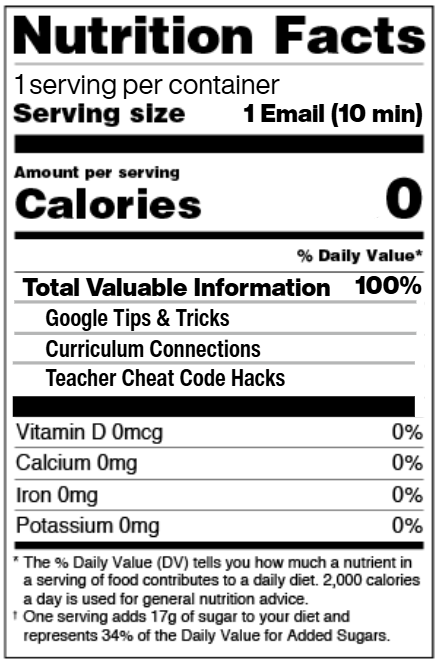
Welcome to the September issue of Tiger Bytes, and the first issue for the 2026-27 school year. This is your monthly serving of technology tips and tricks created by your Secondary BTIL team members and delivered to your inbox for you to use.


Teacher Hack: How to Make Agenda Slides on Canva in Seconds!

by Linsey Zimmerman & Traci Walsh


Do you like to start class with the plan for the day/period already on the screen with cutesy fonts and pictures, or quotes, or “would you rather” questions for the kids but don’t have time to create that?! Guess what, this can be done in SECONDS on Canva. Here’s a link to the video on how you can make this happen!


Google Tips & Tricks: Email Tricks You Didn't Know You Needed

by Briana Goodenbour & Claire Mueller


How to change your default to reply instead of reply all

Changing your default response action in Gmail takes less than a minute. Here’s how:


  1. Open Settings: Click the Gear icon in the top-right corner of Gmail and select See all settings.
  2. Find Reply Behavior: On the General tab, scroll down to Default reply behavior.
  3. Select Reply: Toggle the selection from Reply all to Reply or select if nothing is selected.
  4. Save: Scroll to the bottom of the page and click Save Changes.


Note: This setting applies to Gmail on the web. The mobile app usually defaults to whichever button you tap directly at the bottom of an email thread.


How to Enable the 30-Second Send Delay


  1. Open Settings: Click the Gear icon in the top-right corner and select See all settings.
  2. Find Undo Send: On the General tab, scroll to Undo Send.
  3. Change the Timer: Click the drop-down menu next to Send cancellation period and select 30 seconds (or your desired time).
  4. Save: Scroll to the bottom and click Save Changes.


How it works: Whenever you hit "Send," a black pop-up box will appear in the bottom-left corner with an Undo button. The email won't actually leave your account until those 30 seconds are up, which is great for catching those last moment typos.


Instructional Connection: Transform Your AI Prompts into Useful Classroom Resources with the PARTS Framework

by Hilary Iehl & Nate Norby


If you have ever tried using AI to build a lesson plan or draft parent communications and ended up with a generic response, this slide deck provides a practical, step-by-step strategy to get outputs you can actually use in your classroom.


Rather than treating AI as an engine that truly "understands" concepts or remembers prior context, this presentation breaks down how pattern-matching chatbots work and highlights crucial limitations to keep in mind. To overcome these limits, it introduces PARTS: an easy-to-remember blueprint for generating lesson plans, rubrics, and materials from scratch


  • P - Persona: Set the AI's role and expertise to guide its tone and behavior.
  • A - Act: Use specific action words to define the exact task.
  • R - Recipient: Specify the audience (e.g., 3rd-grade students, parents, administration) to tailor difficulty and vocabulary.
  • T - Theme: Provide the core topic, concept, or curriculum standard.
  • S - Structure: Define the precise format needed, such as a 5E lesson model, quiz, or multi-column newsletter


Bonus Teacher Tip: District Technology Kit Checkout


You are still able to reserve district Technology Kits through the website. There are a number of different kits available including OSMO's, iPad Carts, Sphero Indi's, 3D Printers, and much more.


If you have any questions, you can contact Brian Unruh for help with the kits.