Important: Please have your child read the following important email and complete the request below by Thursday, June 16.

Student Email Account Set-Up 

Below you will find instructions for your child to complete their network login that will extend access to Microsoft 365, Schoology, Aeries, and Microsoft Teams.

Providence is committed to providing as much information about your academic progress but must exercise special care to protect that information from unintentional or unlawful disclosure, so we ask you to support our technology security procedures. That means Providence can annually require your network passwords to be changed and for you to change your own Aeries password from time to time to maintain security. 

If you need assistance please reach out for technical support via the Student Hub.
Steps to Login 
Step 1: Open any web browser (Edge, Firefox, Chrome, Safari) and enter in the address bar: https://portal.office.com

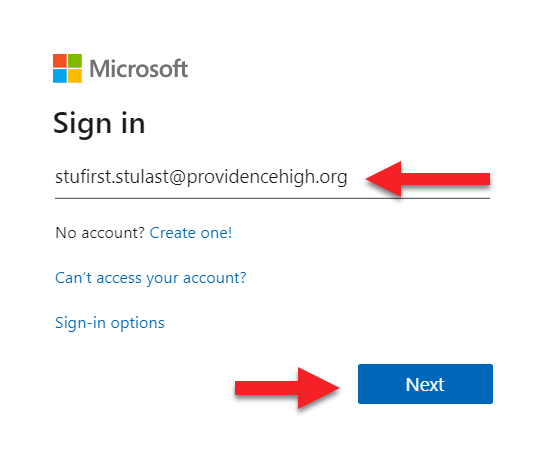
Step 2: On the login window for Microsoft 365 please enter in your email address in the following format: firstname.lastname@providencehigh.org then click the next button. 


Please note that if you have a space or hyphen (-) we have removed these.

Example:

Steven Smith-Smithson or Steven Smith Smithson would be Steven.SmithSmithson@providencehigh.org 


In the event of two first names, we have removed the second of the two e.g. Joe John would be Joe.Lastname@providencehigh.org


Also, please use your legal first name, not a nickname.


Example:

Steven, not Steve.

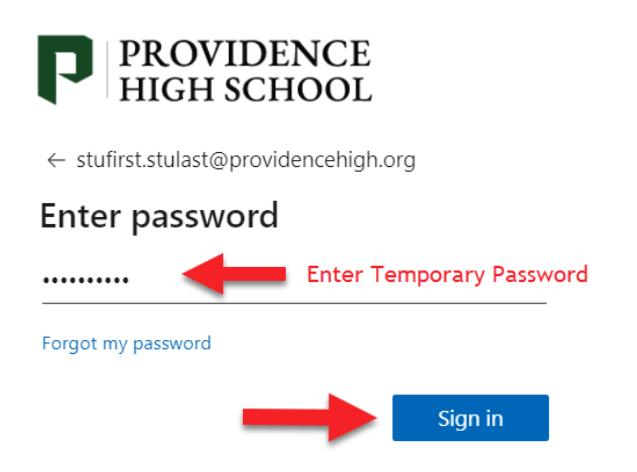
Step 3: After clicking the next button you will be prompted to enter in your temporary password. Please enter the temporary password and click the sign in button. 

Case-sensitive temporary password: 
Password1!  
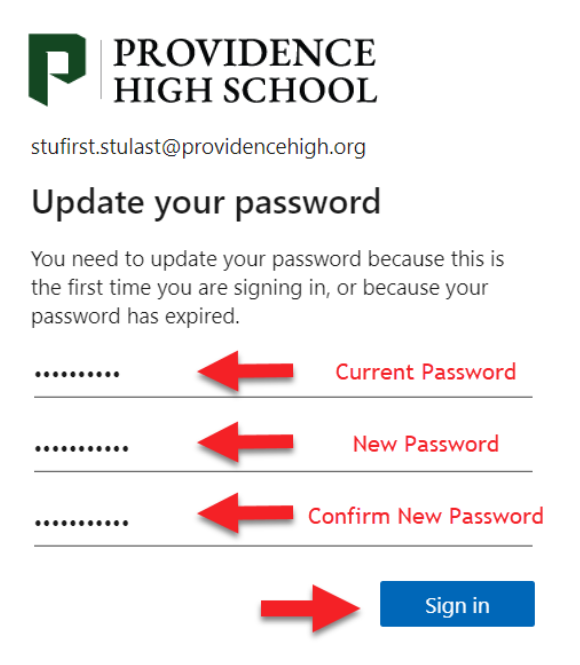
Step 4: You should now be prompted to update your password. Please enter your temporary password where it asks for your current password. Then enter in your new password and confirm it by entering it in again. Now click the sign-in button. 

Password Requirements: 10 Characters minimum, Alpha\Numerical, Upper\lowercase, and Symbols. 
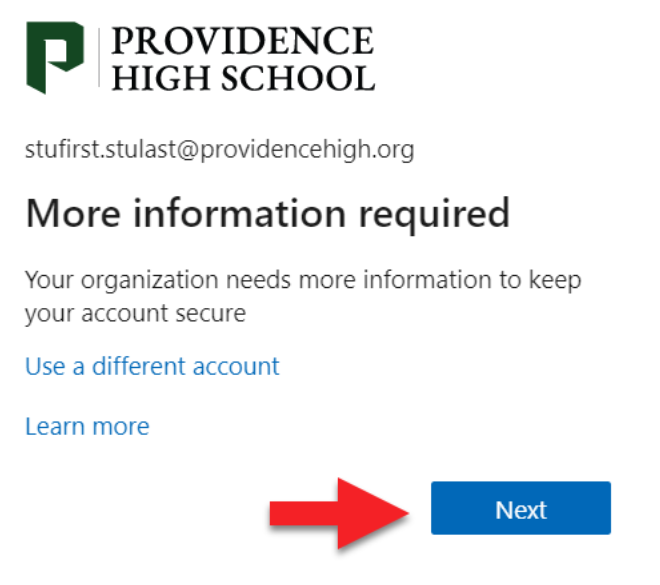
Step 5: On the next “More Information Required” window please click the next button. 
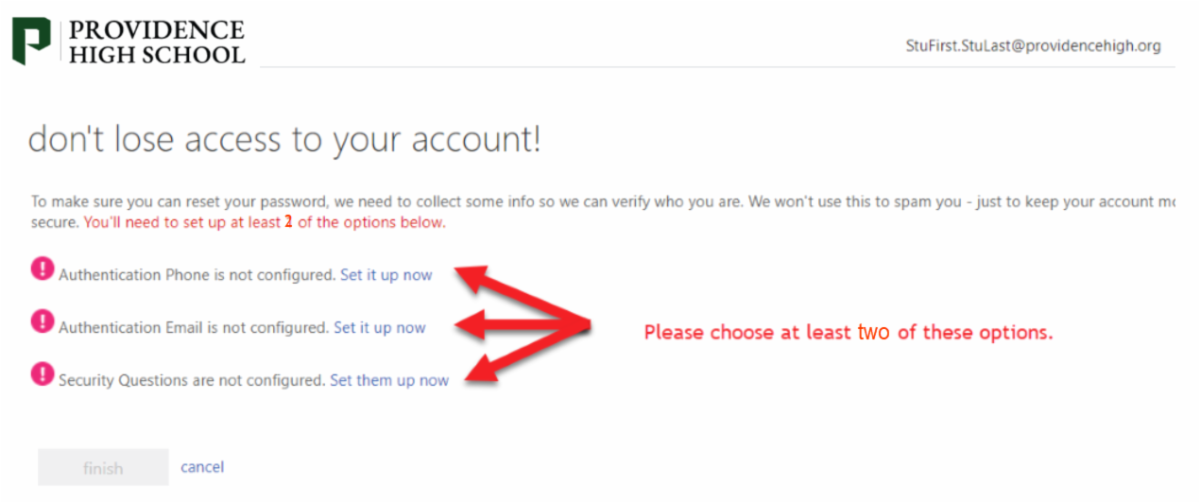
Step 6: Please choose at least two of the following options on your screen and click “set it up now.” This step will assist you in resetting your password in the future in case you forget it. Once you have completed at least one of these options please click the finish button. 
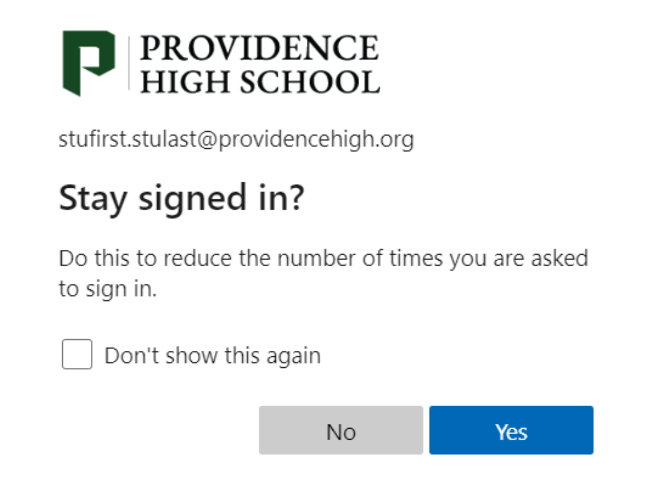
Step 7: You should now be prompted if you would want to stay signed in. Please only select the “Yes” button if you are on your own personal device. 

Step 8: You have completed the setup of your Microsoft 365 account and can now access your Email in the Outlook app, store files in OneDrive cloud storage, or use any Office applications online. Please note that in modern browsers, these tiles will display vertically on the left-hand side of the browser window.

Step 9: Install Microsoft Teams.

Final Note: You will receive additional information regarding Aeries and Schoology account information which will be provided during your Pioneer in Training Sessions. Aeries is a system for checking grades, report cards, and other student information. Schoology is a Learning Management System that will be used to access your courses. 

Parents, if you still need assistance please reach out for technical support via the Parent Hub.
PROVIDENCE HIGH SCHOOL
818.846.8141 • www.providencehigh.org • 511 S. Buena Vista St. Burbank, CA 
STAY CONNECTED
Facebook  Twitter  Instagram  Linkedin