TODAY'S TECH TIP
Why restart or turn-off your Android Phone
This article explains how to reboot (or restart) a wonky Android Phone to solve problems, including apps freezing or crashing, and the device slowing to a crawl.

While the specifics may differ, the directions below should generally apply no matter who made your Android phone: Samsung, Google, Huawei, Xiaomi, etc.
article credit to Lifewire 12/31/2020

Basics
  • Hold the power button (usually on the right side of the device) on the side of the phone for a few seconds.
  • A menu will appear giving the options to: 
  • Power Off, Restart, Shut Down or Reboot.
  • If the phone's unresponsive, press and hold the power button and volume up for up to 20 seconds.
  • When all else fails, you can remove the battery to kill power to the phone. This is your last resort.

NOTE: The only difference between Power Off and Restart is the need to press the power button again after the screen goes dark. You may need to hold this button down for three to five seconds before the device powers back on.
Make an Emergency Call from the Lock Screen
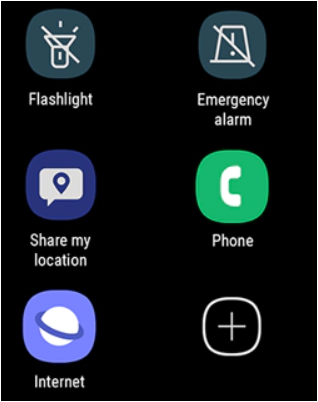
When something urgent is happening, you probably won't have time to unlock your phone and call 9-1-1. If you have a security measure in place, like a PIN or a biometric security, you can make an emergency call right from the Lock screen.

  • Just swipe up your phone's screen to be taken to the Lock screen, and then tap Emergency call.
  • A dial pad will appear where you can enter your desired number.
  • Your registered emergency contacts will also appear at the top of the screen.
  • Finally, a Medical info icon will appear at the bottom of the screen.
  • Tap this to show any medical information you've added to your personal contact.
How to do a Hard Reboot
Even when the Android operating system can't display the power down menu, you can perform a hard reboot, also called a hard restart, which is different from a reset or manufacturers reset of the device.

A hard reboot gets things back into operating order. This process can get a little trickier only because not every Android device is programmed to do a hard reboot the same way.

Many devices will reboot if you simply keep holding down the power button. It may take 10 to 20 seconds before the system reboots.

If the operating system doesn't respond, you can tell your Android smartphone or tablet to power down immediately by holding down both the power and volume up buttons. You may need to hold these down for up to 20 seconds before the screen goes black, which will signal that the device has powered down.
If all else fails you can remove the battery,
only for removable batteries.
This method only works if you have a removable battery, but it can be a great backup if you've exhausted all other options. Obviously, you should only do this if you are comfortable with removing the battery from a smartphone or tablet.

Warning: Do not touch the battery or any components on the device with your fingers. Instead, use a piece of plastic like a guitar pick to pop the battery out. Some devices include a battery lock or switch that you must press to pop out the battery.