Computer technology made easy with SeniorNet!


Since 1999 SeniorNet, now FSL SeniorNet, a program of Family Service League, has provided a welcoming environment for teaching seniors, 50 and older, how to use technology. We invite beginners to advanced students to join us for hands-on instruction learning to use smartphones, tablets, laptops, desktop computers and more. Below are upcoming classes that you may find interest you, or, more importantly, need.

WINTER SEMESTER

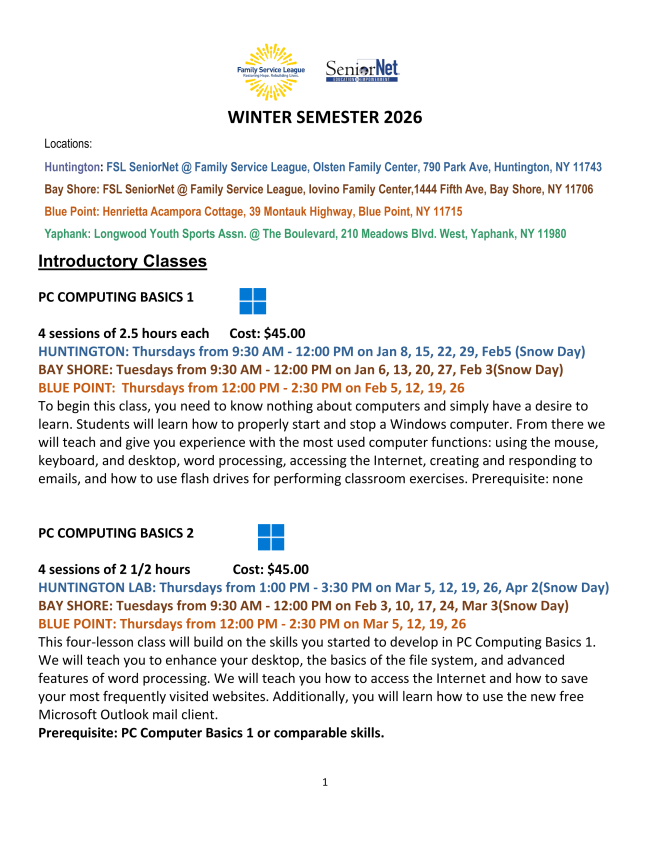
For your convenience attached is a copy of our Winter semester for you to print out. Click on the thumb-nail to print or save the whole document.


Winter Semester Overview

for Classes at


Huntington Lab

Bay Shore Annex

Blue Point Cottage

Yaphank Longwood

We are changing our email cycle to bi-weekly -

see you again in two weeks.

SCROLL DOWN FOR OUR TECH TIP

HUNTINGTON LAB CLASSES

FSL SeniorNet at Family Service League, Olsten Family Center

790 Park Avenue, Huntington, NY 11743 1-631-470-6757

THE COMPUTER

  • PC Computing Basics 2 starts on Mar 5
  • Exploring Files and Folders with Windows 11 starts Mar 16

MOBILE DEVICES

  • iPhone: What's Next starts on Feb 24

MEDIA

  • Canva: An Introduction starts on Mar 2
  • Smartphone Photography starts on Mar 11


BAY SHORE ANNEX

FSL SeniorNet at Family Service League, South Shore Iovino Family Center

1444 Fifth Avenue, Bay Shore, NY 11706 1-631-647-3100

MOBILE DEVICES

  • iPhone: Getting Started starts on Mar 3

THE COMPUTER

  • Exploring Files and Folders for Windows 11 starts on Mar 2

THE INTERNET

  • Artificial Intelligence: Hands On on Mar 11


BLUE POINT COTTAGE

9 Montauk Highway, Blue Point, NY 11715

Call: 631-470-6757

THE COMPUTER

  • PC Computing Basics 2 starts on Mar 5


YAPHANK - LONGWOOD

210 Meadows Blvd. West, Yaphank, NY 11980

Call: 631-470-6757

FREE WEBINARS

  • Google: More than a Search Engine on Mar 10
  • Traveling with Your Smartphone on Mar 24

TECH TIP:

Blur faces in photos on your smartphone

iPhone:

This is how you can blur someone’s face with the Photo App. When you open an image, all you have to do is select ‘edit’ (3 horizontal lines each with a bubble) and then ‘clean up'.


At that point, you’ll be able to use a brush around the face, or any element you want to blur, and the phone will do the rest automatically, with a message on screen that reads ‘Identity protection applied’. You may revert the photo if you don't like it.


We should also point out that this edit can be undone at any point, but only by you. If you share the picture with someone else, they won’t be able to undo it with their phone.


Apple Intelligence must be enabled in Settings (iOS 18 and later). iPhone 14 only in Portrait mode, or fully available in later models.


Don't have or want AI - don't despair - download Blurface from the App Store to blur faces and license plates. All on-device processing - no cloud involvement.


Android

In Google Photos use the Markup Tool (Pixelate/Blur). Select Edit > Markup. Use the pen tool to draw over area you want to obscure (e.g. faces, license plates).


After editing, tape Done and select Save Copy to keep both the original and edited versions.

Facebook  Email  Web