TECH TIP: USE DICTATION ON iPHONE, ANDROID. Mac, AND WINDOWS

Are you tired of typing on any keyboard - use dictation instead for your emails and text messages.


iPhone & Android:


  1. Open any app or website with a text field.
  2. Tap on the text field as if to start typing.
  3. Look for the microphone icon on your keyboard and tap it.
  4. Start speaking, and the feature will type out what you say.
  5. Punctuation:

iPhone - will insert punctuation most times but tell it "new paragraph". For instance, a long verbal pause will insert a period to end the sentence. (Note that Dictation is different from using Siri to send an email or Message. You must first open the app and use the microphone in the typing field for dictation to work.)

Android - won't automatically insert punctuation for you so you need to "Speak" the word "period" or "question mark" for example.


Compared to Android, iOS offers more fine-grained control over voice dictation. However, there's still no "backspace", "delete", or "undo" command that you can speak to undo any mistakes you make while speaking. You'll have to go and edit your message afterwards to perform any corrections.


Mac:


  1. Open the app that you want to dictate into and place your cursor where you want the text to appear.
  2. In the menu bar at the top of the screen, click the Edit menu.
  3. Select Start Dictation.
  4. When the microphone appears, begin speaking.
  5. To add punctuation, speak its name (for example, comma or apostrophe).
  6. Click Done below the microphone when you’re finished.


Windows:


  1. To open the dictation toolbar, press the Windows logo key + H. Then say whatever’s on your mind. To stop voice typing command press the Windows logo key + H again or say "Stop Listening".
  2. Using a tablet or touchscreen? Tap the microphone button on the touch keyboard to start dictation. Tap it again to stop, or just say “stop dictation.”


Remember that speaking clearly is very important. Obviously, voice dictation will work best in a quiet room and very poorly on a noisy street.


Have fun!

WINTER SEMESTER HAS BEGUN - REGISTER EARLY TO SAVE YOUR SPOT
REGISTRATION TIPS

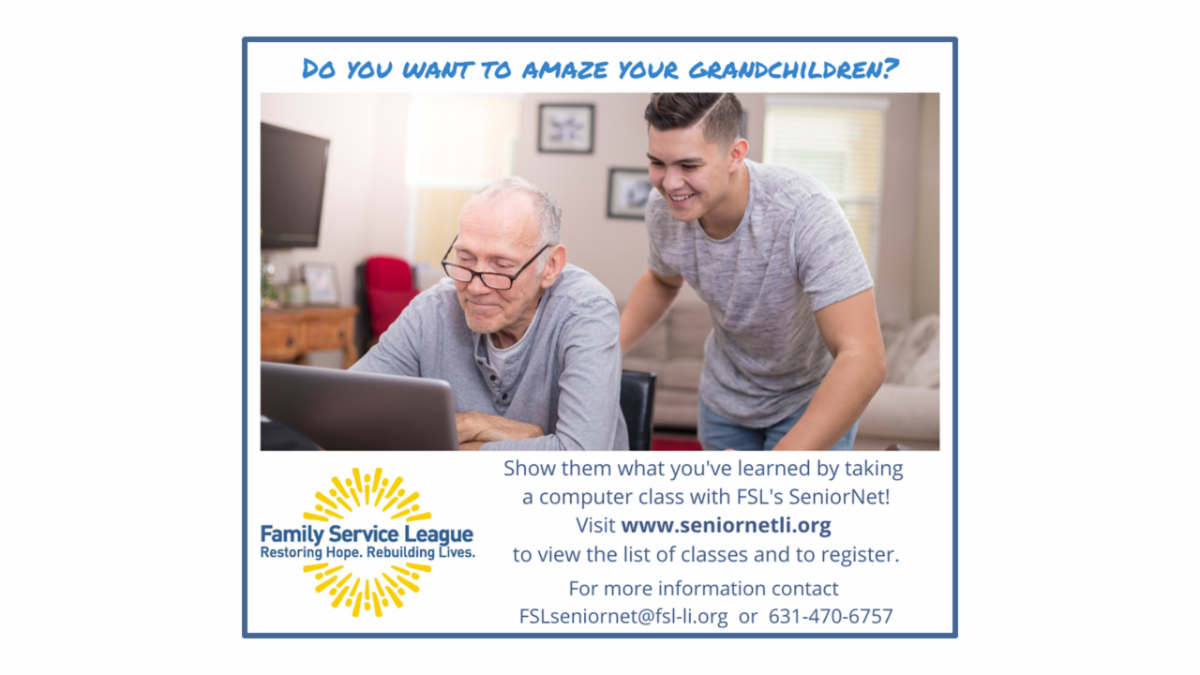
Check out our Exciting Winter Curriculum in

Huntington Lab, Bay Shore Annex, &

our new Yaphank location.

REGISTER FOR HUNTINGTON LAB

FSL SeniorNet at Family Service League, Olsten Family Center

790 Park Avenue, Huntington, NY 11743 1-631-470-6757

  • iPhone: What's Next? starts on Feb 4
  • Mac Computer Advanced starts on Feb 6
  • Windows 11: Advanced starts on Feb 12
  • Mac Photos: Organizing Your Pictures starts on Feb 19
  • Smartphone Photography starts on Feb 27
  • Excel: For Beginners and Beyond starts on Mar 4
  • PC Computing Basics 2 starts on Mar 5

Refer to our webpage for additional class dates and times.

Available for Solve Your Technical Problem

REGISTER FOR BAY SHORE ANNEX

FSL SeniorNet at Family Service League, South Shore Iovino Family Center

1444 Fifth Avenue, Bay Shore, NY 11706 1-631-647-3100

  • What is Artificial Intelligence and how will it affect me?

Seminar on Feb 20

  • Introduction to the Cloud Seminar on Mar 3I
  • Internet Security Seminar on Mar 13

Available for Solve Your Technical Problem

REGISTER FOR YAPHANK - LONGWOOD YOUTH SPORTS ASSOCIATION

210 Meadows Blvd. West, Yaphank, NY 11980

  • iPhone: Getting Started starts on Feb 11
  • Android Phone: Getting Started starts on Mar 11

Available for Solve Your Technical Problem

REGISTER FOR FREE WEBINARS & SEMINARS

Webinars are held over Zoom,

Seminars are at local libraries.

  • What is Artificial Intelligence and how will it affect me?

Webinar on Feb 6

  • Smartphone Photography

Webinar on Feb 13

  • Researching Trusted Medical Information Online

Webinar on March 04 (Date Change)

  • What is Artificial Intelligence and how will it affect me?

Seminar on Mar 10

  • Google: More than a Search Engine

Webinar on Mar 26

SOLVE YOUR TECHNICAL PROBLEM
IMPORTANT STUFF TO KNOW!

ALL CLASSES:

Registration is open until 10 AM sharp one day before the start of a class.

To participate in our classes, register and pay online with a credit or debit card. If you prefer to pay by check or cash, contact the office at 631-470-6757, or register in person at Open House/ Registration Day in Huntington, Bay Shore, & Blue Point. Reminder emails are sent by fslseniornet@fsl-li.org two days before the first class in a series.


ONLINE CLASSES:

To participate in our online courses, you need to download Zoom on your computing device*. The Zoom link will be included in the confirmation sent by ezregister.com. The teacher will also send the Zoom link and manual before the class.


WEBINARS ARE ONLINE:

Registration is open until one hour prior to the webinar's start time.

The Zoom link will be included in the confirmation sent by ezregister.com. Reminder emails are sent by fslseniornet@fsl-li.org five days before the webinar. Additionally, the teacher will also send the Zoom link and handout the day before the webinar. 


SEMINARS ARE IN-PERSON & LIBRARY HOSTED:

Registration is managed by our host library. Their registration link will be provided on their website, our email blasts, and our webpage.


SOLD OUT:

Please call 631-470-6757 or send an email to fslseniornet@fsl-li.org

to receive an email with information as to when the course (webinar, seminar, class or workshop) is offered again. Please include the name of the course you are interested in.


COMPUTING DEVICES:

Computing devices include Windows and Mac Desktops & Laptops,

iPads, and Android Tablets. It is NOT recommended to Zoom using your smartphone due to the smaller screen size.


ZOOM HELP IS AVAILABLE:

 If you need instructions on downloading and using Zoom, click here:

HOW TO JOIN A ZOOM CHAT. 


REGISTRATION INFORMATION
SeniorNet Community Programs
COMPUTER DONATION & REFURBISHMENT PROGRAM
TECH CONNECT LIBRARY / PUBLIC SERVICE ANNOUNCEMENTS / TECH TIPS
FSL SENIORNET WEBSITE
FAMILY SERVICE LEAGUE WEBSITE