TECH TIP: MEDICAL ID ON SMARTPHONES

Ensure first responders can access your medical information quickly.


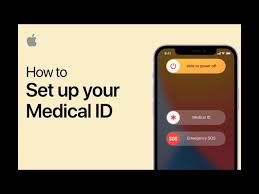
While a medical alert bracelet or a medical ID card in your wallet may help in an emergency, there's one more tool you can use to ensure you receive the prompt care you need—your iPhone! Even if you keep your iPhone locked with a passcode or Face ID, it's still possible to have your Medical ID visible on your smartphone so that bystanders and emergency personnel can assist you in a medical emergency. Let's get started learning how to set up the Medical ID on iPhone.


Why You'll Love This Tip

  • Make sure someone helping you in an emergency can access your critical health information and get in touch with your emergency contact.
  • Learn how to find someone else's Medical ID if you're with them during a health crisis.


How to Set Up Medical ID on iPhone

  • Open the Health App
  • Tap our profile icon in the top right to set-up or edit your existing info.
  • Select Medical ID / Tap Edit in the top right corner.
  • Toggle "Show When Locked" button on.
  • You can also enable "Share During Emergency Call", which will share your Medical ID with first responders when you place an emergency call from a supported location.
  • Tap Done when finished.
  • To access your or someone else's Medical ID in an emergency, tap Emergency in the bottom left on the Lock Screen when attempting to enter the passcode. Then tap Medical ID on lower left corner.


Now anyone who is checking your phone while aiding you in an emergency will be able to access this potentially life-saving information by accessing the Emergency dial pad and will have the information they need to help you get medical attention. It’s also good for your own reference, like when you need to tell someone your prescription list. You also know how to access someone else's Medical ID if you're ever in a position to render aid. This simple tip can be a literal lifesaver! Thanx to iPhone Life.


How to Set Up Medical ID on Android Phone - because all Android phones have different menu set-ups, this is a general set of instructions that may apply to your phone: Android phones have an emergency medical information feature that can be accessed without unlocking the phone. Go to Settings > Safety and Emergency > Medical Info. Here, you can enter important medical information such as allergies, blood type, medications, etc.


If you want to add emergency contacts on your Android phone, go to Settings > Safety and Emergency > Emergency Contacts. Here, you can add a person from your list of contacts and repeat to add more than one person.


Once you have added your medical information and emergency contacts, they can be accessed by tapping the “Emergency” or “Emergency Call” button that appears when you’re prompted to unlock your phone.


Be safe!

WINTER CLASSES
REGISTER FOR HUNTINGTON LAB
ALL CLASSES ONLY $10

FSL SeniorNet at Family Service League, Olsten Family Center

790 Park Avenue, Huntington, NY 11743 1-631-470-6757

SPOTLIGHT ON:


iPad: Getting Started

iPad: What's Next


Huntington Lab

Bay Shore Annex

See webpage for dates and number of lessons for each class.

Filled classes are not listed below.

  • iPhone: What's Next
  • Android Phone
  • PC Computing Basics 2
  • Smartphone Photography
  • iPad: Getting Started
  • iPad: What’s Next
REGISTER FOR BAY SHORE ANNEX
ALL CLASSES ONLY $10

FSL SeniorNet at Family Service League, South Shore Iovino Family Center

1444 Fifth Avenue, Bay Shore, NY 11706 1-631-647-3100

Classes are listed chronologically.

See webpage for dates and number of lessons for each class.

  • iPad: Getting Started
FREE WEBINARS & SEMINARS

Webinars are held over Zoom,

Seminars are at local libraries.

  • Smartphone Photography Webinar on Feb 21


  • Streaming Video Webinar on Feb 22


  • Computer Security on March 13


  • Windows 10: Survey of Settings & Desktop on March 21


  • Traveling with Your Smartphone on March 27


  • iPhone: The Camera on April 2
PRIVATE INSTRUCTION INFORMATION
IMPORTANT STUFF TO KNOW!

ALL CLASSES:

Registration is open until 10 AM sharp one day before the start of a class.

To participate in our classes, register and pay online with a credit or debit card. If you prefer to pay by check or cash, contact the office at 631-470-6757, or register in person at Open House in Huntington, Bay Shore, & Blue Point.


ONLINE CLASSES:

To participate in our online courses, you need to download Zoom on your computing device. The Zoom link will be included in the confirmation sent by ezregister.com. The teacher will also send the Zoom link and manual before the class.


WEBINARS ARE ONLINE:

Registration is open until one hour prior to the webinar's start time.

The Zoom link will be included in the confirmation sent by ezregister.com. The teacher will also send the Zoom link and handout before the webinar.


SEMINARS ARE IN-PERSON & LIBRARY HOSTED:

Registration is managed by our host library. Their registration link will be provided on their website, our email blasts, and our webpage.


SOLD OUT:

Please call 631-470-6757 or send an email to fslseniornet@fsl-li.org

to receive an email with information as to when the course (webinar, seminar, class or workshop) is offered again. Please include the name of the course you are interested in.


COMPUTING DEVICES:

Computing devices include Windows and Mac Desktops & Laptops,

iPads, and Android Tablets. It is NOT recommended to Zoom using your smartphone due to the smaller screen size.


ZOOM HELP IS AVAILABLE:

 If you need instructions on downloading and using Zoom, click here:

HOW TO JOIN A ZOOM CHAT. 


REGISTRATION PROCESS
SeniorNet Community Programs
COMPUTER DONATION / REFURBISHMENT PROGRAM
TECH CONNECT LIBRARY
OUR LOCATIONS
FSL SENIORNET WEBSITE
FAMILY SERVICE LEAGUE WEBSITE