Computer technology made easy with SeniorNet!

You can now reply to information@seniornetli.org email directly from this email blast with your questions, or, forward any inquiries to FSLseniornet@fsl-li.org.


Since 1999 SeniorNet, now FSL SeniorNet, a program of Family Service League, has provided a welcoming environment for teaching seniors, 50 and older, how to use technology. We invite beginners to advanced students to join us for hands-on instruction learning to use smartphones, tablets, laptops, desktop computers and more. Below are upcoming classes that you may find interest you, or, more importantly, need.

CYBER SAVVY SENIORS


FREE SEMINAR IN HUNTINGTON

SPACE IS LIMITED

Learn simple, practical ways to stay safe online.


This essential seminar will help seniors recognize scams, create strong passwords, protect personal information, use email and social media safely, and confidently navigate the Internet.


Walk away with easy-to-follow tips and strategies designed to help keep their devices, accounts, and personal information secure.


Wednesday, December 9th from 10 AM - 12 PM


CLICK HERE TO REGISTER!

Visit our New Facebook page and follow!

(Our other Facebook page has been retired.)

HUNTINGTON LAB CLASSES

FSL SeniorNet at Family Service League, Olsten Family Center

790 Park Avenue, Huntington, NY 11743 1-631-470-6757

INTRODUCTORY CLASSES

  • PC Computing Basics 2 starts Nov 30

MEDIA

  • Canva: An Introduction and More starts Nov 23

THE INTERNET

  • Google Forms starts Nov 18
  • Google Sheets: Basics starts Nov 24


Available for Tech Help

BAY SHORE ANNEX

FSL SeniorNet at Family Service League, South Shore Iovino Family Center

1444 Fifth Avenue, Bay Shore, NY 11706 1-631-647-3100

THE INTERNET

  • Google Forms on Nov 16
  • Artificial Intelligence: Hands On son Nov 18


BLUE POINT COTTAGE

9 Montauk Highway, Blue Point, NY 11715

Call: 631-470-6757

Available for Tech Help

YAPHANK - LONGWOOD

210 Meadows Blvd. West, Yaphank, NY 11980

Call: 631-470-6757

INTRODUCTORY CLASSES

  • Google Docs: Beginners starts Nov 10

MEDIA

  • YouTube starts on Nov 24 NEW CLASS


Available for Tech Help

FREE WEBINARS

  • Google: More than a Search Engine - Dec 2 at 2 PM
  • Researching Trusted Online Medical Information - Dec 3 at 2 PM

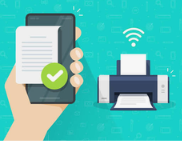
TECH TIP: PRINT FROM YOUR SMARTPHONE


You can print from your smartphone by connecting both your phone and a wireless printer to the same Wi-Fi network or using a direct wireless protocol.


How to Print from an iPhone (iOS)


1. Connect to Wi-Fi: Ensure your iPhone and the printer are on the same Wi-Fi network.

2. Open the File: Open the photo, PDF, email, or webpage you want to print.

3. Tap Share: Tap the Share icon (square with an upward arrow).

4. Select Print: Scroll down and tap Print (using built-in Apple AirPrint).

5. Choose Printer: Tap Select Printer, pick your wireless printer, adjust your copies or page range, and tap Print.


How to Print from an Android Phone


1. Connect to Wi-Fi: Ensure your phone and printer share the same Wi-Fi network.

2. Open the File: Open your document, image, or webpage.

3. Open the Menu: Tap the three-dot menu (⋮) or the Share icon in the app.

4. Tap Print: Select Print from the menu options. (If you do not see a print option, go to Settings > Connected devices > Connection preferences > Printing to enable your phone's Default Print Service or manufacturer plugin).

5. Select Printer: Tap the printer drop down at the top, select your wireless printer (or tap All printers to search), adjust your settings, and tap the Print icon


Alternative Methods


• Manufacturer Apps: Install dedicated apps like HP Smart, Canon PRINT, Epson Smart Panel, or Brother Mobile Connect for expanded features like scanning, ink-level monitoring, and remote printing.

• Wi-Fi Direct / Bluetooth: If your printer lacks a home network or router, you can connect directly using the printer’s built-in Wi-Fi hotspot, Wi-Fi Direct, or Bluetooth pairing in your phone's settings. Note: many modern wireless printers support direct mobile printing without needing a computer.


Facebook  Email  Web