How to Use Bluetooth Headset on PCs
You have a nifty Bluetooth headset for your phone, maybe Apple's AirBuds (e.g. Sony, Bose, JBL, Jabra, Anker, Samsung Gear, Beltran, Amazon Echo Buds), and now you want to use it on your Desktop Computer to video chat (via FaceTime, Skype, Zoom, Google Duo, etc.) or listen to music or YouTube without disturbing anyone else.

NOTE: Most laptops have a built-in camera and microphone - so you're all set!

Here's how to set-up your Bluetooth headset on your desktop computer.

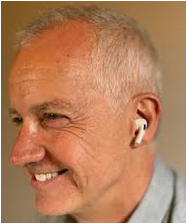
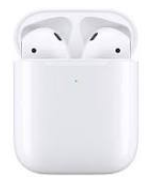
APPLE'S AIRPODS
We are using Apple's AirPods as an example, but similar steps should work with other Bluetooth devices.

Remember that AirPods are headphones with built-in microphones.
HOW TO START ON YOUR PC?
First, check if your PC has Bluetooth.
Here's the easiest way >

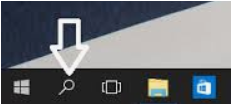
  1. From the Taskbar, click on the Search button (magnifying glass)
  2. In the search field, type Bluetooth.
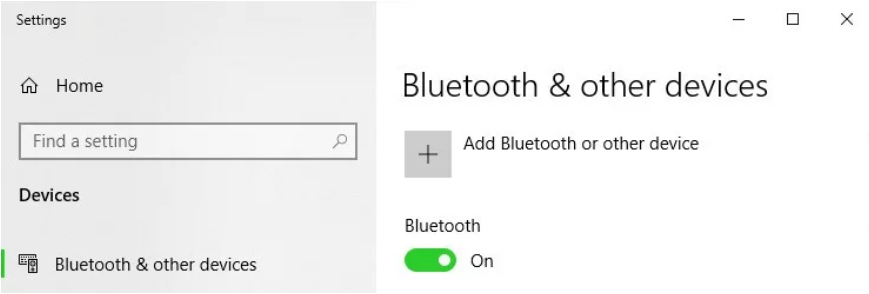
  3. If you have a Bluetooth capable computer, you will see "Bluetooth and other devices" (If not, then you will need a wired headphone/ microphone instead.)
  4. Enable Bluetooth if not already ON.
PAIR THE BLUETOOTH DEVICE
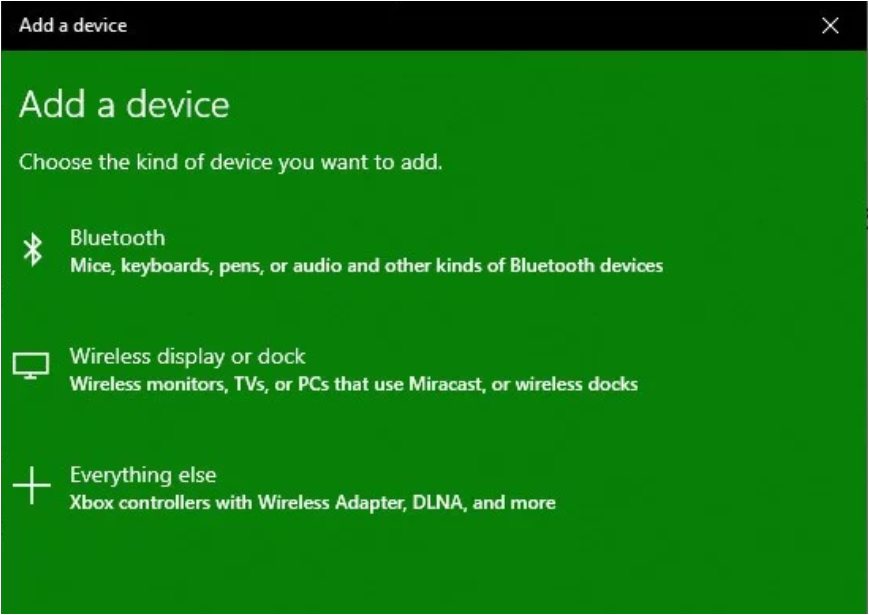
  1. Click "Add a Device" and
  2. Click the top option for Bluetooth.


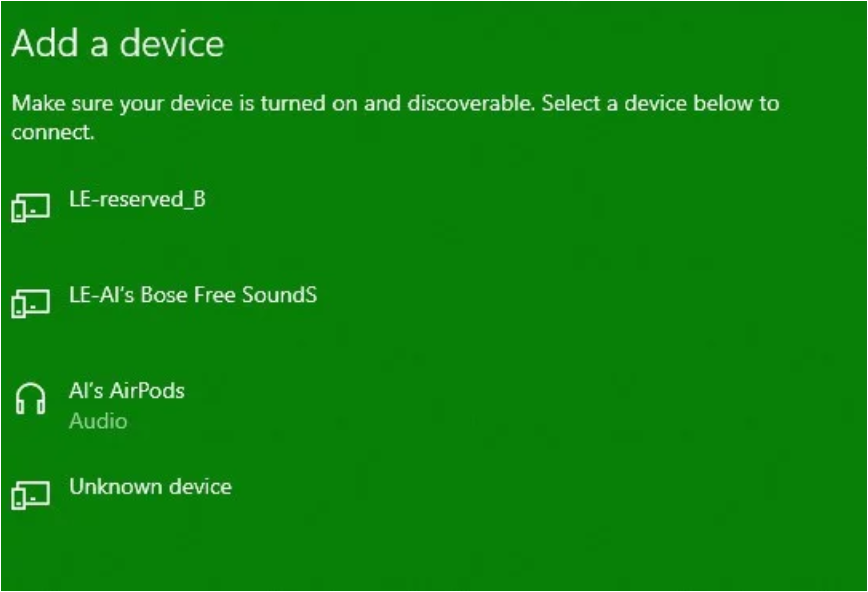
  1. Click the AirPods* option from the list of discoverable devices (it may say headset instead).
  2. You may see a confirmation after a few seconds once your AirPods and PC are paired.
IS IT WORKING?
To check if it's working ... I used my browser to listen to 1010Wins radio ... https://www.radio.com/1010wins/listen

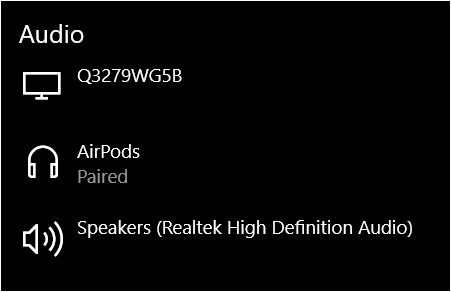
After the initial pairing you will then see your AirPods under the Audio section of Bluetooth Settings.
PAIRING HEADPHONE OR MICROPHONE TO THE COMPUTER
If you have a Headphone (over the ear type) and/or a microphone then you would follow the same steps as above, but may need also need to follow the pairing instructions that came with the device. Remember, the device needs to be ON for pairing to occur.
SeniorNet at FSL-LI hopes this helps you use accessories you have at home
to connect with your friends and family.
Stay safe & healthy!
We want to keep you apprised of technology during this health crisis.
SeniorNet at FSL-LI is looking forward to re-engaging with everyone for our next semester.