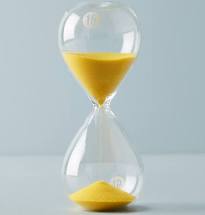
To make a
bar timer
, begin with the slide where you want the timer to appear.
1.
On the Menu Bar, select INSERT, and then SHAPES. Select a RECTANGLE.
2.
Click on the slide
, and stretch the rectangle so that it extends from the left to the right edge of the slide.This creates the bar.
3.
Under SHAPE FILL in the Shape Styles group, choose a color for the bar. Add a gradient or other special effects to the bar if desired.
4.
Continuing with the highlighted bar, go to ANIMATIONS on the Menu Bar. Select FLY IN.
5.
Go to EFFECT OPTIONS. On the drop-down, select FROM THE LEFT.
6.
Go to START in the Timing group. Choose ON CLICK.
7.
Go to DURATION. Enter the number of seconds for the timer.
8.
Save your timer. Note that the bar will not be visible on the slide until you click to trigger the animation.
Experiment with multiple bars to increase the length of time beyond one minute. For example, try stacking a green bar, yellow bar, and red bar for a three-minute timer. Or create a circle-shaped timer by inserting a circle rather than a rectangle in Step 1, and then choosing WHEEL under the ANIMATIONS tab in Step 4.
Create a
countdown timer
for longer periods of time. For example, to make a 10-minute timer for a break, begin with the slide where you want the timer to appear.
1.
On the Menu Bar, select INSERT, and then TEXT BOX.
2.
Click on the slide and enlarge the text box to the appropriate siz
e. Type in the number of minutes (e.g., 10 minutes for a break.) Adjust the size, font, color, etc. to align with your presentation.
3.
Go TRANSITIONS on the Menu Bar. In the Timing Group on the right, choose one minute under ADVANCE SLIDE. This will set the slides to advance to the next slide automatically.
4.
Duplicate your slide 9 times. Enter a number on each slide, counting down from 9 to 1.
5.
Finish by adding a slide stating “Times Up! Let’s get started!” and saving your newly created countdown timer.