VPN McLAREN USER PASSWORD RESET STEPS

Click HERE for a printable document

Following the steps below prevents the things below from happening when you are offsite:

  • The password on your McLaren workstation not updating with a new McLaren Password.
  • Automatically mapping and connecting to Shared Drives and Home Drives.


FIRST, Change your password via https://resetme.mclaren.org


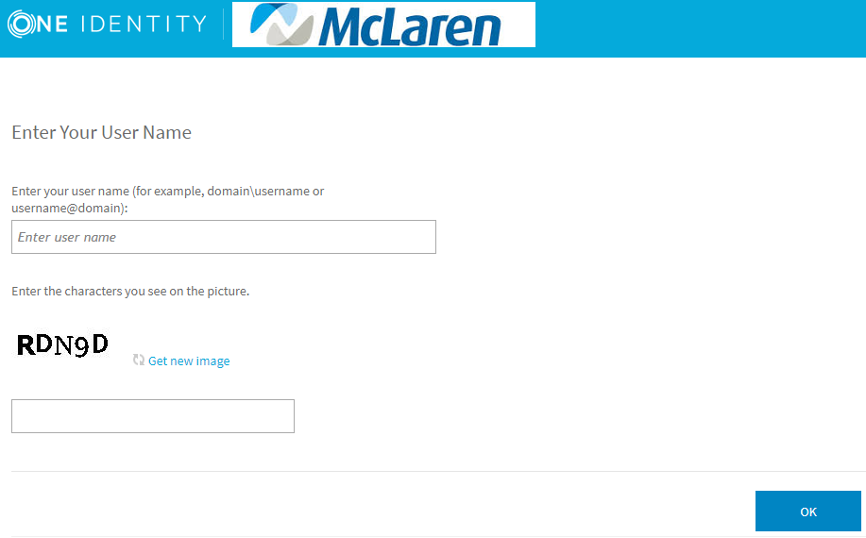
Step One: Open an internet browser such as Internet Explorer or Google Chrome  and navigate to https://Resetme.Mclaren.org/PMUser  


Step Two: Enter your MclarenAD username in the first box and enter the verification code in the second field. 

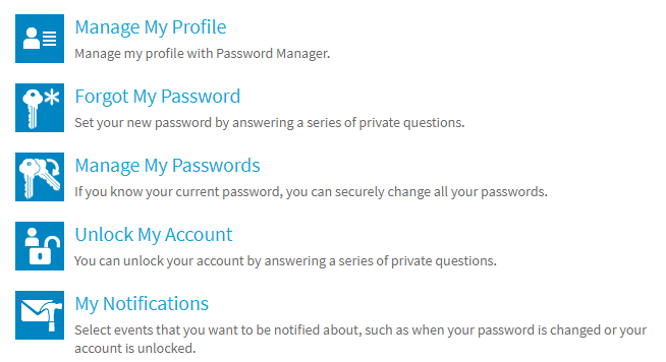
Step Three: Click on “Manage my Passwords” from the home screen

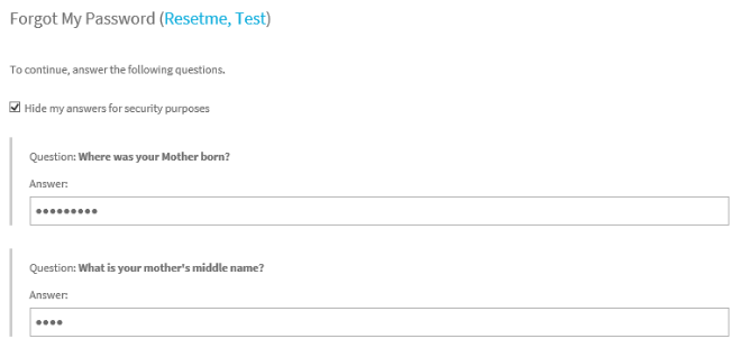
Step Four: Enter your Security Questions that you setup when logging into Resetme for  the first time. If you are unable to remember your security questions  please call the service desk.

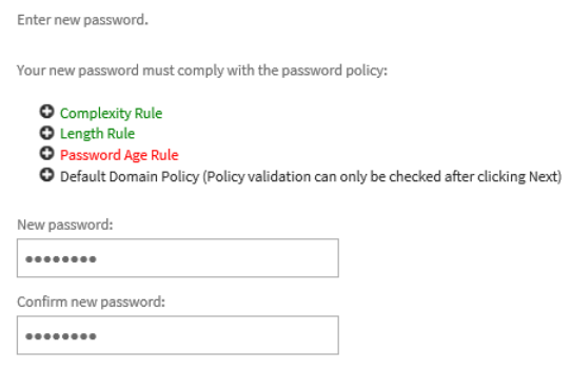
Step Five: Enter your new password following the new password requirements and hit next. You have now reset your McLaren AD password.

If you are NOT already connected to the VPN or need to reconnect to the VPN follow the steps below.

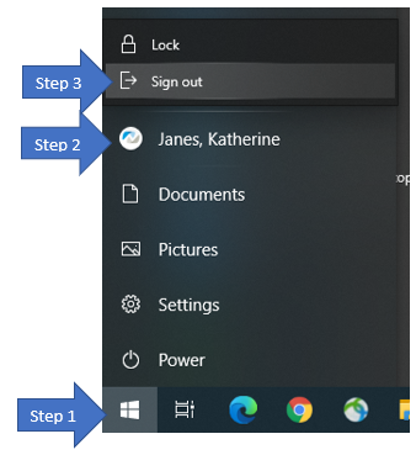
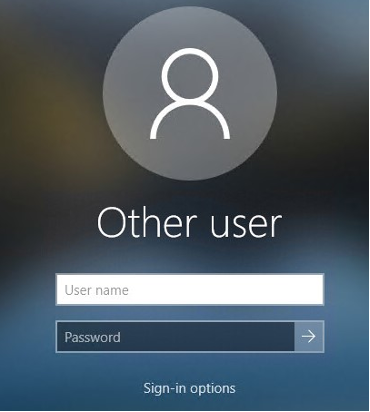
1.  Make sure you are LOGGED OUT of your PC and not just on the lock screen.  You will only get the screen below “Other User” if you are logged off.

a. Click the Windows Start Button

b. Click the McLaren Symbol

c. Click Sign out (This will close any running applications on your PC. So, save your work.)

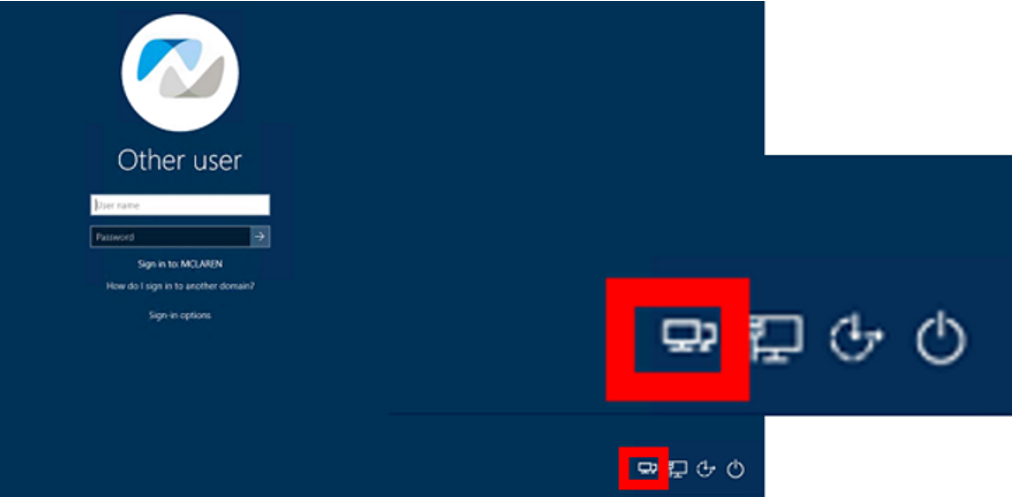
2. The “Other User” Login Screen below will open.

3. Click the dual monitors in the bottom right corner of your screen. This way you can sign into VPN prior to logging into your device.

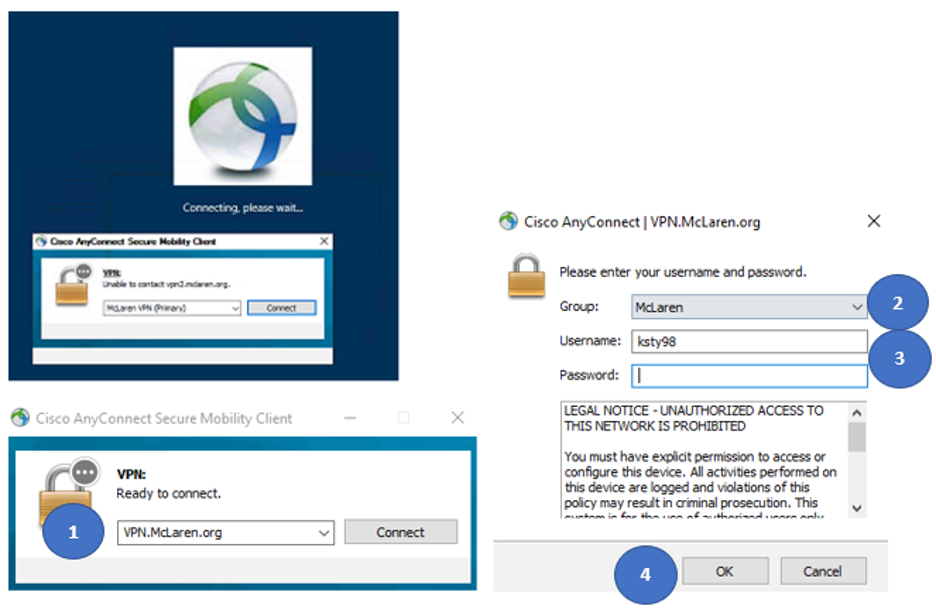
4. The Cisco AnyConnect Client will open.

5.  Type in the dropdown box, VPN.McLaren.org


****You must type VPN.McLaren.org exactly the way it is typed here as it is case sensitive.***


6.  Group = McLaren

7.  Type in your Mclaren Login and Password.  

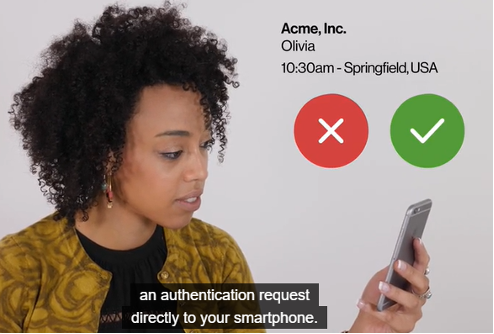
8.  Make sure you have the cellphone with Duo Mobile installed near by.  As soon as you click OK in Cisco AnyConnect, it triggers the push notification to your cellphone.

9. Pick-up your cellphone and open the Duo Push Notification. Click Accept.

10. You are now successfully connected to the McLaren VPN and your profile is synced correctly! You can now log into the screen below with your McLaren Login and password.