Community Partners Newsletter
June 27 2022
Hello !

This month we're excited to share several updates that are being made to the VSC platform:

  • Classes are now called Programs - this is to allow for a wider variety of engaging content that may not fall under the typical "Class" structure.
  • Programs (previously Classes) in Admin Panel now have advanced filtering options (see more below)
  • Cancel Session Button in Program Session Details (see more below)
  • Group Grid Columns - explanation of numbers presented (see more below)
  • Bulk Users Upload - Template Available now (see more below)
  • New Design of Reports Released

We highly encourage you to join our next New Feature Updates meeting will be on Thursday, June 30th at 12 pm EST. This is a great opportunity to hear more about these updates and meet other community admins and discuss any challenges you may have. We will be going over the New Features shown below. You can ask any questions about the New Features at the meeting.

Every month this newsletter will share a highlight of what's going on the VSC, new partners, and important updates.

Trouble viewing this in your email? Click to View as Webpage
Did you see last month's updates?
In the past update:
  • New photo options for classes (with your selection of photos uploaded!)
  • Updated photos for promotion widget
  • New in Admin Panel: User Advanced Search (see more)
  • New in User Creation: Facilitator Biography (see more )
  • New in Admin Panel: Grid Columns (see more )
  • Zoom special announcement before classes (see more)
New for Members: "Load More Classes" Button
To make it easier to scroll through programs, there is now a "Load More" button that will stay at the bottom of the Programs and Program Library pages. This replaces the arrows that used to be at the top of the page.
New in Admin Panel: User Advanced Search
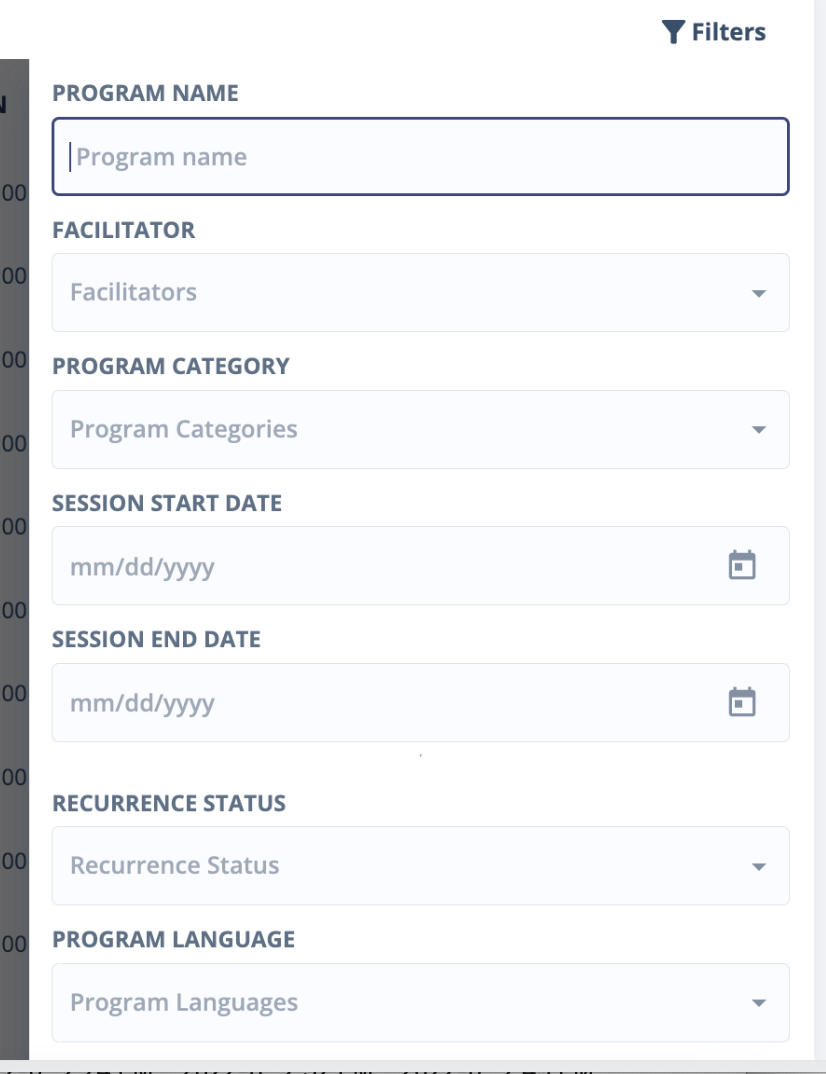
We're improving the options you have to filter and search for programs in the groups that you manage:
  • Program Name: type in a keyword
  • Facilitator: choose from the dropdown
  • Program Category: choose from the dropdown
  • Session Start Date: start date of a program series
  • Session End Date: end date of a program series
  • Reoccurrence Status:
  • Expired (Program that has sessions in the past),
  • In Progress (Program that has sessions both in the past & future),
  • Upcoming (Program that has sessions in the future)
  • Program Language: choose from list
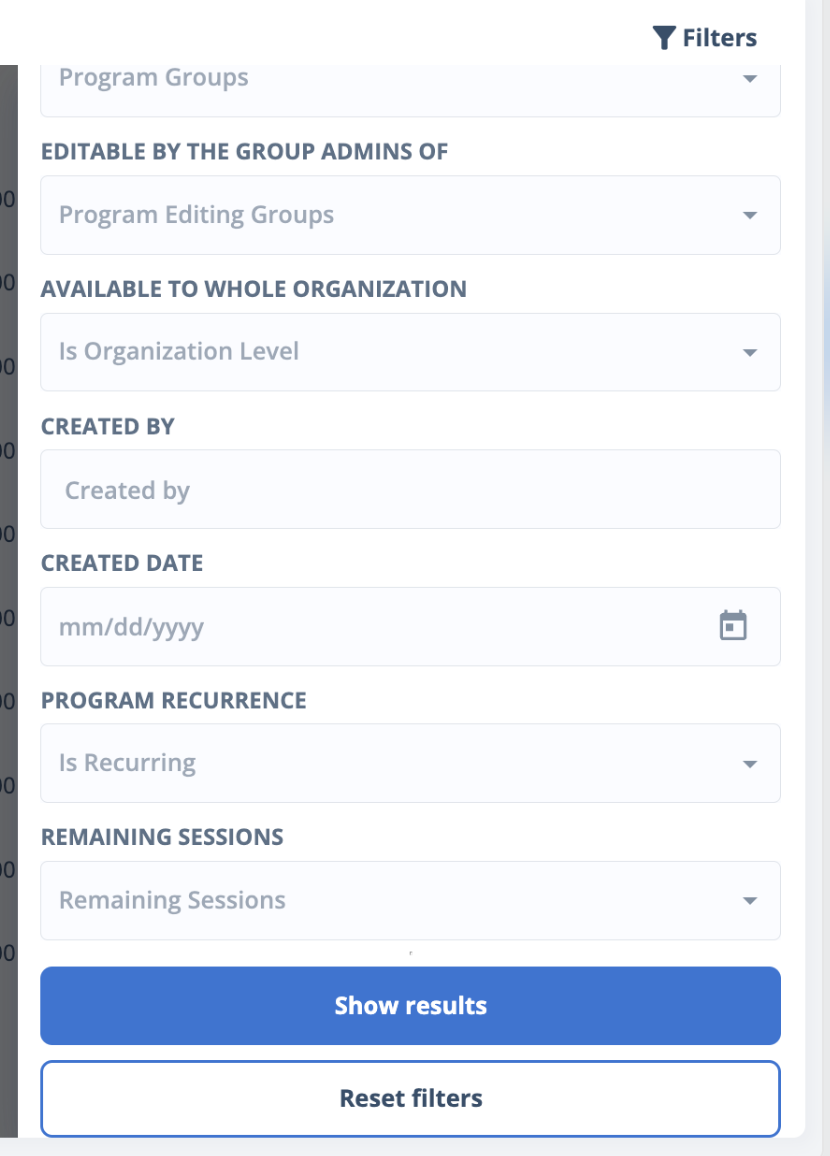
  • Program Groups: use this to see the list of classes shared to a particular group you manage (if you manage multiple)
  • Editable by Group Admins: see who has admin rights. can select one or more
  • Available to Whole Organization: see what classes are available to all groups in the organization
  • Created By: type in the name (please note: anything created before June 2022 will say "System"
  • Created Date: when the program was created in the system
  • Program Recurrence: recurring or nonrecurring
  • Remaining Sessions: easily find classes that may need extending or will be ending soon
New in Admin Panel: Grid Columns
We're improving the quick views of data you can access from the administration panel.
Group Grid:
  • No. of Active Users is now available: this includes all active participant & facilitator accounts for the group.
  • All other #s: these show the number of active users with the specific role assigned. If someone is both a facilitator and a member, they will be counted for in both no. of facilitators and no. of participants.
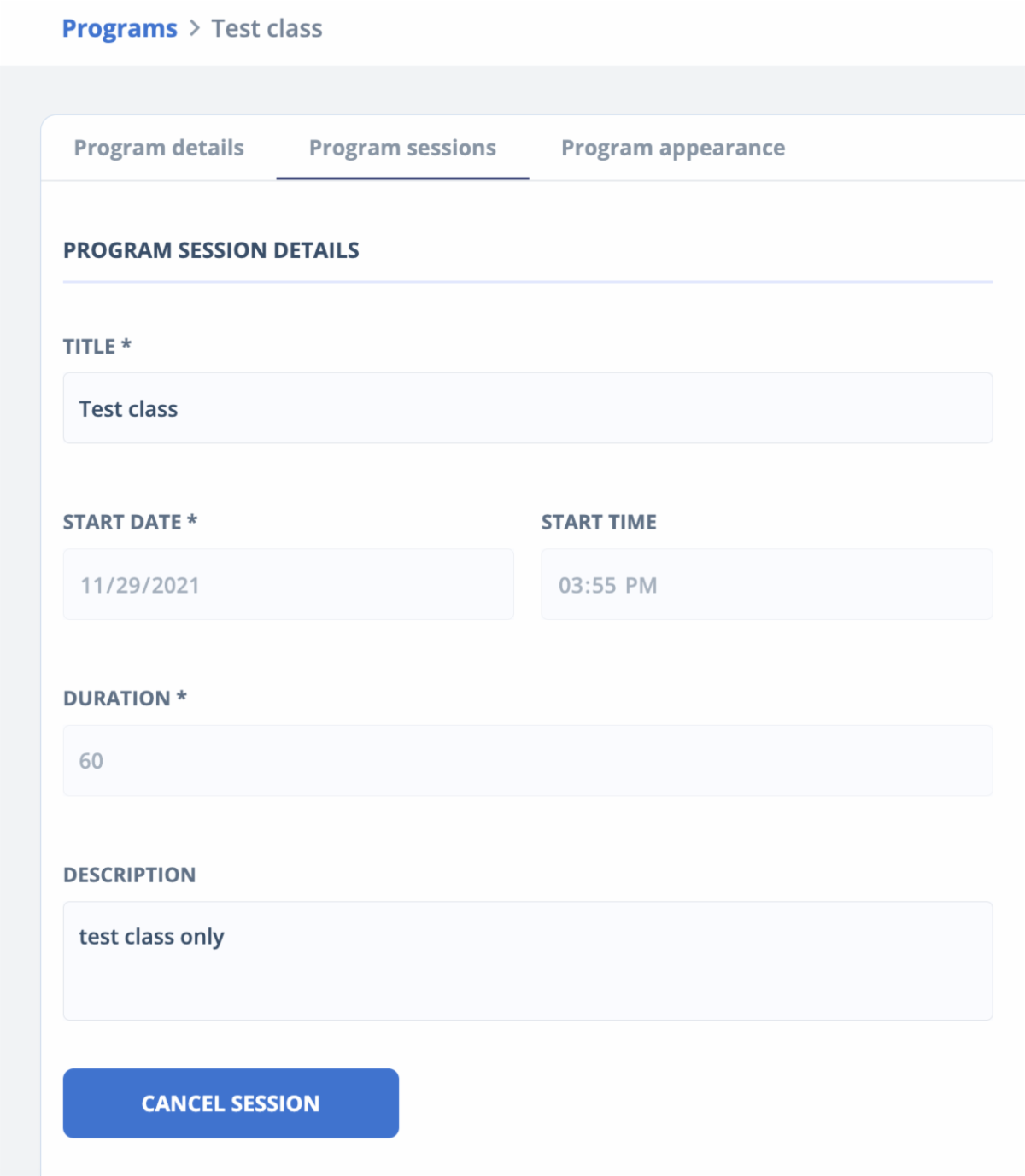
New Admin View of Program Session:
Cancel Session Button
Now, when you are looking at a program session, there is a "cancel session" button.

This can come in handy when editing several classes.

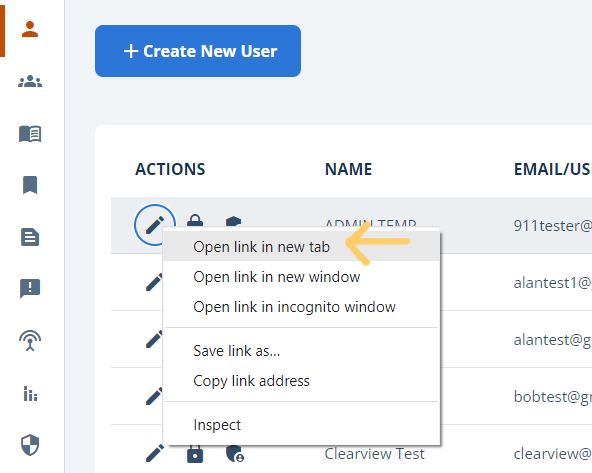
As a reminder: you can right click on an edit (pencil) button and it will open in a new tab.

Alternatively hold down the CTRL button when clicking on edit on Windows computer to also open in new tab. On Mac, hold down on Command and click.
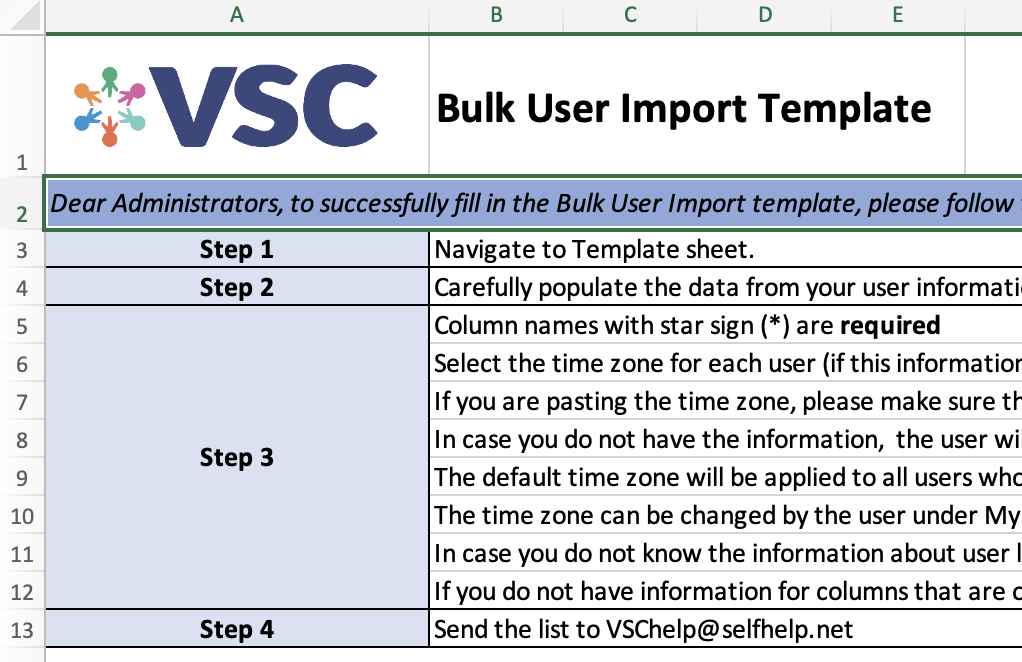
New for Admins: Bulk User Upload
Bulk User upload is now available. To do so, please download and follow the steps listed in the Bulk User Import Template.

To download:
  • Navigate to the Onboarding Page linked below. Password is welcometovsc
VSC Administration Tips
Tip: Need to edit several users or programs in a list?

Now you can right-click on an edit (pencil) button and it will open in a new tab. Alternatively, hold down the CTRL button when clicking on edit on a Windows computer to also open a new tab. On Mac, hold down on Command and click.

Tip: Want to see the list of Users or Programs (previously Classes) for a Group?

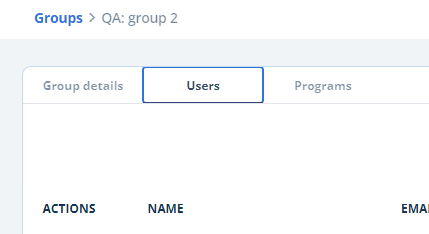
You can now view a list of Users and Programs by accessing your Group. Click on the edit button next to your Group name and then click on the corresponding tab.

Newsletter Sign Up Form: Share with a Coworker
Resources
Have a Great Week!
Did you find this newsletter helpful?
Yes
No
Have questions or ideas/feedback for content in this Newsletter?

Email Sara at slouie@selfhelp.net
Virtual Senior Center