|
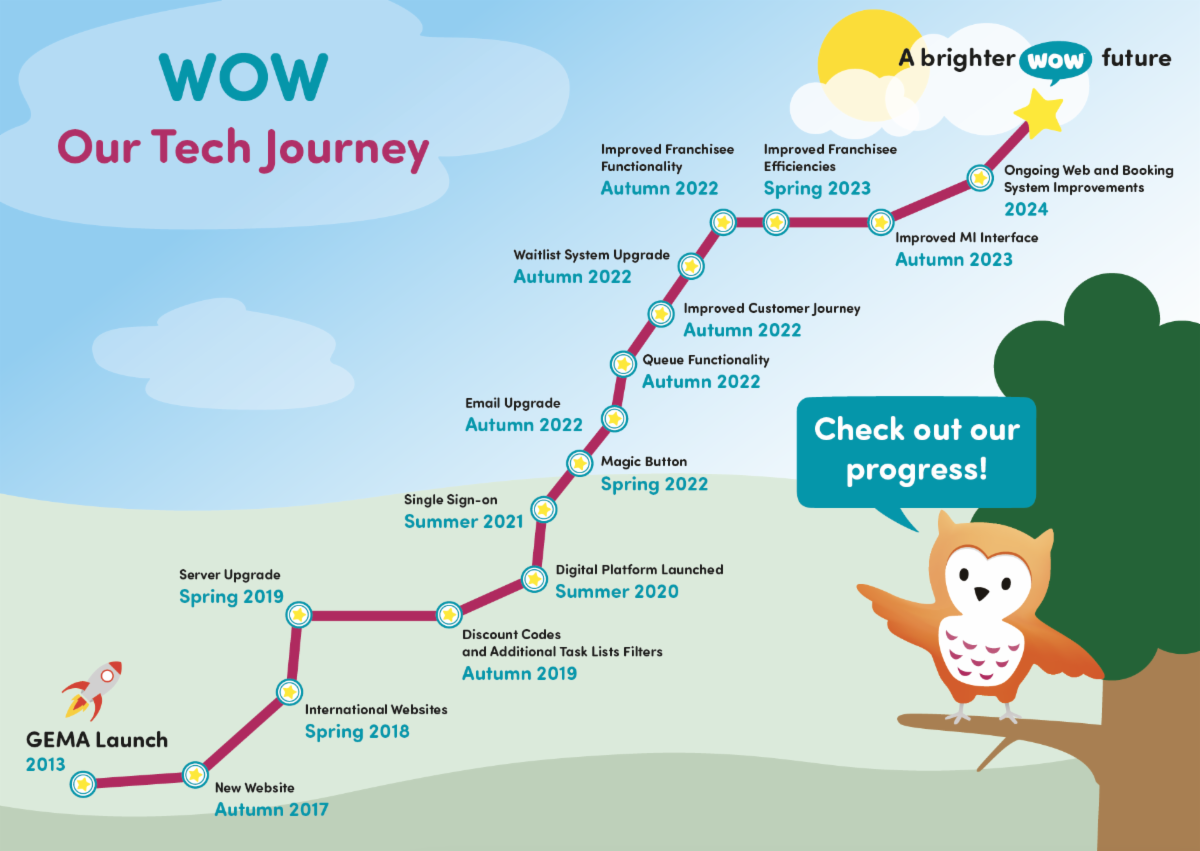
WOW TECH JOURNEY - OUR NEXT STOP: YOUR NEW WOW EMAIL.
Hello Sean,
We are delighted to welcome you to your new WOW email platform - here are the key details to get you started:
-
Get started video - click here for a guided tour of the new platform and how to navigate it
-
FAQ's - here is a link with FAQ's
-
The Knowledge Library - we have created some bespoke videos as well as stored links to all of the above content for your convenience in Workplace.
THINGS TO NOTE:
- Font - so we all keep on brand and consistent:
Verdana 10 - this should be your default but please check in settings. Please do not use any other font type in your email.
- Signature - our template format is:
<Your Name>
<Programme Name>
<Phone Number>
<Email address>
<Programme logo(s)>
<Strap line/Promo line>
(eg BS – ‘’Precious early learning for Babies’’, TS – ‘’Life’s an Adventure’’ – optional as may already be included in logo
Here are details of how to set up your signature.
URL links to the logos to be used in your signatures can be found below (select ‘upload from URL’ when adding logos to your signatures) -
BS https://drive.google.com/file/d/1GySpX2pUw_L_FNIwx7PeDMRDkKejDr0i/view?usp=sharing
TS -https://drive.google.com/ucid=15Lg45Q4N209cZ1XXIX0xwGDOydCGmYpe
MP – https://drive.google.com/ucid=1LqPG3LCw3ePuwdP2vuMH8_RGRj5qEM
KaB - https://drive.google.com/uc?id=1c5Rna_cszvKOuZGkqy9Yi27v73mc-NAz
RF – https://drive.google.com/uc?id=1z0bhzJOSnr0znLCtWLu5Vuqkny-XTU6A
WOW - https://drive.google.com/ucid=1lG9BCtudEcA4tNxWOGTeB6tnZiuZ7oG
If you use the Zoho Mail App on your mobile devices (see below for links to the apps), you will only need to set up the signature once - as long as you have enabled 'use desktop signature' and synced your desktop settings.
· If you use the out of office functionality to send an automated email reply whenever you receive an email, make sure to set this up in settings.
- Before the end of the year we will mandate two factor authentication across all email accounts - however to make it easier for you while adjusting to your new email, we have not done so yet. Once two-factor authentication is enabled you will need to verify your account via another device (i.e. mobile phone/text message etc). We will give notice before this takes place though.
- Your password will need to be reset every 90 days. You will receive several reminder emails to notify you before the 90 days have elapsed.
MOBILE APPS
There are bespoke mobile apps for Zoho mail which are available for you to use, so no need to download your mail onto your devices.
Plus, these apps have more functionality than normal device mail apps (including being able to easily set your out of office up on the go when you are heading on holiday!)
Android
IOS (Apple)
NB if you want to use the same settings in Zoho app as you have set up on the Zoho mail desktop platform then simply go to settings in the app and select ‘sync desktop settings’.
We hope you enjoy our new WOW email platform and we will be bringing further details of additional features and settings over the coming days and weeks.
Best wishes
Sean
|