|
One Cool Tip Newsletter
November 17, 2025
| Your daily dose of tech-savvy brilliance! | |
😀Greetings!, Happy Monday, Cool Tipper!
Get ready to streamline your digital life with simple, actionable tips delivered straight to your inbox.
Today's Cool Tip Theme: Microsoft 365 Copilot vs. Microsoft Copilot
IN THIS ISSUE
- 🚨 DoorDash Cybersecurity Incident.
- 🤖 AI Toys May Pose Hidden Risks.
- 🐸 Toy Story 5’s Villain Is a Tablet.
- 🚀 Make It a Great Week!
- 🖼️ Cool Microsoft Copilot AI Prompt of the Day.
- 💡 Microsoft 365 Copilot vs Microsoft Copilot.
- 👀 How Do I Use Microsoft 365 in PowerPoint?
- 🤔 Use Copilot in Microsoft Edge.
- 🙋♂️ Clean Data with Copilot in Excel.
New here? Subscribe to the One Cool Tip Newsletter for daily updates. It's FREE!
-
😂 Laugh with Us! Enjoy our Tech Joke of the Day, Haiku and Cool Tip Comics.
-
🌐 Stay Informed! Check out ICYMI, and our One Cool Tip Video.
Today's Tech Trivia
Answer at the end of this newsletter.
| |
| What AI model is Microsoft 365 Copilot adding as an optional model for business users? | | | |
🚨DoorDash Cybersecurity Incident🚨
DoorDash has confirmed a recent cybersecurity breach involving unauthorized access to a third-party vendor.
While no sensitive consumer data like passwords or full payment info was exposed, some names, emails, and phone numbers..
Cool Tip: If you use DoorDash, monitor your account for suspicious activity, change your password, and consider enabling two-factor authentication.
And in Other News...
- AI Toys May Pose Hidden Risks
Before gifting that smart toy, check the label, and the privacy policy. PIRG’s 2025 “Trouble in Toyland” report warns that some AI-powered toys may collect sensitive data, lack proper security, or contain toxic materials. Voice-enabled bots and connected playsets can expose kids to privacy breaches or unsafe chemicals.
Cool Tip: Look for toys with clear data use disclosures, no microphone or camera unless needed, and third-party safety certifications.
- Toy Story 5’s Villain Is a Tablet. And It’s Terrifyingly Real
Pixar’s Toy Story 5, expected in June 2026, introduces its most modern villain yet: Lilypad, a frog-shaped smart tablet voiced by Greta Lee. Unlike past baddies like Sid or Lotso, Lilypad isn’t just mean; she’s a symbol of screen addiction and the decline of imaginative play. Check out this teaser trailer.
| | |
🚀 Make It a Great Week!
Copy/Paste this AI-powered prompt. Try it in the One Cool Tip AI Companion (free ChatGPT account required) or Copilot, Gemini or ChatGPT:
“Help me plan a productive start to my week.
First, ask me for my top three priorities and any deadlines due in the next few days.
Then create a clear Monday action plan that includes a short checklist, two quick wins I can finish in under 10 minutes, and one suggestion to reduce distractions.
Format the results so I can paste them into my notes.”
| | | |
🖼️ Cool Microsoft Copilot AI Prompt of the Day
Try this Microsoft Copilot prompt:
“Describe my ideal home office setup based on these preferences: I like natural light, minimal clutter, dual monitors, and calming colors. Include furniture suggestions and lighting tips.”
Change the prompt to reflect your tastes.
Then tell it to create an image based on the results.
| | |
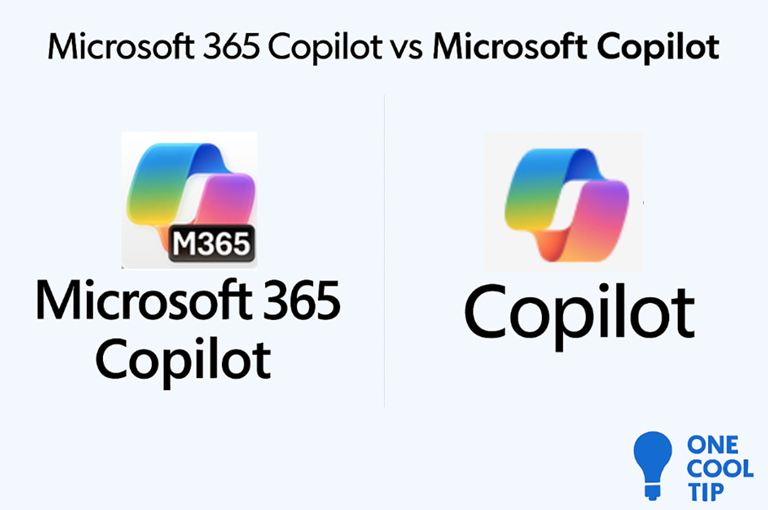
Microsoft 365 Copilot vs Microsoft Copilot: What’s the Difference?
Two Copilots, one name, and a lot of confusion. Here’s how to tell them apart and why it matters for your workflow.
If you’ve ever asked, “Wait, which Copilot am I using?” you’re not alone.
Microsoft has launched multiple AI-powered assistants under the “Copilot” brand, and while they share a name, they serve very different roles.
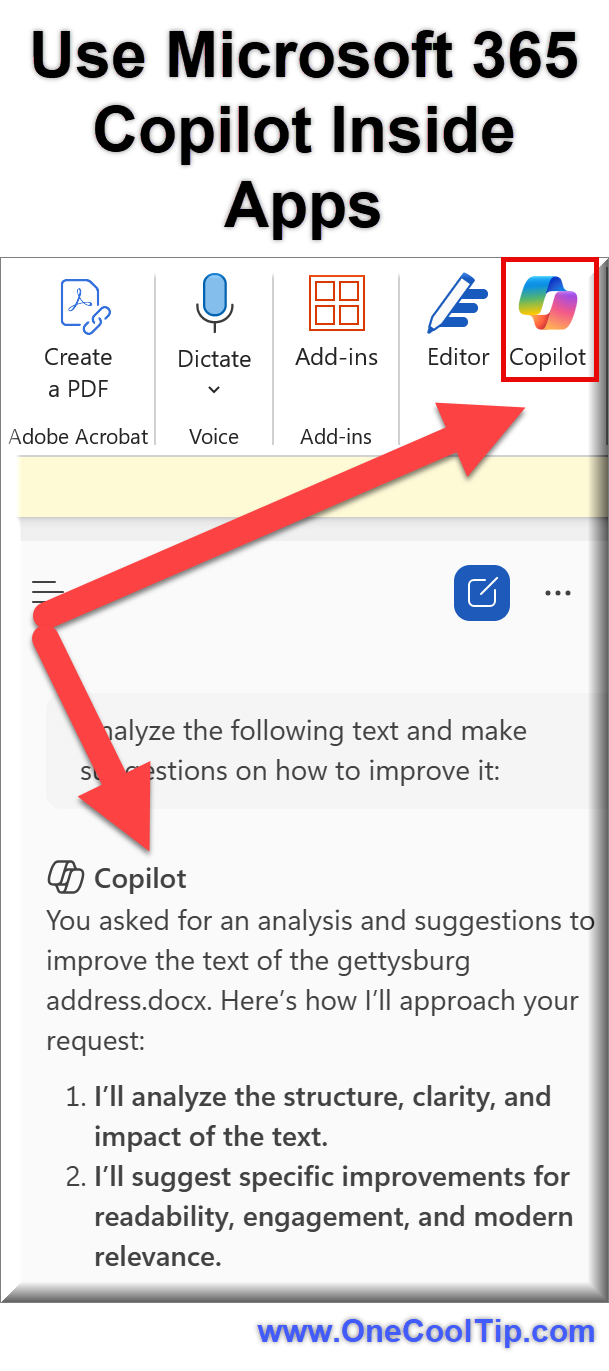
Here's a Cool Tip: Microsoft 365 Copilot is inside Microsoft 365 apps.
Whether you're a business user, educator, or productivity enthusiast, understanding the difference between Microsoft 365 Copilot and Microsoft Copilot can save you time and headaches.
Feature Explanation
Microsoft 365 Copilot is embedded inside the Microsoft 365 suite: Word, Excel, PowerPoint, Outlook, Teams, and more.
It’s designed to supercharge your productivity by helping you write, summarize, analyze, and create directly within these apps.
Think of it as your AI-powered colleague who knows your documents, emails, meetings, and calendar.
Microsoft Copilot (without the “365”) is the broader assistant built into Windows 11, Bing, Edge, and other Microsoft services.
It’s your general-purpose AI companion for web search, troubleshooting, creative tasks, and system-level help.
It can answer questions, generate images, summarize web pages, and even help with coding, but it doesn’t have access to your Microsoft 365 content unless you explicitly connect it.
In short:
-
Microsoft 365 Copilot = AI inside your Office apps.
-
Microsoft Copilot = AI across your device and browser.
What You’ll Gain
-
Clarity: Know which Copilot to use for which task.
-
Efficiency: Use Microsoft 365 Copilot for deep document work.
-
Versatility: Use Microsoft Copilot for web, system, and creative tasks.
-
Control: Understand what data each Copilot can access.
Step-by-Step Instructions
Here's how to do it.
Microsoft Web/Desktop
Microsoft 365 Copilot:
- Open Word, Excel, or PowerPoint (Microsoft 365 subscription required).
-
Look for the Copilot icon in the ribbon or sidebar. Or use the Microsoft 365 App for Windows, click HERE.
- Click and type your prompt (e.g., “Summarize this document”).
| | fig. 1 - Use Microsoft 365 Copilot Inside Apps | | |
Microsoft Copilot:
-
On Windows 11, press Windows + C or click the Copilot icon on the taskbar or go to copilot.microsoft.com. Need Copilot for Windows? Click HERE.
- Type or speak your request (e.g., “What’s the weather in Tokyo?”).
- Use Edge for web-based Copilot features like summarizing pages or generating images.
| fig. 2 - Use Microsoft Copilot Across Devices | |
iOS
Microsoft 365 Copilot:
- Open the Microsoft 365 mobile app (Word, Excel, etc.).
-
Or use the Microsoft 365 Copilot App.
- Tap the Copilot icon if available.
- Use prompts like “Create a summary slide.”
Microsoft Copilot:
-
Use the Microsoft Copilot app or Edge browser.
- Tap the microphone or keyboard to ask questions or generate content.
Android
Microsoft 365 Copilot:
- Open the relevant Microsoft 365 app (Word, Excel, etc.).
-
Or use the Microsoft 365 Copilot App.
- Tap the Copilot icon.
- Try prompts like “Draft a reply to this email.”
Microsoft Copilot:
-
Use the Copilot app or Edge browser.
- Ask questions, generate images, or get help with tasks.
Pros and Cons
Microsoft 365 Copilot
Pros
- Deep integration with your documents and calendar.
- Context-aware writing and summarizing.
Cons
- Requires Microsoft 365 subscription.
- Limited to supported apps and enterprise rollout.
Microsoft Copilot
Pros
- Free and widely available
- Great for general questions, creativity, and system help
Cons
- Doesn’t access your Microsoft 365 content unless connected.
- Less useful for document-specific tasks.
Feature Access
Microsoft 365 Copilot:
- Requires Microsoft 365 subscription.
- Region availability varies; check Microsoft roadmap.
-
Pricing: Personal - Business
Microsoft Copilot:
- Available free in Windows 11.
- Also available in Edge and Bing.
- No subscription required.
Score
Criterion | Score (0–10) | Justification
Value 9
Microsoft 365 Copilot offers deep productivity gains for paid users. Microsoft Copilot is free and versatile.
Usability 8
Both are intuitive, but Microsoft 365 Copilot requires app familiarity and subscription setup.
Wow Factor 9
The AI-powered document editing and summarization in Microsoft 365 Copilot is impressive.
Total: 26/30 🌟 Excellent
Microsoft’s dual Copilot strategy delivers powerful AI tools for both general and professional use.
Key Takeaways
Microsoft 365 Copilot is your in-app productivity partner, while Microsoft Copilot is your system-wide assistant.
Knowing which to use, and when, can dramatically improve your workflow.
Cool Tip Snapshot
Feature Name: Microsoft 365 Copilot vs Microsoft Copilot.
Platform(s): Windows 11, iOS, Android, Web.
Quick Benefit: Choose the right Copilot for the right task.
Access Type: Microsoft 365 Copilot (Subscription), Microsoft Copilot (Free).
Try It Yourself
Open Word or Excel and try asking Microsoft 365 Copilot to summarize your latest document.
Then launch Microsoft Copilot from your taskbar and ask it to generate a packing list for your next trip.
Share this tip with your team and family!
READ MORE
Read the Full Cool Tip
| | |
Help support One Cool Tip. Use this Amazon link when you shop online.
Look at these Cool Products:
| |
-
🎧 Sony WH-1000XM5 Headphones: Great for noisy offices and long Teams meetings. Save 38% $248. Check it out on Amazon!
Prices accurate at time of publication
| | |
🆒Tell Me More
- Microsoft 365 Copilot is embedded inside apps like Word and Excel.
- Microsoft Copilot lives in Windows 11 and Edge as a system-wide assistant.
- Only Microsoft 365 Copilot can access your documents, emails, and calendar.
- Microsoft Copilot is free; Microsoft 365 Copilot requires a subscription.
- You can use both Copilots on the same device but they don’t share context unless connected.
⏩Quick Tips
-
🧭 Use the Right Copilot: Microsoft 365 Copilot is for document work; Microsoft Copilot is for general tasks. Open Word or Excel for the former, Windows taskbar for the latter.
-
📂 Connect Your Data: Microsoft 365 Copilot can access your calendar and emails. Make sure your Microsoft 365 account is signed in.
-
🖼️ Generate Images in Edge: Microsoft Copilot can create visuals using DALL·E. Open Edge, click the Copilot icon, and type “generate an image of…”
-
📊 Analyze Data in Excel: Microsoft 365 Copilot can summarize tables and trends. Highlight your data and ask Copilot to “summarize this sheet.”
-
🔍 Summarize Web Pages: Microsoft Copilot in Edge can condense articles. Click Copilot in the sidebar and type “summarize this page.”
| | ✅ More Must-Read Tech Tips | |
|
📄 Microsoft 365 Copilot (Inside Office Apps)
-
Summarize Docs: Copilot can condense long Word files into clear summaries. Open Word, click the Copilot icon, and type “Summarize this document.”
-
Data Insights: Excel Copilot can analyze tables and highlight trends instantly. Select your data, then ask Copilot “Show me key insights.”
-
Email Drafts: Outlook Copilot helps you write polished replies faster. Click Copilot in Outlook and type “Draft a reply to this email.”
-
Meeting Recaps: Teams Copilot can generate summaries of meeting discussions. After a meeting, open Teams Copilot and request “Summarize today’s meeting.”
-
Calendar Prep: Copilot can scan your Outlook calendar and suggest priorities. Open Copilot in Outlook and ask “What’s on my schedule today?”
🌐 Microsoft Copilot (Windows, Edge, Bing)
-
Quick Answers: Microsoft Copilot in Windows can answer everyday questions. Press Windows + C and ask “What’s the weather in Tokyo?”
-
Web Summaries: Edge Copilot condenses articles into digestible highlights. Open a page in Edge, click Copilot, and type “Summarize this page.”
-
Image Creation: Copilot can generate visuals for presentations or posts. In Edge Copilot, type “Generate an image of a modern office in watercolor style.”
-
Coding Help: Copilot can explain or suggest code snippets. Ask “Explain this Python script” or “Write a loop in JavaScript.”
-
Brainstorm Ideas: Copilot can spark creativity for projects or writing. In Word or Windows Copilot, type “Give me 5 ideas for a marketing campaign on Toy Story 5.”
| |
👀 How Do I Use Microsoft 365 in PowerPoint?
Do you want to take your PowerPoint presentations to the next level?
Microsoft Copilot 365 revolutionizes the way you use PowerPoint.
Microsoft Copilot 365, an advanced AI-powered tool, is designed to enhance productivity and creativity within Microsoft 365 apps, including PowerPoint.
Here's how to use it.
-
Ensure you have a Microsoft 365 subscription.
-
Make sure your PowerPoint is updated to the latest version to access all features.
-
Open PowerPoint and locate the Copilot chat window, usually found in the corner of your screen.
-
Type prompts or commands into the Copilot chat to edit, format, or design your slides.
- Ask Copilot to reformat text, adjust layouts, animate slides, and generate speaker notes.
Here's an example,
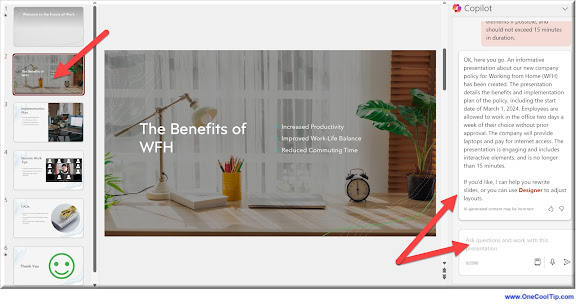
An HR rep needs to create a PowerPoint presentation for their company's new Work from Home policy and needs to get a draft started.
To get things started, click the Copilot icon in the ribbon and enter a prompt. Request a deck be created and include a few key items such as topic and details. Include when the policy starts and whether HR and management approval is required.
Microsoft Copilot in PowerPoint is not just a feature; it’s a game-changer for anyone looking to create professional, polished presentations with ease.
Discover more HERE.
| |
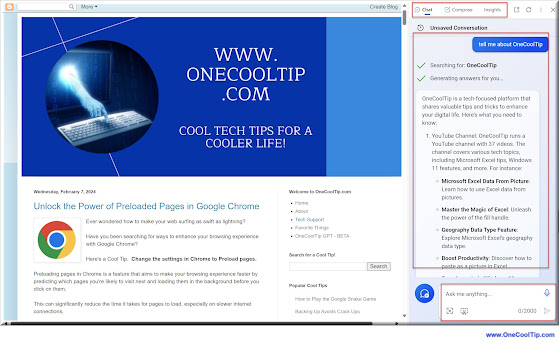
🤔 Have You Ever Wondered How to Use Copilot in Microsoft Edge?
Have you ever wondered how you could supercharge your browsing experience?
Use Copilot in Microsoft Edge.
Here's how to do it.
-
If you haven’t already, download and install the latest version of Microsoft Edge from the Microsoft Store. (US store link).
-
Navigate to the browser settings - click the three dots in the top right corner and select Settings.
-
Click on AI Innovations then toggle on Copilot Mode.
- Select the Copilot icon in the top right corner to display the Copilot sidebar screen.
You can engage in a back-and-forth with Copilot, asking for more details, resources, links, etc. on any topic you can imagine.
Copilot can save you time, reduce effort, and even improve the quality of your writing.
However, don't rely too heavily on Copilot as it may limit your own writing development.
And never, ever, share personal or company private information in Copilot or any other AI.
The Copilot feature in Microsoft Edge is a powerful tool that can significantly enhance your browsing experience.
| | |
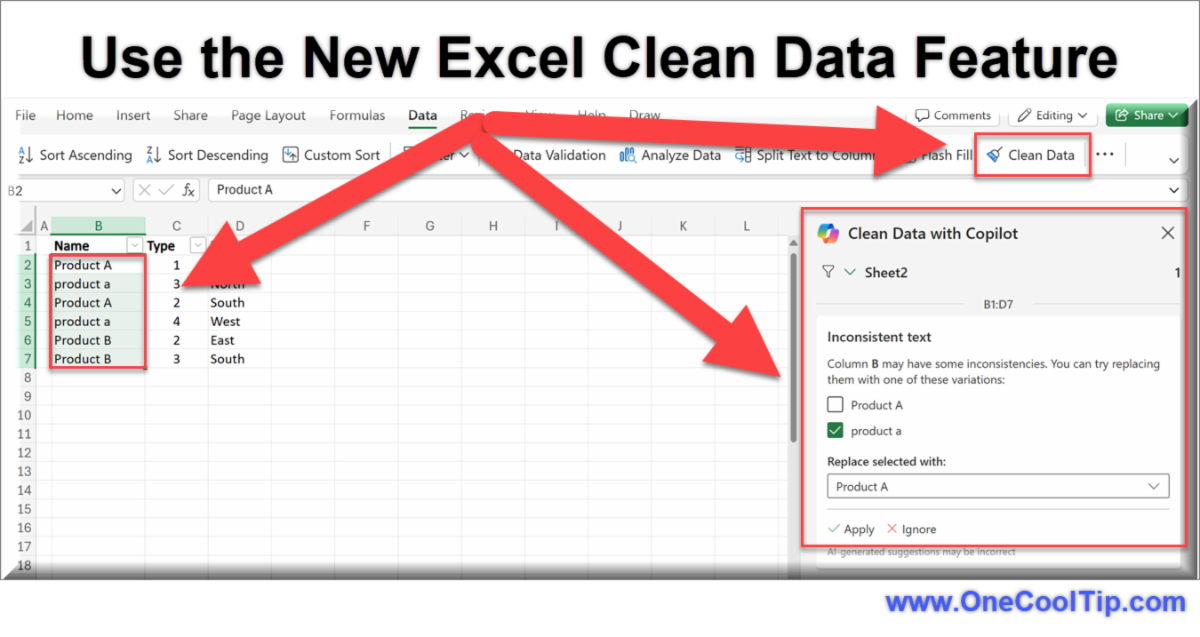
🙋♂️ Here's How to Clean Data with Copilot in Excel.
Are you tired of spending hours manually correcting data inconsistencies in your Excel sheets?
Copilot in Excel is your new best friend for data cleaning!
Data inconsistencies, such as text variations, number format issues, and extra spaces, can lead to incorrect calculations and messy workbooks.
Copilot's Clean Data feature detects and resolves these common issues with just a click, saving you time and effort while improving the reliability of your data.
Here's how to do it.
-
Launch Microsoft Excel for the Web or the desktop version of Excel and open your workbook.
-
Highlight the data you want to clean.
-
Go to the Data tab on the ribbon.
-
Select the Clean Data option.
-
Copilot detects inconsistencies and offers solutions.
-
Review the suggestions and apply the changes as needed.
-
For best results, format your data as an Excel table by selecting Home > Tables > Format as Table.
This feature automates the data cleaning process, freeing up time for more important tasks.
With Copilot in Excel, cleaning your data has never been easier.
Learn more HERE.
| | |
❓Did you share this newsletter with three friends yet?
😎 Cool Facts
-
71%: In Microsoft’s early trials, 71% of Copilot users said it saved them time on mundane tasks, and 70% said it made them more productive. Source.
-
29%: In a lab study, people using Copilot to search, write, and summarize finished those tasks 29% faster than those without it. Source.
-
30 minutes: In a survey of 31,000 workers, nearly a third of those using generative AI several times a week reported saving at least 30 minutes every workday. Source.
⌨️Today's Cool Keyboard Shortcuts
Try these Cool windows keyboard shortcuts across most Microsoft 365 apps (Word, Excel, PowerPoint, etc.):
-
Ctrl + C: Copy
-
Ctrl + V: Paste
-
Ctrl + X: Cut
-
Ctrl + Z: Undo
-
Ctrl + Y: Redo
-
Ctrl + S: Save
-
Ctrl + P: Print
-
Ctrl + A: Select all
-
Ctrl + F: Find
-
Ctrl + H: Replace
😜 Tech Joke of the Day 😅
What is a computer’s favorite food?
Microchips.
🔎 Do you have a Cool Tip or tech question? Email us at onecooltip.com@gmail.com.
| | |
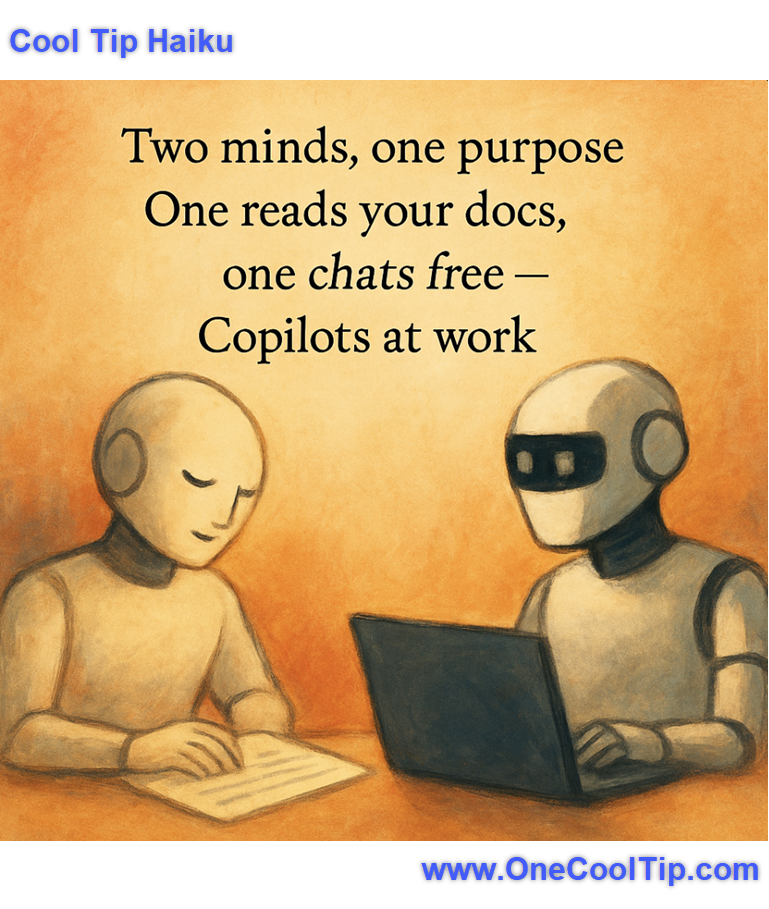
Two minds, one purpose,
One reads your docs, one chats free
Copilots at work.
| |
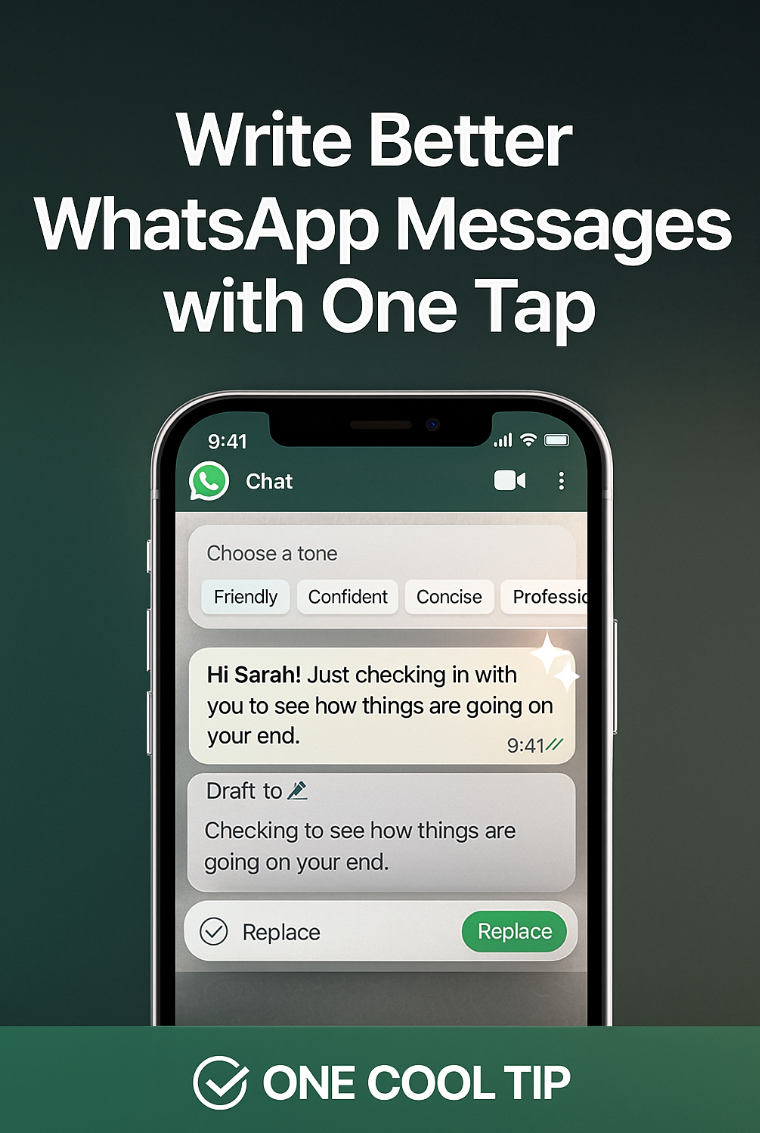
| 🤔 How do you use Microsoft Copilot? | | | | Did You See These Cool Tips This Week? | | | | Let AI Help You Write in WhatsApp | WhatsApp just added a smarter way to refine your messages before you send them. Pick your tone, preview the rewrite, and send something that sounds clearer and more intentional. | | | | Real-Time Scareware Protection Expands in Microsoft Edge | Microsoft is rolling out a powerful real-time scareware and support scam protection in Edge, making one of the internet’s most persistent threats a thing of the past for a wider audience. This expanded feature significantly enhances online safety by blocking deceptive websites before they can even load their malicious messages. | | ICYMI - In Case You Missed It ... | | | | Be Creative with Fluid Paint | Turn your mouse or fingertip into a digital paintbrush that flows like liquid color. Fluid Paint by David Li lets you create mesmerizing art right in your browser with no downloads, no cost, just pure creativity. | | The moment you realize Copilot has better emotional resilience than anyone on your team at work. | | |
Trivia Answer: C) Claude
Claude is an AI model developed by Anthropic, and Microsoft is integrating it into Microsoft 365 Copilot as an optional supporting LLM for business users.
This allows users to try Claude with their Copilot prompts.
----------
Tomorrow's Cool Tip is waiting to amaze you.
Until then, go forth and conquer the tech world with your newfound knowledge!
Be sure to visit www.OneCoolTip.com for Cool Tech Tips for a Cooler Life!
And if you Like One Cool Tip, please support with TipJar!
Enjoy!
Rodger
Chief Cool Tipper
onecooltip.com@gmail.com
| | |
3️⃣
If you enjoy the One Cool Tip newsletter, please forward this newsletter to THREE friends or colleagues or share it on social media using the links below.
Leave a Tip!
Share this One Cool Tip Newsletter!
| |
| What do you think of today's OneCoolTip newsletter? | | | |
Please Share the One Cool Tip Newsletter!
You asked for it. You got it. There is now a One Cool Tip Newsletter archive. Did you delete a newsletter and want to read it again? Check it out HERE.
Want to help One Cool Tip grow? Please forward this email using the link above. And if you see an OCT social media post, please LIKE, COMMENT and SHARE!
Have you subscribed to the One Cool Tip YouTube channel? Subscribe HERE.
| | Connect with One Cool Tip!! | | |
|
As an Amazon Associate, One Cool Tip may earn a small commission from qualifying purchases.
Our media content is intended solely for informational purposes only. Please do not construe anything here as legal, tax, investment, financial, marital or other advice.
Copyright © 2025 | www.OneCoolTip.com | All Rights Reserved
|
| | | |