|
🆒Tell Me More
Predictive Text in Microsoft Word
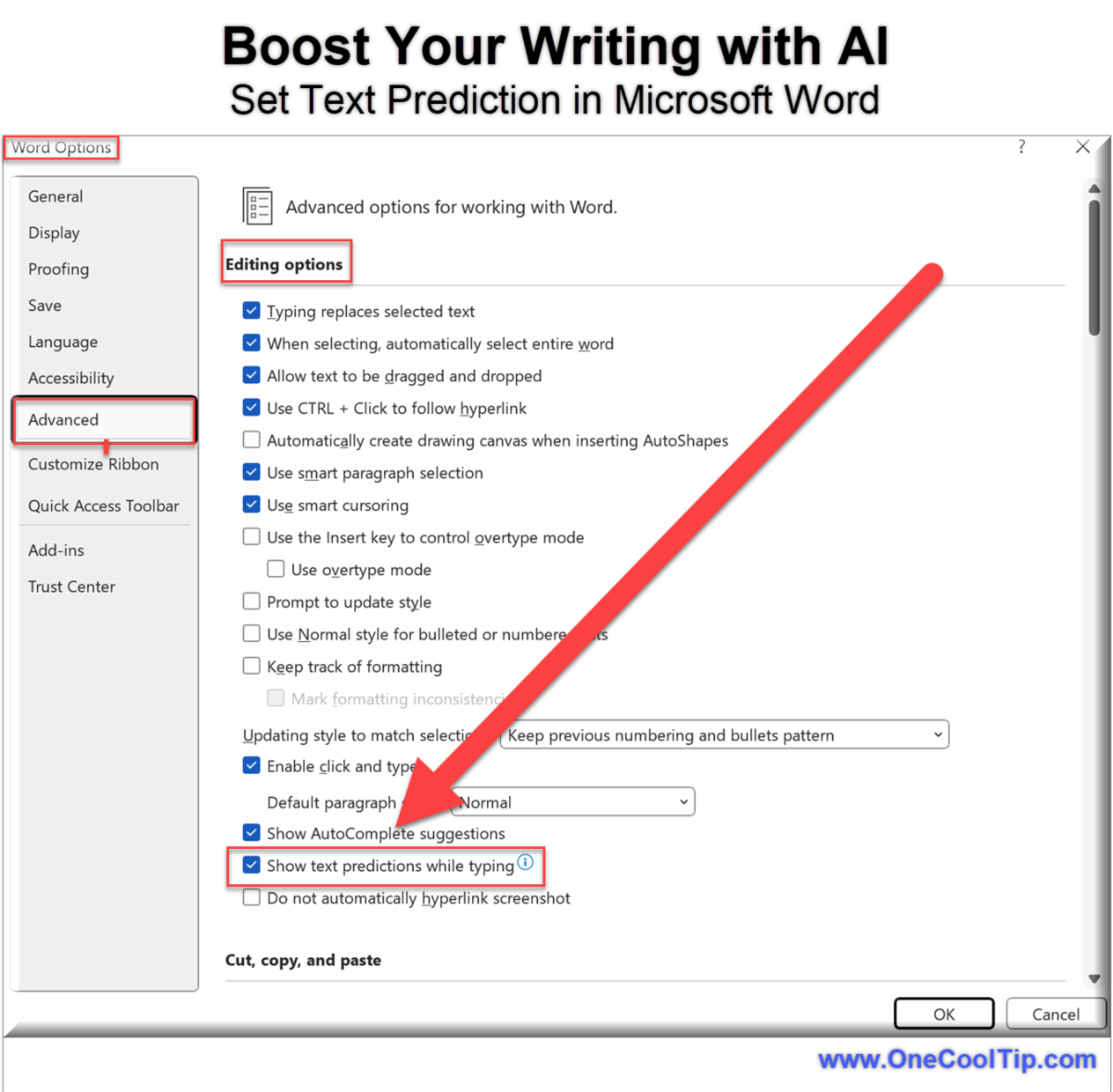
Predictive Text, also known as Text Predictions, is an AI-powered feature in Microsoft Word designed to enhance your writing efficiency and accuracy.
This feature anticipates the next words or phrases you might type and offers suggestions, which you can accept by pressing the Tab key or the Right Arrow key.
If you prefer to ignore the suggestion, simply keep typing, and it will disappear.
Benefits of Text Predictions
-
Increased Efficiency: Write faster by accepting suggested words and phrases, reducing the time spent on typing.
-
Improved Accuracy: Minimize spelling and grammar errors with AI assistance.
-
Enhanced Creativity: Get inspiration from the suggestions to improve your writing style.
Drawbacks
-
Learning Curve: It might take some time to get used to the suggestions and how to accept or ignore them.
-
Distraction: Some users might find the constant suggestions distracting, but this can be turned off in the settings.
🔢 By the Numbers
✅ Must-Read Tech Tips.
👀 How Do I Create a Table in Microsoft Word?
Have you ever wondered how to create a table quickly in Microsoft Word ?
Maybe there's a quick keyboard shortcut?
How about an "old school" trick?
Here's a Cool Tip. Use simple ASCII characters.
Here's how to do it.
-
Open Microsoft Word.
-
Type a plus sign (+) followed by a series of minus signs (-) and end with another plus sign (+).
-
For example, to create a 3 cell table, type: +-----+-----+-----+ and then Enter.
- Just follow the pattern to create a table with more columns.
-
Click into the last cell and press Tab key to create a new row.
Creating tables with ASCII characters is quick and easy.
It’s also a fun way to impress your colleagues with your Word prowess!
Discover more HERE.
🤔 Have You Ever Wondered How to Insert Online Videos in Microsoft Word?
Insert Online Videos is a feature in Microsoft Word that allows you to embed videos from online sources, such as YouTube, Vimeo, and SlideShare.net, into your Word documents.
This can be a great way to add multimedia content to your documents, such as instructional videos, product demos, or engaging presentations.
Here's how to do it.
Insert Online Videos in a Microsoft Word document.
-
Open your web browser.
-
Navigate to the video you want to embed.
- Microsoft Word supports inserting videos from a number of sites including Vimeo, YouTube, and SlideShare.net.
-
Copy the URL.
-
Open the Word document where you want to insert the video.
-
Click on the Insert tab in the ribbon.
-
Click on Online Videos in the Media group.
-
In the Insert Video dialog box, paste the URL of the video you want to insert.
-
Click on Insert.
Your video is now part of your document.
Once your video is inserted, you can resize and reposition it as needed.
- Select the video thumbnail (be careful not to select the Play button in the center).
- Use the resizing handles to adjust the size of the video thumbnail.
- You can also select different layout options to reposition your video.
That's it!
Embedding online videos in Microsoft Word documents is a powerful way to enhance your content and engage your readers.
A Bonus is that the Insert Online Videos feature is also available in Microsoft PowerPoint.
Learn more HERE.
🙋♂️ Here's How to Use Keyboard Shortcuts for Bulleted Lists in Microsoft Word
Ever found yourself fumbling with the mouse while trying to create a bulleted list in Microsoft Word?
Microsoft Word is a powerful word processing tool that offers a variety of features to enhance your document creation experience.
One such feature is the ability to create Bulleted, Dashed, Lettered or Numbered lists using keyboard shortcuts.
Here's how to do it.
-
Open Microsoft Word
-
Open the document where you want to add the list.
-
Place your cursor at the point in the document where you want to start your list.
-
Start typing your list:
-
For a bulleted list, type an asterisk (*) followed by a space at the beginning of a new line.
-
Type - for a bulleted dash list.
-
For a numbered list, type 1 followed by a space.
-
Type a or an A and a . for a lettered list.
- Microsoft Word will automatically start a new bulleted, dashed, lettered or numbered list for you.
-
Press Enter to start a new line with a new bullet or number.
-
When you want to end your list, press Enter twice.
The more you use these shortcuts, the more natural they will feel, and the faster you’ll be able to format your documents in Microsoft Word.
So why wait? Start practicing these shortcuts today and take your Microsoft Word skills to the next level!
Get more HERE.
❓Did you share this newsletter with three friends yet?
⌨️Today's Cool Keyboard Shortcuts
Do you know these useful but little-known keyboard shortcuts for Microsoft Word?
-
Ctrl + Shift + C / Ctrl + Shift + V: Copy and paste formatting. Copy formatting: Select the text with the desired formatting and press Ctrl + Shift + C.
-
Paste formatting: Select the text you want to apply the formatting to and press Ctrl + Shift + V.
-
Alt + Shift + Up/Down Arrow: Move paragraphs up or down. Quickly rearrange paragraphs by selecting the paragraph and pressing Alt + Shift + Up Arrow to move it up or Alt + Shift + Down Arrow to move it down.
-
Ctrl + Shift + L: Apply bullet points. Instantly turn your selected text into a bulleted list by pressing Ctrl + Shift + L.
-
Ctrl + Alt + 1/2/3: Apply heading styles. Apply heading styles to your text:
- Ctrl + Alt + 1 for Heading 1
- Ctrl + Alt + 2 for Heading 2
- Ctrl + Alt + 3 for Heading 3
-
Ctrl + F6: Switch between open Word documents.Easily switch between multiple open Word documents without using the mouse by pressing Ctrl + F6.
✍️Today's Haiku
Words flow effortlessly,
AI guides each phrase I type,
Efficiency blooms.
🔎 Do you have a Cool Tip or tech question? Email us at onecooltip.com@gmail.com
😜 Tech Joke of the Day 😅
Why did the AI get promoted?
It always knew what to say next!
❓Random Cool Tip❓
|