|
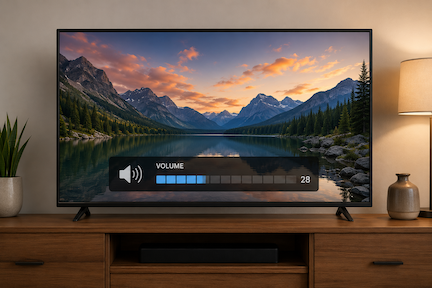
Actually, this is easy to do. Here are the instructions in a nutshell:
1. Plug in a usb mouse into the Video Messenger. Put the curser into one of the corners of the screen then left click and hold for about 8-10 seconds. This brings up a black screen with a ⏸️ pause button in the middle of the screen.
2. Press the ⏸️ pause button and the Basic Setting Menu will come up (black screen with white letters).
3. At the top of this screen press the Advanced Button.
4. On the left hand side press Display and Sound. Then press Sound.
5. The top slider is Media Sound. Using your mouse, slide that to the right to about 70%. Press the (◉) button on the bottom left of the screen to go back to the Basic Settings Menu and press Play.
6.If you want it a little louder or lower you can repeat the process until the volume level is where you want it.
Let me know if you have any questions.
___________________________________________________________________
If you still have questions or want a quick walkthrough? Join our Live Q&A Session this Thursday at 10 AM EDT. We’ll cover how it all works and answer anything you’d like to know.
_____________________________________________________
Check out the Day at the Beach Video which you can use on your Video Messenger
https://app.box.com/s/ipjuj4ouds8imy97skv9hlrjmjg507nx
------------------------------------------------------------------------------------------
VMC Q&A
Aug 13, 2026, 10:00 – 10:30 AM (America/New_York)
Please join my meeting from your computer, tablet or smartphone.
https://meet.goto.com/800326685
You can also dial in using your phone.
Access Code: 800-326-685
United States: +1 (571) 317-3122
Get the app now and be ready when your first meeting starts:
https://meet.goto.com/install
--------------------------------------------------------------------------------------------
|