|
Wicked Smart! AI Features Available in Pinergy (and What’s Next)
We’ve started integrating advanced AI technology into Pinergy to enhance your experience. You now can upload a new single-family listing’s photos and have Restb.ai analyze them to identify what rooms are present, what interior and exterior features exist, what materials are used, and more. Restb.ai will automatically select the identified features in the listing input form and optionally label the photos, needing only manual verification once complete. Click the AI Generate button in Pinergy’s Listings to access these features. Soon the AI-Generate button will work with condominium listings too. We’ll also be releasing optional AI-generated remarks for your new and existing single-family, condominium, multifamily, land, mobile home, and rental listings. With one click, our new AI technology will analyze your listing information and generate an engaging description for your listing’s Public Remarks. You’ll have options to re-generate the remarks for another version and, of course, you’ll be able to edit the text manually before saving your changes. Watch Pinergy’s News & Notes and your email inbox for more updates!
| | |
Like the New Mobile Home Page?
Mobile Search beta launches this September— with more updates to follow!
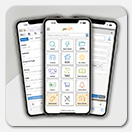
MLS PIN recently enhanced the look and functionality of Pinergy on your mobile phone. Sign in at pinergy.mlspin.com from your mobile phone if you haven’t tried it out. The new page features an intuitive, appealing layout featuring draggable menu tiles and one-tap access to almost everything you do in Pinergy. Our team is on a roll and is preparing for a limited beta release of a new mobile-only Search page, now targeted for late September. While the specific features included in the first release are still being finalized, it will lay the groundwork for a more streamlined and mobile-friendly search experience. Rather than launching all at once, new features will trickle in through a series of small beta updates following the initial release. This phased approach will allow us to gradually build and refine the mobile experience over time. Stay tuned—we're just getting started on making Pinergy searching easier and faster when you're on the go. Look for more information in the coming months as we continue to improve how you can interact with Pinergy on your phone.
| | |
Explore Our New Webinar on Pinergy’s Map Search
Pinergy’s Map Search makes refining search results easier—have you given it a try? It’s the expandable map on Pinergy’s main Search page that lets you really narrow down properties on your client's wish list. There are a lot of ways to use it to fine-tune your searches, so we’re putting together a new live webinar that will help you navigate all Map Search has to offer. You’ll learn how to plot locations, add points of interest, and draw custom shapes to target specific neighborhoods and more, plus how to save properties to Listing Carts and Listing Watch. We’ll also cover additional search criteria, saving map searches, utilizing map layers, and attaching searches and search results to Contacts. This summer, navigate your way to your client’s ideal property with Pinergy’s Map Search! Classes begin in July: Register HERE before they fill up!
| | |
Find Videos, Rules, Forms & More—Fast!
mlspin.com's New Search Makes It Easy.
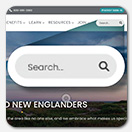
Finding what you want on our corporate website just got a whole lot easier! Simply type one or more search terms into the search located in the upper-right corner on mlspin.com and select the magnifying glass to search the entire website for your term(s). Your search results will be grouped into categories: All Results, Videos, Documents, FAQ, and Other. Search tip: Use quotation marks when entering a multi-word search term. For example, searching for “power search” (with the quotation marks) will find 11 results, including a video and various articles relating specifically to Pinergy’s Power Search. (Without the quotation marks, there would be 215 results that mention “power” and/or “search.”) So when you’re looking for information about an MLS PIN or Pinergy topic, try searching on mlspin.com to find relevant resources fast!
| | |
Your Agent Photo Is Part of Your Brand!
Here's How to Upload It in Pinergy
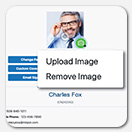
Your agent photo can help establish your personal brand and make it easier for clients to differentiate you from other agents. When you upload your photo into your agent profile in Pinergy, it can appear with your contact information on your VOW when your Contacts view their property matches. It also will show up in Pinergy’s Agent/Office Rosters and in the coming weeks, MLS PIN will add our customers’ photos to the Find an Agent roster on mlspin.com as well. To upload your agent photo, sign in to Pinergy, navigate to Options & Settings, and select the camera icon. You can upload a new photo, change your existing one, or remove it anytime. It’s quick and easy to do, so be sure to upload your agent photo into your Pinergy profile. You can customize your email signature and social media links too while you’re there! Check out our Options & Settings video to see how.
| | |
Did You Know? You Can Email a Listing’s Attached Documents
A listing in Pinergy may include up to 15 attached documents. These documents could be feature sheets, floor plans, lead paint disclosures, association documents, etc., and you can share these documents when you email a listing to a client. Here’s how. Select the “documents” icon from the listing. (On your phone, the icon will appear below the photo in the listing details and in the Photo Summary Expanded and Summary 3/2/1-Up views. On desktop, the icon will appear at the top of the page in most detail reports, in the Media/Events column in summary line views, and below the photo in other views.) Agree to the terms for listing attachments, select the attachments you want to send, and select the Email Selected button in the upper-right corner of the popup window. Address your email, select a listing report format (or none), type your message, and select the Send Email button in the lower-right corner. The email will include links to each document you had selected. When attaching a document to your own listing, remember that you can use Privacy Settings to restrict access to the document. Select the “help” icon in Privacy Settings for more information.
| | |
Save Time and Effort with Custom Coverage Areas
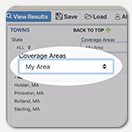
Did you know you can create custom coverage areas in Pinergy? It’s easy to do, and you can use your custom areas in Pinergy’s searches, market reports, area market reviews, and even in your VOW and IDX setups. You could, for example, create a custom coverage area called “My Area” and use it when you run market reports. Then instead of selecting individual towns for your reports, you could simply choose to run reports for “My Area,” saving both time and effort. You also could select “My Area” from the Coverage Areas drop-down menu in Pinergy’s Search to set the default Towns list for your searches to be only the towns in your area. And you’re not limited to using just one area; create as many custom coverage areas as you would like. Sign in to Pinergy, navigate to Options & Settings, and click Custom Coverage Areas. Click the New button, name your coverage area, select the towns you want to include, and then click the Save button. That’s all there is to it. Now your coverage area will be an option in Pinergy anywhere coverage areas may be selected.
| | |
When Is It a Single-Family, and When Is It a Condo?
Just a reminder that the difference in Pinergy between a single-family and a condominium is the form of property ownership. If a residence is under condominium or co-op ownership, the listing should be input under the Condominium property type, independent of whether there is an association or whether the unit is attached or detached. On the other hand, if a residence is not under condominium or co-op ownership, the listing should not be input under the Condominium category. If you have any questions about whether a given unit should be listed as Single Family or Condominium, please feel free to contact MLS PIN Quality Assurance at 1-800-695-3000, or send an email to QA@mlspin.com.
| | |
Heating Up or Cooling Down? QMI Reports Tell the Real Estate Story for Q1
Enjoying the warmer weather? Wondering how hot the market was in Q1 2025? The latest Quarterly Market Insights (QMI) reports, filled with detailed statistics and graphs comparing this year’s Q1 with previous years, are available on our website. These interactive, sharable reports have data on Massachusetts single-family and condominium markets over time. Check your email inbox for MLS PIN CEO Erminio Grasso's insights into the data. Watch for more QMIs each quarter, and have a great summer!
| | |
Activate Your Free RatePlug Account!
Free Tool in Pinergy Provides Clients with Accurate Monthly Payment Amounts and Financing Options
Give your clients clarity and confidence with RatePlug, the interactive tool that allows you to share accurate monthly payment estimates for various mortgage options. These estimates can appear automatically in Pinergy’s property reports you send to buyers, displaying payment information using ONLY your trusted lending sources. While lenders pay a license fee, RatePlug is free for MLS PIN subscribers, and participation includes special financing options like FHA and VA, plus digital property and open house flyers. Turn “Can I afford that” into “I CAN afford that” with RatePlug. Activate your free account HERE.
| | |
“Apply Now” by Rental Beast: Resources for Success
Unlock Rental Success: Webinars, Video Library, and Toolkit Available for You
Rental Beast’s “Apply Now” tool is free for MLS PIN subscribers, and the company behind it would like to help you tap into the rental market, where every rental lead can become a future buyer. With that in mind, Rental Beast has created a webinar, “Unlock Rental Revenue Before the Competition,” to be held on July 10. You’ll learn how to find more rentals, receive monthly leads, grow long-term income, and more. Prefer quick tips instead? Check out their “Apply Now Video Library,” featuring helpful 1-minute videos. They’ve also released “Boston’s Q1 2025 Market Report” on Boston’s rental market performance and “The Ultimate Rental Toolkit,” an all-in-one resource to help agents succeed during peak rental season. It includes lead scripts, listing tips, market insights, and more. The rental market is hot now—let Rental Beast help you take advantage of it!
| | |
Employee Spotlight
Cristin Torrey, Marketing and Outreach Assistant
This year marks five years since Cristin Torrey joined MLS PIN as our Marketing and Outreach Assistant. Since stepping into the role, she has contributed to a range of responsibilities that help keep our marketing and customer outreach efforts running smoothly. From administrative tasks (she’s a spreadsheet whiz) and coordinating training webinar schedules to organizing sponsorships, charitable donations, event prep, and packing for customer-facing events and office visits—Cristin handles it all with a positive attitude and a team-first mindset. She also keeps our premium items inventory in check, ensuring we’re always ready with the right swag for our customers. A recent highlight for her was helping prepare staff treat bags for our annual summer outing—she enjoyed seeing the team’s reactions as they opened their goodies. Cristin enjoys the collaborative culture and family-like atmosphere here—she is always open to learning something new. Outside of work, Cristin is all about spending time with family, whether it’s relaxing at their New Hampshire campground or visiting theme parks. She also choreographs dance routines for local musicals and can be found in the audience of local community theater productions. Thanks, Cristin, for all your contributions and ongoing support—they truly make a difference every day!
| | | | |