 |
Your August 2017 Worldox Newsletter
Welcome to our August Worldox newsletter. We are proud to continue to provide you with the best Worldox information, tips, tricks and more.
|

 How to Create Outlook Rules for Worldox Drop Folders How to Create Outlook Rules for Worldox Drop Folders
In our previous newsletter, we discussed how to use Worldox drop folders inside of Outlook. In this article we are going to discuss how to take advantage of Outlook rule creation to auto save incoming emails directly to Worldox.
The first step to creating an Outlook rule that moves emails directly into Worldox is to save an email into Worldox via the copy or move button in Outlook. This initial step is what will create the new drop folder that you will want to send inbound emails to. Remember our drop folders are directly linked to our favorite matters that get created when we save and open documents and emails. Once you have the drop folder confirmed in Outlook you will then need to begin to create the Outlook rule. These rules can be based on different criteria such as email address or subject line so you will want to choose what will best capture the emails you want moved.
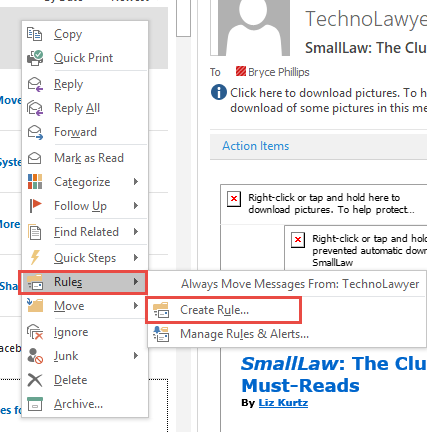
In Outlook, you have two ways to access your rules. You can select the rules drop down in the top menu bar or you can right click on an email that you want to configure the rule for and choose the rule option from the right click menu. Both are shown below.
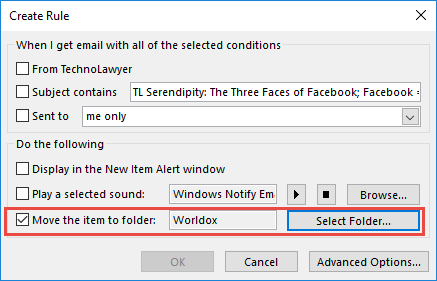
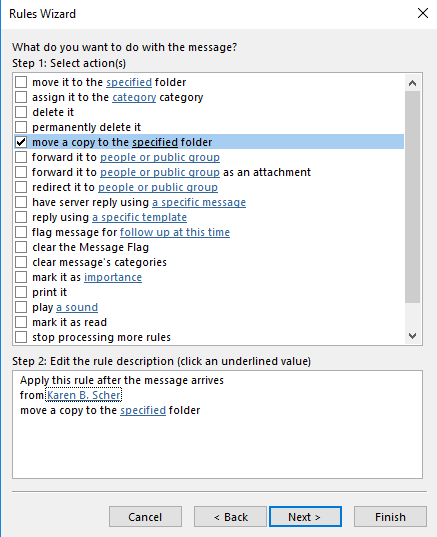
Once you select create rule you will get a new create rule dialog box. This is where you will choose what criteria to use to identify inbound email you would like to copy as well as where you would like the email copied to. You want to click on Advanced Options and choose Move a copy to the specified folder. By selecting one of your drop folders as the folder to move to whenever inbound email are captured by the rule (as long as Worldox is running with Outlook), the email will automatically be moved to Worldox without any need for intervention on your part.
For more information on creating Outlook rules, drop folders or other Worldox features, please email
help@affinityconsulting.com
.
|
Importing Discovery or Other Large Document Volumes - Part 2

Last month, we introduced a discussion about storing discovery and large document volumes of computer files in Worldox. We prefaced the discussion with the statement that Worldox is NOT an e-discovery tool. Worldox was designed for managing
your
work product. It is generally not advisable to mix evidence with work product. It is sort of like a police officer placing a bloody murder weapon in his/her pocket to bring it back to the station for someone in forensics to examine it. If we take a step back in time and look at the way we stored paper evidence pre 90's, was it ever advisable to mix evidence with your correspondence or pleadings? Of course not. We stored evidence in a separate file or bankers' box. You don't co-mingle. In the age of data, that becomes even more important because we need to preserve metadata associated with computer files, and unless you have an agreement with opposing counsel to the contrary, you shouldn't be copying or importing your only copy into ANY system (Windows, Worldox, etc.) because once you do, the metadata changes.
With that said, so long as you understand the above, and you are preserving the original files produced to you (primarily to preserve the integrity of the metadata), Worldox can be a useful tool to SEARCH and manage some discovery (or other large volumes produced by your client) that doesn't have sophisticated needs (e.g., production tracking, custom fields, privilege logs, etc.).
Many Worldox users, especially those that deal with a large volume of documents delivered from an outside source (such as a response to a request for production of documents), often comment to us that bringing in documents while retaining the "folder structure" in which the documents or files are delivered is a challenge. Take this example. You receive a large document production from opposing counsel on a flash drive and the documents are organized in traditional windows folders, several layers deep. You would very much like to retain that "structure" so to speak so that in the future, you can easily reference the documents in the same structure as other counsel in the case.
We generally recommend one of two ways to deal with this issue. In this last month's tip, we covered Option 1, which is to import the documents into your active client/matter cabinet. That option makes me cringe a little because of the bloody murder weapon analogy I gave above. BUT, again, so long as this is a COPY of the data, I suppose I can fall asleep at night.
Option 2, is to set up a dedicated discovery cabinet. Again, using Worldox isn't my first choice for discovery, but if it is a copy, I am probably better able to sleep with this option than Option 1. Why? Because with Option 2, the evidence is clearly segregated and much easier to attach security on the documents to preserve metadata.
This is how I like to execute Option 2:
- In Worldox, set up a dedicated Discovery Cabinet that resembles the properties of your Legacy cabinet. Create a dedicated drive/folder location on a server with plenty of capacity to handle the volume of data you receive. Do not create any fields in the Worldox cabinet (just like your Legacy cabinet). You may want to mark that cabinet read-only.
- Create a search template and button for the end-users to be able to easily use/search the documents in that Cabinet. Call it something like "Discovery Search".
- Create a bookmark button to the root of that folder so end-users are able to find and browse that folder structure easily.
- Add that new drive to the Indexing schedule so that the Worldox Indexer is monitoring that new cabinet/drive.
- If you get a new case and materials, have someone in I.T. create a subfolder on the Discovery network drive for that particular case. I would advise creating a folder for the client's last name, first name or company name and then a subfolder named something to represent the document set just produced. This will keep discovery segregated and organized by client/matter.
- You may want to use a utility like Robocopy, and have your I.T. professional copy the data directly into that Windows folder structure preserving the metadata (primarily the data created, accessed, modified dates).
- Since Worldox will index that Cabinet, you will be able to do full text and metadata searches for documents within that cabinet. Furthermore, since many times the folders you receive from your client with discovery have multiple levels of folder names and they have gone to great lengths to organize and name files, you don't need to spend hours or days trying to import it into Worldox, completely disassembling what someone already spent days organizing!
- If you want to find something within that Cabinet, either browse to it or benefit from the Worldox search engine.
- If you have a tool like Symphony OCR, it can OCR and index image-only PDFs as well! Keep in mind if you do that, you are definitely modifying the evidence. As such, it becomes incredibly important (again) to only be adding COPIES of the original into Worldox ... not your originals. I can't emphasize that enough.
This is a pretty easy Cabinet to setup in Worldox and a huge time saver. If you need assistance setting up this type of Cabinet in Worldox, let us know. We can't do it for free because it involves 1-2 hours of work, but I think you may find it to be worth trying. In the end, nothing replaces the need for a dedicated e-discovery/litigation support tool like Relativity, Lexbe, Nextpoint, etc. However, if you respect the metadata and co-mingling issues discussed above, and you don't have sophisticated e-Discovery needs, Worldox may be able to serve at least some of your cases.
|
Worldox Instructional Videos Now Available through Affinity University!
With Affinity University, for as low as $30 a month, firms of any size can give all your users on-demand access to over 95 instructional videos right at their PC. It gives your attorneys and staff unlimited, all-you-can-eat access to short videos on Worldox, MS Word, MS Outlook, MS PowerPoint, Adobe Acrobat, Amicus Attorney, PracticeMaster, NetDocuments, Clio and much more. It is a fantastic way to educate new hires or re-educate existing users.
Some of the Worldox topics in the Affinity University Library include:
- 3rd Party Integrations
- Web Mobile and Remote Access Options
- Bookmarks
- Quick Profiles
- GX4 New Features Training
- Relations
- Categories
- Favorites
- Adding and Editing Use
To sign up, click here.....
|
Webinars, webinars, webinars! At Affinity Consulting Group, we take our role as your Trusted Advisors seriously, and part of that is our commitment to providing the knowledge clients need to succeed! Here's what's coming up next....
|
August 25
Thought Leadership Webinar Series: 5 Reasons Why Mobile Time Entry Works
August 30
Countdown to 2018! Webinar Series - FREE 6-part series focused on the 4 Pillars of Law Practice Management
|
August 29
Catch BIGfish BI - How Business Intelligence can tackle your tough decisions
September 22
Cloudy with a Chance of SAAS -- Your Technology Forecast
|
|
Did you miss a past edition? Want to share an important tip with a colleague? Now you can access our past issues any time...
WORLDOX NEWSLETTER ARCHIVE
|
|
|
|
|
|
|