One Cool Tip Newsletter

June 29, 2026

Your daily dose of tech-savvy brilliance!

😀Greetings!, Happy Back-To-Work Monday, Cool Tipper!


Get ready to streamline your digital life with simple, actionable tips delivered straight to your inbox.


Today's Cool Tip Theme: Microsoft Word Predictive Text


IN THIS ISSUE


  • ⚠️ Scam Fatigue is Growing.
  • 💼 Remote Work Impact on Young Professionals.
  • 🤖 Cool AI Prompt for Your Career.
  • ⚡ Finish Sentences Faster in Word.
  • 📱 Custom Tables on Mobile.
  • ✍️ Master the Microsoft Word Editor.
  • 🔢 Line Numbering in Word on the Web.


New here? Subscribe to the One Cool Tip Newsletter for daily updates. It's FREE!


  • 😂 Laugh with Us! Enjoy our Tech Joke of the Day, Haiku and Cool Tip Comics.


  • 🌐 Stay Informed! Check out ICYMI, and our One Cool Tip Video.


3️⃣

If you enjoy the One Cool Tip newsletter, please forward this newsletter to THREE friends or colleagues or share it on social media using the links below.


Leave a $$$ Tip!


Share this One Cool Tip Newsletter!

X Share This Email
LinkedIn Share This Email
Pinterest Share This Email

Today's Tech Trivia


What was the first commercially successful word processing program for personal computers?


A) Microsoft Word

B) WordStar

C) WordPerfect

D) AppleWorks


Answer at the end of this newsletter.

🔥Hot Topics 🔥

⚠️Scam Fatigue Is Real and Growing⚠️


If it feels like your phone never stops buzzing with suspicious messages, you are not imagining it.


A new survey from the AP-NORC Center for Public Affairs Research finds that 58 percent of U.S. adults say they encounter potential scams every single day.


The barrage spans texts, calls, emails, and social media messages.


In fact, 92 percent of adults say they face scam attempts at least once a month, showing how constant the threat has become.


These attempts are not harmless annoyances.


About 24 percent of adults say they have been tricked into sharing personal information, and 17 percent report losing money to a scam.


The most common schemes involve package delivery alerts and financial accounts, both designed to create urgency and prompt quick action.


The impact goes beyond financial loss.


Many people feel they are navigating a daily obstacle course, deciding which messages to ignore and which might be legitimate.


That constant decision-making can lead to “scam fatigue,” where even cautious consumers may let their guard down.


There is also a reporting gap.


Many victims do not contact authorities, often because they believe it will not make a difference in recovering their money.


What you can do now


  • Pause before you click or respond to unexpected messages.
  • Verify requests by going directly to official websites or apps.
  • Be cautious with urgent language involving money or personal data.
  • Report suspicious activity to your bank or platform when possible.


Scammers are getting more sophisticated, but awareness remains one of the most effective defenses.


Staying alert and slowing down your response can make a real difference.


And in Other News...


Remote Work May Be Leaving Young Professionals Behind


A new analysis from the New York Fed suggests the rise of remote work could be creating an unexpected downside for early‑career professionals.


According to the research, the shift to distributed workplaces has made it harder for employers to train and mentor new hires, leading some companies to favor more experienced candidates.


The result: higher unemployment among younger workers, especially recent college graduates.


Researchers estimate that remote work may account for about 64% of the recent increase in unemployment for this group.


Why It Matters


Remote and hybrid roles remain popular, but they may come with trade‑offs early in a career.


In-office time often provides informal coaching, networking, and real‑time feedback that can be difficult to replicate over video calls or messaging platforms.


What to Watch


Experts suggest a balanced approach.


Hybrid work, with some in‑person collaboration, may help younger workers build skills and connections while still offering flexibility.


For job seekers just starting out, prioritizing opportunities that include mentorship and face‑to‑face interaction could make a meaningful difference in long‑term career growth.


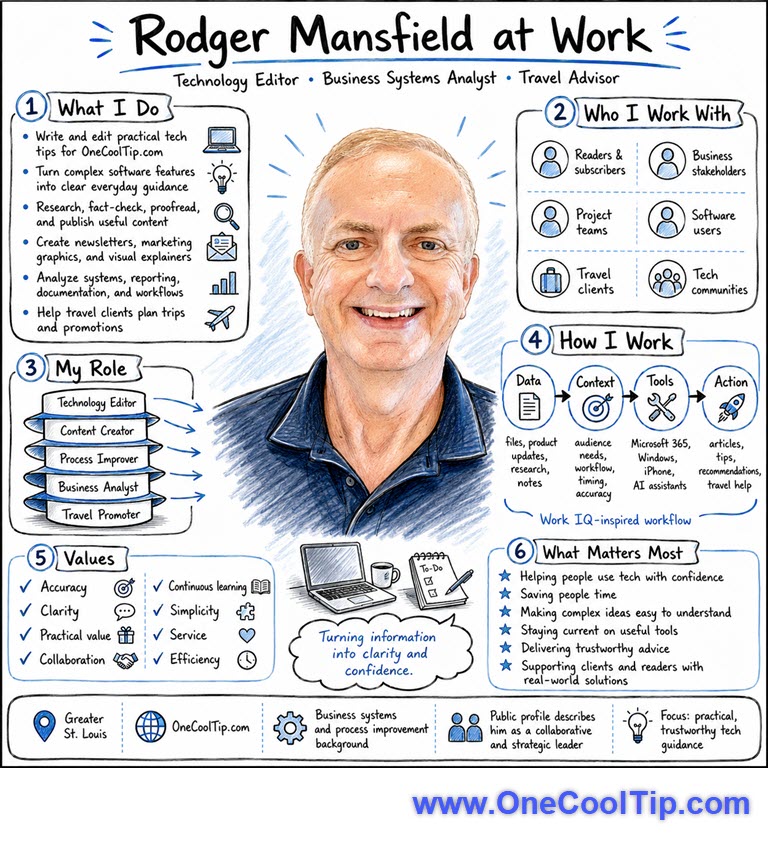
Try this Cool AI prompt. Copy and paste to ChatGPT, Gemini or Copilot.


Have you seen this cool prompt floating around the net? ChatGPT gave the best response but try it in your other AIs as well.


  1. Create a photorealistic image in a clean cartoon whiteboard sketch style that visualizes my work life. Include what I do, who I work with, my role, my values and what's important to me. I've attached a headshot so you can guide the sketch of me at the center. Ground your research in Work IQ and the public profile for me on LinkedIn. The graphic should be rich in information. For the avatars of the people I work with, avoid guessing and put a generic icon in place or find their actual profile pictures.
  2. Include LinkedIn link
  3. Upload a headshot image.


Today's Cool Tip

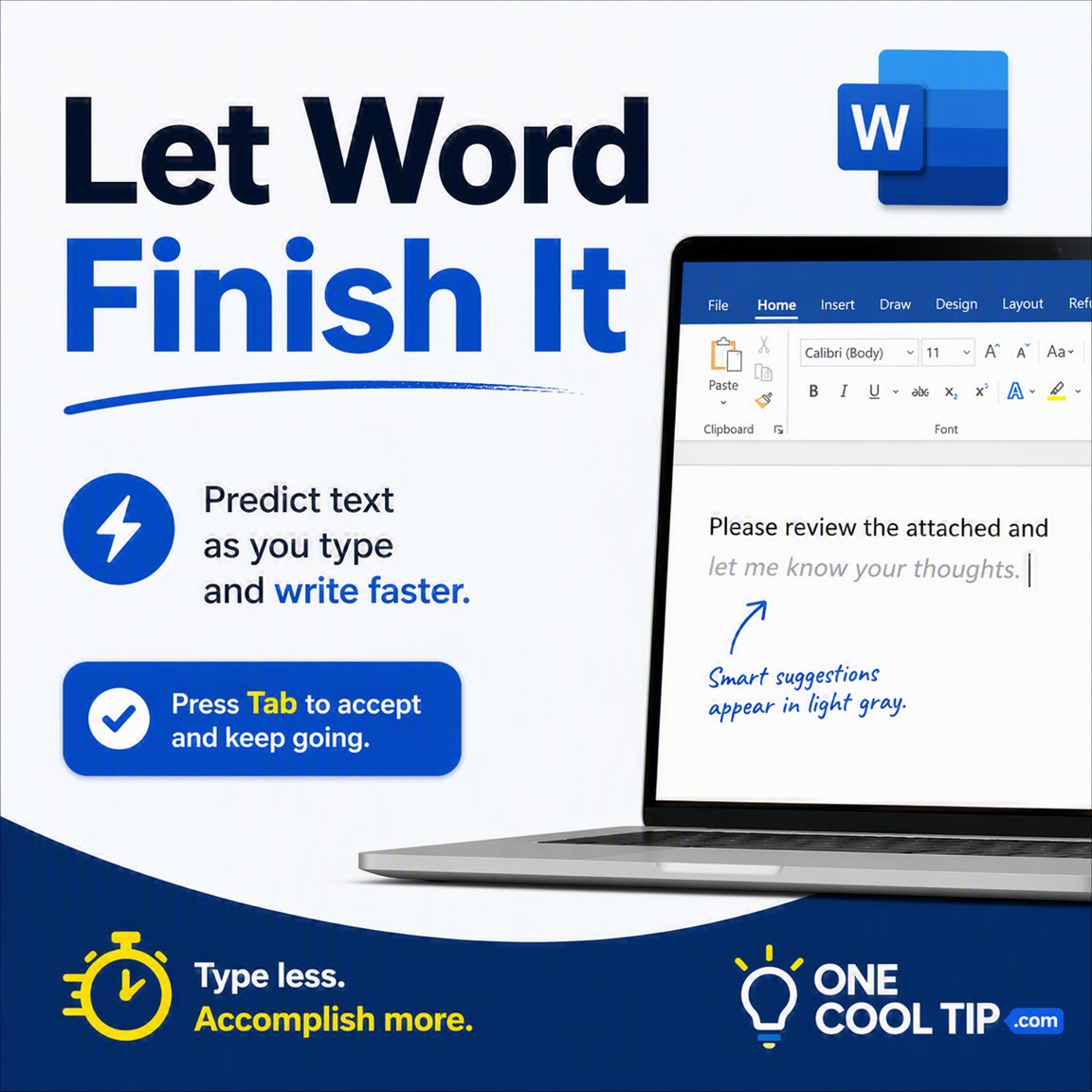
Make Word Finish Your Sentences Faster


Microsoft Word can anticipate what you’re about to type and suggest text in real time. Used well, it helps you write faster, cut repetition, and keep your momentum.


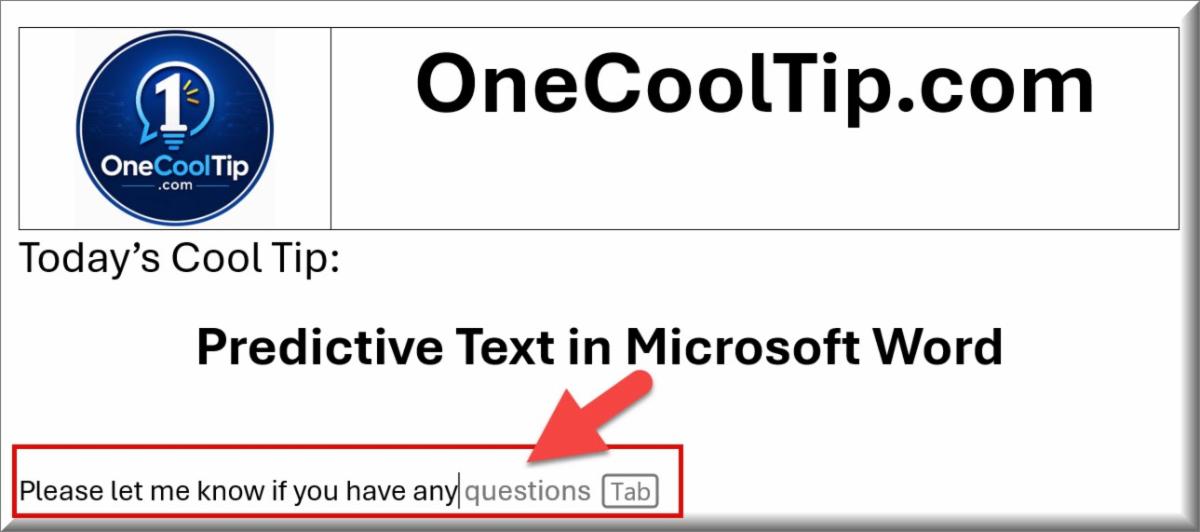
You begin typing a familiar phrase like “Please let me know if you have any…” and pause. 


Word quietly suggests “questions” before you finish the sentence.


That small assist adds up. 


Over the course of a long document or a day full of emails, predictive text reduces friction and keeps you moving. 


Here’s a Cool Tip: Let Word suggest the rest of your sentence.


The feature is built into Microsoft Editor, yet many users overlook it or leave it turned off.


Feature Explanation


Text Predictions in Microsoft Word are part of Microsoft Editor. 


As you type, Word suggests the next word or short phrase directly in your document, shown in lighter gray text next to your cursor.


You can:


  • Press Tab or the right arrow key to accept a suggestion.
  • Keep typing to ignore it.
  • Press Esc to dismiss it.


This feature is more than simple autocomplete. 


It uses context from your sentence to anticipate what comes next, often suggesting complete phrases rather than single words.


Why it matters:


  • Cuts down repetitive typing.
  • Helps maintain writing flow.
  • Speeds up everyday business writing.
  • Keeps your focus on ideas, not keystrokes.


Text predictions are especially helpful for people who write frequently, including business users, students, and content creators.


What You’ll Gain


  • Save time by typing fewer characters.
  • Stay focused with fewer interruptions.
  • Reduce repetition in emails and documents.
  • Move through drafts more quickly.


Step-by-Step Instructions


Here's how to do it.


Windows (Microsoft Word, Microsoft 365)


  1. Open Microsoft Word.
  2. Look at the status bar at the bottom of the window.
  3. Find Text Predictions.
  4. Click it and make sure it is set to On.
  5. Start typing and watch for suggested text in light gray.


fig. 1 - Microsoft Word Predictive Text Example

Alternate Path to Turn On:


  1. Go to File > Options > Advanced.
  2. Under Editing Options, enable Show text predictions while typing.


Web (Word for the Web)


  1. Open Word in your browser, https://word.cloud.microsoft/.
  2. Look for Text Predictions in the status bar.
  3. Toggle it On if needed.
  4. Begin typing to see suggestions appear.


Turn Predictive Text Off:


  1. Click Text Predictions: On.
  2. Click Show predictions while typing to Off.


Pros and Cons


Pros:


  • Speeds up routine writing tasks.
  • Works inline without interrupting your workflow.
  • Easy to use with minimal setup.
  • Helpful for common phrases and business language.


Cons:


  • Not available on all platforms.
  • May distract users who prefer full control.
  • Works best with predictable phrasing.
  • May require a Microsoft 365 subscription.


Feature Access


  • Available in Word for Microsoft 365 and Word for the web.
  • Availability may vary based on:
  • Account type
  • Region
  • Language
  • App version


Some users may not see the feature if it has not rolled out to their environment or is restricted by organizational settings.


Score

Criterion | Score (0–10) | Justification 
Value |  8
Saves time consistently in everyday writing tasks.
Usability |  9
Simple to enable and use with minimal learning curve.
Wow Factor |  7
Useful but subtle, similar to features users expect from modern typing tools.
Total: 24/30 |  👍 Good
A reliable productivity feature that pays off over time. Comparable to Google Docs Smart Compose, though not as widely available across platforms.


Key Takeaways


Text Predictions in Word reduce typing effort by suggesting what comes next as you write. 


For frequent writers, it removes small delays that add up over time.


It is a quiet but effective way to work faster.


Try It Yourself


Turn on Text Predictions in Word today and see how much faster you move through emails and documents. 


Share your experience, comment below, and subscribe to the One Cool Tip newsletter to get more daily productivity wins.


READ MORE


Read the Cool Tip on One Cool Tip.com.

Cool Products of the Day

Help support One Cool Tip. Use this Amazon link when you shop online.

🖮 Logitech Wave Keys Wireless Ergonomic Keyboard: A comfortable keyboard makes predictive typing in Word easier to use during long writing sessions. Save 19% Now $56.98. 4.3 Stars. Check it out on Amazon!


🖱️ Logitech Signature M550 Wireless Mouse: The SmartWheel helps move through long Word documents quickly while keeping clicks quieter. Save 33% Now $19.99. 4.6 Stars. Check it out on Amazon!


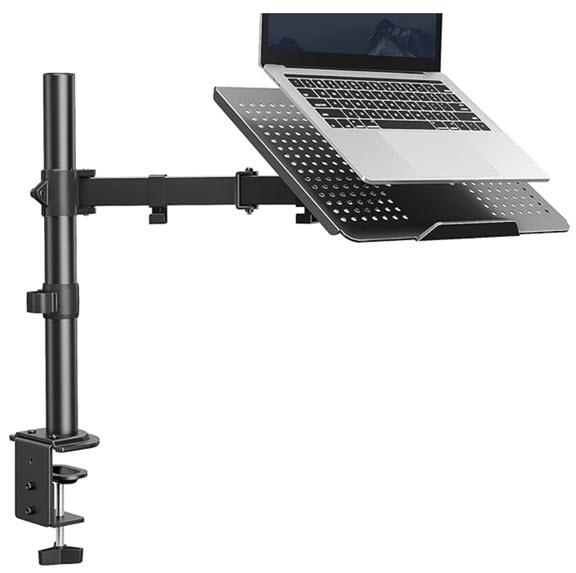
💻 HUANUO Laptop Desk Mount with Ventilated Tray: A flexible desk mount for laptops up to 17 inches or monitors from 15 to 32 inches. It is useful for creating a better writing posture when drafting in Word. Save 32% Now $25.99. 4.6 Stars. Check it out on Amazon!


Prices accurate at time of publication

One Cool Tip may earn a commission from qualifying purchases.

Cool Thoughts

🆒Tell Me More


  • Microsoft Editor powers text predictions in Word, combining grammar tools with writing suggestions.


  • Suggested text appears inline in light gray and updates as you type.


  • You can accept predictions instantly using the Tab or right arrow key.


  • The feature can be turned off anytime from Word’s settings or status bar.


⏩Quick Tips


  • ✍️ Accept Fast: Press Tab to accept suggestions. Watch for gray text and press Tab to insert it instantly.


  • ⚙️ Toggle Easily: Turn predictions on or off in settings. Go to File > Options > Advanced and enable the feature.


  • 👀 Stay in Flow: Avoid overthinking suggestions. Accept them only when they match your intent.


  • 📄 Reuse Phrases: Speed up common emails. Start typing standard sentences and let Word finish them.


  • 🌐 Try the Web: Word online may show features sooner. Open Word in your browser to test availability.


✅ More Must-Read Tech Tips

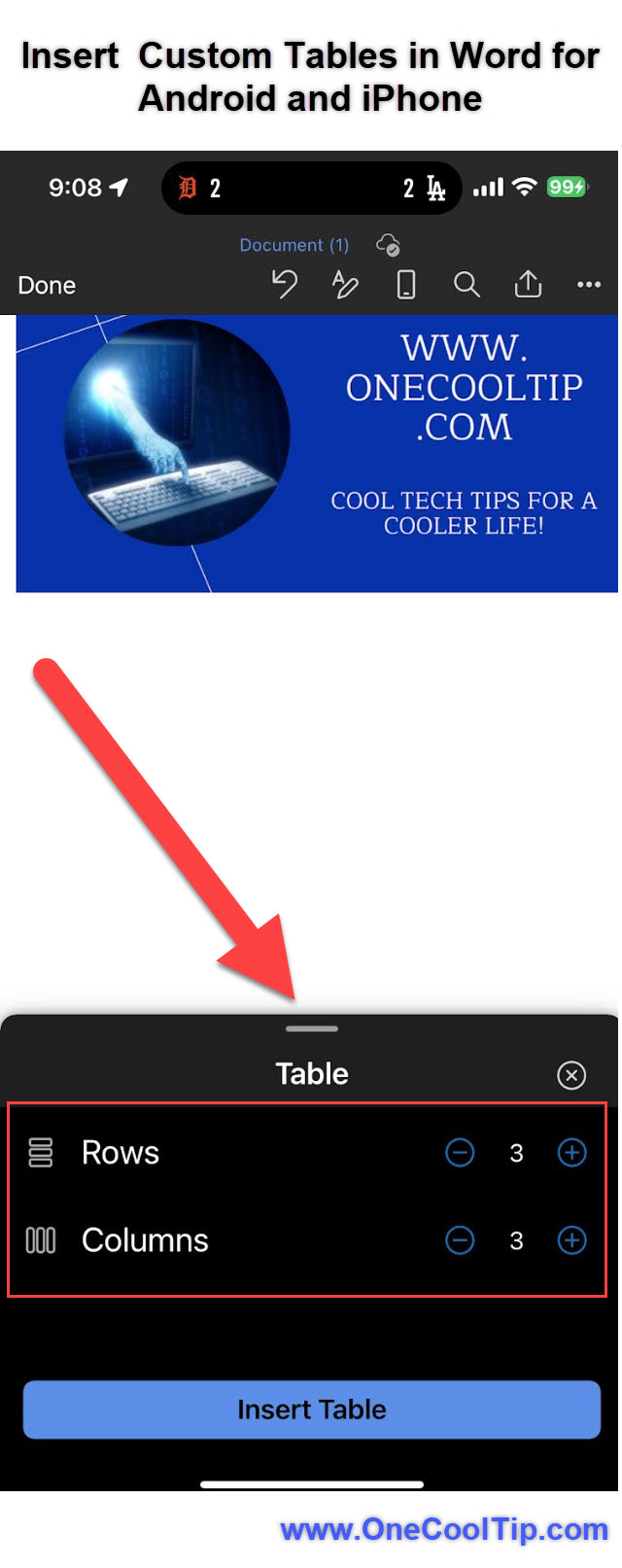
👀 How Do I Add Custom Tables to Word for Android and iOS?


Ever struggled with inserting tables into Word documents on your mobile device? 


With over a million tables added monthly to Word for Android and iOS, users have long sought a more intuitive solution. 


Microsoft has answered the call with a groundbreaking update that simplifies table creation, making it faster and more efficient. 


Here's how to do it.


For Android and iOS:


  1. Open your Word document or create a new one.
  2. Tap to place the cursor where you want the table to go.
  3. Tap 'Insert > Table' or tap the Table icon on the bottom menu.
  4. Specify the number of rows and columns.
  5. Tap 'Insert Table' to add your custom table.


Whether you're a student, professional, or casual user, this update is worth exploring.


Discover more HERE. 

🤔 Have You Ever Wondered How to Master the Microsoft Word Editor?


Microsoft Word Editor is an AI-powered tool integrated within Word to check grammar, spelling, punctuation, and style. 


It ensures your documents are clear, concise, and compelling, making it an essential tool for professionals, students, and casual users alike. 


With features such as advanced grammar suggestions, readability analysis, and language translation, the Editor helps you refine your writing effortlessly.


Here's how to do it.


  1. Open Microsoft Word.
  2. Create or open a document.
  3. Select ‘Editor’ from the toolbar. If you don't see the icon, go to the "Review" tab to find it there too.
  4. The Editor highlights grammatical errors, spelling mistakes, and style issues. 
  5. Click on each suggestion to see explanations and apply corrections.


The Microsoft Word Editor is a game-changer for writers seeking precision and polish. 


Find out more HERE.

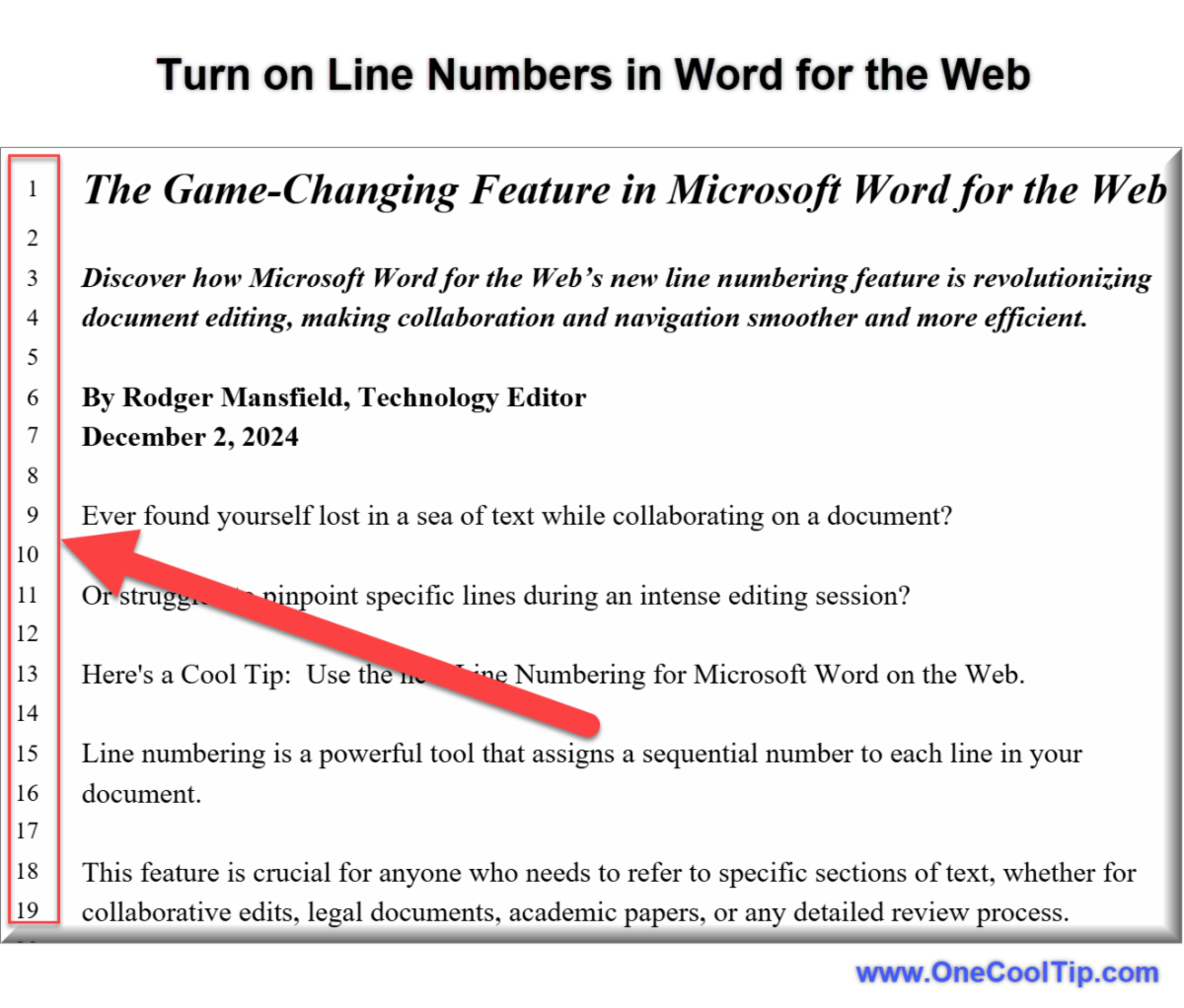
🙋‍♂️ Here's The Game-Changing Feature in Microsoft Word on the Web


Ever found yourself lost in a sea of text while collaborating on a document? 


Line numbering is a powerful tool that assigns a sequential number to each line in your document. 


This feature is crucial for anyone who needs to refer to specific sections of text, whether for collaborative edits, legal documents, academic papers, or any detailed review process.


Here's how to do it.


  1. Open your document in Microsoft Word on the Web.
  2. Navigate to the Layout tab.
  3. Click on Line Numbers in the Page Setup section.
  4. Choose a numbering option that suits your needs—continuous, restart each page, or restart each section.


Configuration Guide: 


  • For advanced configuration, go to File > Options > Advanced and tweak the line numbering settings to match your specific requirements.


Microsoft Word on the Web’s line numbering feature is a valuable addition that enhances the efficiency and accuracy of document collaboration. 


Learn more HERE. 

❓Did you share this newsletter with three friends yet?


😎 Cool Facts


  • 2: Microsoft documents 2 keyboard options for accepting a Word text prediction: Tab or the Right Arrow key. Source.


  • 2: Microsoft lists 2 places for turning off Word text predictions on its support page: Office 365 desktop and Web. Source.


  • 2: Microsoft 365 diagnostic data has 2 levels: Required and Optional. Optional diagnostic data may be used in aggregate to improve machine-learning-powered experiences such as text predictions. Source.


⌨️Today's Cool Shortcuts


  • Tab: Accept a text prediction.
  • Right Arrow: Accept a text prediction.
  • Esc: Dismiss a text prediction.
  • Ctrl + S: Save or rename a document.
  • Ctrl + Z: Undo the last change if you accepted text you did not want.


😜 Tech Joke of the Day 😅


Why did the computer keyboard break up with the mouse?


It felt like it was always being pushed around.


🔎 Do you have a Cool Tip or tech question? Email us at onecooltip.com@gmail.com.

Cool Tip Haiku

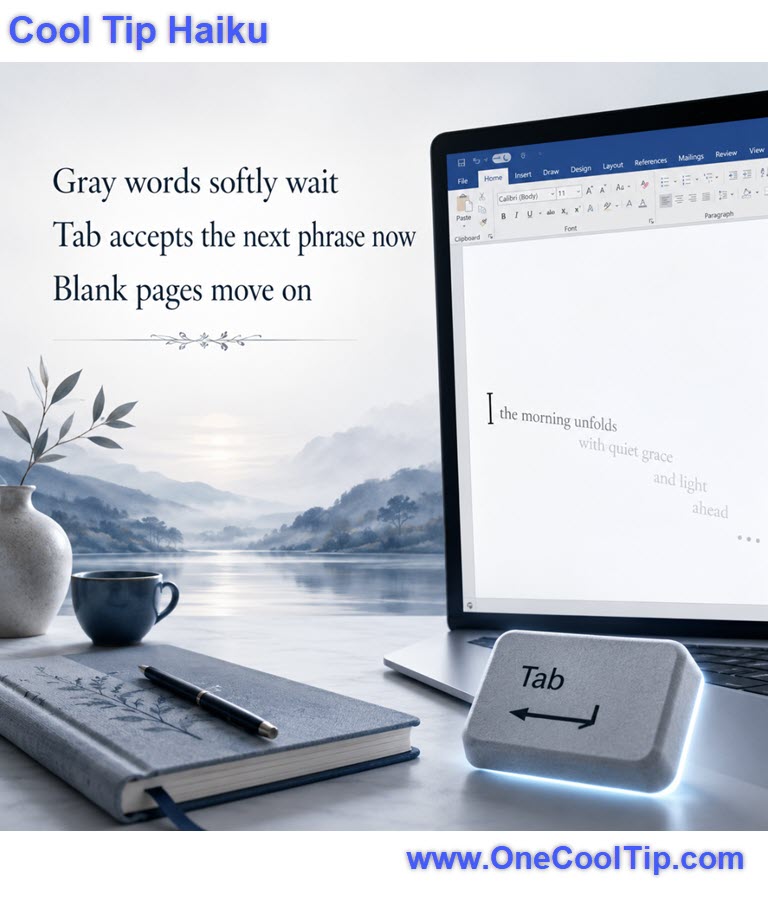
Gray words softly wait

Tab accepts the next phrase now

Blank pages move on 

Cool Tip Pulse

🤔 Do you use predictive text in your documents?


Fuel Your Adventure

Try Big Mike's Jerky!


bigmikesjerky.com


Now on TikTok!

Did You See These Cool Tips This Week?

Search Facebook Smarter With Meta AI Mode

Facebook’s new Meta AI Mode turns search into a more conversational experience by using Meta AI to answer questions from public activity across Meta apps. It could help you find real-world recommendations faster, but rollout and privacy details deserve a careful look.


Read the Newsletter Version.

Send Emails From ChatGPT Without Copying and Pasting

ChatGPT can now help supported users move from drafting an email to sending it without the usual copy-and-paste routine. When Gmail or Outlook is connected, you can draft, revise, review, and send supported email messages from the same ChatGPT conversation.


Read the Newsletter Version.

Find Your Adventure

Looking for your next adventure?


Call Denise at Travel For You.

314.660.3039


Sign Up for the Monthly Newsletter - Deals and Specials


http://www.travelforyouvacations.com/


https://www.facebook.com/TRAVEL.FOR.U/


ICYMI - In Case You Missed It ...

Dock the SpaceX Dragon Without Leaving Your Browser

SpaceX’s free ISS Docking Simulator lets you practice guiding a Crew Dragon spacecraft toward the International Space Station right in your browser. It is a surprisingly thoughtful way to learn patience, precision, and the basics of spacecraft movement without installing anything.


Read the Newsletter Version.

One Cool Tip Video

How to View Hyperlink Links in Microsoft Word


Have you ever found yourself lost in a sea of hyperlinks while working on a Microsoft Word document? 


Ever wished there was a way to view and manage all those hyperlinks effortlessly?


Watch

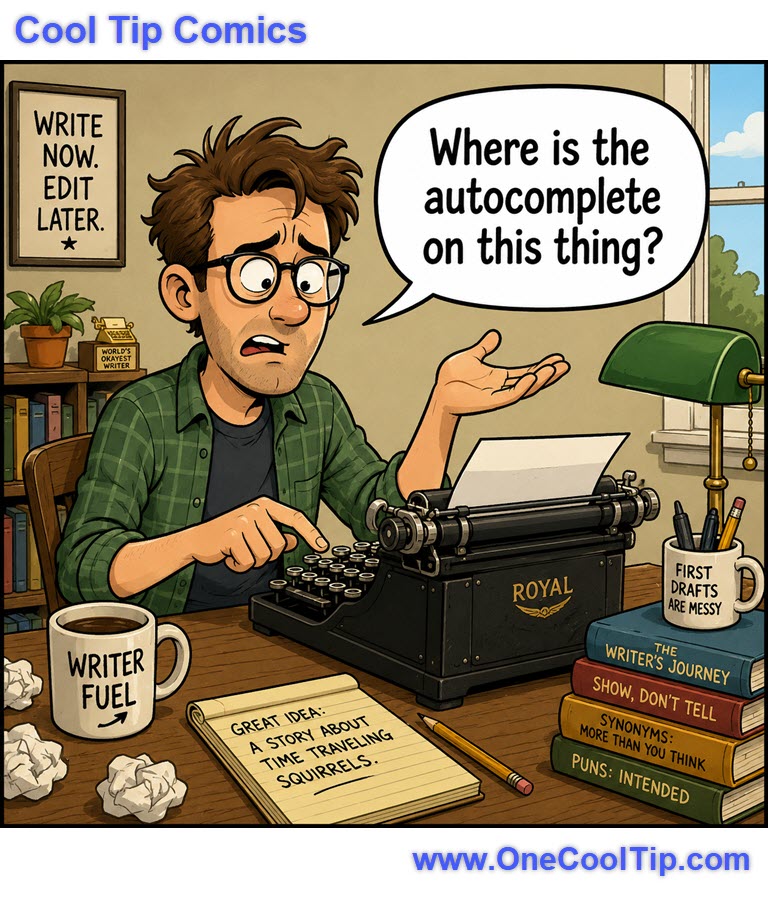
Cool Tip Comics

Just wait until he tries to find the undo button!


The tactile feedback on that hardware is incredible, but the cloud sync is absolutely terrible.


See You Tomorrow

Trivia Answer: B) WordStar


WordStar, released in 1979 by MicroPro International, is widely considered the first commercially successful word processing software for microcomputers.


It dominated the early 1980s market before being overtaken by WordPerfect and eventually Microsoft Word.


Many writers, including George R.R. Martin, famously continued to use WordStar for decades because of its pure text environment and efficient keyboard commands.


----------


Tomorrow's Cool Tip is waiting to amaze you.


Until then, go forth and conquer the tech world with your newfound knowledge!


Be sure to visit www.OneCoolTip.com for Cool Tech Tips for a Cooler Life!


And if you Like One Cool Tip, please support with TipJar!


Enjoy!


Rodger

Chief Cool Tipper

onecooltip.com@gmail.com


What Do You Think?

What do you think of today's OneCoolTip newsletter?
Positive        Neutral        Negative

Please Share the One Cool Tip Newsletter!


You asked for it. You got it. There is now a One Cool Tip Newsletter archive. Did you delete a newsletter and want to read it again? Check it out HERE.


Want to help One Cool Tip grow? Please forward this email using the link above. And if you see an OCT social media post, please LIKE, COMMENT and SHARE!


Have you subscribed to the One Cool Tip YouTube channel? Subscribe HERE.

X Share This Email
LinkedIn Share This Email

Connect with One Cool Tip!!

Facebook  X  Instagram  Web  Pinterest  YouTube  LinkedIn
 

As an Amazon Associate, One Cool Tip may earn a small commission from qualifying purchases.


Our media content is intended solely for informational purposes only. Please do not construe anything here as legal, tax, investment, financial, marital or other advice.


Copyright © 2026 | www.OneCoolTip.com | All Rights Reserved