One Cool Tip Newsletter

November 19, 2026

Your daily dose of tech-savvy brilliance!

😀 Greetings! Happy Thursday, Cool Tipper!


Get ready to streamline your digital life with simple, actionable tips delivered straight to your inbox.


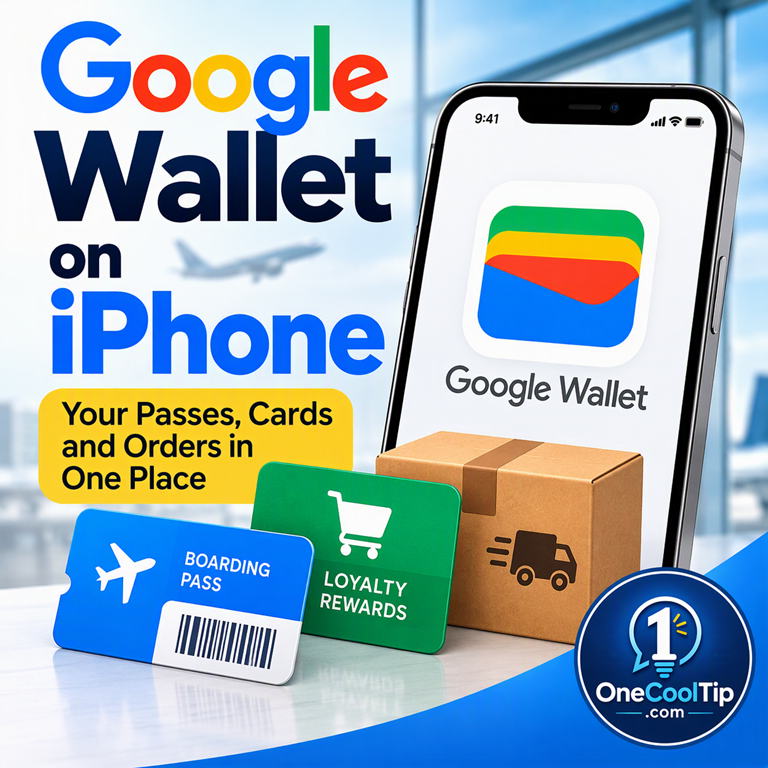
Cool Tip Theme: Google Wallet on iPhone


Use Google Wallet on iPhone to save boarding passes and loyalty cards, track eligible Gmail orders and manage payment cards for online checkout.


New here? Subscribe to the One Cool Tip Newsletter for daily updates. It's FREE!

3️⃣

If you enjoy the One Cool Tip Newsletter, please forward this newsletter to THREE friends or colleagues or share it on social media using the links below.


Leave a $$$ Tip!


Share this One Cool Tip Newsletter!

X Share This Email
LinkedIn Share This Email
Pinterest Share This Email

🚨 “Grandpa, I Need Money!” 🚨


Scammers are putting a high-tech twist on the old family emergency scam by using digital tools to clone a loved one’s voice or create fake video.


They may pretend to be a grandchild in trouble and urgently ask for money for bail, car repairs or another emergency.


The scammer may demand payment through a wire transfer, cryptocurrency, payment app or gift card, then tell you to keep the situation secret.


The FTC says not to trust the voice on the phone or even a familiar face on a video call because both can be faked.


Instead, hang up and contact your family member directly using a phone number you already know, or check with another trusted relative or friend.


The Cool Tip:


When a loved one suddenly calls asking for emergency money, slow down, hang up and independently verify the story before sending anything.


And in Other News...


  • Gemini Just Pulled Into Apple CarPlay


Google is bringing Gemini directly to Apple CarPlay, giving iPhone users a new hands-free AI assistant for the road.


With Gemini Live, you can have natural conversations, check your calendar, catch up on unread Gmail messages and get summaries of longer email threads.


You can also use your drive to brainstorm ideas, rehearse a presentation or ask about places and landmarks along the way.


Conversations automatically sync with the Gemini app on your iPhone, so your summaries, notes and brainstorming remain available after you park.


Google says the feature is rolling out globally to Gemini users on iOS across supported Gemini Live languages.


The Cool Tip:


Update the Gemini app on your iPhone, enable microphone access and try Gemini Live at least once before connecting to CarPlay.


  • Google Is Buying Spirit Airlines Employee Data to Train AI


A federal bankruptcy judge has approved (PDF) the sale of former Spirit Airlines employee data to Google for $10 million.


Google has said it intends to use the data for AI model training.


The deal drew objections from the flight attendants’ union and criticism from 121 federal lawmakers (House / Senate), leading Google to agree to additional privacy protections.


Health and medical information, drug and alcohol testing results, disciplinary and safety records, and identification documents will be excluded, and the remaining information must undergo a de-identification process and independent review.


Google also agreed not to attempt to re-identify individuals from the data.


The Cool Tip:


When an employer or service collects your data, remember that bankruptcy, acquisitions and AI development can raise questions about how that information may be used years later.

Cool Tip Poll

🤔 What would you do first with Google Wallet on your iPhone?

Cool Deals of the Day

🛍️ Cool Deals for Your Next Trip


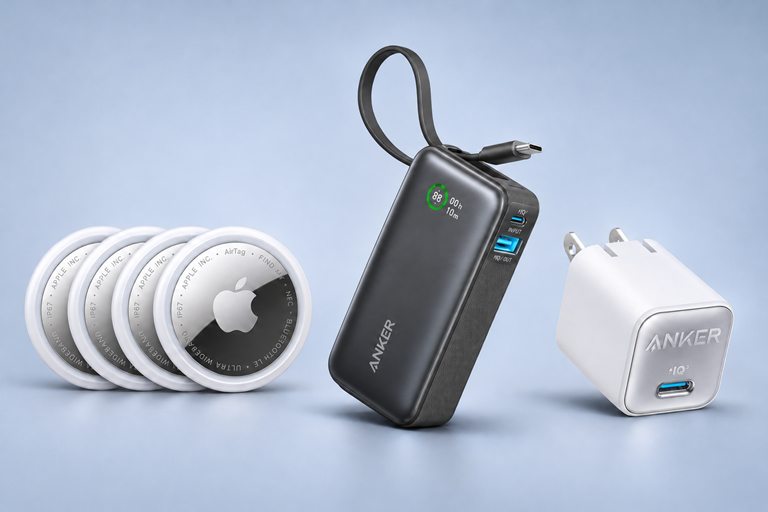
Keep tabs on your luggage, keep your boarding pass handy, and pack a charger that won’t take up much room.


🧳 Apple AirTag (2nd Generation), 4-Pack

Wondering where your suitcase ended up? Slip an AirTag inside before you leave and check its location in Apple’s Find My app. Use the other three for your carry-on, backpack, and keys.

$79.99 · Save 19% · ⭐ 4.6

Shop the AirTag 4-pack on Amazon


🔋 Anker Nano Power Bank with Built-In USB-C Cable

A low battery is the last thing you want when it’s time to pull up your boarding pass. Give your USB-C phone a boost on the go with the cable already built in.

$37.99 · Save 24% ⭐ 4.4

Shop the Anker Nano Power Bank on Amazon


🔌 Anker Nano 30W USB-C Wall Charger

Tuck this compact charger into your carry-on or work bag. When you find an open outlet, plug in for a quick top-up before you board or head to your next appointment.

$12.99 · Save 19% ⭐ 4.8

Shop the Anker Nano 30W Charger on Amazon


*Prices accurate when originally published.

One Cool Tip may earn a commission from qualifying purchases.

Have you tried the Upside app? Everyday cash back on gas, groceries and dining.


Help Support One Cool Tip.


Use this Amazon link when you shop online.

Fuel Your Adventure

Try Big Mike's Jerky!


bigmikesjerky.com


Today's Cool Tip

Google Wallet on iPhone Puts Your Passes in One Place

Google Wallet for iPhone gives you one place to find boarding passes, loyalty cards and package updates that might otherwise be scattered across apps and email.


Start by saving a pass you use often, then decide whether to import eligible tickets, receipts and orders from Gmail.

By Rodger Mansfield, Technology Editor

November 19, 2026

Subscribe


You’re next in line at the gate, and the boarding pass you opened at breakfast is buried in your inbox.


Google Wallet arrived on iPhone in the U.S. on Nov. 17, 2026. 


It can bring in eligible passes, receipts and shipping updates from Gmail, and you can add cards and passes yourself.


Here’s a Cool Tip: Save a membership card in Google Wallet, then connect Gmail if you want eligible passes and orders to show up automatically.


What Google Wallet Does on iPhone


Google Wallet is handy when you need the ticket, barcode or tracking number an email contains. 


With Gmail imports enabled, you can open Wallet to look for a concert ticket or check a delivery without remembering which company sent the message. Automatic imports depend on the merchant or pass issuer. 


You can also scan physical loyalty and gym membership cards with your iPhone camera. 


Google Wallet lets you manage payment cards for online checkout where Google Pay is offered. 


The iPhone app does not support in-store tap-to-pay. 


If you already use Apple Pay at the register, keep using it there.


What You’ll Gain


  • Find a saved boarding pass or event ticket without searching your inbox.
  • Pull up a membership barcode when you reach the front desk.
  • Check orders and shipping updates from supported merchants in one place after connecting Gmail.


Step-by-Step Instructions


Here's how to do it.


iPhone


  1. Download Google Wallet by Google LLC from the App Store. 
  2. Open the app, tap Get Started and use the Google Account where you want to keep your passes.
  3. To connect Gmail during setup, tap "I’m in" when prompted. You can also leave Gmail sync off and add passes manually.
  4. To add a membership or loyalty card, tap the add button at the bottom of Wallet, choose the type of item and follow the prompts to scan the card. 
  5. Open the saved card and check that you can see the barcode.
  6. To save a ticket from a participating issuer, open the ticket in the issuer’s app or on its website. Tap "Add to Google Wallet," follow the prompts and tap View in Wallet to check the saved pass.

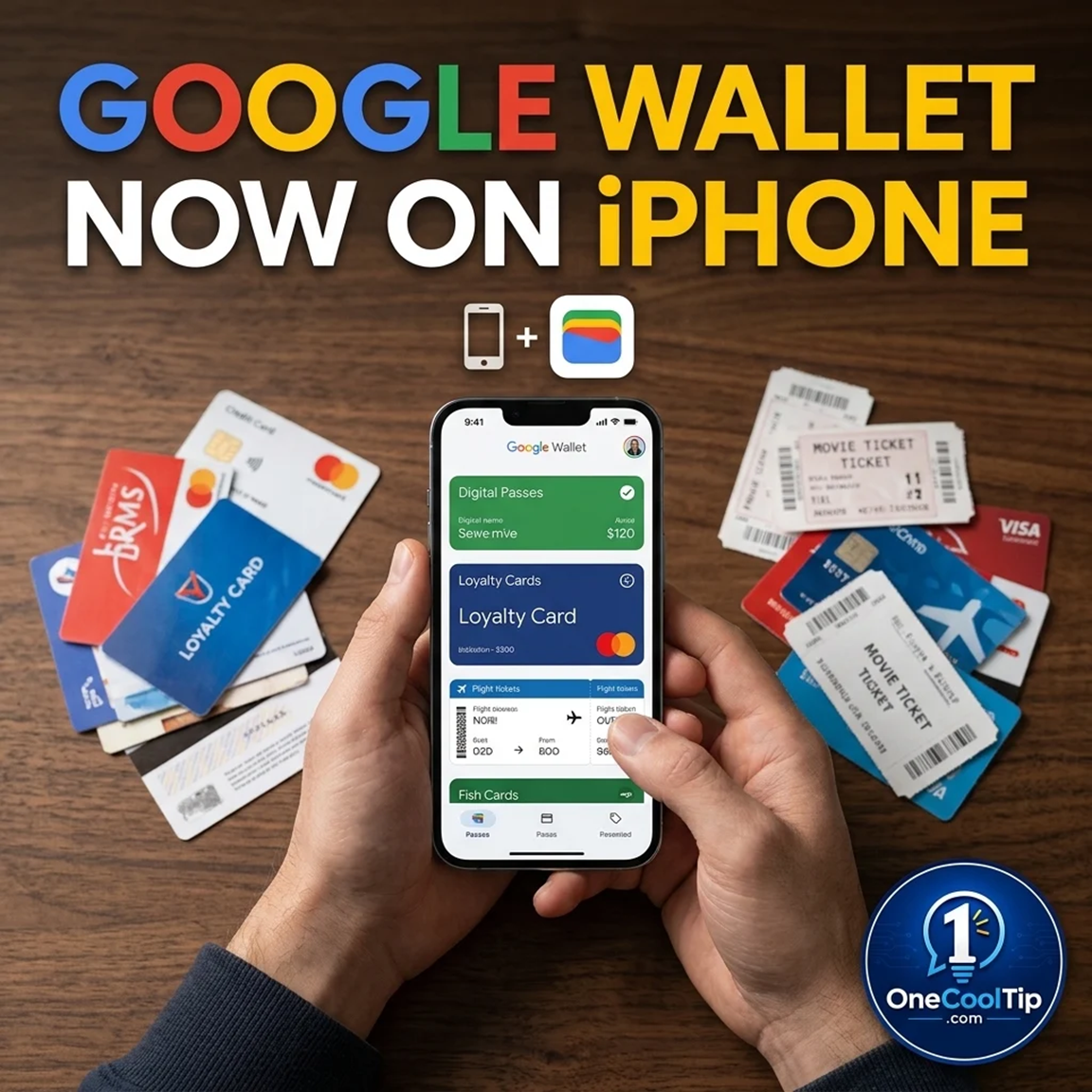
fig. 1 - Google Wallet for iPhone

Cool Tip:


You can access Google Wallet from the web at wallet.google.


Pros and Cons


Pros:


  • Save a loyalty or gym card you already carry.
  • Get to a saved boarding pass or event ticket in a busy line.
  • See receipts and shipping updates from supported merchants together.
  • Add passes manually and decide separately whether to connect Gmail.


Cons:


  • The iPhone app lacks in-store and transit tap-to-pay, and it doesn’t sync with Apple Watch.
  • Automatic imports depend on your Gmail settings and the items Google can recognize.
  • Google Wallet on iPhone does not support digital IDs or supervised child accounts.


Who Should Skip This


If your passes are already easy to find in Apple Wallet and you rarely use Gmail, a second wallet app may add little to your routine. 


If you mainly want to pay at checkout terminals with your iPhone, Apple Pay already handles that with eligible cards.


Real-World Examples


  • Travelers. Save a supported airline’s boarding pass before leaving home. Check the airline’s app for the latest gate and flight information.
  • Small-business owners. If you use personal Gmail for supply orders, check Wallet for delivery updates from supported merchants before heading out for the day.
  • Families. Scan the grocery rewards card you often leave at home, then pull up the barcode at checkout.


Troubleshooting and Limitations


Problem: A boarding pass is missing.


  • Why It Happens: Imports may be off, the pass may be in another inbox or the message may be ineligible.
  • Fix or Workaround: Check the Gmail account and both import settings. Use the issuer’s Add to Google Wallet button if available, or open the original pass.


Problem: An order or tracking update is missing.


  • Why It Happens: Wallet pulls order details from eligible Gmail messages from supported merchants.
  • Fix or Workaround: Open the original confirmation and use the merchant’s tracking link.


Problem: A barcode won’t scan.


  • Why It Happens: The image may be blurry, or the scanner may have trouble reading it from a screen.
  • Fix or Workaround: Rescan the original card in good light. If the saved copy still fails, use the original.


Problem: Tapping the phone at a register doesn’t work.


  • Why It Happens: Google Wallet on iPhone doesn’t support in-store tap-to-pay.
  • Fix or Workaround: Use Apple Pay with an eligible card or pay with a physical card.


Privacy and Data Notes


Connecting Gmail lets Wallet use eligible email details, including passes, receipts and shipping information. 


A pass saved automatically can stay in Wallet after you delete its email. To delete the saved copy, open the pass and tap Remove pass. 


Removing a pass linked to your Google Account can also remove it from your other devices. 


On the Google Wallet website, go to Settings → Data and privacy to control whether Wallet and payments data can personalize your experience across Google. 


Share a ticket barcode only with the person you intend to use it. 


Feature Access


  • Google launched the app for iPhone users in the U.S. on Nov. 17, 2026. 
  • It’s free in the U.S. App Store and requires iOS 17 or later and a valid Google Account. Age requirements apply, and the iPhone app doesn’t support supervised child accounts. 


Score

Criterion | Score (0–10) |  Justification
Value |  8
Saves inbox searches for travelers and frequent online shoppers.
Usability |  8
Adding a pass is straightforward. Automatic Gmail imports take two settings.
Wow Factor |  6
Seeing tickets and deliveries in one app is handy, especially if you use more than one device.
Total: 22/30 | 👍 Good 
Google Wallet earns a Good rating for bringing eligible Gmail orders and passes together on iPhone. Apple Wallet remains useful for iPhone owners who already rely on Apple Pay at the register. 


Key Takeaways


Start with a card you reach for often so you can see how quickly it opens when you need it. 


If you regularly search Gmail for trip details or deliveries, try automatic imports and check which items from your inbox appear in Wallet.


Cool Tip Snapshot


  • Feature Name: Google Wallet for iPhone
  • Platform(s): iPhone with iOS 17 or later, U.S. launch
  • Quick Benefit: Find saved passes and eligible Gmail orders faster
  • Best For: Travelers, loyalty-card users and frequent online shoppers
  • Access Type: Free
  • Difficulty: Easy


Learn More


Google’s iPhone setup guide covers the Gmail sync prompt and explains which features are available in the app. 


Try It Yourself


Save a pass you’ll use this week and tell us in the comments what you picked. 


Subscribe to the free One Cool Tip Newsletter and share this Cool Tip with family, friends and coworkers who always end up searching their inbox at the gate.


READ MORE


Read the Full Cool Tip!

Check Out These Cool Tips & Tricks


  • Start Small: Add a card you already show regularly. Open Google Wallet, tap the add button at the bottom, choose the item type and follow the prompts.


  • Save From Issuers: Save a pass straight from a participating provider. Open the ticket in the issuer’s app or on its website and tap Add to Google Wallet.


  • Check Your Account: Your trip confirmation may have gone to a different inbox. Compare the account shown in Google Wallet with the Gmail address that received the confirmation.


  • Connect Gmail: Bring in eligible passes and receipts automatically. With Gmail smart features for other Google products enabled, open Profile picture → Settings → Manage passes from Gmail in Wallet and turn on Auto save passes & receipts from Gmail.


  • Review Imports: See which items Wallet picked up from your inbox. Open Manage passes from Gmail and tap View all passes from Gmail.


  • Pause Imports: Stop Wallet from automatically adding future passes from Gmail. Open Manage passes from Gmail and turn off Auto save passes & receipts from Gmail.


  • Check Deliveries: Check orders from supported merchants after connecting Gmail. Open Google Wallet and tap View more in the orders area.


  • Remove Old Passes: Clear out a pass you no longer need. Open it, scroll through the pass details and tap Remove pass.


  • Share Selectively: Some issuers allow passes to be shared from Wallet. Open the pass, tap Share if it appears and send it to the intended recipient.


  • Review Personalization: Choose how Wallet data can personalize other Google services. Open the Google Wallet website and review Settings → Data and privacy.

ICYMI - In Case You Missed It ...

One Copilot to Rule Them All: Microsoft Combines Its Apps


Confused by Microsoft's collection of similarly named Copilot apps? Microsoft is consolidating its Copilot experiences into one updated app that can handle personal, work, and school accounts and, for eligible users, create Word documents, Excel workbooks, and PowerPoint presentations.


Read the Full Version.


Read the Newsletter Version.

Looking for your next adventure?


Call Denise at Travel For You.

314.660.3039


Sign Up for the Monthly Newsletter


http://www.travelforyouvacations.com/


https://www.facebook.com/TRAVEL.FOR.U/


See You Tomorrow

Tomorrow's Cool Tip is waiting to amaze you.


Until then, go forth and conquer the tech world with your newfound knowledge!


Be sure to visit www.OneCoolTip.com for Cool Tech Tips for a Cooler Life!


And if you like One Cool Tip, please support with TipJar!


Enjoy!


Rodger

Chief Cool Tipper

onecooltip.com@gmail.com


What Do You Think?

What do you think of today's One Cool Tip Newsletter?
Positive        Neutral        Negative
X Share This Email
LinkedIn Share This Email

Connect with One Cool Tip!

Facebook  X  Instagram  Web  Pinterest  YouTube  LinkedIn
 

As an Amazon Associate, One Cool Tip may earn a small commission from qualifying purchases.


Our media content is intended solely for informational purposes. Please do not construe anything here as legal, tax, investment, financial, marital or other advice.


Copyright © 2026 | www.OneCoolTip.com | All Rights Reserved