|
One Cool Tip Newsletter
November 3, 2025
| Your daily dose of tech-savvy brilliance! | |
😀Greetings!, Happy Back-to-Work Monday, Cool Tipper!
Get ready to streamline your digital life with simple, actionable tips delivered straight to your inbox.
Today's Cool Tip Theme: Edit Chart Labels in Excel for the Web
IN THIS ISSUE
- ⚠️ Scam Warning: Medicare Open Enrollment.
- 🔝 Top Cool Tips.
- 🤖 AI Productivity Prompt.
- 🖼️ Cool Fall ChatGPT AI Prompt.
- 🖱️ Edit Data Label Text.
- 📥 Export CSV Files from Excel.
- 🚀 Boost Excel Performance.
- 📝 Master Line Breaks and Bullets.
New here? Subscribe to the One Cool Tip Newsletter for daily updates. It's FREE!
-
😂 Laugh with Us! Enjoy our Tech Joke of the Day, Haiku and Cool Tip Comics.
-
🌐 Stay Informed! Check out ICYMI, and our One Cool Tip Video.
🔔 Is your email provider (Gmail, Yahoo, Outlook...) not delivering the newsletter?
Check the Junk folder - Move the newsletter to your Inbox. And reply to this email with a “Hey, Rodger” or “I got it.” That tells your mail service you want this newsletter!
Today's Tech Trivia
Answer at the end of this newsletter.
| |
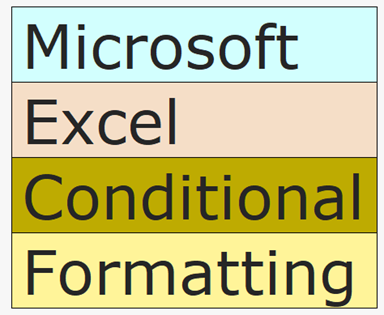
| Which Excel feature allows users to quickly format data in cells based on criteria? | | | | |
3️⃣
If you enjoy the One Cool Tip newsletter, please forward this newsletter to THREE friends or colleagues or share it on social media using the links below.
Leave a Tip!
Share this One Cool Tip Newsletter!
| |
🚨Stay Scam-Smart During Medicare Open Enrollment🚨
Scammers ramp up activity during Medicare Open Enrollment, often posing as government reps or insurance agents.
Never click on unsolicited links, share your Medicare ID, or respond to pressure tactics via phone, email, or text.
Fraudsters may spoof caller IDs to look official, offer fake discounts, or threaten loss of coverage to trick you into giving up personal data.
Use official Medicare.gov tools to compare plans, and verify any outreach by calling 1-800-MEDICARE directly.
And in Other News...
- Top Cool Tips in October 2025
| | |
🚀 Make It a Great Week!
Copy/Paste this AI-powered prompt. Use with your favorite assistant: Gemini, Copilot, Grok, DuckAI, Meta and ChatGPT
“Act as my productivity coach. Before planning my Monday, ask me these five questions first:
1️⃣ What are the top 3 things I want to accomplish today?
2️⃣ What’s one task I’ve been avoiding but should finish first?
3️⃣ What meetings or commitments do I already have scheduled?
4️⃣ When during the day do I usually have the most energy?
5️⃣ What small task could I finish in 10 minutes to build momentum?
After I answer, create a clear, focused Monday plan with:
- Three priority goals
- The first task I should do right now
- A short 10-minute quick win
- A simple timeline to stay on track.”
| | | |
🖼️ Cool ChatGPT AI Prompt of the Day
Use this ChatGPT prompt to create a Halloween image!
“Create an artistic fall-themed image that captures the beauty and coziness of autumn.
- Include warm tones like burnt orange, gold, and deep red.
- Show falling leaves, soft sunlight, and subtle motion in the scene.
- Add one element that gives it personality such as a mug of coffee, a laptop on a park bench, or an open book in the leaves.
- Style it like a professional photo or digital painting (you choose).
- Make it calming, detailed, and visually rich enough to use as a background or seasonal post.”
💡 Pro Tip: Try changing the last line to explore styles, “Make it look like watercolor art,” or “Render it as a cozy Pixar-style digital painting.”
| | |
How to Instantly Edit Data Label Text in Excel for the Web
Now you can edit chart data labels directly in Excel for the web with no desktop detour required. This crucial update makes your visual storytelling faster, cleaner, and more intuitive.
How often have you found yourself squinting at an Excel chart, trying to extract relevant details from a jumble of garishly colored bars or columns?
You’re not alone.
Here's a Cool Tip: Edit Label Text in Excel for the Web.
Until recently, editing data labels in Excel for the web meant switching platforms or settling for generic values.
But now, Microsoft has quietly rolled out a deceptively powerful update that lets you edit data label text directly in the browser.
No downloads or workarounds.
Just clean, contextual labeling, right where you need it.
Feature Explanation
Excel’s recent update introduces direct editing of chart data labels in Excel for the web.
Previously reserved for desktop users, this feature lets you click into a chart label and customize the text whether you're clarifying a data point, adding commentary, or simplifying clutter.
It’s a small change with outsized impact, especially for business users, educators, and anyone who builds dashboards or reports collaboratively.
This isn’t just about aesthetics.
It’s about control.
You decide what your audience sees, and how they interpret it.
What You'll Gain
- Tailor chart labels to highlight key insights.
- Reduce visual clutter and improve readability.
- Save time by skipping desktop edits.
Step-by-Step Instructions
Here's how to do it.
Excel for Web/Desktop
-
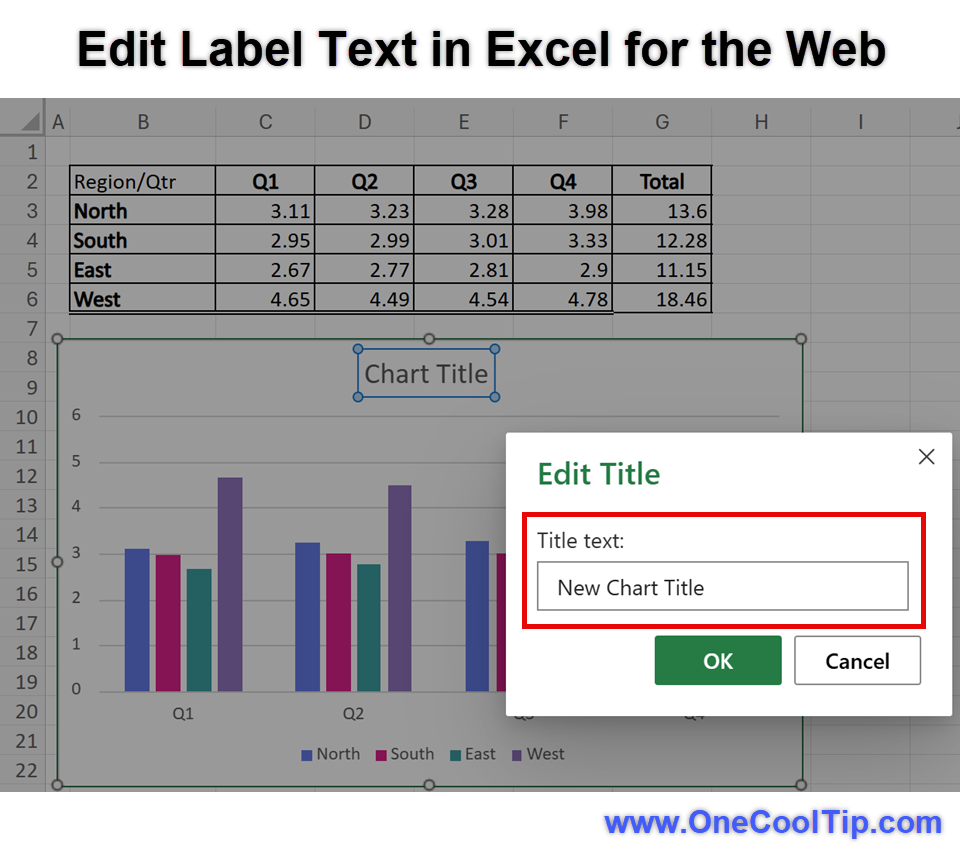
Open your Excel workbook in the browser, excel.cloud.microsoft/.
- Insert or select a chart.
- Click on a label text within the chart.
- Type directly into the label to customize the text.
- Press Enter to save your changes.
| | fig. 1 - Edit Label Text in Excel for the Web | | |
iOS / Android
-
Currently, direct label editing is only available in Excel for the web and desktop. Mobile users (iOS / Android) can view labels but must switch to a browser or desktop to edit.
Pros and Cons
Pros
- No need to switch to desktop Excel.
- Enables real-time collaboration with custom labels.
- Great for presentations, dashboards, and reports.
Cons
- Not yet available on mobile.
- Manual edits may override dynamic values, requiring caution in live data scenarios.
- Limited formatting options compared to full desktop Excel.
Configuration Guide
- No setup required.
- The feature is enabled by default in Excel for the web. Just click into a chart label and start typing.
- For advanced formatting, use the Chart Tools ribbon to adjust font, position, and alignment.
Feature Access
- Available to all Excel for the web users, including free and Microsoft 365 subscribers.
- No special subscription or beta enrollment required.
- Desktop users have had this for years and web users now get parity.
Score
Criterion | Score | Justification
Value: 9/10
Solves a real pain point for web users who rely on Excel for reporting and collaboration.
Usability: 10/10
No setup, no training. Just click and type.
Wow Factor: 8/10
It’s subtle, but the impact on clarity and workflow is surprisingly delightful.
Total Score: 27/30 🌟 Excellent.
Highly recommended for immediate use.
Key Takeaways
You can now edit chart data labels directly in Excel for the web—no desktop detour needed.
This update streamlines collaboration, improves clarity, and saves time for anyone who builds charts in the browser.
Try It Yourself
Try it yourself today.
Open Excel in your browser and tweak a chart label.
Then share this tip with your team, family and friends, and let us know how it helps your workflow.
READ MORE
Read the Full Cool Tip
| | |
Help support One Cool Tip. Use this Amazon link when you shop online.
Look at these Cool Products:
|
-
🖱 Logitech MX Master 3S Mouse: Boosts Excel efficiency with customizable buttons and smooth precision tracking. Save 5% $95.25 Check it out on Amazon!
-
⌨️ Logitech MX Keys S Keyboard: Smart backlighting and fluid typing ideal for long Excel sessions. $129.99 Check it out on Amazon!
-
💻 Dell 27-inch 4K Monitor: Crisp, large workspace perfect for managing complex spreadsheets. Save 20% $239 Check it out on Amazon!
-
🎧 Sony WH-1000XM5 Headphones: Focus better on charts and reports with industry-leading noise cancellation. Save 18% $328 Check it out on Amazon!
-
🔋 Anker PowerConf C200 Webcam: Crystal-clear video when sharing charts in Teams or Excel Live. Save 17% $49.99 Check it out on Amazon!
Prices accurate at time of publication
| | |
🆒Tell Me More
- Excel for the web now supports direct label editing.
- Labels can be customized to show commentary, thresholds, or simplified values.
- This feature is ideal for dashboards, presentations, and collaborative reports.
- It’s available to all users, including free-tier and Microsoft 365 subscribers.
- Mobile users can view labels but must switch to web or desktop to edit.
⏩Quick Tips
-
✏️ Click to Edit: Just click a data label in your chart and type your custom text.
-
🧹 Reduce Clutter: Use fewer labels to emphasize key data points.
-
🎨 Style Smart: Use the Chart Tools ribbon to adjust font and placement.
-
🔍 Preview Changes: Hover over labels to see how edits affect readability.
-
📊 Use Context: Add commentary like “Promo spike” or “Target met” to clarify trends.
| | ✅ More Must-Read Tech Tips | |
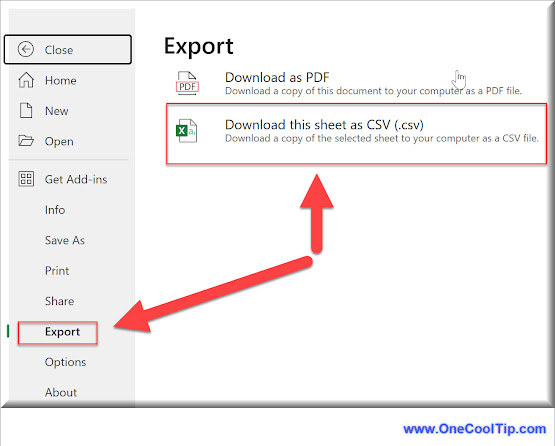
👀 How Do I Export CSV Files from Excel for the Web?
Have you ever found yourself struggling with data transfer between different software?
Here's a Cool Tip. You can now export to CSV format from Excel for the web.
Excel for the web, formerly known as Excel Web App, is a part of Microsoft 365 that allows you to use Excel in a web browser.
It enables users to create, view, and edit workbooks stored online, collaborate with others in real-time, and access spreadsheets from anywhere.
Here's how to do it.
-
Open a spreadsheet in Excel for the web.
-
Navigate to the ‘File’ tab within and select ‘Export’.
-
Choose ‘Download this sheet as CSV’ from the dropdown menu.
-
Save the file to your desired location.
Exporting to CSV in Excel is a straightforward process that enhances data portability and collaboration.
Discover more HERE.
| |
🤔 Have You Ever Wondered How to Boost Excel Performance?
Is Your Excel Workbook Feeling Sluggish?
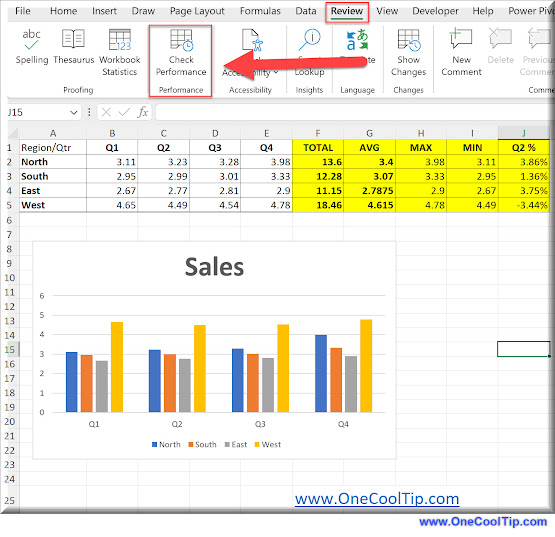
“Check Performance” is Excel’s secret weapon against workbook bloat. It identifies and eliminates unnecessary formatted cells, streamlining your file and making it more responsive.
Here's how to do it.
-
Open Excel (make sure you’re using Excel for the Web or Excel for Windows).
-
Open the workbook that’s been giving you grief.
-
Select Review> Check Performance.
- If your workbook contains size bloat, Excel will kindly notify you with a business bar.
- Click on the “Check Performance” button. It’s your ticket to a leaner, meaner workbook.
- As you optimize, watch your workbook transform. Those pesky formatted cells vanish, and your file size shrinks.
Say goodbye to unnecessarily bloated files with Check Performance.
Use it regularly to keep your workbooks in top shape.
Find more HERE.
| | |
🙋♂️ Here's How to Master Line Breaks and Bullets for Cleaner Spreadsheets.
Have you ever wished your Excel cells could be a bit more like Word documents?
Line breaks and bullets make complex information easier to digest.
Here's how to do it.
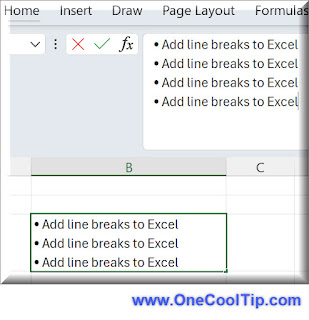
Adding Line Breaks
-
Enter the cell where you want to insert a line break.
-
Click where you want the break to occur.
-
Press Alt+Enter: This magical shortcut inserts a line break, moving the rest of your text to the next line within the cell.
-
Alt+Enter creates a "soft return" (within the cell) as opposed to Enter, which moves to the next cell.
Adding Bullets
There are a few ways to add bullets:
The Symbol Menu:
-
Place your cursor where you want the bullet.
-
Go to the "Insert" tab, then click "Symbol."
-
In the character code box, type "2022" or "159".
The Symbol Menu - Wingdings:
-
Go to the "Insert" tab, then click "Symbol."
-
In the "Font" dropdown, choose a font like "Wingdings" or "Symbol."
-
Find the bullet symbol you like and click "Insert."
Keyboard Shortcut
-
If you have a numeric keypad on the right side of your keyboard, press ALT+7 for a bullet.
Copy and Paste:
-
Copy a bullet (•) from another source (e.g., Word) and paste it into your cell.
To make sure your line breaks and bullets are visible, you'll need to enable text wrapping:
-
Right-click the cell.
-
Choose "Format Cells."
-
In the "Alignment" tab, check the box for "Wrap Text".
By mastering line breaks and bullets in Excel, you unlock a simple yet powerful way to organize information, enhance readability, and add a touch of professionalism to your spreadsheets.
Learn more HERE.
| | |
❓Did you share this newsletter with three friends yet?
😎 Cool Facts
-
450: Excel supports over 450 built-in functions, including chart-specific ones. Source.
-
100: You can undo up to 100 actions in Excel, including chart edits. Source.
-
1987: Excel charts were first introduced in Excel 2.0 in 1987, revolutionizing data visualization. Source.
⌨️Today's Cool Keyboard Shortcuts
Check out these Cool Excel shortcuts:
-
Alt + F1 (Windows): Instantly insert a default chart from selected data.
-
Ctrl + 1: Open Format Chart Area pane for customization.
-
Ctrl + Shift + Arrow Keys: Select specific data series in a chart.
-
Ctrl + Enter: Apply chart edits and return to worksheet view.
😜 Tech Joke of the Day 😅
What’s Excel’s favorite pickup line?
“You auto-fill my heart.”
🔎 Do you have a Cool Tip or tech question? Email us at onecooltip.com@gmail.com.
| | |
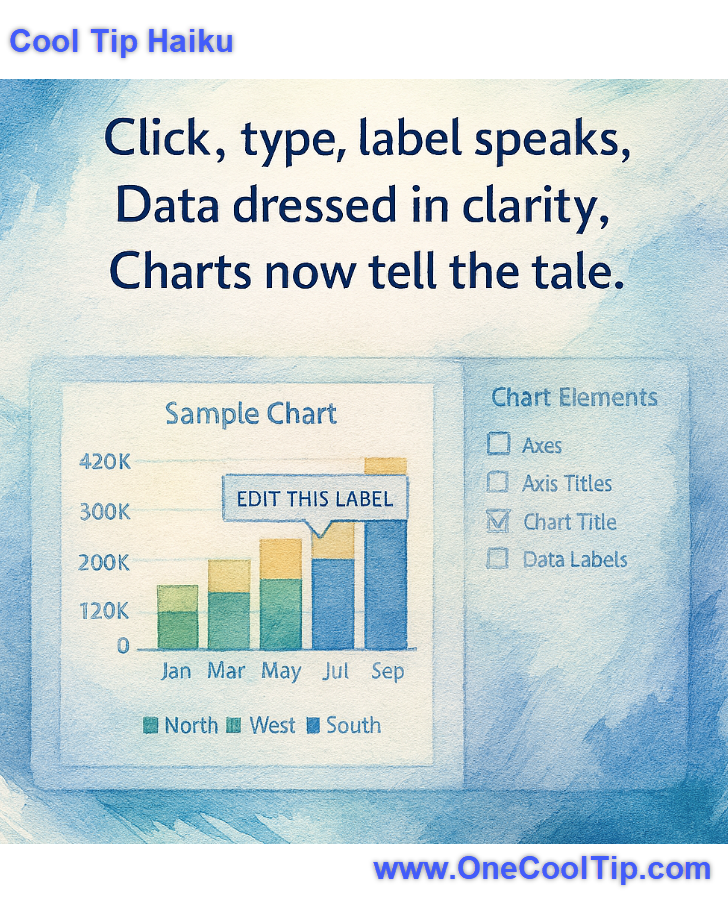
Click, type, label speaks,
Data dressed in clarity,
Charts now tell the tale.
| |
| 🤔 Poll: How do you usually customize your Excel charts? | | | |
Did You See These Cool Tips This Week?
| | | | Threads Ghost Posts: Share Boldly, Then Watch Them Vanish | Threads introduces “Ghost Posts,” a new disappearing post option that auto-archives after 24 hours, giving users freedom to share unfiltered ideas without long-term visibility. | | | | Shared Projects in ChatGPT: Turn AI Into a Team Workspace | Shared Projects lets teams organize AI work into dedicated spaces with files, instructions, and chat history, now with true collaboration so multiple people contribute context and keep deliverables consistent. | |
ICYMI - In Case You Missed It ...
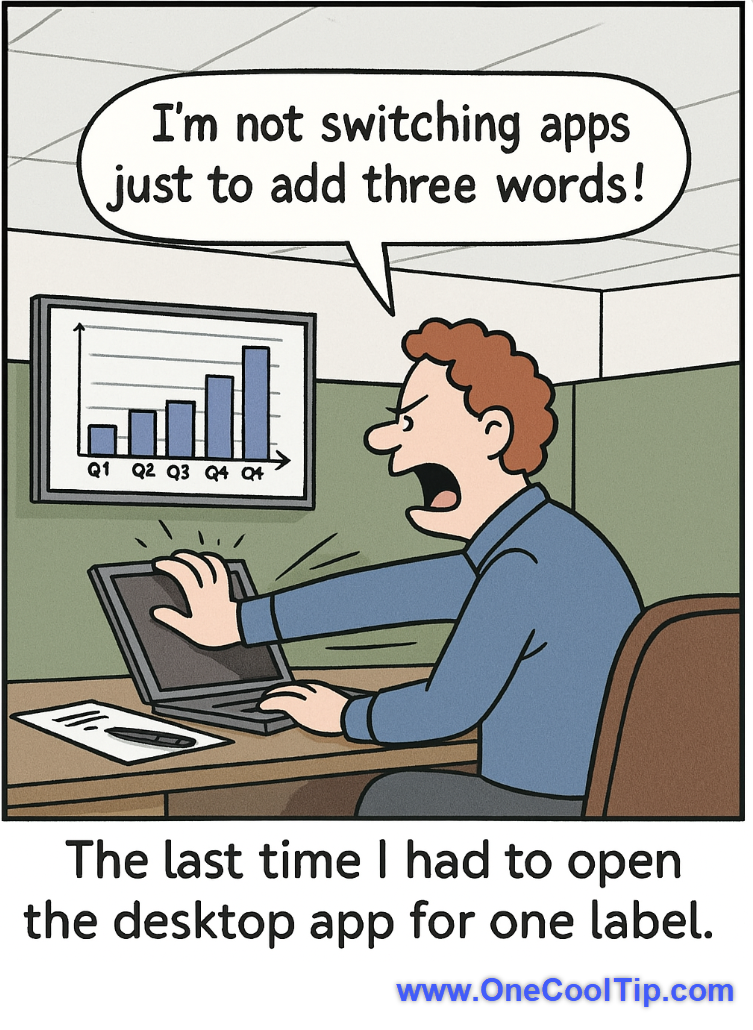
| | | | Koalas to the Max: The Internet’s Most Addictive Pixel Puzzle | A simple interactive site transforms circles into hidden pictures with just your mouse. Koalas to the Max is more than play. It’s a fascinating exercise in patience, discovery, and focus. | | When your chart says 'Q4' but your soul says 'No more apps today.' | | |
Trivia Answer: C) Conditional Formatting
Conditional Formatting, which was significantly enhanced in Excel 2007, allows users to apply specific formatting (like color scales, icon sets, or data bars) to a cell or range of cells only when certain conditions are met.
Before its introduction, users had to rely on manual, static formatting, which made identifying outliers, top performers, or critical thresholds in large datasets cumbersome and prone to error.
Conditional Formatting is fundamental to modern data visualization in Excel, offering a dynamic way to highlight the story within the data, which is often crucial before you even start building a chart.
----------
Tomorrow's Cool Tip is waiting to amaze you.
Until then, go forth and conquer the tech world with your newfound knowledge!
Be sure to visit www.OneCoolTip.com for Cool Tech Tips for a Cooler Life!
And if you Like One Cool Tip, please support with TipJar!
Enjoy!
Rodger
Chief Cool Tipper
onecooltip.com@gmail.com
| |
| What do you think of today's OneCoolTip newsletter? | | | |
Please Share the One Cool Tip Newsletter!
You asked for it. You got it. There is now a One Cool Tip Newsletter archive. Did you delete a newsletter and want to read it again? Check it out HERE.
Want to help One Cool Tip grow? Please forward this email using the link above. And if you see an OCT social media post, please LIKE, COMMENT and SHARE!
Have you subscribed to the One Cool Tip YouTube channel? Subscribe HERE.
| | Connect with One Cool Tip!! | | |
|
As an Amazon Associate, One Cool Tip may earn a small commission from qualifying purchases.
Our media content is intended solely for informational purposes only. Please do not construe anything here as legal, tax, investment, financial, marital or other advice.
Copyright © 2025 | www.OneCoolTip.com | All Rights Reserved
|
| | | |