One Cool Tip Newsletter

September 13, 2026

Your daily dose of tech-savvy brilliance!

😀Greetings! Happy Sunday, Cool Tipper!


Get ready to streamline your digital life with simple, actionable tips delivered straight to your inbox.


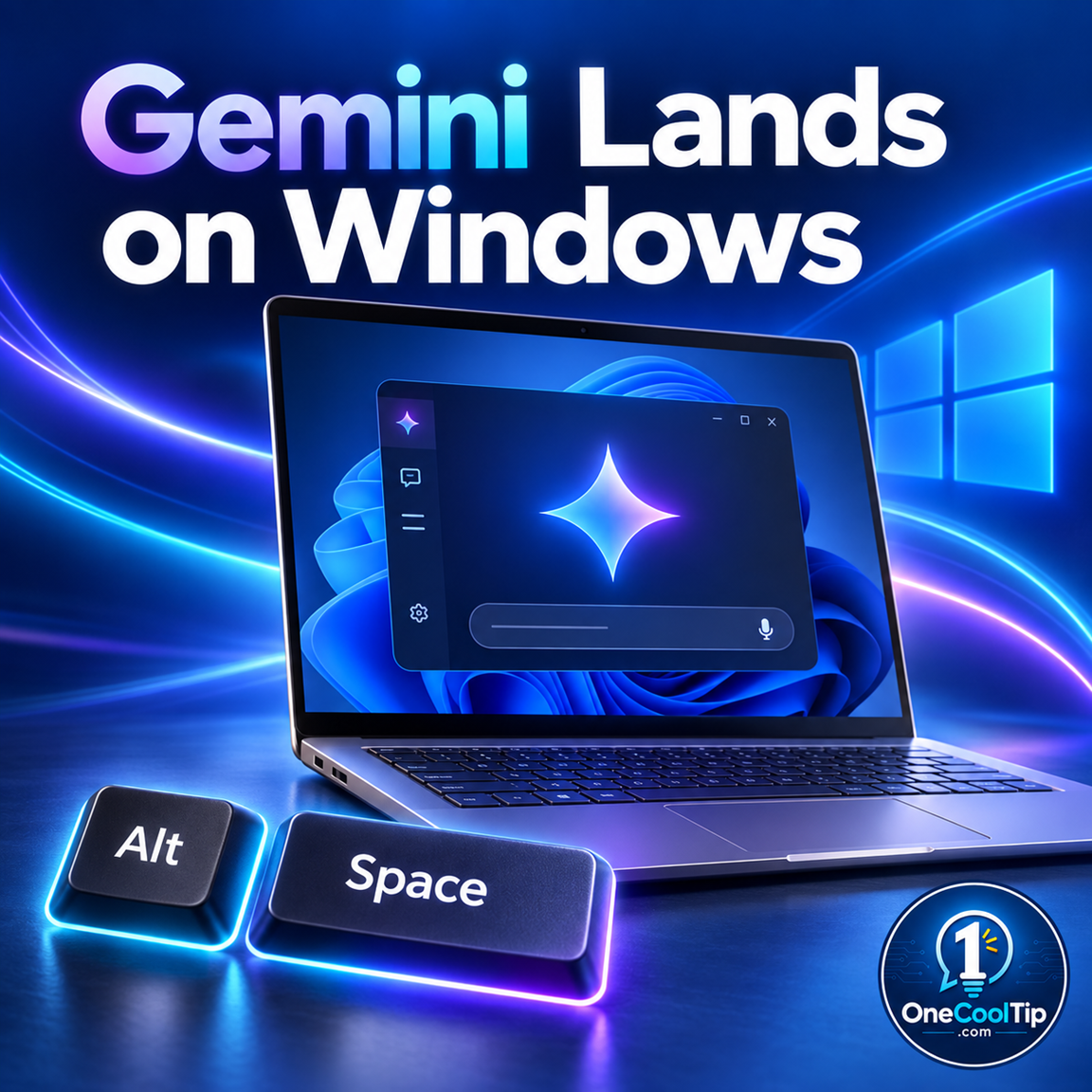
Cool Tip Theme: Gemini Desktop App for Windows.


Google launched the official Gemini desktop app for Windows 10 and 11. Learn how to install it, use the keyboard shortcut, and link Workspace tools.


New here? Subscribe to the One Cool Tip Newsletter for daily updates. It's FREE!

3️⃣

If you enjoy the One Cool Tip newsletter, please forward this newsletter to THREE friends or colleagues or share it on social media using the links below.


Leave a $$$ Tip!


Share this One Cool Tip Newsletter!

X Share This Email
LinkedIn Share This Email
Pinterest Share This Email

🚨The Invoice Looks Real. That's the Problem.🚨


Cybercriminals are using AI to create increasingly convincing invoice scams that appear to come from CEOs, company executives, or trusted vendors.


According to Microsoft, a recent campaign sent more than a million fraudulent emails that combined executive impersonation, fake invoices, and fabricated email conversations to pressure employees into making large payments.


The lesson for consumers and small businesses is simple: never rely on an email alone when money is involved.


If you receive an unexpected invoice, payment request, or change in payment instructions, verify it through a known phone number or another trusted communication channel.


Be especially cautious when messages create urgency or claim to have executive approval already in place.


AI is helping scammers create more professional-looking messages, but a quick verification call can still stop a costly mistake.


When it comes to payments, "trust but verify" has never been more important.


And in Other News...


  • Should AI Slow Down Before It Speeds Up?


As artificial intelligence becomes more powerful, some industry leaders are arguing that safety needs to keep pace with innovation.


In a recent essay, Dario Amodei, CEO of Anthropic, suggested that AI companies should advance new AI capabilities more carefully so researchers have time to better understand risks, improve safeguards, and strengthen oversight.


He argues that AI could bring enormous benefits, from medical breakthroughs to economic growth, but also creates risks if systems become more capable faster than people can manage them.


The key takeaway is that the future of AI is not just about making tools smarter.


It is also about making them safer, more transparent, and more reliable.


As AI becomes part of everyday life, expect to see growing discussions about testing, accountability, and responsible development.


The goal is not to stop progress, but to ensure that innovation and safety move forward together.

Cool Tip Poll

🤔 How do you plan to use the new Google Gemini app for Windows?

Cool Deals of the Day

Help support One Cool Tip. Use this Amazon link when you shop online.


Check out these Cool Deals:

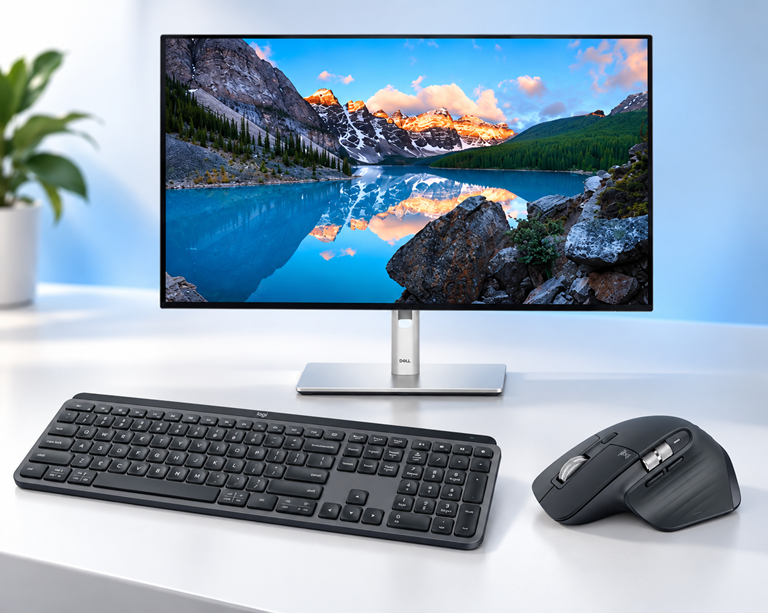
⌨️ Logitech MX Keys S Wireless Keyboard: A premium low-profile productivity keyboard with dedicated programmable keys that make triggering Windows shortcuts effortless.

Save 8%. Now $119.99. 4.4 Stars. Check it out on Amazon!


🖱️ Logitech MX Master 3S Wireless Mouse: An ergonomic mouse equipped with customizable gesture buttons that allow you to launch desktop utilities with a single click.

Save 10%. Now $89.99. 4.5 Stars. Check it out on Amazon!


🖥️ Dell UltraSharp U2724D 27-Inch Monitor: A sharp QHD productivity screen with abundant screen real estate for keeping reference windows and floating AI tools organized.

Look👉 Now $359.95. 4.5 Stars. Check it out on Amazon!


*Prices accurate when originally published.

One Cool Tip may earn a commission from qualifying purchases.

Fuel Your Adventure

Try Big Mike's Jerky!


bigmikesjerky.com


Now on TikTok!


Today's Cool Tip

Put Google Gemini on Your Windows Desktop in Seconds


Google released a native desktop application for Windows, bringing AI assistance straight to your PC through a quick keyboard shortcut. Here is how to install the app, summon it over your open windows, and pull data from your Google Workspace files without switching browser tabs.


Switching back and forth between browser tabs just to query an artificial intelligence assistant breaks your concentration. 


Whether you need to rewrite a paragraph, calculate a quick formula, or pull information from an old email, opening a dedicated browser window pulls your attention away from your active work.


Here’s a Cool Tip: Install the new Gemini App for Windows. 


Google addressed this friction by releasing the official Gemini app for Windows. 


Instead of hunting down a pinned browser tab, you can now press a quick shortcut to pop open a lightweight assistant directly over any open software.


Feature Explanation


The Gemini desktop app for Windows brings Google's conversational artificial intelligence model directly into Windows 10 and Windows 11 environments. 


Rather than existing purely inside Chrome or another web browser, the application runs as a native desktop utility that docks in your system tray and taskbar.


The primary advantage is instant availability. 


Tapping the global shortcut opens a floating companion window above whatever program you are currently using. From this panel, you can type questions, upload files, draft copy, or generate code.


It also connects with Google Workspace extensions. 


If you grant permission, the Windows app can pull information directly from your personal or work Gmail, Google Drive, and Google Docs accounts without making you visit those web portals individually.


What You’ll Gain


  • Save time by summoning assistance over any program with a quick keystroke.
  • Reduce confusion by pulling facts from Gmail and Drive without opening extra browser tabs.
  • Improve multitasking by drafting content while keeping your active software visible.


Step-by-Step Instructions


Windows:


  1. Open your web browser, navigate to gemini.google/desktop, and click Download for Windows.
  2. Double-click the downloaded GeminiSetup.exe file in your Downloads folder and follow the on-screen installation prompts.
  3. Launch the app from the Windows Start menu or Taskbar, then click Sign in to log in with your personal Google account or approved Google Workspace account.
  4. Press Alt + Space on your keyboard to test the floating overlay.
  5. Type your prompt, question, or drafting request into the bar and press Enter.


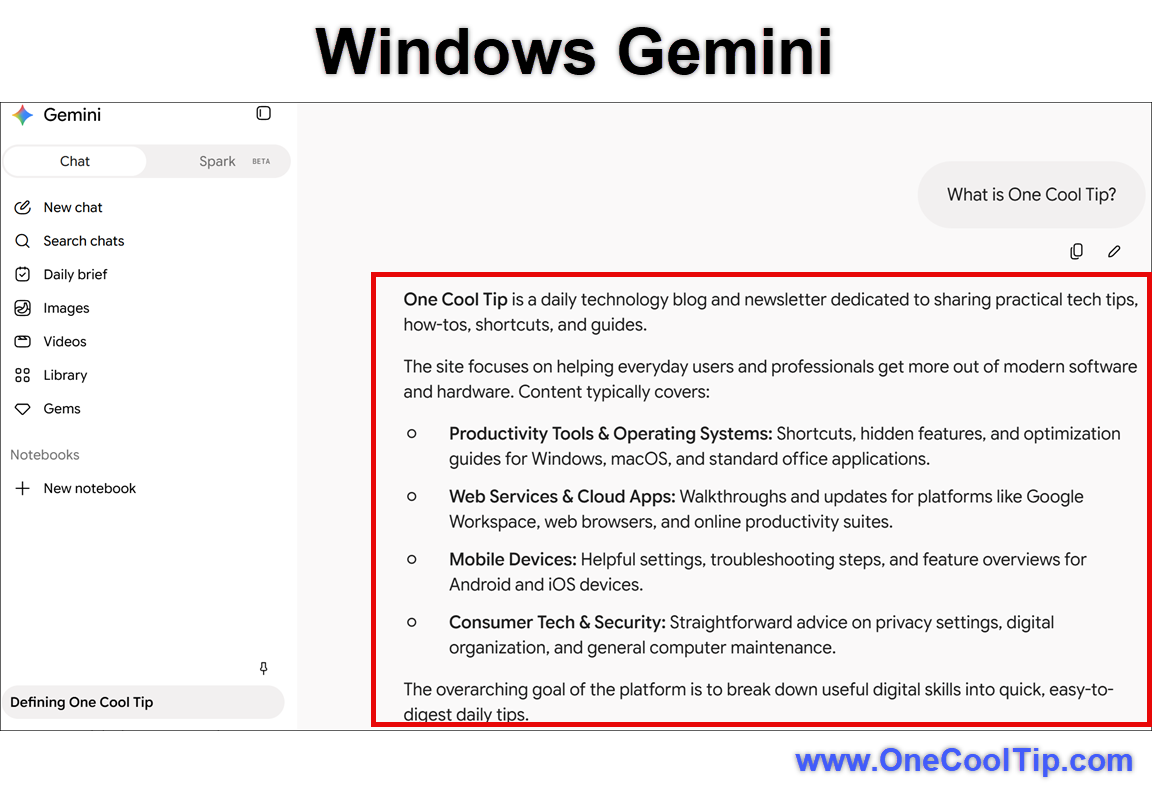
fig. 1 - Windows Gemini Screenshot

Cool Example:


Suppose you are drafting an invoice in Excel and need to confirm project dates mentioned in an email thread. 


Press Alt + Space, type "Summarize the project timeline agreed upon in my recent emails with Sarah," and review the extracted milestones directly in the overlay before closing it to continue your spreadsheet work.


macOS:


  1. For Mac users, Google provides an Apple Silicon app requiring macOS Sequoia (15.0) or later, summonable with Option + Space.
  2. Download the app from gemini.google/desktop/


Pros and Cons


Pros:


  • Rapid keyboard access reduces the friction of opening web tabs.
  • Clean integration with Gmail, Google Drive, and Google Docs.
  • Runs on both standard x64 and ARM64 Windows hardware.
  • Floats conveniently over existing software without stealing full-screen focus.


Cons:


  • Requires an active internet connection to process queries.
  • Default Alt + Space shortcut can conflict with third-party launcher tools like PowerToys Run or default Windows system menus.
  • Google Workspace business access depends on administrative approval.


Feature Access


  • Availability: Launched September 11, 2026.
  • Supported OS: Windows 10 and Windows 11 (64-bit and ARM64 architectures)
  • Account Types: Personal Google accounts, Workspace Individual accounts, and Google Workspace commercial accounts.
  • Subscription Requirements: Core desktop access is free; advanced reasoning tiers require appropriate Google AI plans.


Score

Criterion | Score (0–10) |  Justification
Value |  8
Removing browser context switching significantly speeds up daily research and drafting tasks.
Usability |  9
The global hotkey is immediately responsive, and the interface remains clean and unobtrusive.
Wow Factor |  7
It is a straightforward desktop port of an existing tool rather than an entirely new capability.
Total: 24/30 |  👍 Good
The Gemini app for Windows brings welcome convenience to desktop productivity, matching similar standalone AI wrappers from competitors.


Key Takeaways


The native Windows app keeps your AI interactions fast and accessible without cluttering your browser bar. 


With the Alt + Space shortcut, you can query documents, draft text, and analyze files from any active screen. Linking your Google Workspace services allows you to pull project information instantly while keeping your focus where it belongs.


Cool Tip Snapshot


  • Feature Name: Gemini Desktop App for Windows.
  • Platform(s): Windows 10, Windows 11.
  • Quick Benefit: Instant AI assistance over any active window via keyboard shortcut.
  • Best For: Multitaskers, researchers, and frequent Google Workspace users.
  • Access Type: Free (General availability).
  • Difficulty: Easy.


Try It Yourself


Download the Gemini desktop app today and see how much time the Alt + Space hotkey saves you during your work routine. 


Did you find it smoother than using the browser version? 


Let us know in the comments below, share this tip with family, friends, and coworkers, and remember to subscribe to the One Cool Tip newsletter for practical tech advice delivered straight to your inbox.


READ MORE


Read the Full Cool Tip.

Check Out These Cool Tips & Tricks


  • Change Shortcuts: Swap out the default activation key if you use other system tools. Open Gemini Settings, select Shortcuts, and assign a custom key combination.


  • Summarize Emails: Find project details across your message archives without visiting a browser. Type @Gmail inside the prompt window followed by the subject you want summarized.


  • Scan Documents: Query contents stored on Google Drive while writing reports locally. Mention @Google Drive in your search prompt alongside your specific research inquiry.


  • System Tray Docking: Keep the app operating in the background for instant retrieval. Check the system tray icon to ensure background execution remains active.


  • Quick Dismissal: Clear the floating assistant off your screen instantly when finished. Hit the Escape key to hide the overlay without closing your background apps.


  • Code Debugging: Troubleshoot scripts without leaving your code editor. Paste your code snippet directly into the overlay and ask for an error explanation.


  • Image Analysis: Review diagrams and charts during presentations. Drag and drop any image file directly onto the Gemini overlay prompt field.


  • Draft Outlines: Structure talking points before team meetings. Ask the assistant to generate bulleted agenda points directly from the floating window.


  • Launch on Startup: Ensure the hotkey is always available immediately after booting your PC. Right-click the system tray icon and enable the option to run at Windows startup.


  • Review History: Pick up conversations you started earlier on your phone. Click the history icon inside the desktop window to access your previous prompt logs.

ICYMI - In Case You Missed It ...

Play Thousands of Classic Games in Your Web Browser


ArcadeSpace.org lets you explore thousands of classic video games through a browser-based emulator, without downloading separate emulation software. Search for an old favorite, start playing, and rediscover an earlier generation of game design.


Read the Full Version.


Read the Newsletter Version.

Looking for your next adventure?


Call Denise at Travel For You.

314.660.3039


Sign Up for the Monthly Newsletter


http://www.travelforyouvacations.com/


https://www.facebook.com/TRAVEL.FOR.U/


See You Tomorrow

Tomorrow's Cool Tip is waiting to amaze you.


Until then, go forth and conquer the tech world with your newfound knowledge!


Be sure to visit www.OneCoolTip.com for Cool Tech Tips for a Cooler Life!


And if you Like One Cool Tip, please support with TipJar!


Enjoy!


Rodger

Chief Cool Tipper

onecooltip.com@gmail.com


What Do You Think?

What do you think of today's OneCoolTip newsletter?
Positive        Neutral        Negative
X Share This Email
LinkedIn Share This Email

Connect with One Cool Tip!

Facebook  X  Instagram  Web  Pinterest  YouTube  LinkedIn
 

As an Amazon Associate, One Cool Tip may earn a small commission from qualifying purchases.


Our media content is intended solely for informational purposes. Please do not construe anything here as legal, tax, investment, financial, marital or other advice.


Copyright © 2026 | www.OneCoolTip.com | All Rights Reserved